

18 best AI productivity tools I can't live without in 2026

I still remember sitting in the New York City Public Library on a freezing cold day in December 2022.
This new thing called ChatGPT had just launched a few days ago, and I spent all afternoon having a conversation with it.
It felt like Cleverbot (anyone remember that), but with much more intelligence. And I had no idea it would kick off an entire wave of AI productivity tools that would change how we all work.
A year after ChatGPT came out, AI was everywhere. It became the poster child of the tech industry, and it was here to take your job.
I'll admit, I was scared. One moment I'd think that "no, I'm better than this LLM thing, it can't do my job like I do." And then the next moment, some frontier AI lab would launch a new model and it would send me into a spiral again.
"Dang, maybe this thing is actually better than me at my job."
But something shifted for me early 2025.
I realized that AI has the potential to do (some of) my work better than me, but its intelligence is unfocused.
AI is an amplifier. If your work was already average, it will help you do more of that average stuff.
But if you have deep knowledge of how something should be done, and you can articulate it well, AI is your superpowered sidekick.
And when used in the right way, with the right available tools, it can seriously increase your productivity. Whether that's in your professional or personal life.
In the past 18 months, I probably tested well over 100 different AI tools (and paid for almost 30 of them in name of "it's a tax write off"). Most of it was noise. But a few really stuck around and I can't imagine my life without them.
So that's what I'm going to show you in this article. I put together some of the best AI productivity tools I use on a daily and weekly basis. None of these are sponsored and they are tools I actually use.
Okay, I'm not going to ramble anymore. Let's get to it.
What is an AI productivity tool?
An AI productivity tool is a software program that leverages LLMs to interact with your existing workflows and help you get more done in less time.
These tools can range anywhere from AI assistants that can write and edit your content, to project management tools that can organize your tasks, to full automation platforms that can build AI agents for your entire team.
It's safe to say, there are wide range of use cases. But what makes them really impressive now is that AI is more than just automation. Instead of just moving data from one app to another, AI productivity tools can actually reason, make decisions, and generate outputs based on the context you give them.
And the best ones feel like a mini coworker by your side that you can just message any time you need something. So let me quickly elaborate more on that point before we get into the list of tools.
What do I consider the best AI productivity tools?
I can tell you what the best AI productivity tools are all day long. But that's just my opinion based on my own workflows and use cases. Given that I don't know the nuances of your business, it's important that you have a set of criteria to make product decisions on.
With that said, here are some things I think you should consider when evaluating any AI productivity tool for yourself:
- Does it integrate with the tools you already use? The most annoying thing is when you find a great tool but it can't integrate with an existing workflow you have. The best AI tools plug right into what you're already working with, whether that's Gmail, Slack, Notion, or your CRM.
- Can you use multiple AI models? Different models are better at different things. Some are great at writing, some are better at image generation, others are better at coding or research. A good AI productivity tool lets you swap between models like Claude, ChatGPT, or Gemini depending on the task.
- How easy is it to get started? If you need to go through a crazy onboarding experience, it's probably not the right tool for most people. Look for something that lets you get value within the first 10 minutes.
- Are reputable companies already using it? This is a good proxy for security and scalability. There's a lot of AI software slop out there now. If large teams at well-known companies trust the tool, that tells you a lot about its reliability.
- Is the pricing transparent? Some tools look affordable until you realize the credits run out fast or the features you actually need are locked behind an enterprise plan. Make sure you understand what you're paying for before you commit.
Those are the main things I look for. Of course, things like good customer support and an active community also matter, but the list above is what I prioritize most.
For the tools below, I grouped them (in order) by category. I also made sure to go over the pros and cons of each tool so you can make the best decision for your use case.
I also exclude the typical project management tools like Asana, Notion, Motion, etc. I wanted to give you tools that aren't so obvious (minus a few I believed still deserved a spot).
Alright, let's get into the list.
18 best AI productivity tools I use in 2026
Here are the best AI productivity tools:
- Hemingway Editor (best for proofreading)
- Lex.page (best for long-form writing)
- Cotypist (best for AI autocomplete)
- Gumloop (best for creating AI agents)
- Claude (best for all-purpose AI assistance)
- Paradigm AI (best for spreadsheet AI agents)
- Perplexity (best for AI-powered research)
- NotebookLM (best for synthesizing source materials)
- Granola (best for AI meeting notes)
- Wispr Flow (best for voice dictation)
- Loom (best for async video messages)
- Descript (best for text-based video editing)
- v0 (best for UI prototyping)
- Cursor (best for AI-powered coding)
- 21st.dev (best for UI design components)
- Weavy (best for AI image workflows)
- Pomelli (best for branded ad creatives)
- Kick (best for AI bookkeeping)
Okay, lets go over each one in depth.
1. Hemingway Editor
- Category: Writing & Editing
- Best for: Cleaning up your writing and improving readability
- Pricing: Free plan available, then starts at $10/month
- How I use it: I paste in my drafts to see which sentences are hard to read, then use the Plus version to rewrite them in one click
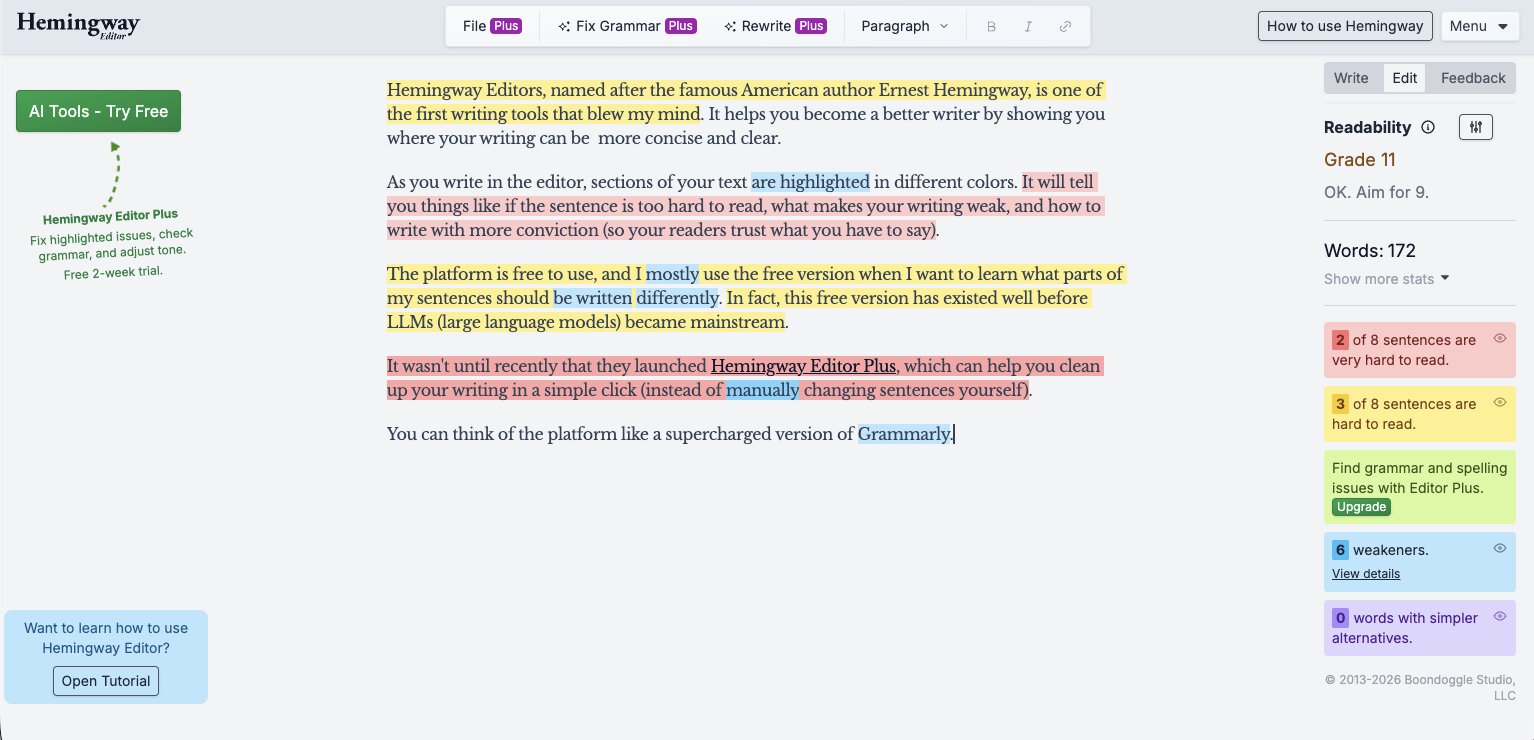
Hemingway Editor, named after the famous American author Ernest Hemingway, is one of the first writing tools that blew my mind. It shows you if a sentence is hard to read. It points out weak spots in your writing and helps you write with more confidence. This way, your readers will trust you more.
How Hemingway Editor works
As you write in the editor, different colors highlight sections of your text. It will tell you things like if the sentence is too hard to read, what makes your writing weak, and how to write with more conviction (so your readers trust what you have to say).
The platform is free to use, and I mostly use the free version when I want to learn what parts of my sentences should be written differently. In fact, this free version has existed well before LLMs (large language models) became mainstream.
It wasn't until recently that they launched Hemingway Editor Plus, which can help you clean up your writing in a simple click (instead of manually changing sentences yourself).
You can think of the platform like a supercharged version of Grammarly.
Here are some things I like about Hemingway Editor:
- The free version alone is incredibly useful. It highlights hard-to-read sentences, passive voice, and weak phrasing without needing to sign up or pay for anything.
- The color-coded highlighting makes it easy to scan your writing and immediately see what needs work. You don't have to guess where the problems are.
- Hemingway Editor Plus can rewrite sentences for you automatically, which saves a lot of time when you're editing long-form content.
- It gives your writing a readability grade level, so you can make sure your content is accessible to your target audience.
- You can import and export files directly, which makes it easy to use alongside other writing tools.
Here are some things that can improve with Hemingway Editor:
- The free version doesn't include any AI features, so you still have to manually rewrite every sentence it flags.
- It's purely an editing tool. You can't use it to generate drafts or brainstorm ideas like you can with other AI writing tools.
- The AI sentence rewrite limits on the paid plans can feel restrictive if you're editing a high volume of content every month.
Hemingway Editor pricing
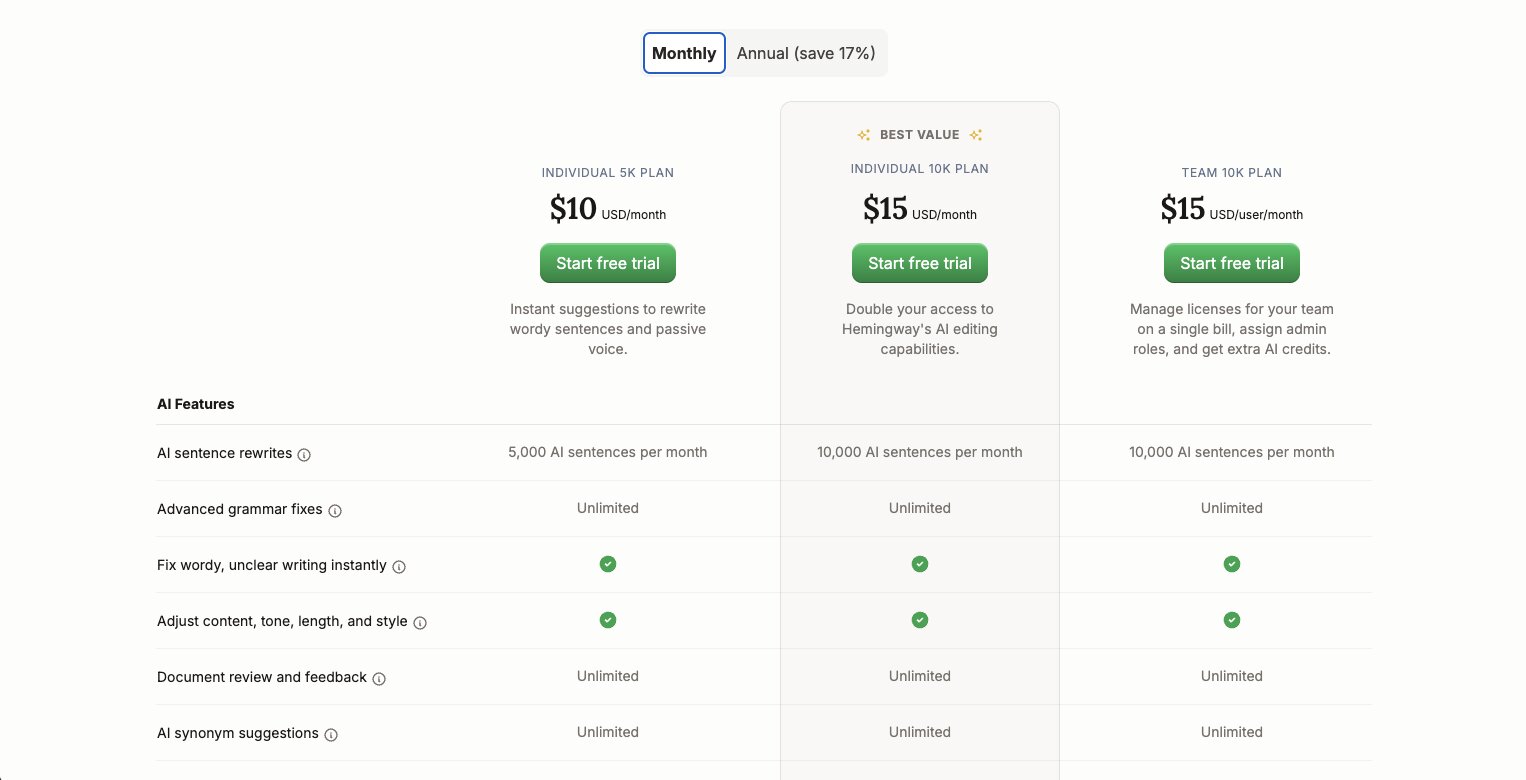
Hemingway Editor has a free plan along with several paid tiers:
- Free: Includes readability scoring, highlights for wordiness and weak language, and a target reading level feature. No AI rewrites are included.
- Individual 5K: $10/month and includes 5,000 AI sentence rewrites per month, unlimited advanced grammar fixes, document review and feedback, AI synonym suggestions, and file import/export.
- Individual 10K: $15/month and doubles your AI access to 10,000 sentence rewrites per month with everything in the 5K plan.
- Team 10K: $15/user/month and includes 10,000 AI sentence rewrites per month, everything in Individual 10K, plus multiple users on one bill, role-based admin controls, and priority email support.
You can learn more about each pricing plan here.
Hemingway Editor reviews
Here is what other users rate the platform:
- G2: 4.4/5 star rating (from +49 reviews)
- Capterra: 4.5/5 star rating (from +13 reviews)
2. Lex.page
- Category: Writing & Editing
- Best for: Long-form writing with AI editing assistance
- Pricing: Free with 400K AI credits, then starts at $14.99/month (annual)
- How I use it: I write my first drafts in Lex and use the AI to edit and refine my own writing instead of generating content from scratch
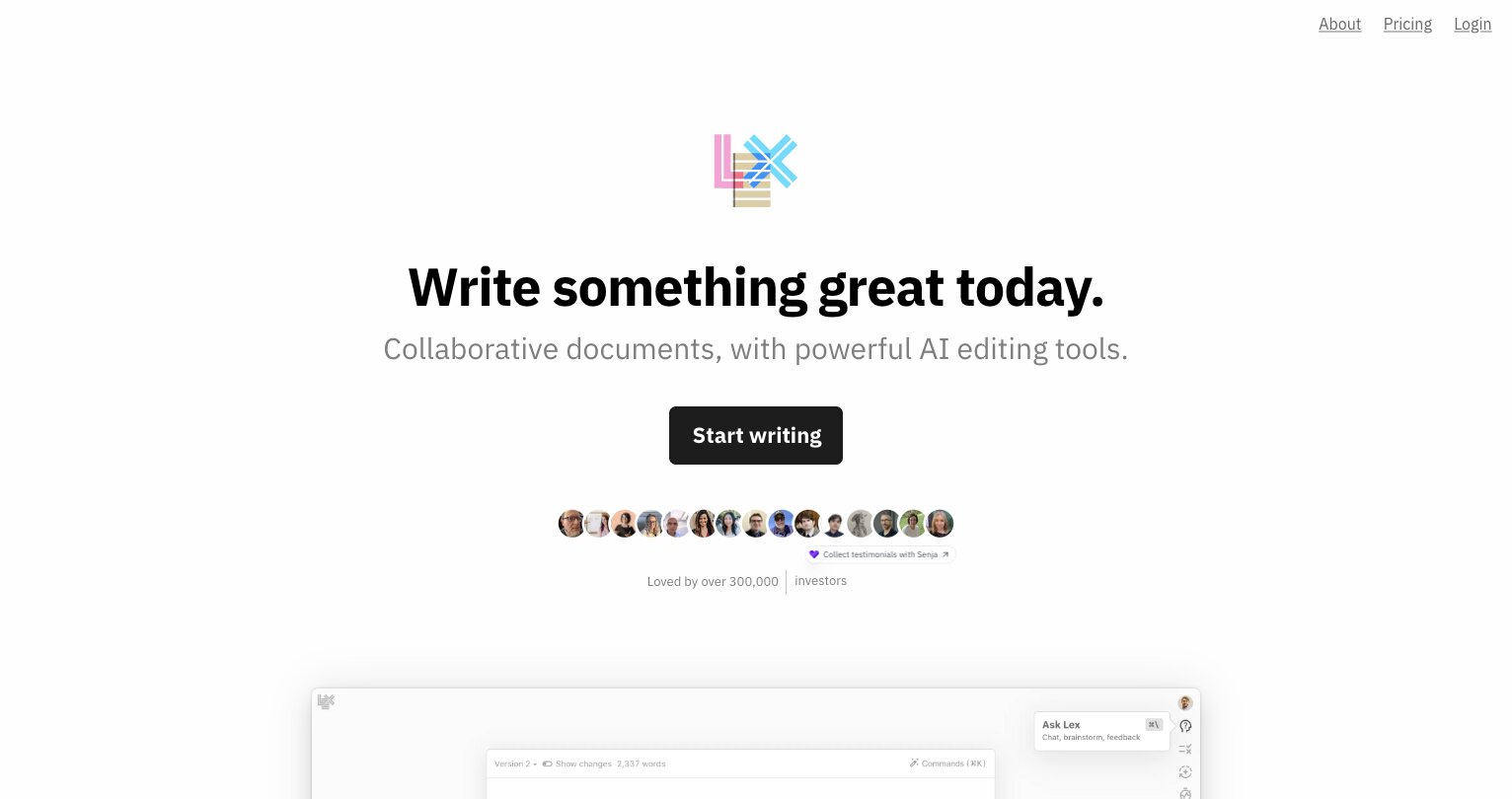
Lex is an AI document editor that I've started to use more and more recently. AI can give you live feedback as you write, and creates a collaborative environment for teams working on different documents.
I personally use it for when I'm writing long-form content, like this blog post you're reading. And it's started to replace my use of Google Docs.
Funny enough, I've actually wanted an AI writing tool like this for a long time. So much so I vibe coded my own (janky) version a year ago. But now Lex has it in a polished environment.
How Lex works
When you sign up, you can start from three different options: create a new document, import an existing document, or chat with Lex.
The chat feature is cool because you can have AI interview and organize all of your ideas. Which I truly believe is the best way to leverage AI to be more productive as a writer.
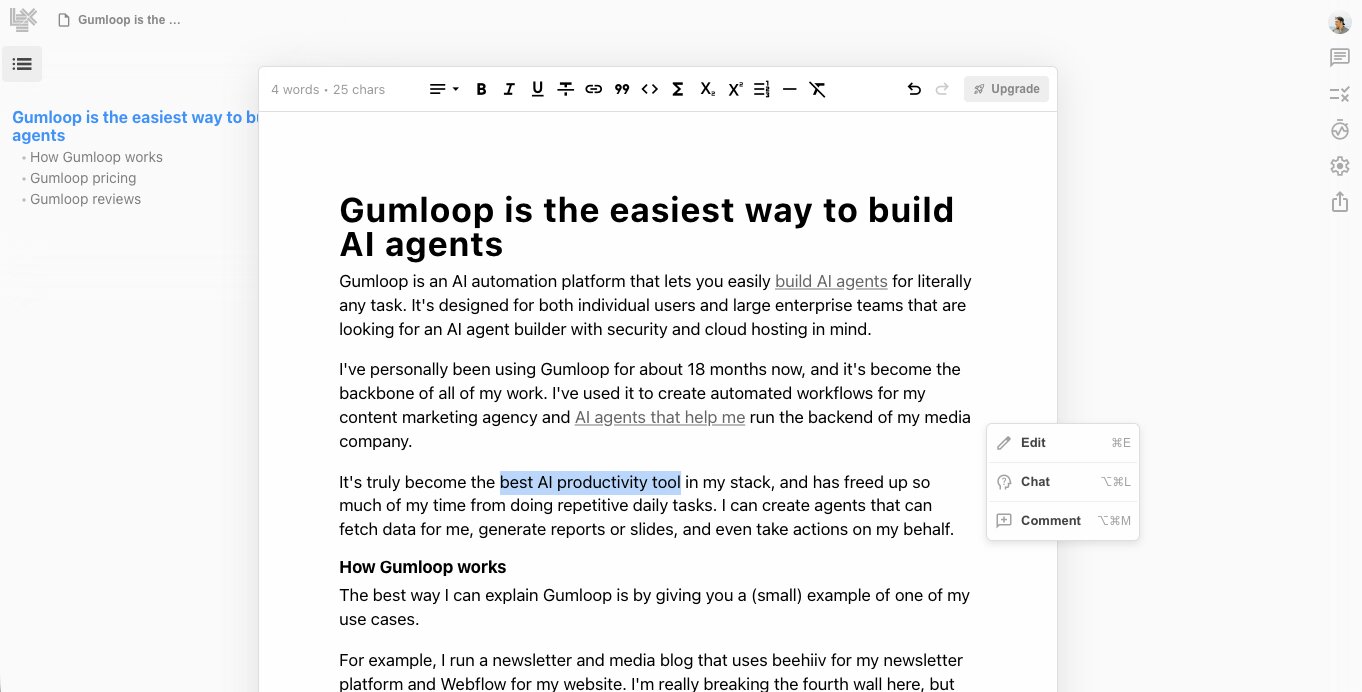
You definitely don't want to outsource your thinking to AI or one-shot AI generated content. But using AI to edit and refine your own ideas is the right way to go about it.
Don't let the SEO or AI writing bros tell you to "have AI write your first draft, and then have a human edit it."
If you want to scale great work, you need to flip it.
Always write your own first drafts, and then have AI help you edit it. And that's exactly what Lex is designed for.
Here are some things I like about Lex:
- You get 400K free AI credits just for signing up, which is enough to seriously test the editing features before paying anything.
- The chat feature lets AI interview you about your ideas before you start writing, which is a much better workflow than having AI generate a draft for you.
- It supports premium AI models like GPT-5 and Claude Opus on the paid plan.
- The editor feels clean and distraction-free, which is why I like it as a Google Docs alternative for writing.
Here are some things that can improve with Lex:
- There's no team plan yet, so collaboration features are limited if you're working with multiple writers.
- Once you burn through the free credits, the jump to Pro is the only option.
Lex pricing
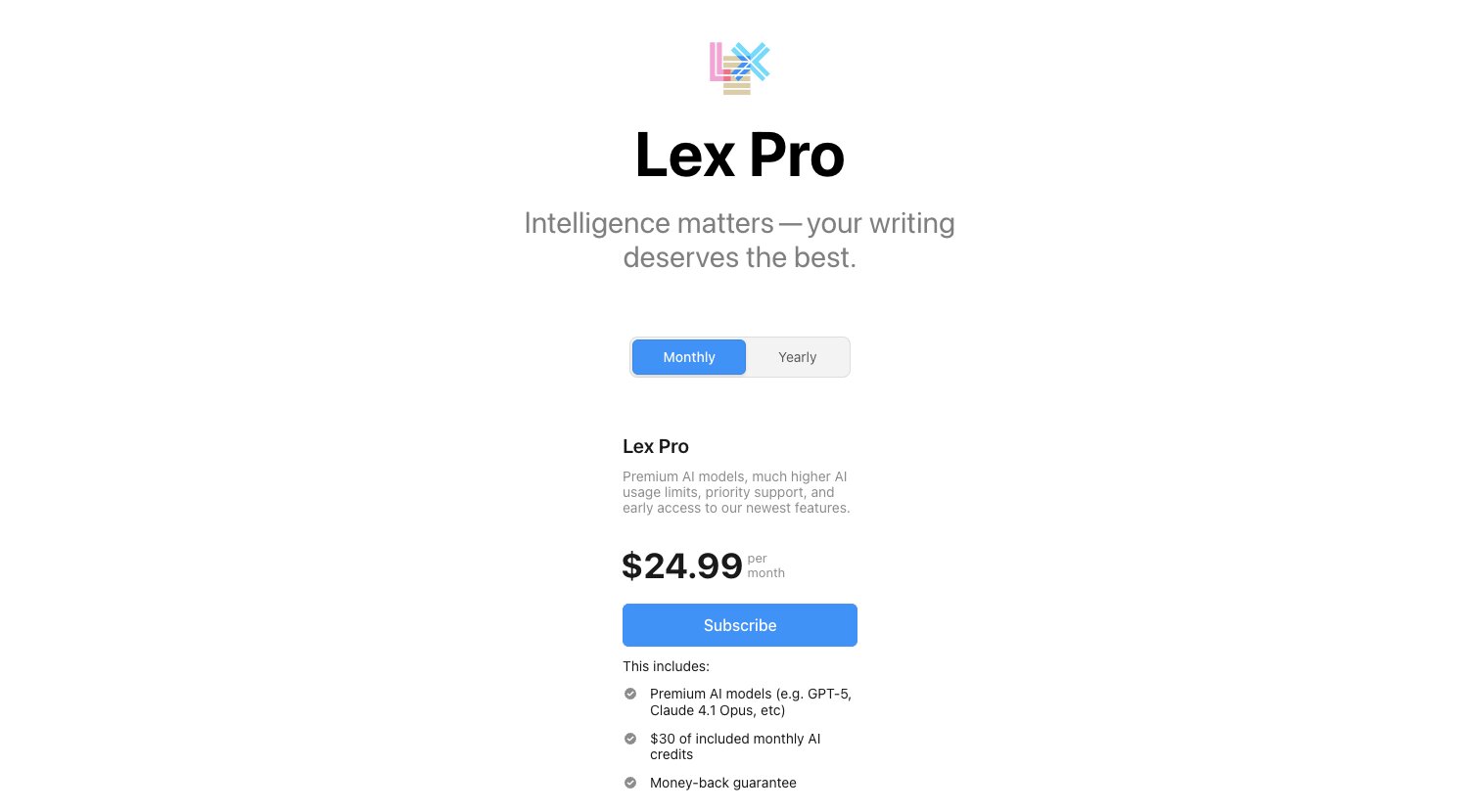
Lex has a generous free tier and one paid plan:
- Free is $0 and includes the core document editor with 400K AI credits for editing features.
- Lex Pro is $24.99/month (or $14.99/month billed annually). It includes premium AI models like GPT-5 and Claude Opus, $30 of included monthly AI credits, priority support, early access to new features, and a money-back guarantee.
You can learn more about their pricing here.
Lex reviews
Lex is still a fairly new platform and has changed a lot over the past couple of years. It does have a 4.5/5 star review on Product Hunt but it's from an old version of the product and doesn't do it justice.
This is a good quick review from Craig if you want to check it out.
3. Cotypist
- Category: Writing & Editing
- Best for: Typing faster with AI autocomplete on Mac
- Pricing: Currently free, paid plans coming soon
- How I use it: I keep it running in the background while I write emails, content, and Slack messages so I can tab-complete sentences faster
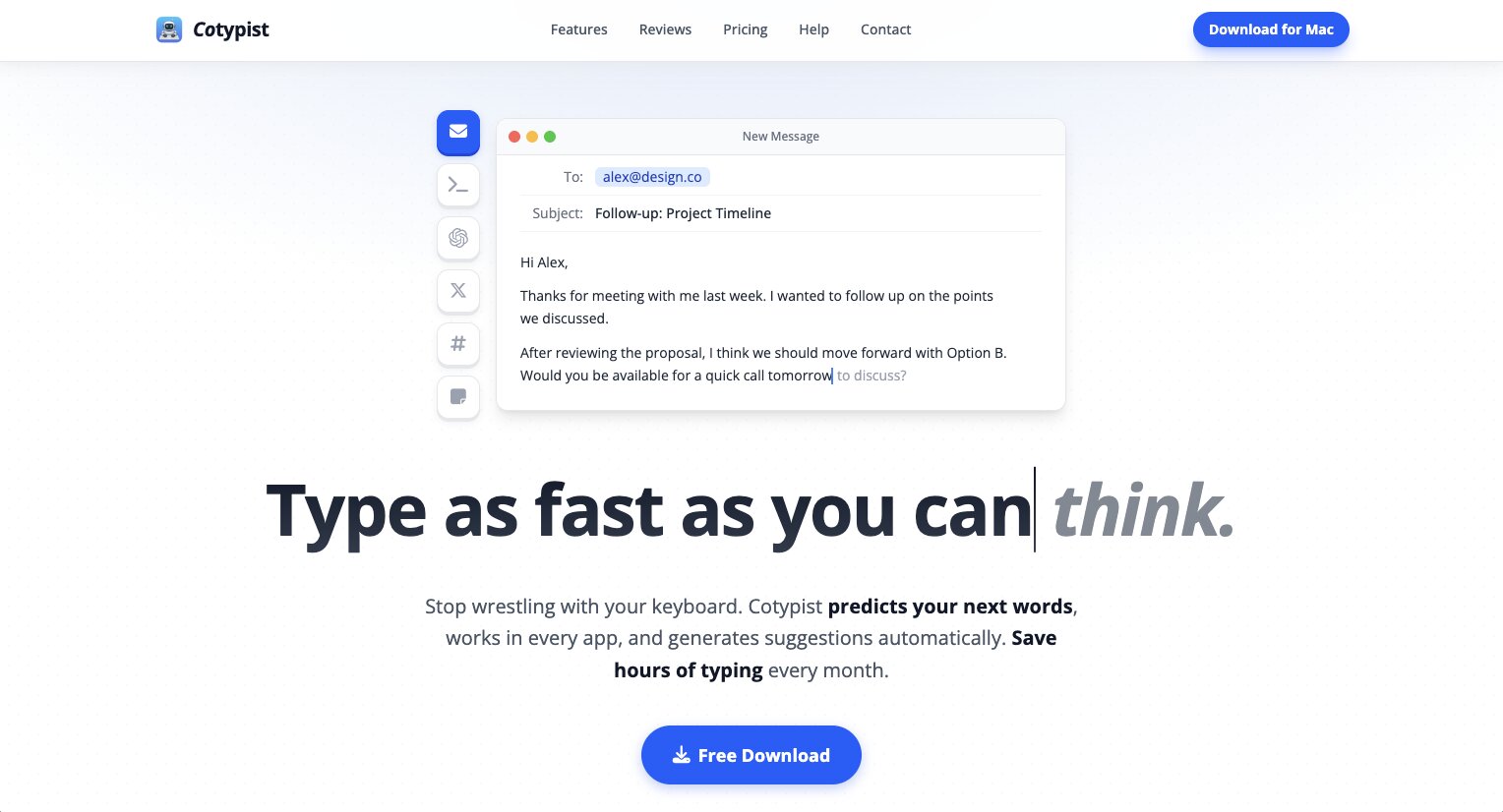
Cotypist is an autocomplete writing tool for Mac. It can help you type faster by giving you quick autocomplete results based on the context of what you're talking about.
It's currently only available for Mac, but the app can see your screen and has an always-on context (if you turn it on) of what you're looking at on your computer. This way, it can suggest autocomplete results based on the exact work you're doing.
How Cotypist works
It can help you write faster when sending emails, writing content, creating social media posts, answering customer support tickets, and writing product documentation.
And I know by now, you're probably thinking of security. Because if the app can see everything on your computer, it can be risky too. Well, Cotypist is a desktop app only and it lives locally on your computer. It does not send data back to the Cotypist team (or anywhere).
This product design makes it so that it all stays on your own computer. And the crazy thing is that the platform is free to use. I imagine that will change in the future, but for now it's free.
Here are some things I like about Cotypist:
- It runs locally on your Mac, so none of your data leaves your computer. No cloud, no privacy concerns.
- The always-on screen context allows for autocomplete suggestions that are relevant to whatever you're actually working on.
- It works across any app on your Mac, so you don't have to switch between tools or install browser extensions.
Here are some things that can improve with Cotypist:
- It's only available on Mac right now, so Windows and Linux users are out of luck.
- The paid plans haven't launched yet, so it's unclear what pricing will look like long term.
Cotypist pricing
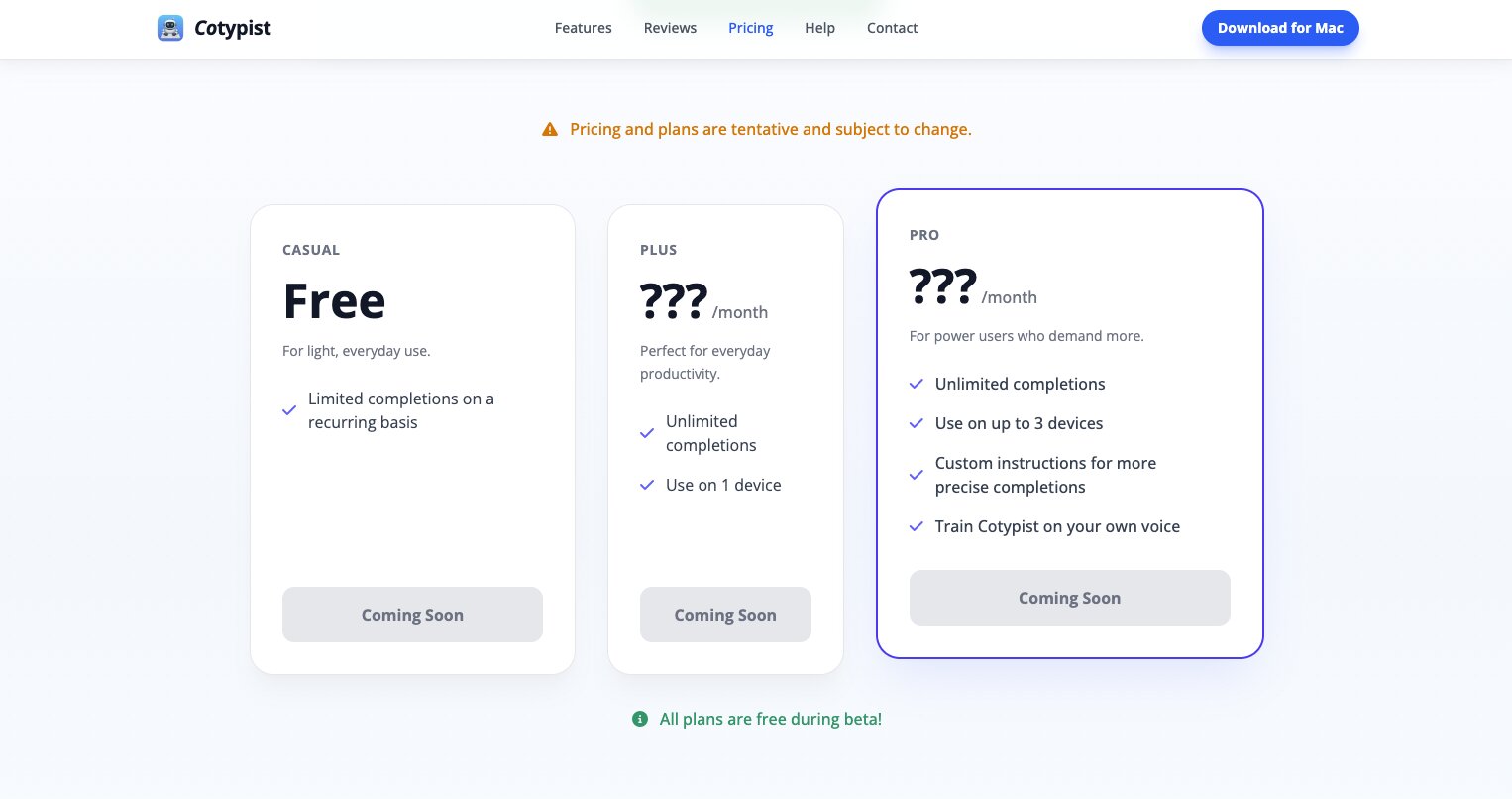
Cotypist is currently free to use while in early access. They have three plans coming soon:
- Casual is free and includes limited completions on a recurring basis.
- Plus is a paid plan (pricing TBD) with unlimited completions on 1 device.
- Pro is a paid plan (pricing TBD) with unlimited completions on up to 3 devices, custom instructions for more precise completions, and the ability to train Cotypist on your own voice.
You can check out more information on their pricing page.
Cotypist reviews
The platfroms is still relatively new so there aren't a lot of raings on third-party review sites. But, there are a few reviews from creators floating around the internet that I really like:
- MacSparky's review
- Snazzy Labs' review (it's the first tool)
4. Gumloop

- Category: AI Agents & Workflow Automation
- Best for: Building AI agents that automate any task across your tech stack
- Pricing: Free plan available, then starts at $37/month
- How I use it: I use Gumloop daily to run AI agents for my content marketing agency and media company, from generating reports to drafting newsletters to taking actions across my tools
Gumloop is an AI automation platform that lets you easily build AI agents for literally any task. It's designed for both individual users and large enterprise teams that are looking for an AI agent builder with security and cloud hosting in mind.
I've personally been using Gumloop for about 18 months now, and it's become the backbone of all of my work. I've used it to create automated workflows for my content marketing agency and AI agents that help me run the backend of my media company.
It's truly become the best AI productivity tool in my stack, and has freed up so much of my time from doing repetitive daily tasks. I can create agents that can fetch data for me, generate reports or slides, and even take actions on my behalf.
How Gumloop works
The best way I can explain Gumloop is by giving you a (small) example of one of my use cases.
For example, I run a newsletter and media blog that uses beehiiv for my newsletter platform and Webflow for my website. I'm really breaking the fourth wall here, but using different MCP servers, I can talk to my Gumloop agent and have it create new live items on my Webflow site as well as draft newsletter editions.
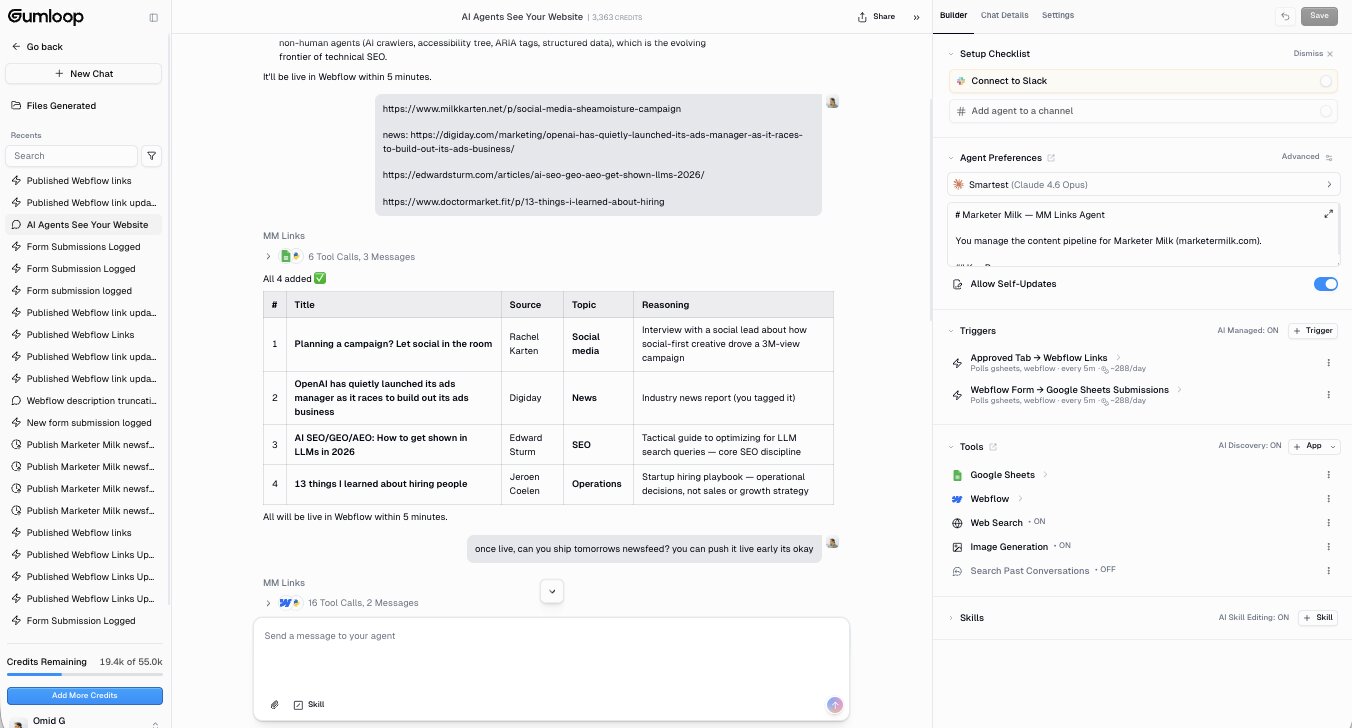
And I can connect my Gumloop agents to Slack so I can also execute tasks while I'm walking around the city and chatting my team of agents through the Slack app on my phone.
The platform is insanely powerful and it's LLM agnostic, so you can swap between Claude, ChatGPT, Gemini, and different open source models to get the best output for a given job.
The agents also have skills that can self-update as you train the agent on how you want it to work. Basically, the more you use the platform and give it feedback, the more it understands what you want and gets smarter over time.
It's also all hosted securely on the cloud. So you can share agents and skills easily across your team or even to your audience if you're a content creator.
Here are some things I like about Gumloop:
- It's LLM agnostic, so you can use Claude, ChatGPT, Gemini, or open source models depending on the task. You don't need to bring your own API keys either.
- The agent skills feature means your agents get smarter the more you use them and give feedback. They actually learn how you want things done.
- You can connect agents to Slack and run them from your phone, which makes it easy to execute tasks on the go.
- MCP integration lets you connect Gumloop to practically any tool that has an MCP server.
Here are some things that can improve with Gumloop:
- The team is shipping new features constantly, so the UI can shift around from time to time.
- There can be learning curve if you're building complex multi-agent workflows for the first time.
Gumloop pricing
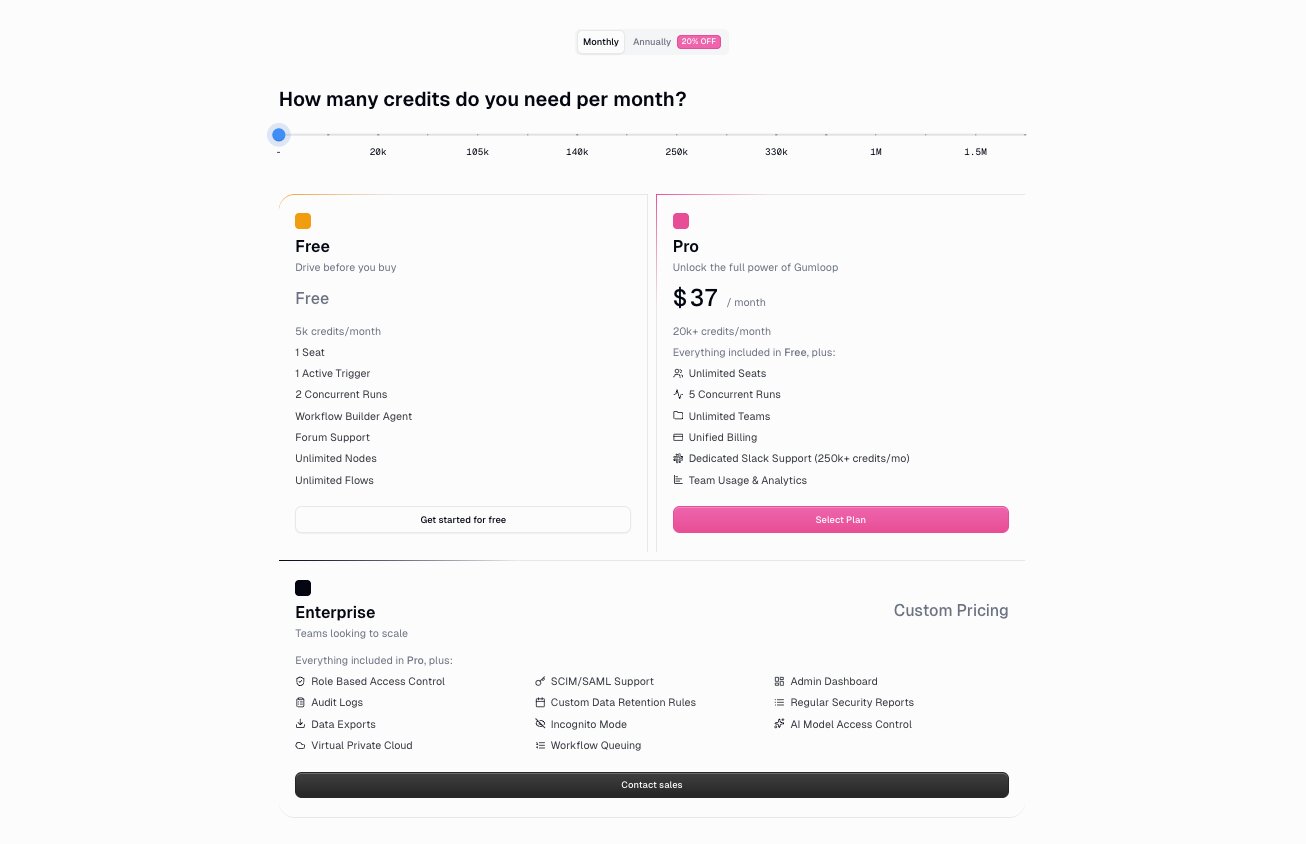
Gumloop has a free plan and scales up to enterprise:
- Free is $0 with 5K credits per month, 1 seat, 1 active trigger, 2 concurrent runs, unlimited agents, unlimited flows, and forum support.
- Pro is $37/month with 20K+ credits per month, unlimited seats, 5 concurrent runs, 25 concurrent agent interactions, unlimited teams, unified billing, team usage and analytics, and email support.
- Enterprise is custom pricing and includes everything in Pro, plus role-based access control, SCIM/SAML support, admin dashboard, audit logs, custom data retention rules, regular security reports, virtual private cloud, and incognito mode.
You can learn more about each plan here.
Gumloop reviews
Here is what other users rate the platform:
- G2: 4.8/5 star rating (from +7 reviews)
- Product Hunt: 5/5 star rating (from +9 reviews)
5. Paradigm AI
- Category: AI Agents & Workflow Automation
- Best for: Running AI agents inside spreadsheets for research and data operations
- Pricing: Free plan available, then starts at $20/month
- How I use it: I use it to enrich data in bulk by running multiple AI agents across spreadsheet columns at the same time
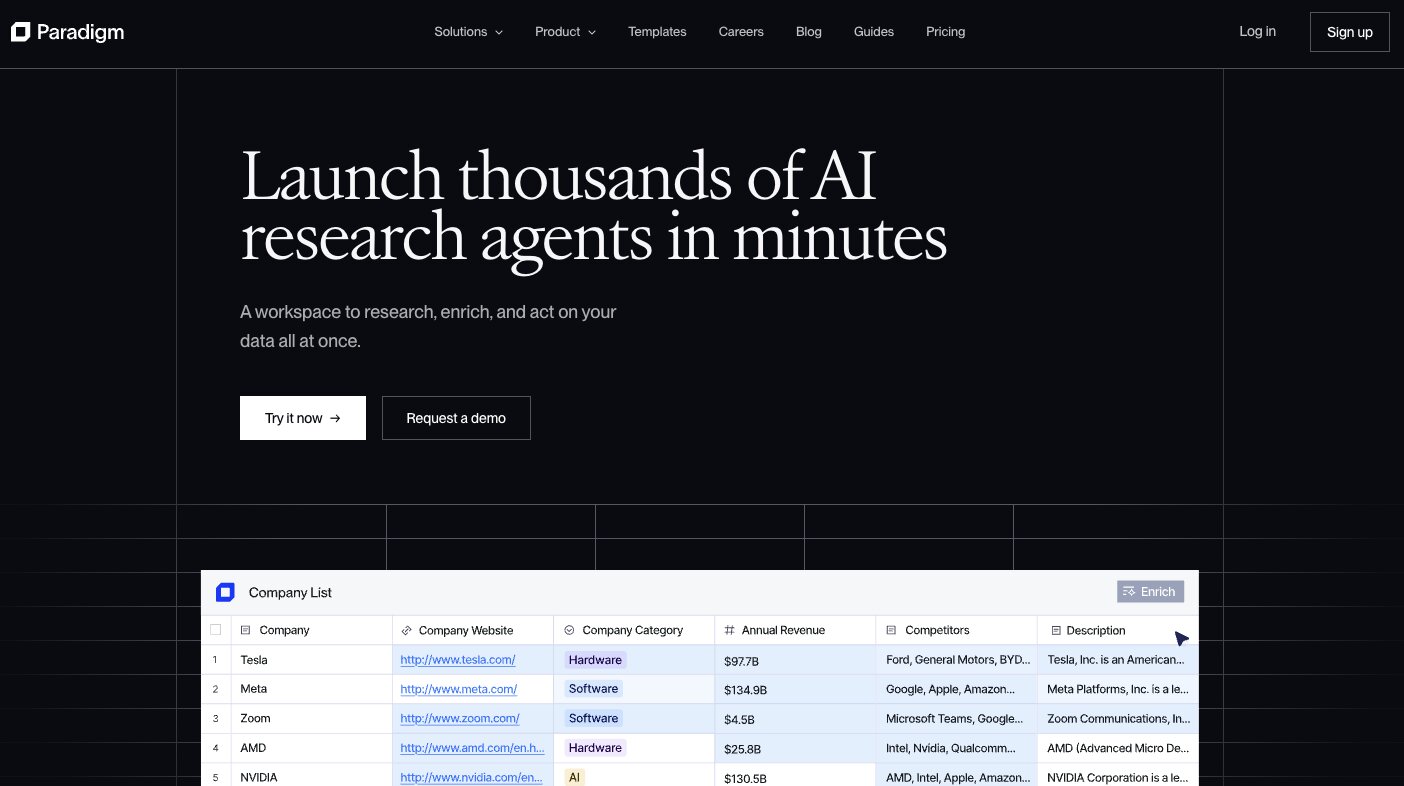
Paradigm AI is an AI-powered workspace that is designed to help you bring AI agents inside of spreadsheets. It's a horizontal AI productivity tool built for anyone doing research or data operations. So like GTM operations, SEO research workflows, recruiting candidate workflows, etc.
The best way I can describe Paradigm is that each cell or column is an AI agent. So you can bring the power of LLMs into your spreadsheet to enrich data or send information to your other tools, be it your CRM, social media platforms, or market research tools.
How Paradigm AI works
You can start from a blank sheet or import raw data from your CRM or different APIs.
From there, you can create custom columns and tell the agent what it should find and how it should format each of those columns. And you can have different columns and agents run at the same time. So you're essentially orchestrating a bunch of AI agents inside of a spreadsheet environment.
Then you can switch between different LLM providers like from Google's Gemini, Anthropic, or OpenAI and give instructions on how each agent should interact with each cell inside of a spreadsheet.
Here are some things I like about Paradigm AI:
- The spreadsheet format makes it intuitive if you're already comfortable working in Excel or Google Sheets. There's no new UI to learn.
- You can run multiple agents across different columns simultaneously, which makes bulk data enrichment really fast.
- It's LLM flexible, so you can swap between Gemini, Claude, and ChatGPT depending on the task.
Here are some things that can improve with Paradigm AI:
- The free plan is limited to 3 sheets and 1 workflow, so you'll outgrow it quickly if you're using it for anything beyond testing.
- It's best suited for data and research workflows. If you need agents that take actions across your tools (like sending emails or updating a CRM), you'll probably need a more full-featured automation platform alongside it.
Paradigm AI pricing
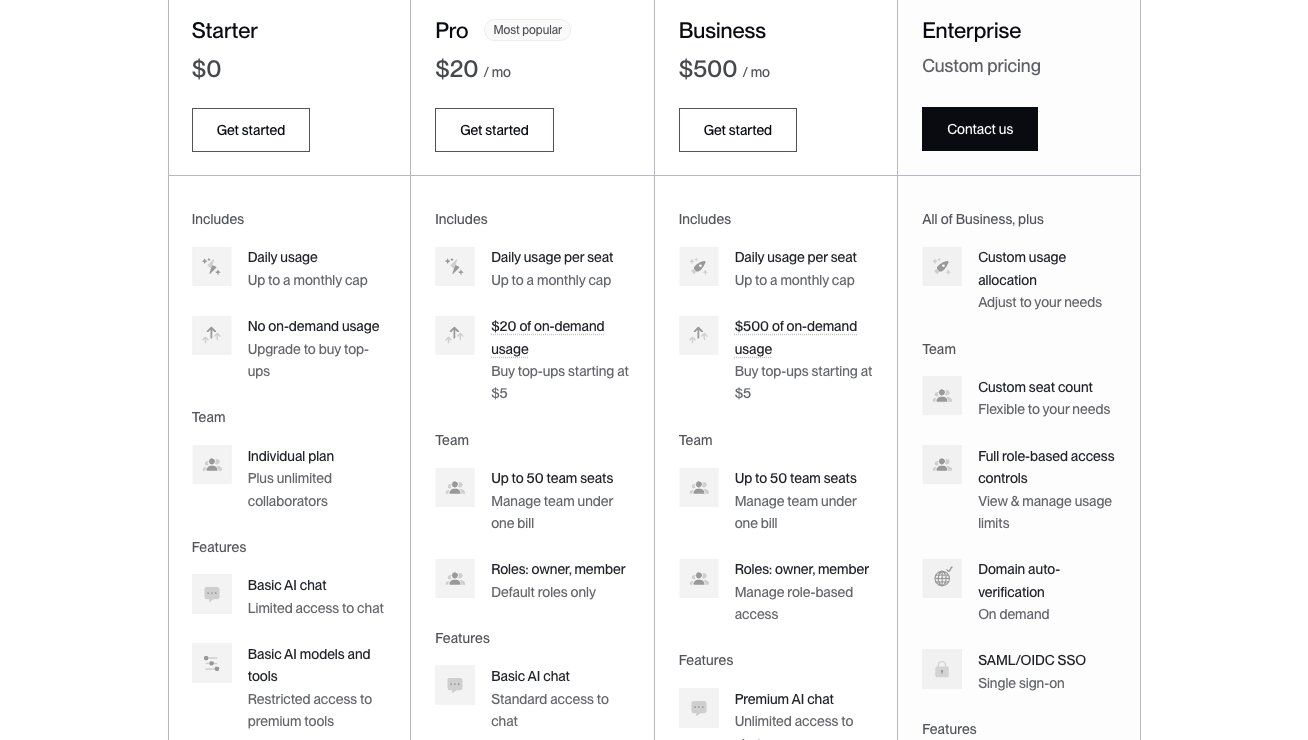
Paradigm AI has a free plan and scales up based on usage:
- Starter is $0 with 500 credits per month, up to 3 sheets, 1 workflow, and 1 seat.
- Pro is $20/month with 2,000 credits per month, up to 25 sheets, 3 workflows, up to 3 team seats, and credit top-ups at $0.02 per credit.
- Power is $250/month with 30,000 credits per month, unlimited sheets and workflows, up to 10 team seats, optional onboarding call, Slack support, and credit top-ups at $0.015 per credit.
- Enterprise is custom pricing with everything in Power, plus custom credit limits, custom seat count, role-based access controls, SAML/OIDC SSO, custom data sources, dedicated account team, and optional tenant isolation.
You can learn more about what each plan has to offer here.
Paradigm AI reviews
Paradigm AI is still a very new tool and there are no customer ratings on third-party review sites. They do have a free plan so I would recommend playing around with it before you fully commit.
6. Claude
- Category: AI Agents & Workflow Automation
- Best for: An all-purpose AI assistant for writing, coding, and building internal tools
- Pricing: Free plan available, then starts at $17/month (annual)
- How I use it: I use Claude daily for proofreading content and building small internal tools with Claude Code that run locally on my computer
Claude is an LLM created by the AI frontier lab, Anthropic. You've probably already heard of it because it's the tool that almost everyone in tech uses now for productivity.
I can't go a day without opening LinkedIn or X and seeing something about Claude. And it's with good reason... it's an incredible tool. But "Claude" is an umbrella name for all the different tools Anthropic has released. Products like the standard Claude chat interface that most people know of, Claude Cowork (their AI agent platform), and also Claude Code (their agentic coding platform).
How Claude works
I personally use Claude every day, but mostly the chat and code interface. When it comes to chat, I have a few skills around proofreading content.
And when it comes to the code feature, I like to use it for creating small internal tools that can run locally on my computer. It's a great all-purpose tool for your work if you don't care about sharing your workflows with other people. What I mean by this is that Claude makes it super easy to get started with, but it lives locally on your machine, especially if you're using their desktop app.
There are other tools on this list that do what Claude can. For example, I've used the chat mostly for proofreading, but you can also use Hemingway Editor Plus to replace that.
And the same thing with their Claude Cowork platform. You can create agents, but I still like to use Gumloop because it's a lot easier to set up the integrations with my other tools in my data stack, as well as being able to securely share (LLM agnostic) AI agents with other members on my team. Whereas with Claude it just lives locally on my computer.
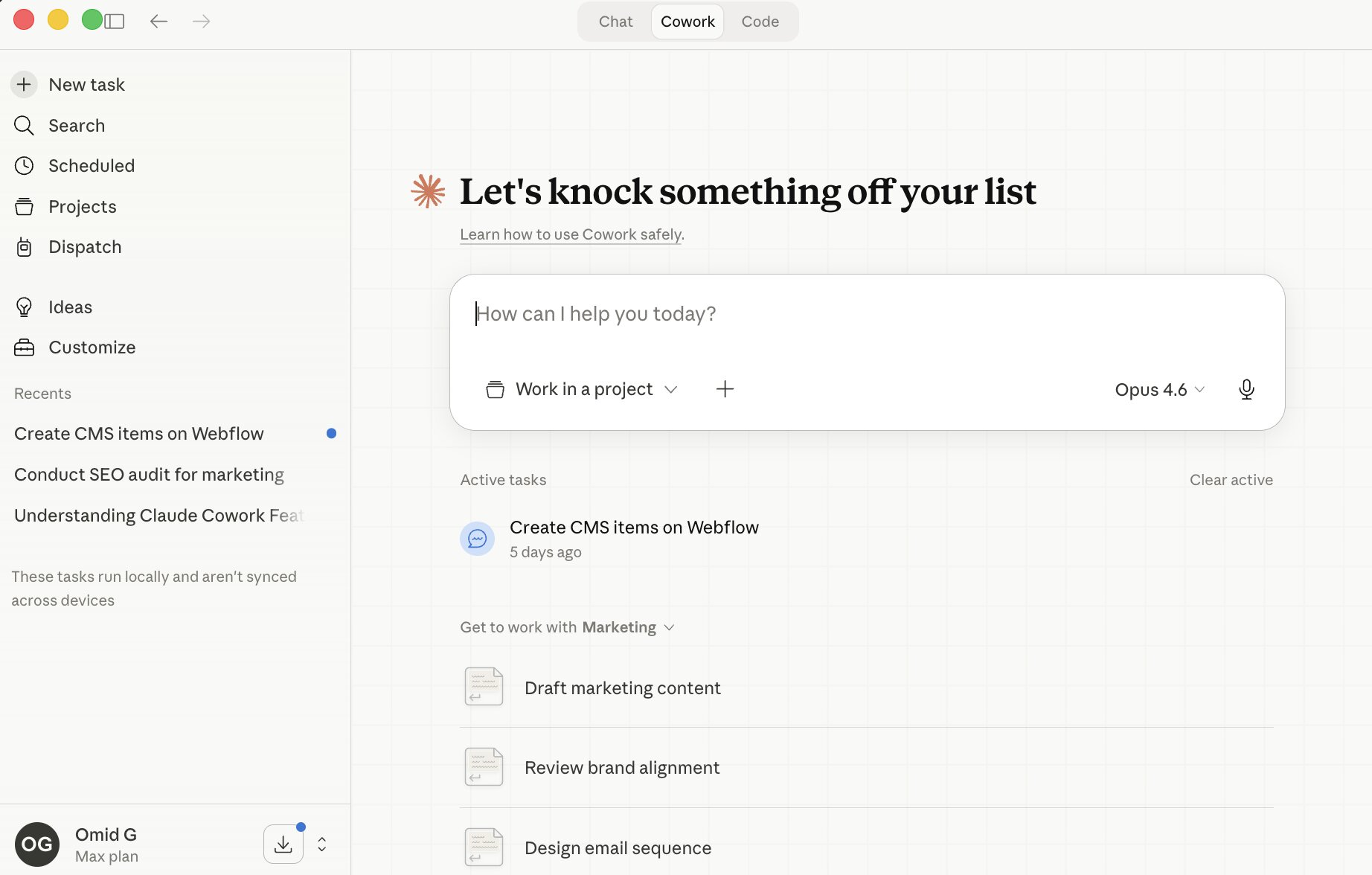
Regardless, Claude is still an easy platform to use, even though there are a lot of vertical tools now that can replace some of its products. But if you want something easy and quick to use, and it doesn't matter if you're locked into the Anthropic ecosystem, it's a great AI productivity tool.
Here are some things I like about Claude:
- The free plan is generous. You get web and desktop access, web search, memory across conversations, file creation, and even MCP connector support without paying anything.
- Claude Code is a solid agentic coding tool for building small internal tools that run locally on your machine.
- The chat interface is clean and fast, and the extended thinking feature is useful for complex tasks.
Here are some things that can improve with Claude:
- You're locked into Anthropic's models. Unlike platforms like Gumloop or Paradigm AI, you can't swap between different LLM providers.
- The agent features in Claude Cowork are still early compared to dedicated AI agent builders, especially when it comes to integrations and sharing agents across a team.
- It lives locally on your machine, which is great for privacy but makes it harder to collaborate or share workflows with others.
Claude pricing
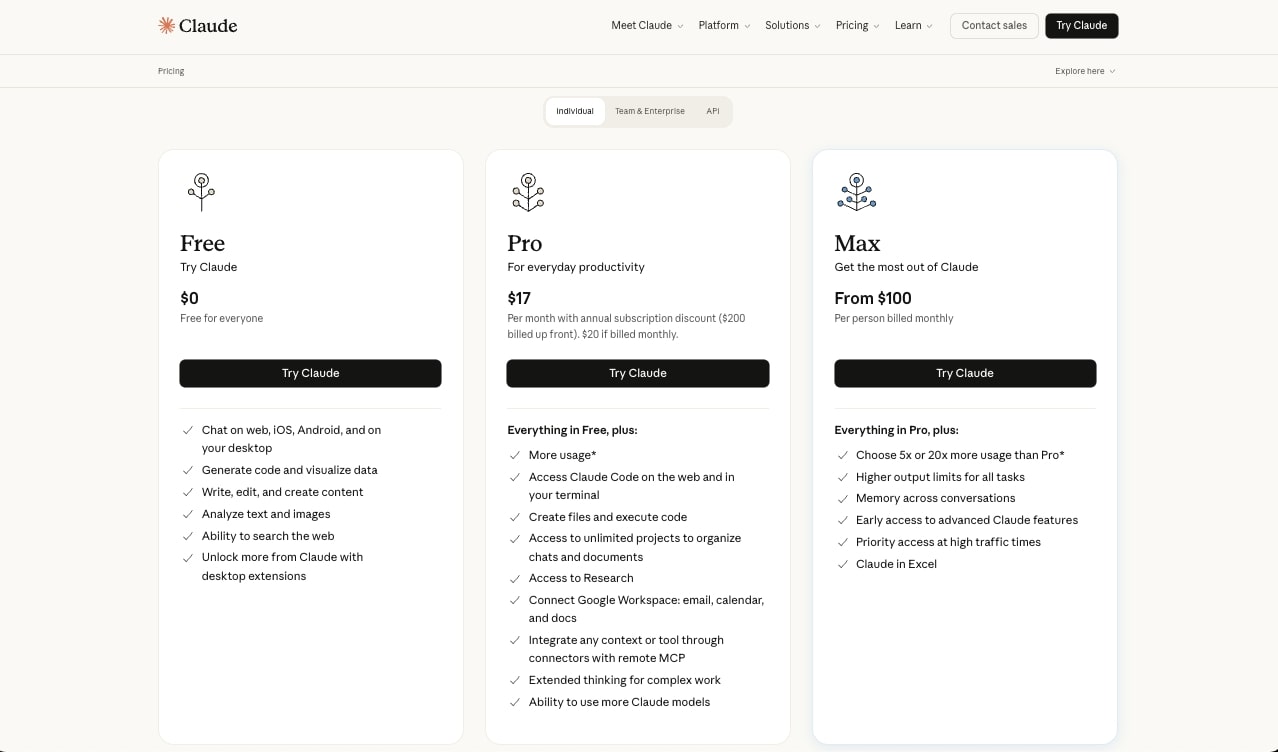
Claude has a free plan and several paid tiers:
- Free is $0 and includes chat on web, mobile, and desktop, code generation, content writing, web search, memory across conversations, file creation, MCP connectors, and extended thinking.
- Pro is $17/month (annual) or $20/month billed monthly. It includes everything in Free, plus more usage, Claude Code, Claude Cowork, unlimited projects, Research, access to more models, and Claude for Excel and PowerPoint (beta).
- Max starts at $100/month and includes everything in Pro, plus 5x or 20x more usage, higher output limits, early access to advanced features, and priority access during high traffic.
- Enterprise is custom pricing for large organizations with additional security and admin features.
You can learn more about all the Claude pricing plans here.
Claude reviews
Here is what other users rate the platform:
- G2: 4.5/5 star rating (from +134 reviews)
- Capterra: 4.5/5 star rating (from +32 reviews)
7. Perplexity
- Category: Research & Knowledge
- Best for: AI-powered research and fact-checking while you work
- Pricing: Free plan available, then starts at $17/month (annual)
- How I use it: I use Perplexity to research topics while I write, fact-check my work, and search Reddit for content ideas and customer pain points
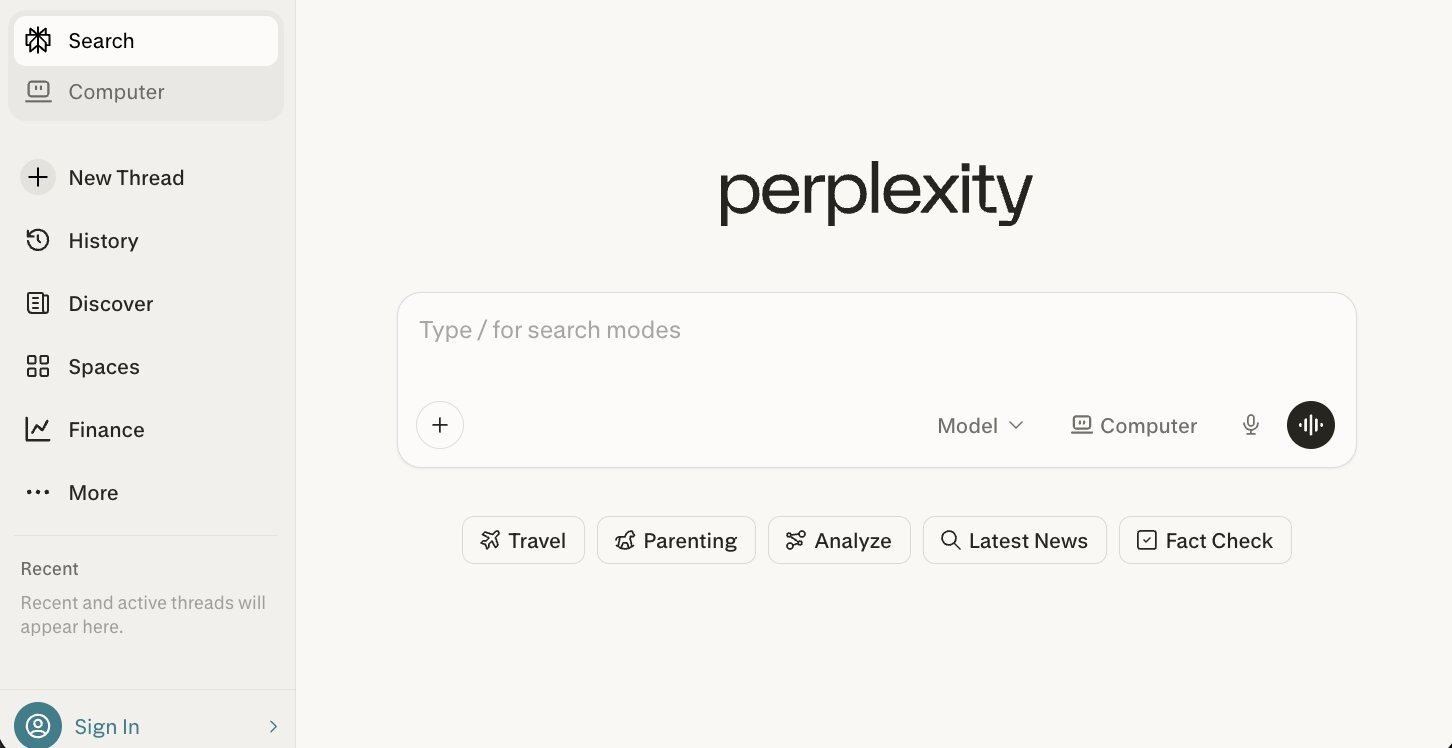
Perplexity is an AI search platform designed to help you do deep research on different topics. It's like an extension of using Google as it can act as both an LLM chatbot and search engine for the first time.
The way I use Perplexity is for researching things when I write. For example, I can tell it that I'm writing an article on the top AI productivity tools and then ask it to help me better understand the features of each tool.
How Perplexity works
I don't use it to generate content I write, but rather help me fact-check my work or help me expand on topics by easily scraping the web for relevant topics.
I also really love their social feature where I can explicitly search Reddit for content. So it's also a great tool if you want to get content ideas or research the problems your target customers may have based on questions or social media threads around the web.
Here are some things I like about Perplexity:
- It cites its sources, so you can actually verify the information it gives you instead of blindly trusting an AI response.
- The Reddit search feature is great for finding real opinions and pain points from actual users, not just polished marketing pages.
- You can switch between different AI models like Claude Sonnet, Gemini, and others on the Pro plan.
Here are some things that can improve with Perplexity:
- The free plan can feel limiting if you're doing heavy research throughout the day.
- It's a research tool, not a writing tool. You'll still need something else to actually write and edit your content.
Perplexity pricing
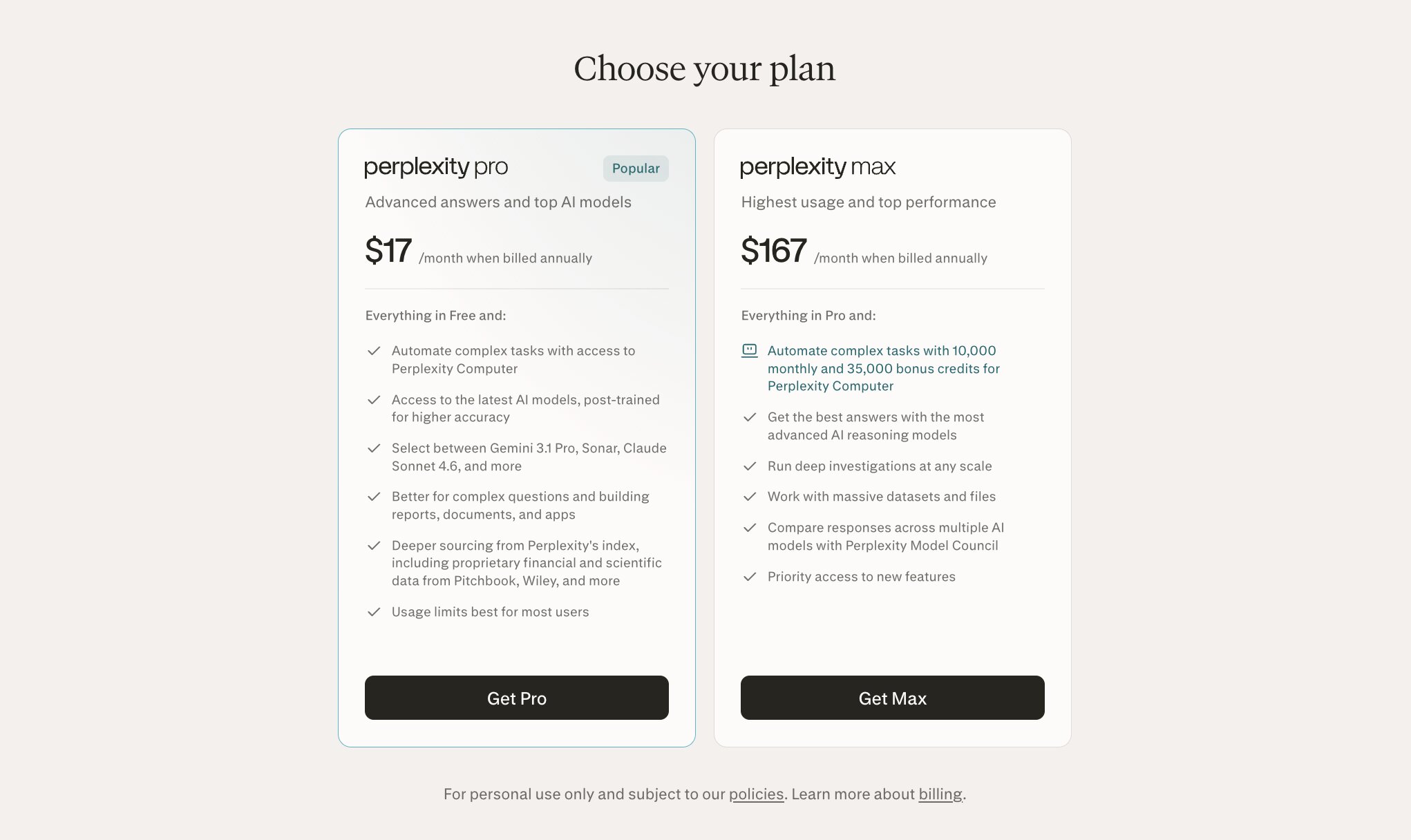
Perplexity has a free plan and two paid tiers:
- Free is $0 and includes basic AI search and answers.
- Pro is $17/month (annual) and includes access to top AI models like Gemini 3.1 Pro, Claude Sonnet 4.6, and Sonar, deeper sourcing from proprietary financial and scientific data, better handling of complex questions, report and document building, and Perplexity Computer for automating tasks.
- Max is $167/month (annual) and includes everything in Pro, plus 10,000 monthly credits for Perplexity Computer, advanced AI reasoning models, deep investigations at scale, massive dataset support, and Perplexity Model Council for comparing responses across models.
You can learn more about Perplexity's pricing plans here.
Perplexity reviews
Here is what other users rate the platform:
- G2: 4.5/5 star rating (from +261 reviews)
- Capterra: 4.3/5 star rating (from +32 reviews)
8. NotebookLM
- Category: Research & Knowledge
- Best for: Combining source materials and getting AI-powered summaries and insights
- Pricing: Free with a Google account, more access with Google AI Plus starting at $7.99/month
- How I use it: I upload documents, links, and PDFs into notebooks and ask it questions to help me understand and synthesize large amounts of source material
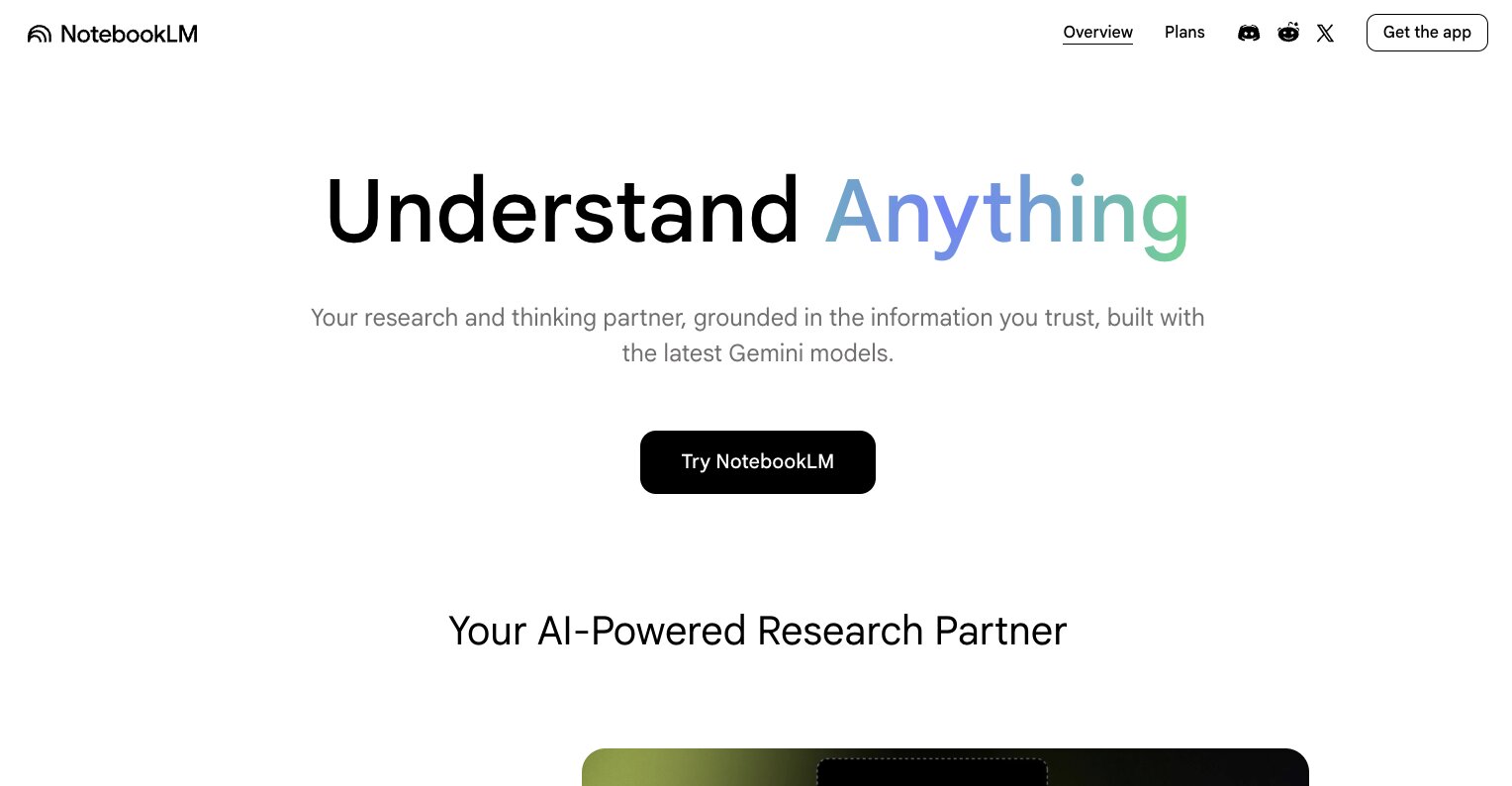
NotebookLM is a research and thinking partner built on Google Gemini. It acts as an AI research assistant where you can upload your own documents, links, images, PDFs, and pretty much any data source. From there, it can help you create summaries or outlines, case studies, or even tools for students.
For example, one of the popular use cases that students have been using it for is to create AI podcasts. So you can give it text and documents and turn it into audio so you can listen back while you're walking or doing whatever to absorb information without having to sit down and read through it.
How NotebookLM works
The core basis of the platform is that you create a notebook and then you add your sources and based off of that you can ask questions. You can also request any output based off of the source materials you've added inside of your notebook.
In the end, NotebookLM is really good if you have a ton of source materials that you want to combine using AI. This way, you can ask the AI for summaries or different insights to help you better understand the material.
It's great for students and any professional that is trying to learn a new skill or understand documents a bit easier. Hence why I would consider it a great productivity tool.
Here are some things I like about NotebookLM:
- The audio overview feature that turns your documents into podcast-style conversations is genuinely useful for absorbing information on the go.
- It only answers based on the sources you upload, so you're not getting random hallucinated information from the broader internet.
- It's free to use with a Google account, which makes it accessible to anyone.
Here are some things that can improve with NotebookLM:
- It's tied to the Google ecosystem, so if you're not a Google user it might feel like an awkward fit.
- The free plan has limits on audio overviews and notebooks. If you're a heavy user, you'll need a Google AI Plus or Pro subscription.
NotebookLM pricing
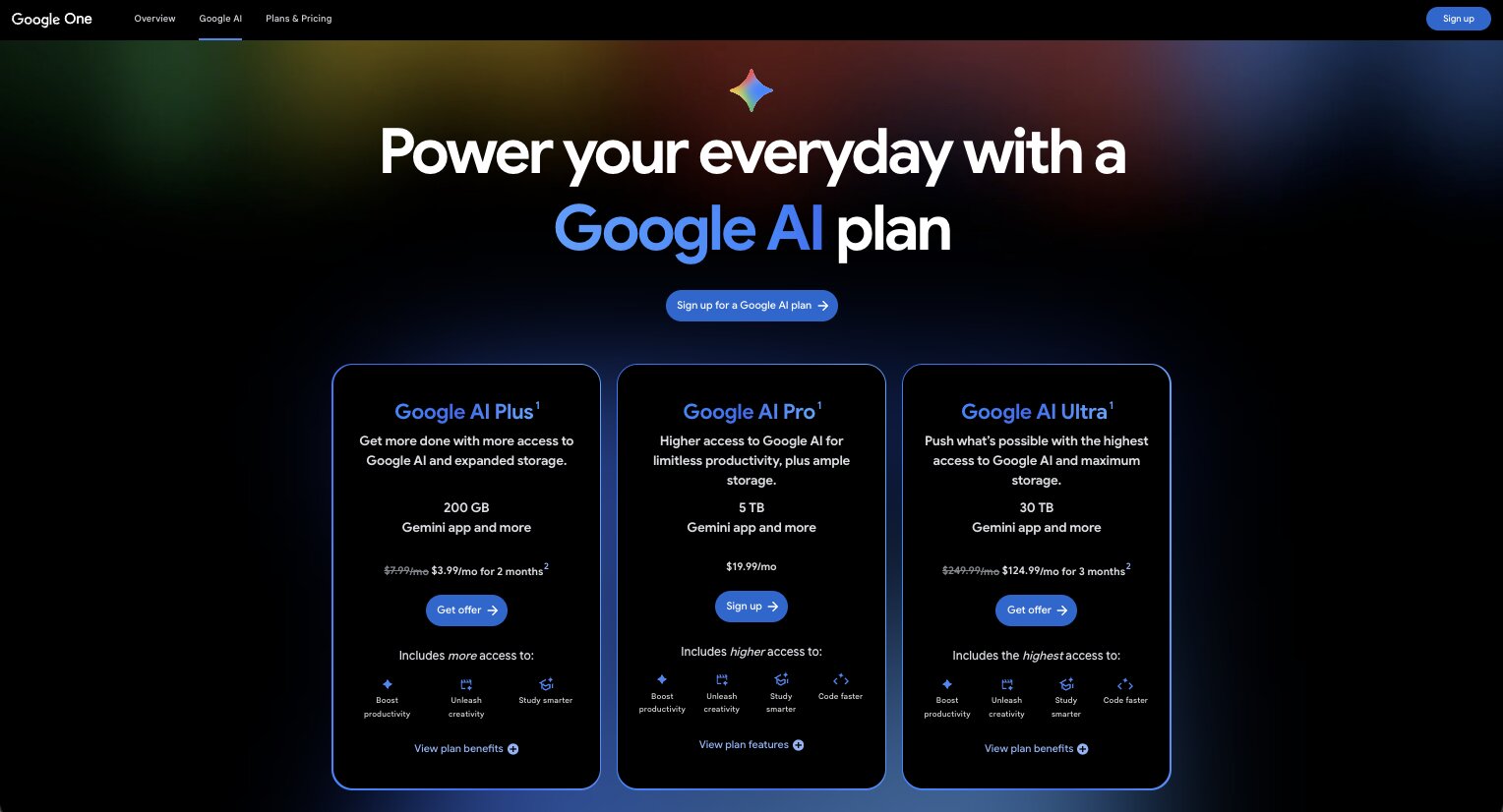
NotebookLM is included free with a Google account. Higher usage limits come through Google's AI subscription tiers:
- Free is $0 with a Google account and includes access to NotebookLM as a research and writing assistant with standard limits.
- Google AI Plus is $7.99/month and includes more audio overviews, more notebooks, and expanded NotebookLM features.
- Google AI Pro is $19.99/month and includes 5x more audio overviews, notebooks, and additional NotebookLM capabilities.
- Google AI Ultra is $249.99/month and includes the highest limits and best model capabilities for NotebookLM.
You can learn more about each pricing plan here.
NotebookLM reviews
Here is what other users rate the platform:
- G2: 4.9/5 star rating (from +12 reviews)
- Product Hunt: 4.8/5 star rating (from +4 reviews)
9. Granola
- Category: Meetings & Voice
- Best for: Turning messy meeting notes into clean, professional summaries
- Pricing: Free plan available, then starts at $14/user/month
- How I use it: I let Granola capture audio from my meetings locally while I type my own notes, then it enriches everything into a clean summary using both
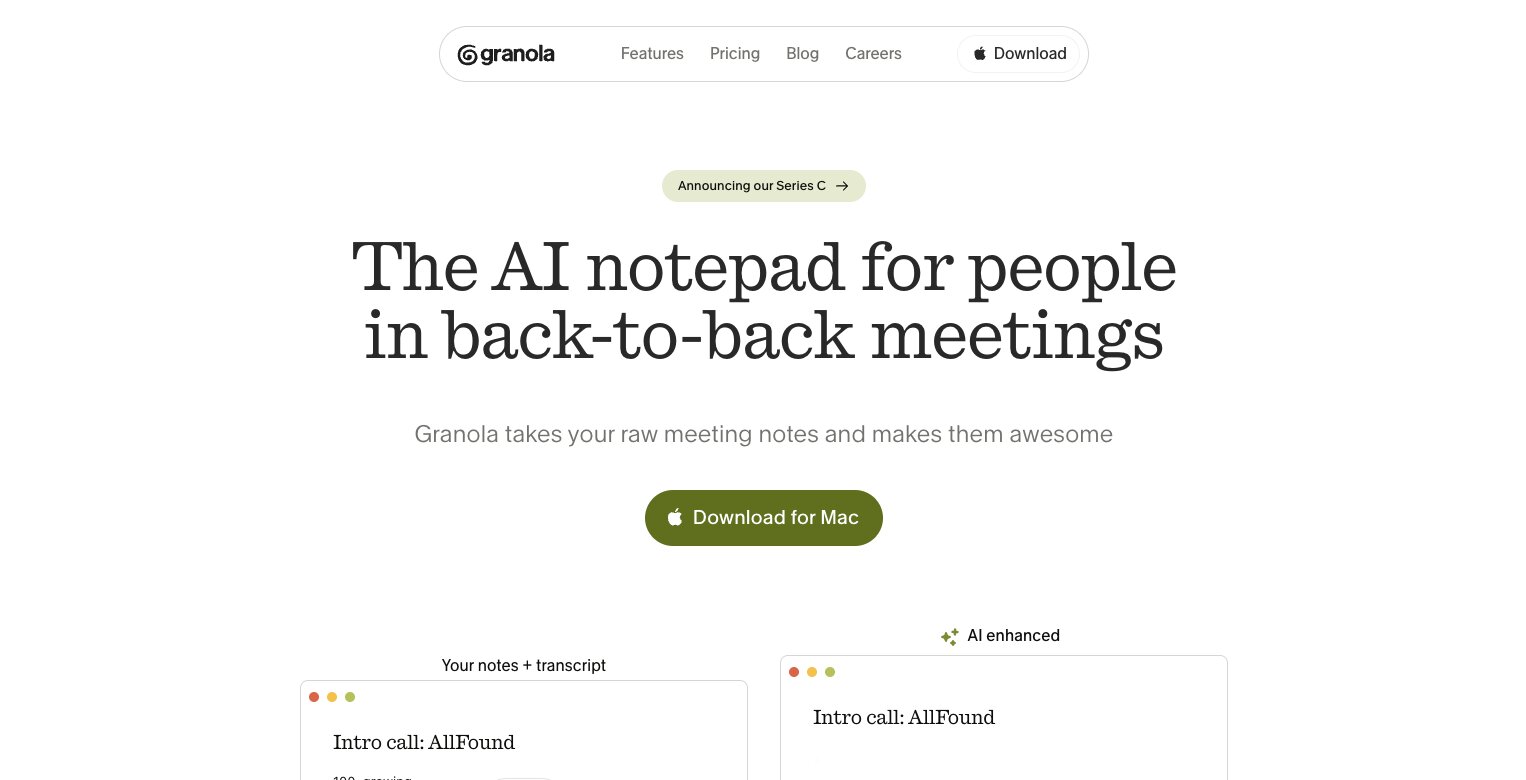
Granola is an AI notepad and notetaker. Yes I know, you're probably thinking not another meeting notetaker. But Granola just feels... different.
It can take your raw chicken scratch meeting notes and make them look super professional and clear. It can also join in on your meetings and generate an AI summary based on the transcript.
Pretty much all of my friends and tech startups I know are using it. Including larger tech companies like Ramp, Brex, Linear, Replit, and more.
How Granola works
The way it works is that you connect your calendar and anytime you start a meeting, Granola starts to capture the audio from your meetings.
And it does this locally on your device so it doesn't look like a random AI is joining in on your calls. You can also type your own notes during the meeting and from there, Granola can enrich all of it based off of your own writing and the transcript that it receives from the call.
It's like the ultimate productivity tool for 1:1s, sales calls, stand-ups, and pretty much any meeting where gathering context and getting a team aligned is the core objective of the call.
Here are some things I like about Granola:
- It captures audio locally on your device, so there's no awkward "AI bot has joined the meeting" moment for everyone on the call.
- It combines your own notes with the meeting transcript, so the output actually reflects what you thought was important, not just a generic summary.
- Used by companies like Ramp, Brex, Linear, and Replit, which says a lot about the quality.
Here are some things that can improve with Granola:
- It has limited integrations with other productivity tools in my tech stack.
- The free plan limits your meeting history, so you'll need to upgrade if you want to reference older meetings.
Granola pricing
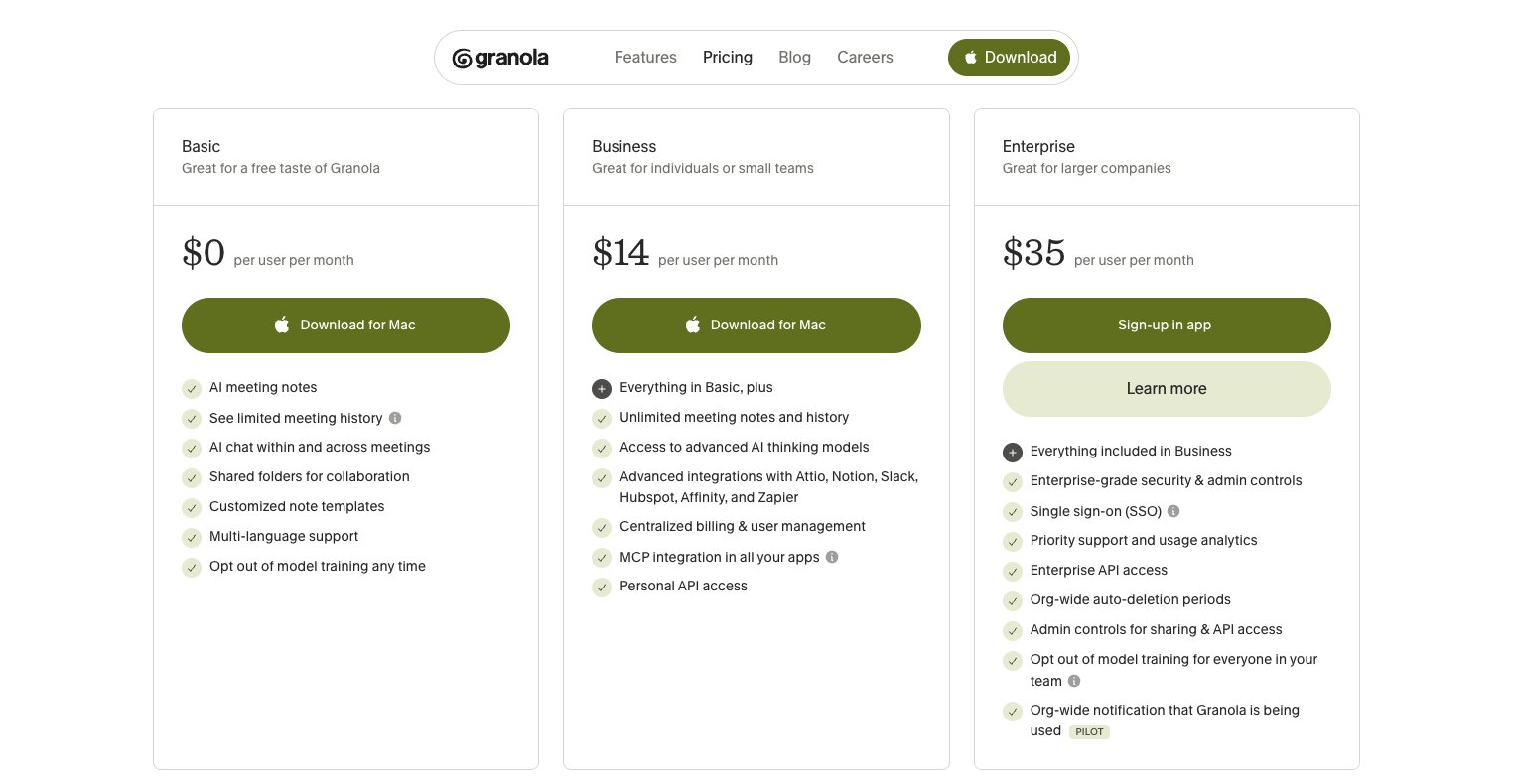
Granola has a free plan and two paid tiers:
- Basic is $0/user/month and includes AI meeting notes, limited meeting history, AI chat within and across meetings, shared folders, custom note templates, and multi-language support.
- Business is $14/user/month and includes everything in Basic, plus unlimited meeting notes and history, advanced AI thinking models, integrations with Attio, Notion, Slack, HubSpot, Affinity, and Zapier, MCP integration, and personal API access.
- Enterprise is $35/user/month and includes everything in Business, plus SSO, priority support, usage analytics, enterprise API access, org-wide auto-deletion periods, and admin controls for sharing and API access.
You can learn more about each plan here.
Granola reviews
Here is what other users rate the platform:
- G2: 4.9/5 star rating (from +26 reviews)
- Product Hunt: 4.8/5 star rating (from +43 reviews)
10. Wispr Flow
- Category: Meetings & Voice
- Best for: Writing at the speed you talk using AI voice dictation
- Pricing: Free plan available, then starts at $12/user/month (annual)
- How I use it: I use Wispr Flow to dictate messages in Slack, write in chatbot interfaces, and get ideas out quickly without typing
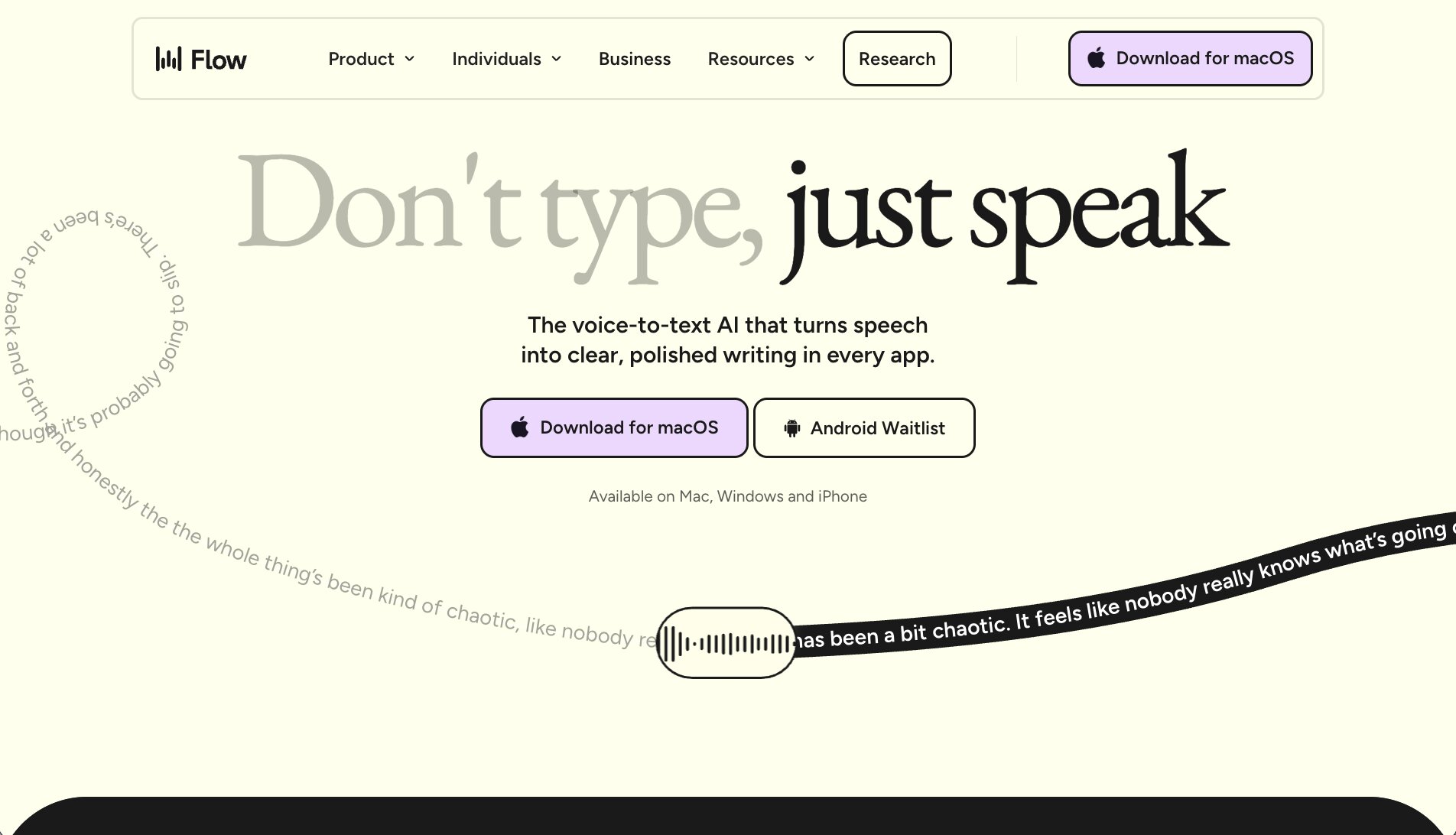
Wispr Flow is an AI voice dictation platform that lives locally on your computer. It's a very simple tool and helps you write at the speed of which you talk.
So instead of typing words on your keyboard, you can simply speak them out. In fact, right now I am using voice dictation. So I am a big fan of Wispr Flow's technology.
How Wispr Flow works
It also leverages AI to clean up different filler words and pauses within your speech. It's an amazing productivity tool especially if you're trying to send messages to your teammates on Slack or if you're using it inside of a chatbot interface to help with research or vibe coding.
But while I do love voice dictation for getting your ideas out quickly, I will preface by saying that if you are using it for long-form content, or for documents that require a lot of creative thinking, sometimes typing words is the better route. When you physically type, it forces you to slow down your thinking and lets you get your ideas out a bit more clearly.
Regardless, Wispr Flow is a huge productivity boost and it definitely deserves a place as one of the top AI tools.
Here are some things I like about Wispr Flow:
- It cleans up filler words and pauses automatically, so what comes out reads like you typed it, not like a raw transcript.
- It works across any app on your computer, so you can dictate into Slack, Google Docs, a chatbot, or wherever you're working.
- It supports 100+ languages and has a privacy mode with zero data retention built in.
Here are some things that can improve with Wispr Flow:
- The free plan caps you at 2,000 words per week on desktop and 1,000 on iPhone, which you can burn through fast if you're a heavy user.
- Voice dictation works great for quick messages and rough drafts, but it's not always the best fit for content that requires deep creative thinking.
Wispr Flow pricing
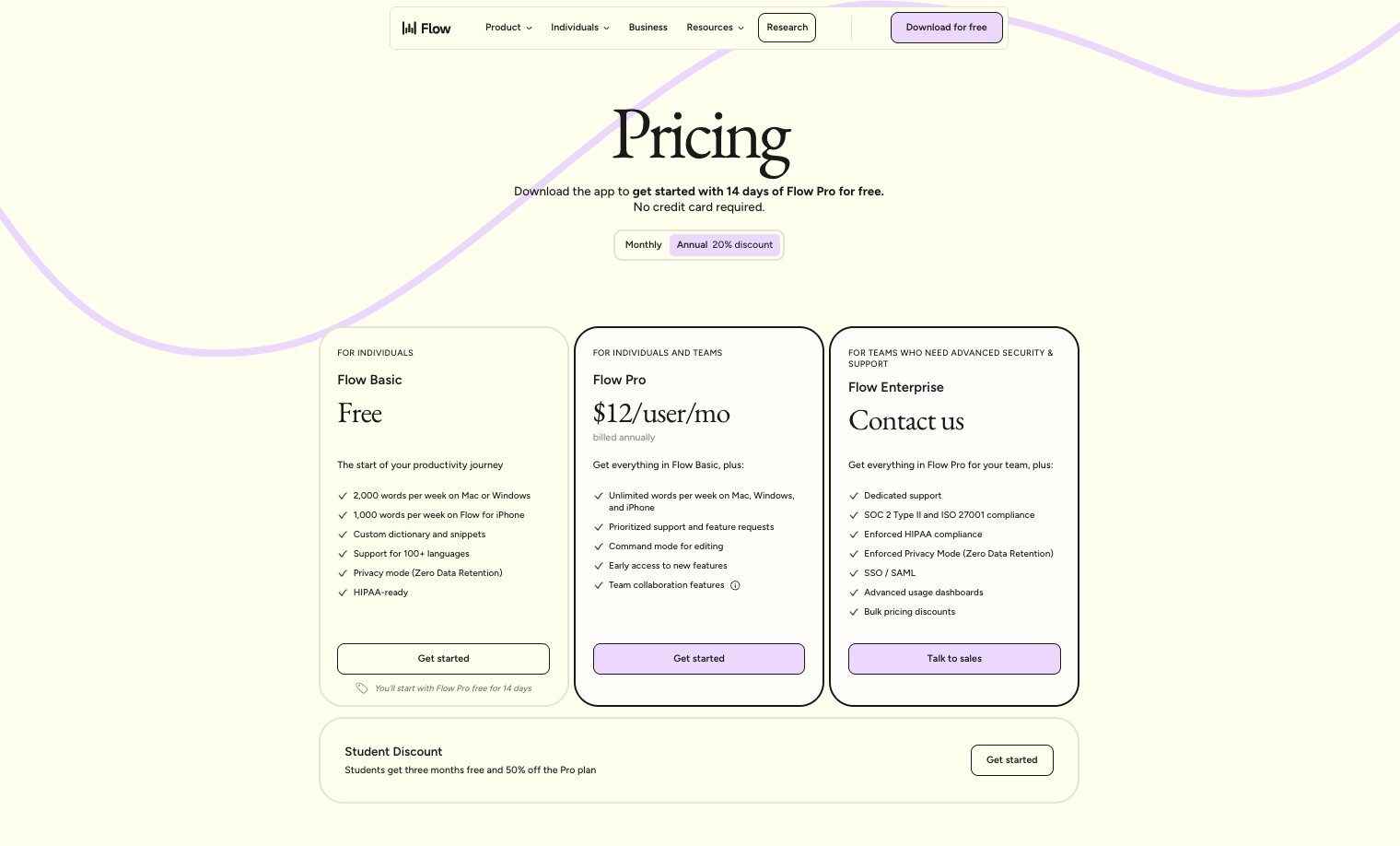
Wispr Flow has a free plan and two paid tiers:
- Flow Basic is $0 and includes 2,000 words per week on Mac or Windows, 1,000 words per week on iPhone, custom dictionary and snippets, 100+ language support, privacy mode with zero data retention, and HIPAA-ready compliance.
- Flow Pro is $12/user/month (annual) and includes unlimited words per week across all devices, command mode for editing, prioritized support, early access to new features, and team collaboration features.
- Flow Enterprise is custom pricing and includes everything in Pro, plus dedicated support, SOC 2 Type II and ISO 27001 compliance, enforced HIPAA compliance, enforced privacy mode, SSO/SAML, advanced usage dashboards, and bulk pricing discounts.
You can learn more about what each plan has to offer here.
Wispr Flow reviews
Here is what other users rate the platform:
- G2: 4.6/5 star rating (from +7 reviews)
- Product Hunt: 4.7/5 star rating (from +65 reviews)
11. Loom
- Category: Video & Screen Recording
- Best for: Creating quick screen recordings and video messages to share with your team
- Pricing: Free plan available, then starts at $18/user/month
- How I use it: I use Loom whenever I need to explain something where showing is easier than telling, and the AI summaries save my teammates from watching the full video
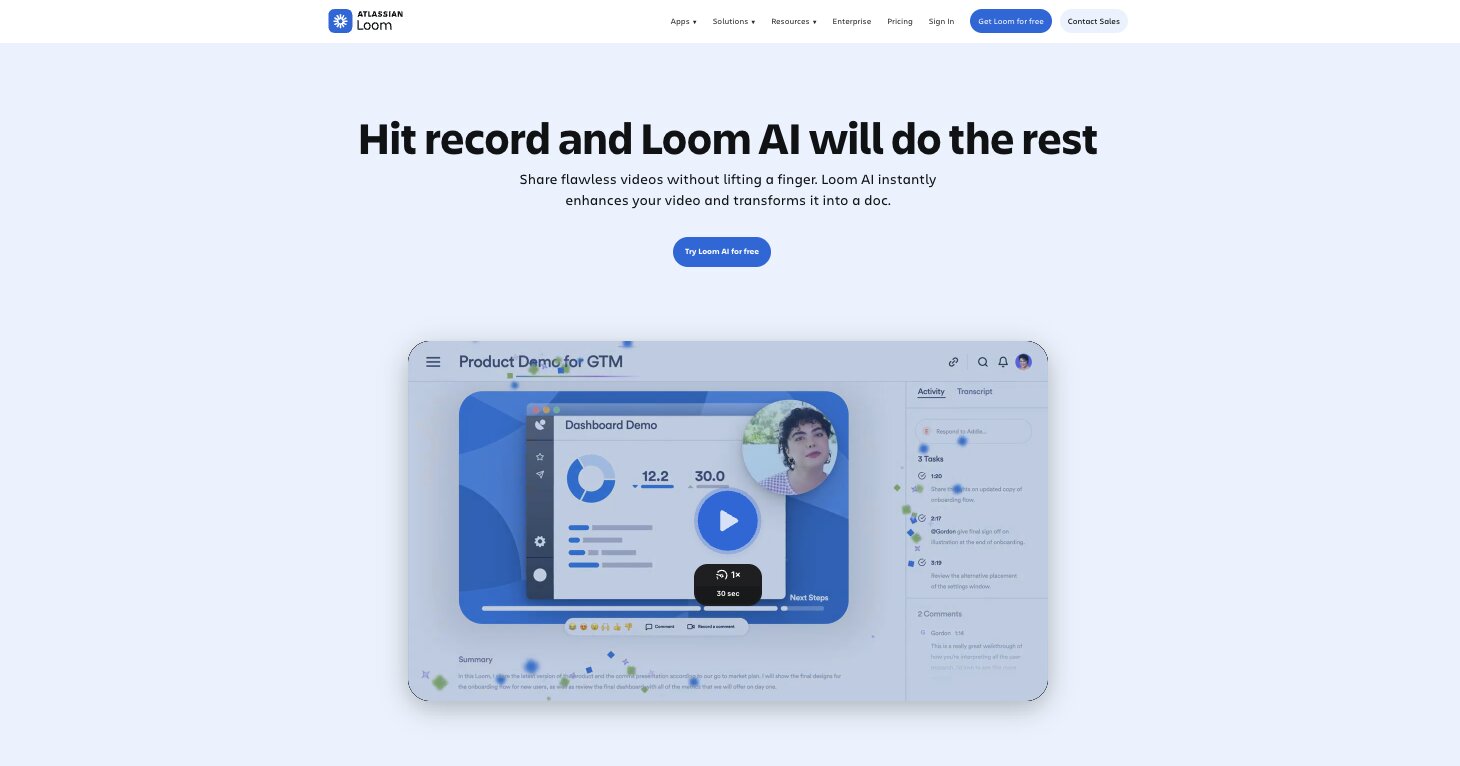
Loom is a screen recording tool that allows you to quickly create video messages that you can share with anyone.
The platform works as a Chrome extension and it can record your screen, audio, and webcam so you can create quick voiceovers or guides and share them across your team. Loom hosts the videos in the cloud, so it quickly creates shareable links you can send to anyone. And it's super useful for when you explain something to somebody, but it's better to show rather than tell.
How Loom works
It definitely wins the spot as one of the best free AI productivity tools. And I've included it in this list because now they have Loom AI. This new feature allows you to use AI to enhance your videos, remove any filler words from conversations, and it can quickly create AI summaries of your videos.
This way, anyone who gets a Loom link from you can see an AI-generated summary and get a quick gist of what the video is about. You can also use Loom AI to turn your videos into clear docs that you can send across your team.
Here are some things I like about Loom:
- The shareable link system makes it incredibly easy to send a video to anyone without them needing to download anything or create an account.
- Loom AI can auto-generate summaries so your teammates can get the key points without watching the full recording.
- The free plan gives you 25 videos with transcriptions in 50+ languages, which is enough to get real value out of it.
Here are some things that can improve with Loom:
- The free plan caps recordings at 5 minutes, which can feel tight if you're walking through something complex.
- The AI features like auto-enhancement, filler word removal, and video-to-text automation are only available on the Business + AI plan at $24/user/month.
Loom pricing
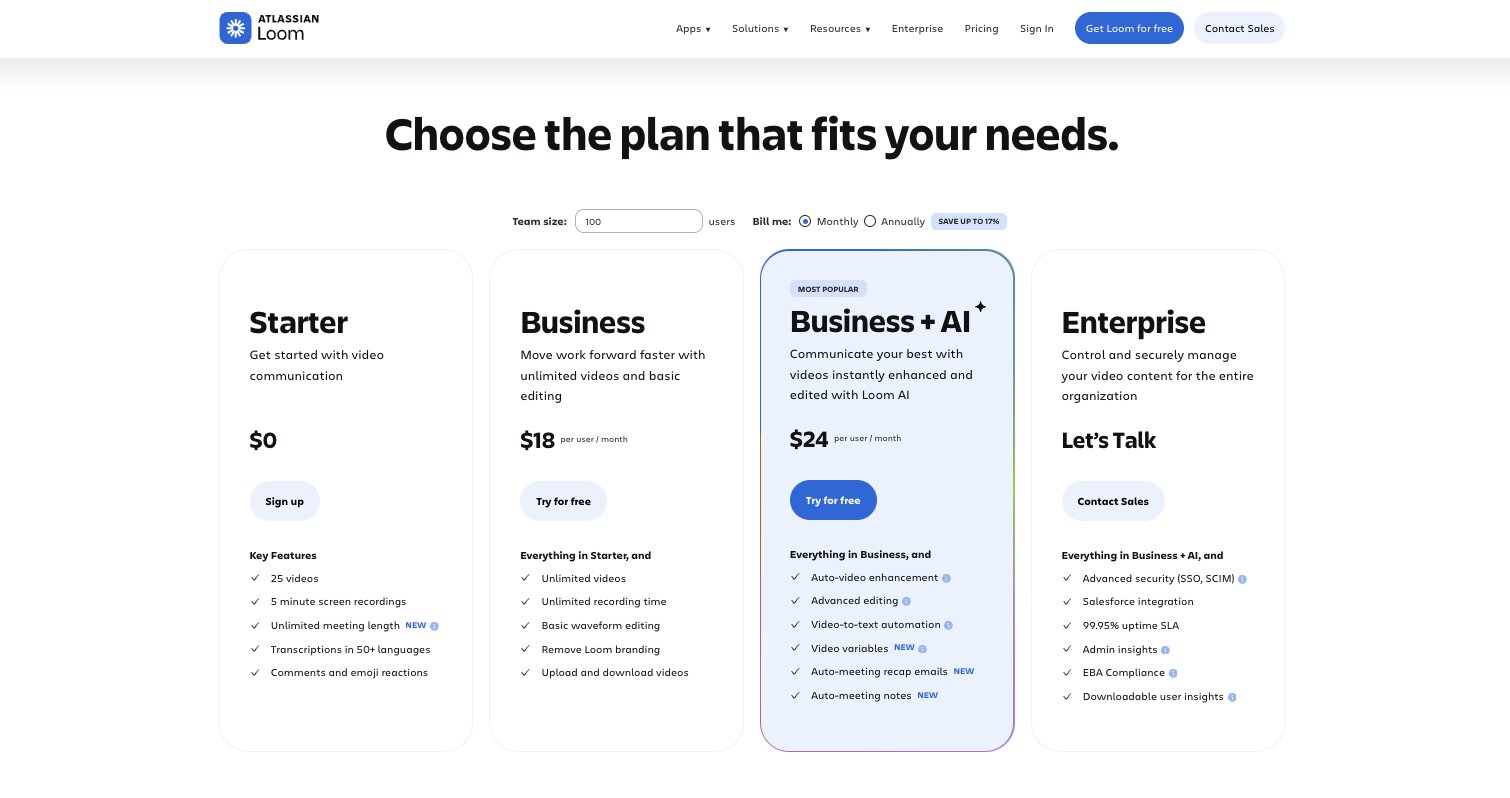
Loom has a free plan and three paid tiers:
- Starter is $0 and includes 25 videos, 5-minute screen recordings, unlimited meeting length, transcriptions in 50+ languages, and comments with emoji reactions.
- Business is $18/user/month and includes unlimited videos, unlimited recording time, basic waveform editing, video uploads and downloads, and the ability to remove Loom branding.
- Business + AI is $24/user/month and includes everything in Business, plus auto-video enhancement, advanced editing, video-to-text automation, video variables, auto-meeting recap emails, and auto-meeting notes.
- Enterprise is custom pricing and includes everything in Business + AI, plus SSO, SCIM, Salesforce integration, 99.95% uptime SLA, admin insights, and EBA compliance.
You can learn more about each plan here.
Loom reviews
Here is what other users rate the platform:
- G2: 4.7/5 star rating (from +2,345 reviews)
- Capterra: 4.7/5 star rating (from +518 reviews)
12. Descript
- Category: Video & Screen Recording
- Best for: Editing videos and podcasts by editing text
- Pricing: Free plan available, then starts at $16/person/month (annual)
- How I use it: I upload talking head videos and edit them by deleting or rearranging sentences in the transcript instead of scrubbing through a timeline
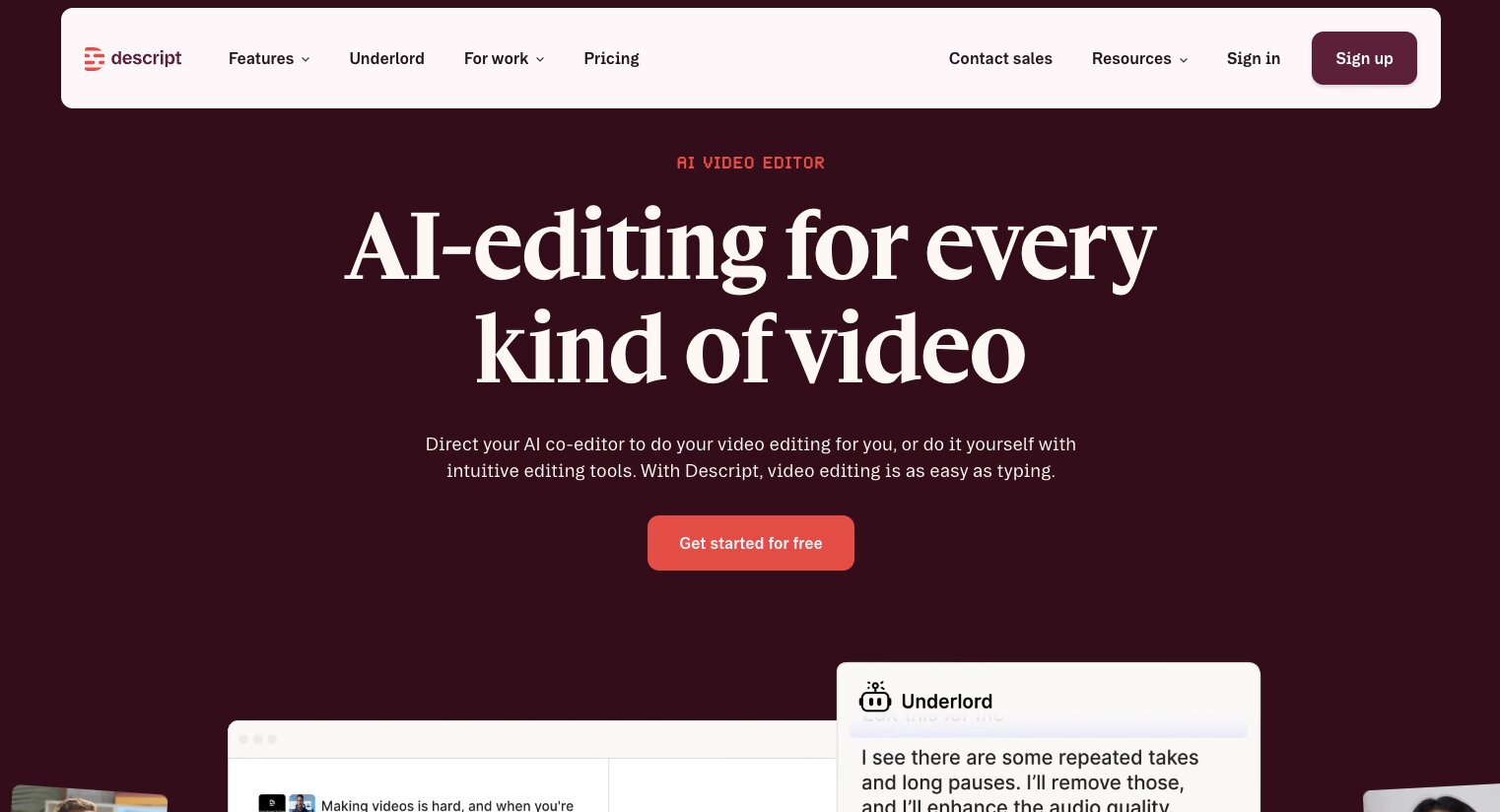
Descript is an AI video editing and podcast platform designed to help you edit talking head videos or create AI generated scripts really fast.
And now with their enhanced AI features, you can actually create B-roll and use different AI models to create videos. It started off as a pure editing platform, but has slowly turned into a generative AI tool for all things related to video creation.
How Descript works
The original core value prop of Descript is actually in the brand name... "script." Any time you create a video and upload it into the platform, it quickly transcribes. And from there, you can actually edit your videos based off of the transcripts. So if you delete, for example, a sentence that was said in the transcript, it also deletes that section of the video.
It essentially allows you to edit videos very quickly by manipulating the text that was spoken. On top of that, there are other AI features that have things like a built-in green screen, things like improving your eye contact if you're reading a transcript, and also helping your average mic sound better through AI-enhanced studio sound optimizations.
Here are some things I like about Descript:
- The text-based editing is genuinely different from any other video editor. You edit words on a page and the video changes with it.
- AI features like Studio Sound, filler word removal, and eye contact correction save hours of post-production work.
- You can generate custom voice clones and AI video, which makes it useful for more than just editing.
Here are some things that can improve with Descript:
- The free plan is very limited and mostly useful for testing. You'll need a paid plan for any serious editing.
- AI credits and media hours are capped on every plan, so heavy users might burn through their limits fast.
Descript pricing
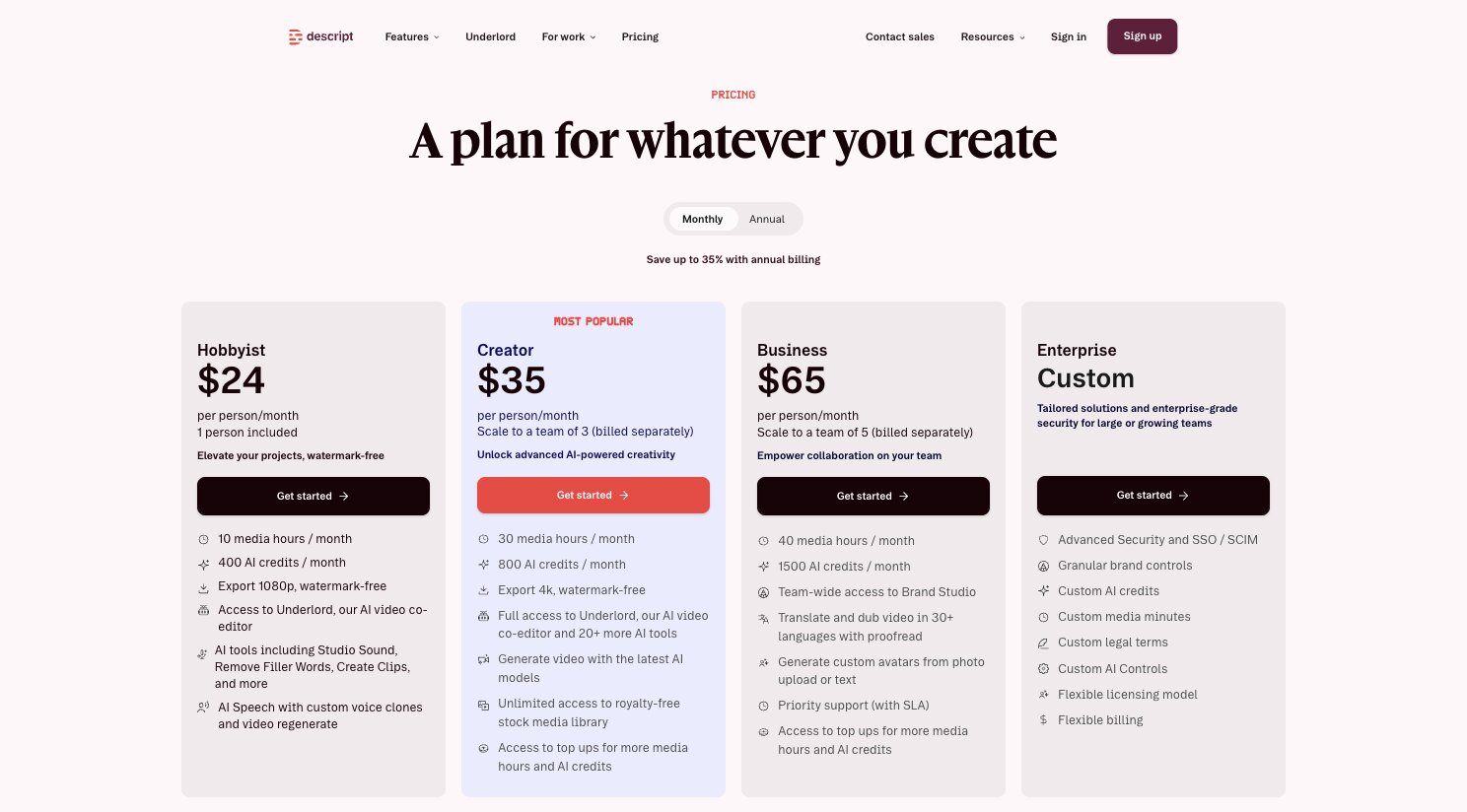
Descript has a free plan and four paid tiers:
- Free is $0 and includes basic text-based editing and limited AI tools.
- Hobbyist is $16/person/month (annual) and includes 10 media hours per month, 400 AI credits, 1080p export, access to Underlord (their AI co-editor), AI tools like Studio Sound and filler word removal, and AI speech with custom voice clones.
- Creator is $24/person/month (annual) and includes 30 media hours per month, 800 AI credits, 4K export, full access to Underlord and 20+ AI tools, AI video generation, and unlimited royalty-free stock media.
- Business is $50/person/month (annual) and includes 40 media hours per month, 1,500 AI credits, Brand Studio for teams, video translation and dubbing in 30+ languages, custom avatar generation, and priority support.
- Enterprise is custom pricing with SSO/SCIM, custom AI credits and media minutes, granular brand controls, custom AI controls, and flexible licensing.
You can learn more about each pricing plan here.
Descript reviews
Here is what other users rate the platform:
- G2: 4.6/5 star rating (from +866 reviews)
- Capterra: 4.7/5 star rating (from +182 reviews)
13. v0
- Category: Coding & Building
- Best for: Quickly generating website prototypes and UI designs with AI
- Pricing: Free plan available, then starts at $30/user/month
- How I use it: I use v0 to generate the first version of any website prototype, then move the code into Cursor to keep building from there
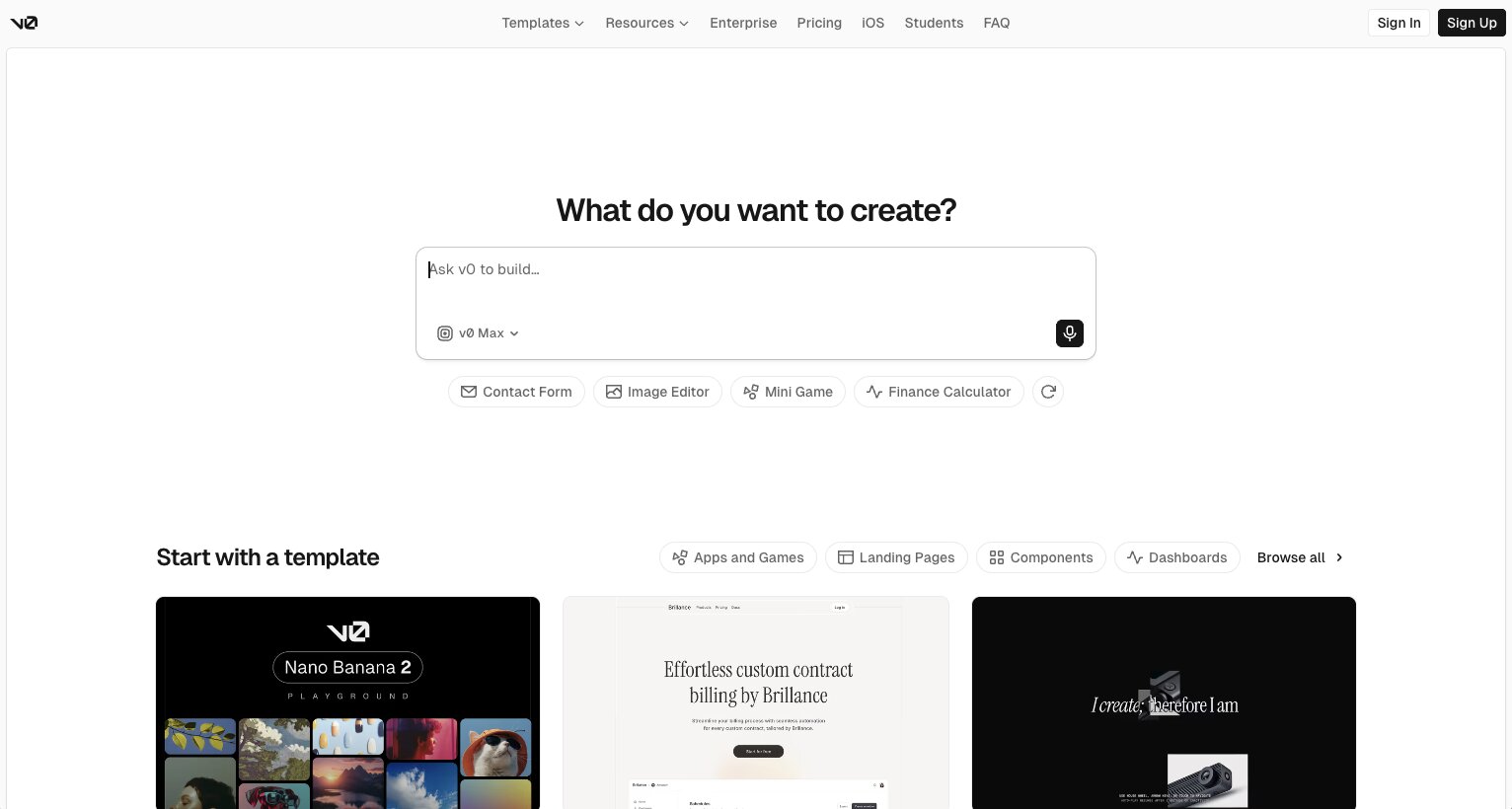
v0 is an AI website builder and agentic coding platform that allows you to quickly generate prototypes for full websites using AI. When it comes to website design or iterating product design, it's become my favorite productivity tool for quickly taking my ideas through natural language and turning them into real software products.
And I know what you're thinking, aren't there tools like Lovable or Replit that can do the same thing? Yes, there are. But v0 has design taste that doesn't generate code that looks like every other vibe coding platform. It's created by Vercel, and it's very much a frontend coding tool. So the designs are built in a very clean and modern way.
How v0 works
The platform works by you simply giving it prompts in natural language and it starts to generate whatever you ask it to. You can also connect it to Supabase if you need a persistent database, as well as Vercel if you want to host the site on a custom domain.
I've personally used it to speed up my website design process by having v0 create the first version of any prototype I want. From there, I usually move over the code into Cursor (the next platform on this list), to further expand on the code.
The platform is great for PMs, marketers looking to prototype, or designers looking to quickly build a base for their designs. v0 also has a ton of templates you can use so you don't always have to start from a blank canvas.
Here are some things I like about v0:
- The design quality is noticeably better than other vibe coding platforms. The outputs actually look clean and modern out of the box.
- You can deploy directly to Vercel and sync with GitHub, so it fits naturally into a real development workflow.
- The visual Design Mode lets you make changes without writing code, which is great for non-developers.
Here are some things that can improve with v0:
- The free plan limits you to 7 messages per day, which you can hit fast if you're iterating on a design.
- It's primarily a frontend tool, so if you need complex backend logic you'll need to pair it with something else.
v0 pricing
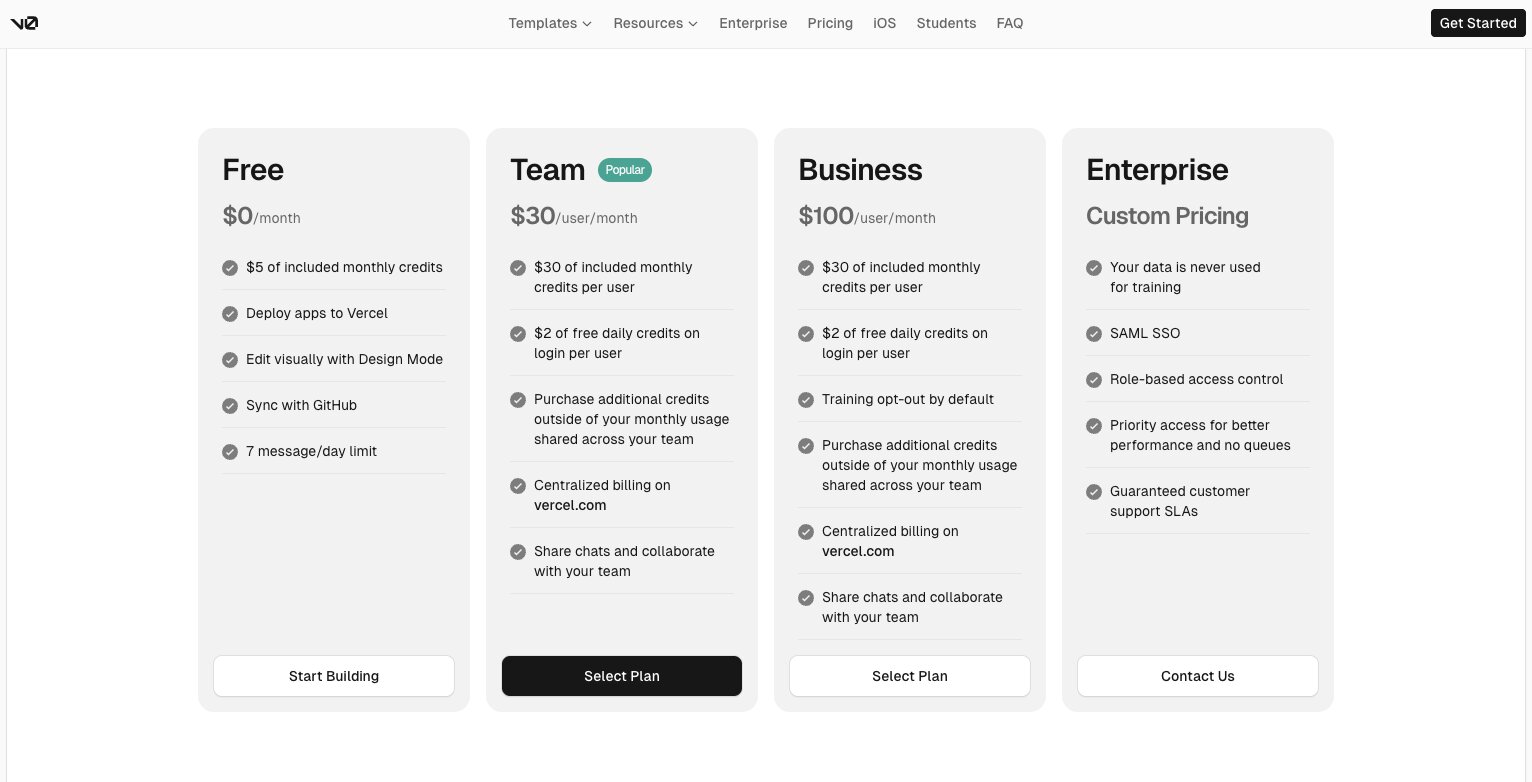
v0 has a free plan and three paid tiers:
- Free is $0 with $5 of included monthly credits, 7 messages per day, app deployment to Vercel, visual Design Mode, and GitHub sync.
- Team is $30/user/month with $30 of included monthly credits per user, $2 of free daily credits on login, the ability to purchase additional credits, centralized billing, and team collaboration features.
- Business is $100/user/month with everything in Team, plus training opt-out by default.
- Enterprise is custom pricing with data never used for training, SAML SSO, role-based access control, priority access, and guaranteed support SLAs.
You can learn more about their pricing plans here.
v0 reviews
Here is what other users rate the platform:
- G2: 4.7/5 star rating for Vercel (from +60 reviews)
- Product Hunt: 4.8/5 star rating (from +53 reviews)
14. Cursor
- Category: Coding & Building
- Best for: AI-powered code editing and building production-ready software
- Pricing: Free plan available, then starts at $20/month
- How I use it: I take prototypes from v0 and build them into real software tools using Cursor paired with Claude Code
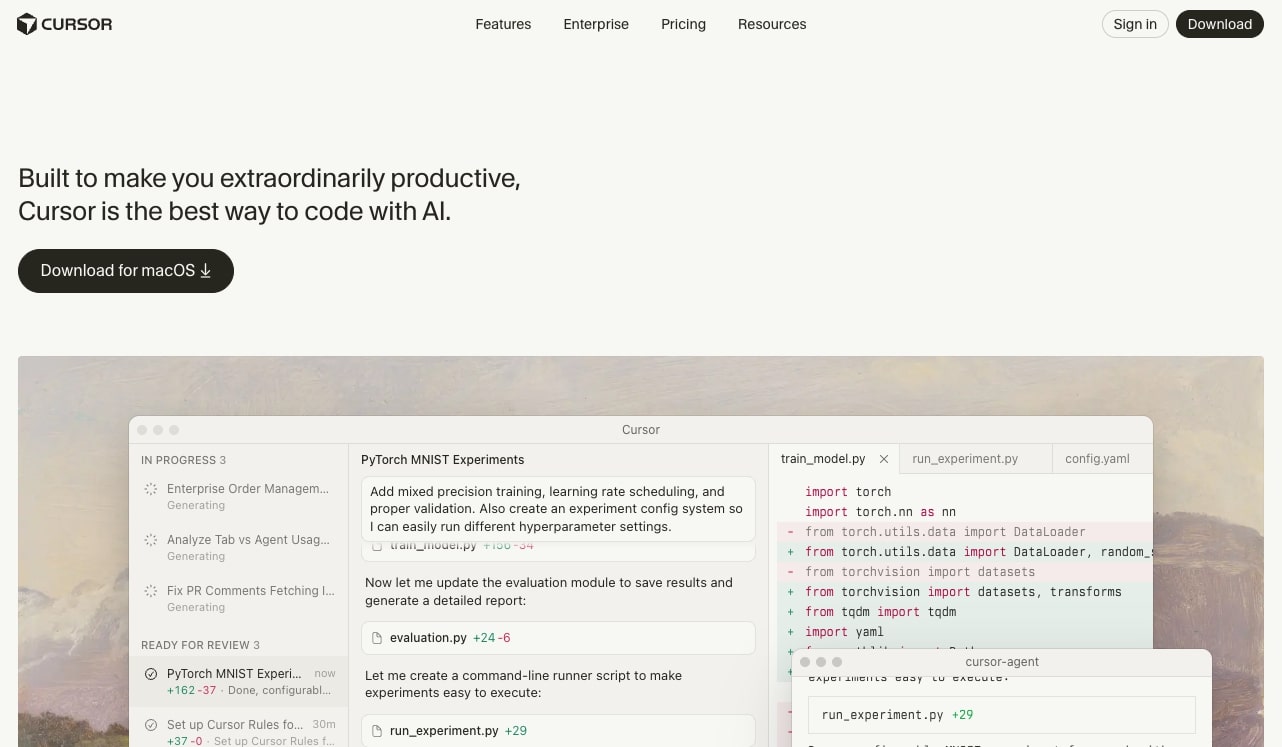
Cursor is an AI-powered IDE, and now agentic AI platform. If you're a developer, it seriously enhances your productivity by giving you AI autocomplete for your code. And just like Gumloop, you can also use and create AI agents that are LLM agnostic (pick from any AI model you want).
The standard Cursor coding environment is actually a fork of Visual Studio Code. "Fork" essentially meaning a copy of the tool (for my non-developer readers out there). It took Visual Studio Code and added AI on top.
How Cursor works
So to use it, it's just like any regular IDE (integrated development environment) where you build production-ready software. If you remember earlier I said how I take the v0 code and bring it into Cursor. So I use this tool for taking my prototypes and building actual software tools on top of it.
For example, you might not know, but I'm actually typing this out in an editor I built with Cursor. It's my own custom writing tool that lives locally on my computer. So you can use Cursor as a way to create your own tools. Pair it up with Claude Code inside of Cursor and you have the same tech stack many of the top developers use today.
Here are some things I like about Cursor:
- It's a fork of VS Code, so if you're already a developer the learning curve is basically zero. All your extensions and settings carry over.
- It's LLM agnostic with access to OpenAI, Claude, and Gemini models, so you can pick the best model for the task.
- The agent mode and MCP support make it more than just an autocomplete tool. You can build complex workflows right inside your editor.
Here are some things that can improve with Cursor:
- The free plan has limited agent requests and tab completions, so you'll feel the constraints quickly if you're coding all day.
- If you're not a developer, this tool isn't for you. It's a full IDE, not a no-code builder.
Cursor pricing
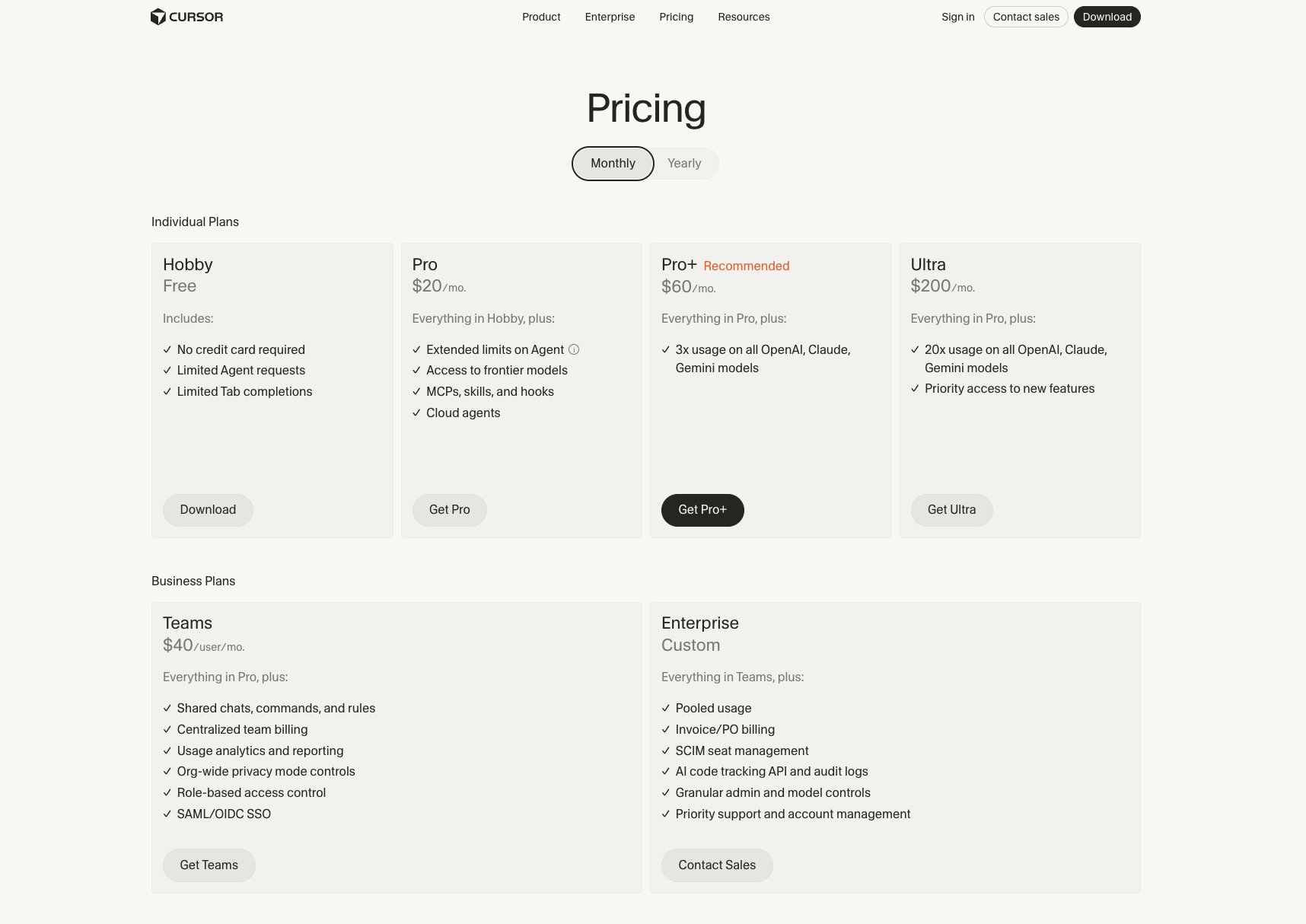
Cursor has a free plan and scales up based on usage:
- Hobby is $0 with limited agent requests, limited tab completions, and no credit card required.
- Pro is $20/month with extended agent limits, access to frontier models, MCPs, skills, hooks, and cloud agents.
- Pro+ is $60/month with everything in Pro, plus 3x usage on all OpenAI, Claude, and Gemini models.
- Ultra is $200/month with everything in Pro, plus 20x usage on all models and priority access to new features.
- Enterprise is custom pricing with pooled usage, invoice/PO billing, SCIM seat management, AI code tracking API, audit logs, granular admin and model controls, and priority support.
You can learn more about their pricing plans here.
Cursor reviews
Here is what other users rate the platform:
- G2: 4.5/5 star rating (from +46 reviews)
- Product Hunt: 5/5 star rating (from +802 reviews)
15. 21st.dev
- Category: Design & Visuals
- Best for: Making your vibe coded designs look professional with community-driven UI components
- Pricing: Free to browse, Magic tool starts at $20/month
- How I use it: I browse for design elements, copy the prompt, and paste it into Cursor or v0 to make my interfaces look polished without being a pro designer
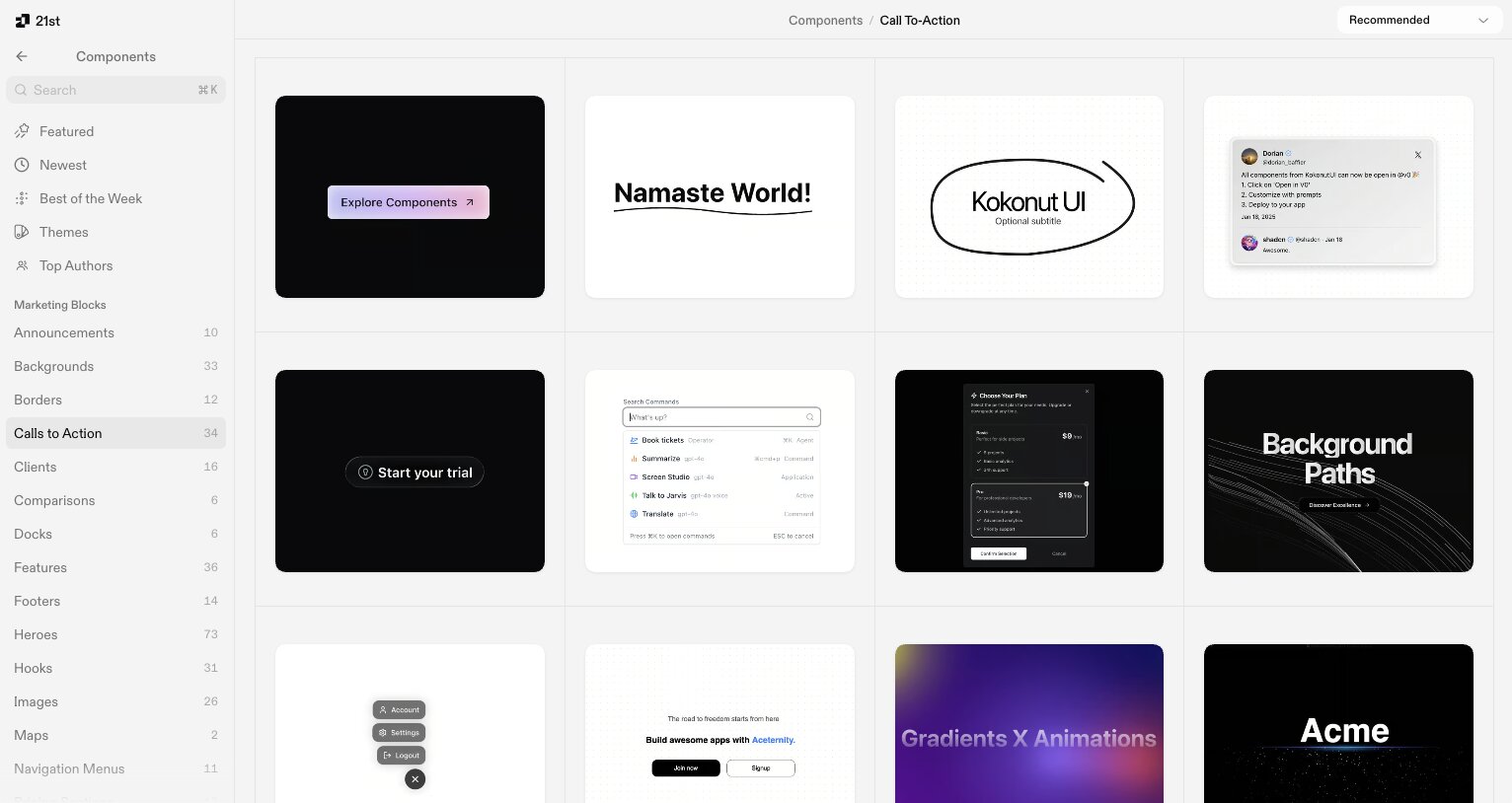
21st.dev is a design and coding tool that helps you take your vibe coded designs and makes them look (for a lack of a better word) pretty. It's a community-driven UI kit and component community built around AI prompts.
You basically browse the website for any design element you like, and then click copy prompt. From there, you can use that prompt in any AI tool that lets you build visual tools. For example, you can use it inside of Cursor, v0, or even Gumloop if you're creating reports or artifacts.
How 21st.dev works
It's my go-to tool for making my user interfaces look super professional and polished. It has completely changed the way I design UIs and elements on my website and has been a secret tool I use for making me look like a professional designer.
Out of all of the design tools, it's been my top favorite for using AI (without it looking like I used AI). Besides 21st.dev, there's also another AI tool that I use on a weekly basis, and we'll go over that next.
Here are some things I like about 21st.dev:
- The copy-prompt workflow is dead simple. Find a component you like, copy the prompt, and paste it into whatever coding tool you're using.
- The designs actually look good. This is the tool that makes your vibe coded projects not look like they were vibe coded.
- It works with any AI coding tool, so you're not locked into a specific platform.
Here are some things that can improve with 21st.dev:
- The free plan for Magic only gives you 100 credits per month, which can go fast if you're designing a lot.
- It's best suited for people who are already building with code. If you're not using tools like Cursor or v0, you won't get as much value from it.
21st.dev pricing

The core 21st.dev platform is free to use. Their new product Magic (backed by Y Combinator) has three tiers:
- Free is $0 with 100 credits per month, unlimited UI inspirations, unlimited SVG logo searches, and community support.
- Pro is $20/month with 400 credits per month, everything in Free, clone site feature, and priority support.
- Max is $100/month with 2,000 credits per month, everything in Pro, and early access to new features.
You can learn more about their Magic plans here.
21st.dev reviews
Here is what other users rate the platform:
- Product Hunt: 5/5 star rating (from +7 reviews)
- You can read this review by Ash on DEV Community
16. Weavy
- Category: Design & Visuals
- Best for: Creating on-brand AI-generated graphics through automated workflows
- Pricing: Free plan available, then starts at $24/month
- How I use it: I use Weavy multiple times a week to create blog thumbnail images for my clients using repeatable workflows that keep everything on brand
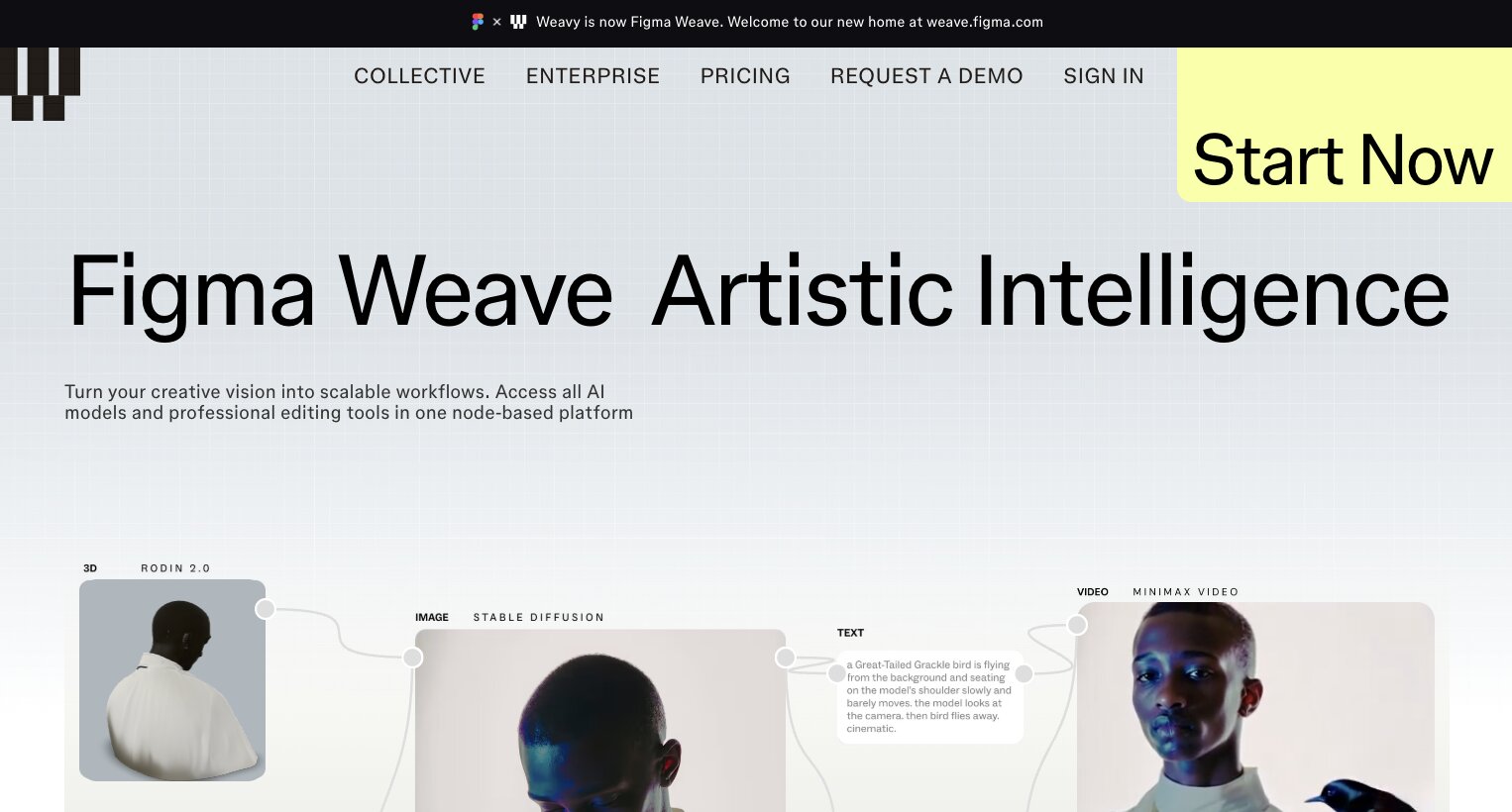
Weavy, now called Figma Weave after the Figma acquisition, is an AI image generation workflow platform. I know, that sounds a bit weird to wrap your head around. But it's essentially an AI image generation tool that is built around creative workflows.
Let's say you have a design system for your brand and you want to create custom graphics that all have the same theme. You can do it with Weavy.
How Weavy works
How it works is that you have a node-based canvas that you can connect different LLMs, prompts, edits (like color grading, angles, etc.), and then you create automated workflows between them.
The result is a predictable format for generating on-brand graphics. And I personally use Weavy multiple times a week to create blog thumbnail images for my clients. But it has a wide range of use cases, and you can import everything into Figma to further expand on any manual design tweaks.
Here are some things I like about Weavy:
- The workflow-based approach means you can create a repeatable system for generating graphics that all follow the same brand style, instead of prompting from scratch every time.
- Full access to all AI models is included on every plan, even the free one.
- The Figma integration makes it easy to take AI-generated assets and refine them with manual design work.
Here are some things that can improve with Weavy:
- The free plan only gives you 150 credits per month, which is enough to test but not enough for regular use.
- The node-based canvas has a learning curve if you're not used to workflow-style tools.
Weavy pricing

Weavy has a free plan and scales up based on usage:
- Free is $0 with 150 monthly credits, full access to all AI models, professional-grade editing tools, commercial license, and 5 workflows.
- Starter is $24/month with 1,500 monthly credits, everything in Free, unlimited workflows, and credit top-ups at $10 for 1,000 credits.
- Professional is $45/month with 4,000 monthly credits, everything in Starter, 3-month credit rollover, and credit top-ups at $10 for 1,200 credits.
- Team is $60/user/month with 4,500 monthly credits per user, everything in Pro, unified billing, shared credit pool, workspace file sharing, and team member administration.
- Enterprise is custom pricing with everything in Team, plus custom credit allocation, team training, premium Slack support, your own API keys, and API workflow access coming soon.
You can learn more about the pricing plans here.
Weavy reviews
Weavy is still a relatively new platform, and there are no ratings on third-party review sites. However, you can check out this review video from Artturi that goes over the platform.
17. Pomelli
- Category: Design & Visuals
- Best for: Generating on-brand social media posts and ad creatives from your website's design
- Pricing: Free (Google Labs experiment)
- How I use it: I give it my website URL and use it to quickly generate branded graphics for social media and ad creatives without needing a designer
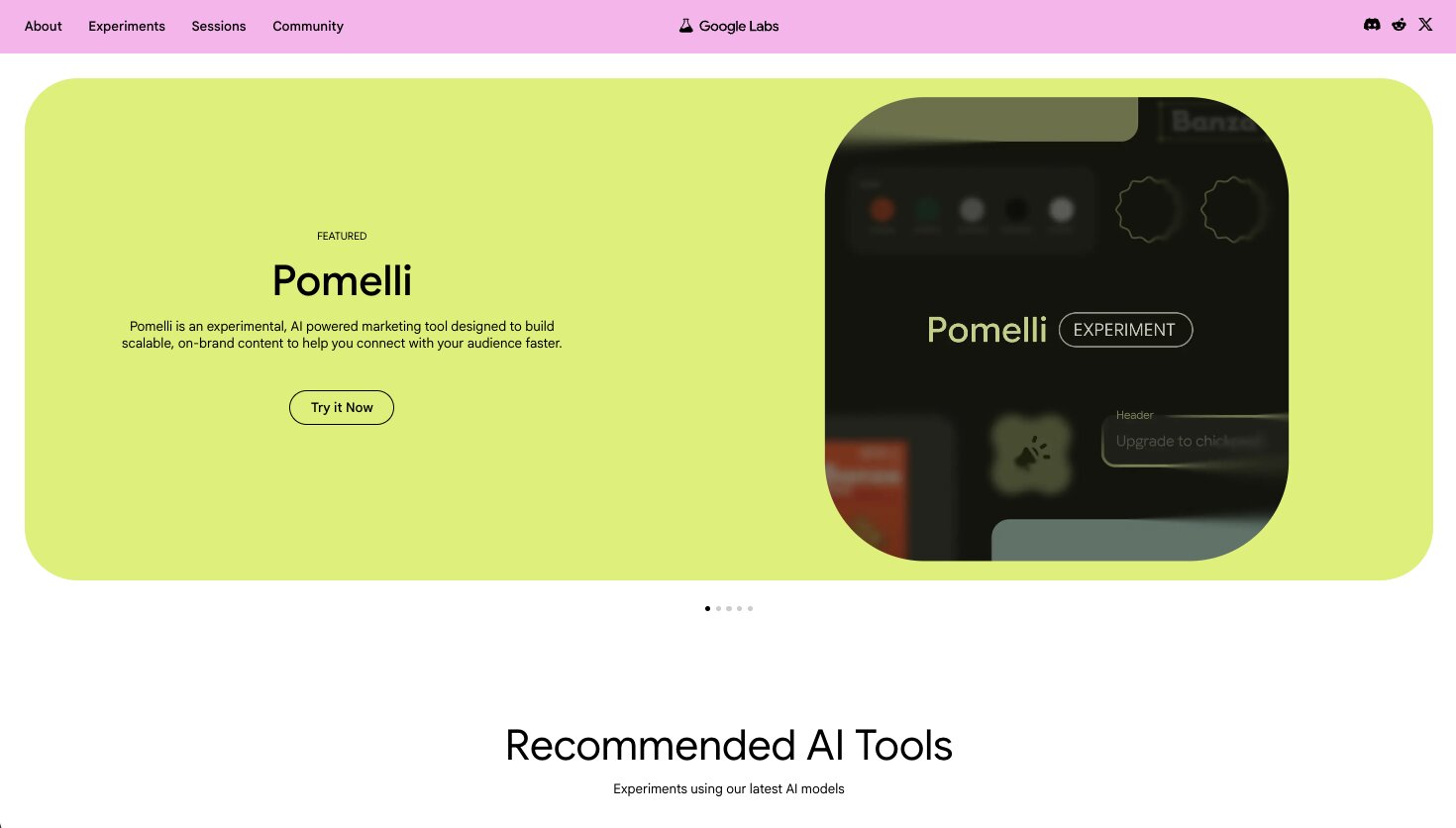
Pomelli is a free tool inside of Google Labs. It's an experimental AI marketing tool that can create a brand design system so you can use generative AI to create social media posts or ad creatives.
All you do is give Pomelli your website URL and from there it can slurp up your design. Then, you can prompt the tool to create graphics and posts that are in the same theme of the design of your website.
How Pomelli works
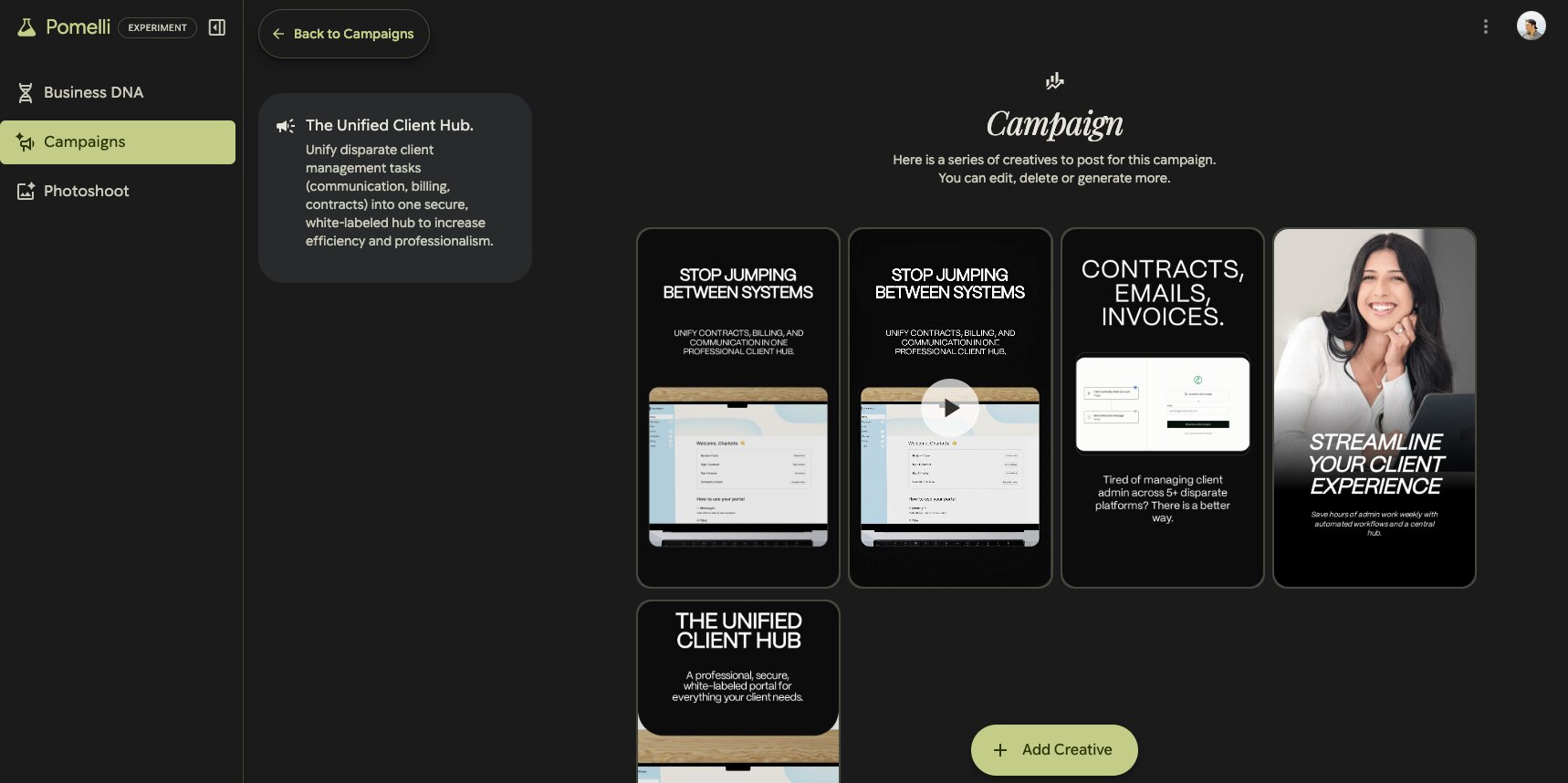
The goal of the tool is to create a "Business DNA" based on your website. And from there have AI help you create content based on that brand identity. It's great if you want to test multiple creatives for Meta ads. It's a great productivity tool if you're a solo marketer without a design team to help you create multiple creatives.
Here are some things I like about Pomelli:
- It automatically pulls your brand's design system from your website URL, so you don't have to manually upload logos, colors, or fonts.
- It's completely free right now since it's a Google Labs experiment.
- Great for quickly testing multiple ad creative variations without hiring a designer or opening Figma.
Here are some things that can improve with Pomelli:
- It's still a Google Labs experiment, so there's no guarantee it'll stick around or become a full product.
- The outputs are good for social media and ads, but not detailed enough for more complex design work.
Pomelli pricing
Pomelli is currently free to use as a Google Labs experiment. There's no paid plan at this time.
Pomelli reviews
No third-party reviews available yet.
18. Kick
- Category: Finance & Admin
- Best for: AI-powered bookkeeping for freelancers and small business owners
- Pricing: Free plan available, then starts at $35/month (annual)
- How I use it: I use Kick to auto-categorize expenses, track deductions, and organize my bookkeeping for tax season so I can hand everything off to my CPA without the headache
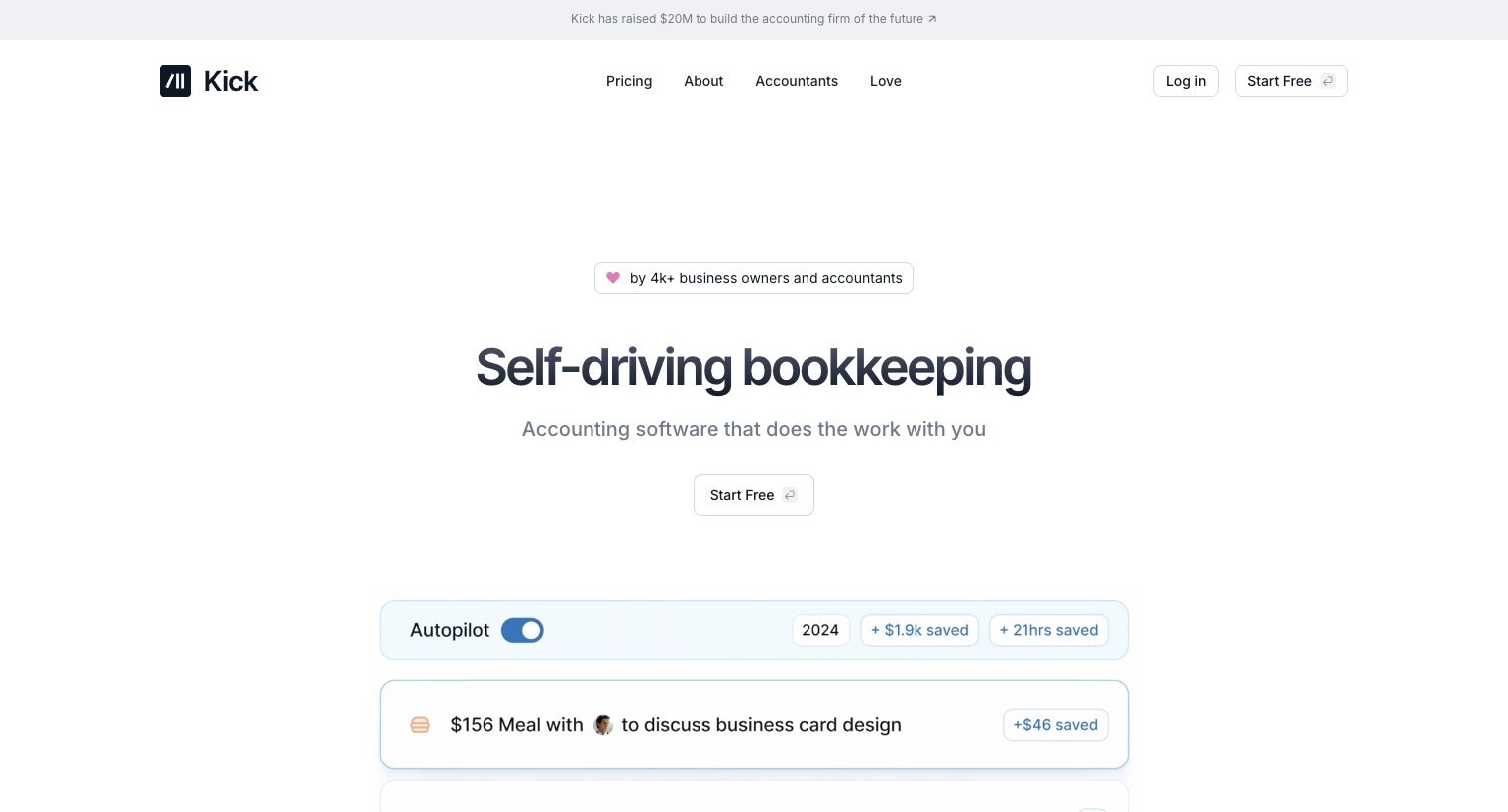
Kick is an AI "self-driving" bookkeeping platform. I added it to this list because it's a great tool for freelancers or small business owners that don't like to deal with reconciling their books and dealing with all the financial admin stuff that goes with running your own business.
This past tax season, I used AI to help me organize all of my bookkeeping stuff for my CPA and I was blown away at how effective it was. It was probably my favorite use of AI when it came to doing admin stuff I would rather not do.
How Kick works
With Kick, you can easily auto-categorize all of your expenses, track deductions, and even set conditional rules that can have the AI adapt to how you want your business finances to be organized.
On top of that, Kick gives you revenue insights and lets you track all of your SaaS subscriptions. I can't stress enough how cool this tool is if you're a solopreneur or small business that wants to take your bookkeeping to a professional level without even trying. I know that sounded like marketing material, but you just have to check it out for yourself and you'll see what I mean.
Here are some things I like about Kick:
- Auto-categorization and receipt matching work right out of the box, so you're not manually sorting through every transaction.
- The free plan includes profit and loss reports, cash insights, and integrations with Stripe, PayPal, Ramp, and Mercury, which is generous for a bookkeeping tool.
- You can set custom rules that teach the AI how you want your finances organized, so it gets better over time.
Here are some things that can improve with Kick:
- The free plan caps your annual business expenses at $25K, so you'll need to upgrade once your business grows past that.
- Some of the more advanced accounting features like balance sheets, bank reconciliation, and custom chart of accounts are only available on the Plus plan at $125/month.
Kick pricing
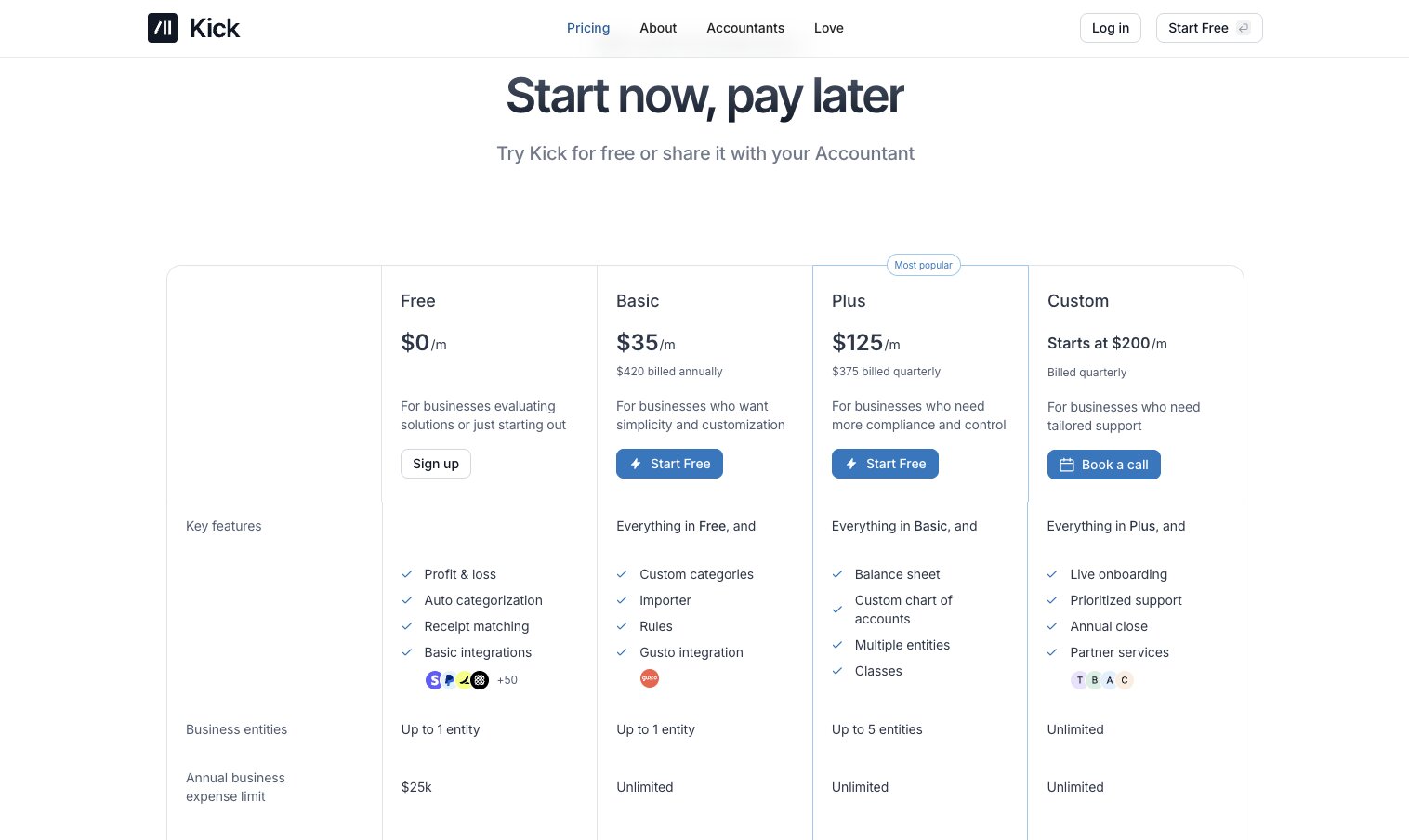
Kick has a free plan and three paid tiers:
- Free is $0 with auto-categorization, receipt matching, profit and loss reports, cash and revenue insights, integrations with Stripe, PayPal, Ramp, and Mercury, and a $25K annual expense limit.
- Basic is $35/month (annual) with unlimited expenses, everything in Free, plus custom categories, rules, invoicing, importer, Gusto integration, and custom views.
- Plus is $125/month (billed quarterly) with everything in Basic, plus balance sheet, custom chart of accounts, up to 5 entities, classes, bank reconciliation, and trial balance.
- Custom starts at $200/month (billed quarterly) with everything in Plus, plus unlimited entities, live onboarding, prioritized support, annual close, partner services including tax advisory, and loan reconciliation.
You can learn more about each plan here.
Kick reviews
Kick is still a new platform so there aren't many third-party reviews. There are three positive reviews on Product Hunt at the time of writing this.
Does AI actually make you more productive?
Yes, AI can make you more productive but only if you use it to do tasks you can already do really well manually. It can be counterproductive if you use it to accomplish tasks you don't fully understand.
There's this concept of the 30% rule in AI. Sometimes its also refered to as the 70/30 rule. And the main premise is that AI should handle roughly 70% of repetitive, data-heavy tasks while humans focus on the remaining 30% that requires creativity, critical thinking, and decision making.
And I think that's the right way to think about AI productivity tools. Whether you're using an AI chatbot to summarize documents, an all-in-one tool for task management, or a copilot that helps with content creation and data analysis, the functionality is only as good as your ability to direct it.
The tools I shared in this article cover a wide range of use cases. Some help you with real-time voice dictation, others help you automate repetitive tasks, and a few can boost productivity across your entire team. But none of them replace the need for you to actually understand the work.
If you remember at the beginning of this article, I said that AI is an amplifier. The user experience you get from any of these tools is directly tied to how much context and direction you can give them.
So pick the tools that fit your workflow, learn them deeply, and let AI handle the parts of your work that don't require consistent critical (human) thinking.
That's how you actually become more productive with AI tools.

Read related articles
Check out more articles on the Gumloop blog.