Run your spreadsheets from one chat with a Google Sheets agent
It reads, writes, cleans, and formats your spreadsheets, builds charts, and moves data between your sheets, docs, inbox, and databases, all from one chat.


Trusted by leading teams



Stop doing your spreadsheets by hand
The agent reads the data, cleans it, formats it, charts it, and writes the summary, so the work that used to fill your morning is done before you switch tabs.
What is the Google Sheets Agent?
A Google Sheets agent is an assistant that does the spreadsheet work for you instead of just telling you how. You ask in plain English, and it reads the sheet, makes the changes, formats the result, and shows you what it did. There are no formulas to remember and no menus to dig through.
The Gumloop Google Sheets agent connects to your spreadsheets, your inbox, your drive, your documents, and your connected databases, and it can run your data through Python to clean, reshape, filter, and aggregate it before it ever touches a cell. That lets it dedupe a messy export, sync a database into a fresh sheet, build a chart, or turn a tab into an emailed summary, all from one conversation.
It works the way a careful analyst would. It reads the structure of a sheet before it writes to it, it batches its changes so they are fast and clean, and it always shows you what it is about to overwrite or delete before it does anything destructive.

What you can do with the Google Sheets Agent
Workflows the agent handles out of the box.
Read and summarize any sheet
Point it at a spreadsheet and it reads the full data range, then gives you the row count, the headers, and the key numbers in a clean summary.
Write, append, and update rows
It appends new rows without clobbering your data, overwrites specific ranges when you ask, and looks up a single row by value to update just that one.
Clean and format data
It dedupes rows, standardizes casing and number formats, fixes headers, and applies bold, colors, alignment, and currency or date formatting.
Charts and formulas
It writes live formulas into cells and builds bar, line, pie, scatter, area, and column charts from a data range, placed on the tab you choose.
Move data across your apps
It syncs a database into a sheet, logs incoming email into a tracker, and pulls files from your drive, reshaping each source into clean rows on the way in.
Email and export reports
It reads a sheet, writes a summary, and drafts the email, or exports the data into a formatted document, so a report is one request instead of an afternoon.
How to use the Google Sheets Agent
Get from landing page to live agent in a few clicks.
- 1
Click "Use this agent"
A preconfigured agent is created in your Gumloop workspace with your spreadsheets, inbox, drive, documents, and connected databases ready to link, and the spreadsheet expertise loaded into its system prompt.
- 2
Connect your tools
Authorize your spreadsheets and the supporting tools with your own credentials. The agent uses your access, so it can only see and change what you already can.
- 3
Ask about any spreadsheet
Paste a link or name a sheet and ask. The agent reads it, does the work, and shows you anything it plans to overwrite or delete before it acts.
Google Sheets Agent use cases
Real workflows teams run with this agent.
Cleaning up a messy export
Hand it a raw export and it dedupes the rows, standardizes the casing and number formats, fixes the headers, and writes the clean version back.
Syncing a database into a sheet
Ask it to pull a database into a spreadsheet and it queries every record, reshapes the fields into rows, and writes a formatted sheet you can share.
Building a chart from your data
Ask for a view of the numbers and it picks the range, builds the chart on the right tab, and formats it, so the visual is ready in one step.
Emailing a weekly summary
It reads the sheet, writes a plain-language summary of what changed, and drops it into a draft addressed to your team, ready for you to send.
Exporting a sheet into a document
It reads the data and creates a formatted document with the rows laid out as a table, so a sheet becomes a shareable report without copy and paste.
Why use Gumloop for the Google Sheets Agent
It executes, it does not just advise
The agent edits the cells, builds the chart, and writes the rows itself. It never hands you a list of steps and leaves the clicking to you.
It confirms before it overwrites or deletes
Before it clears a range, overwrites a large block, or removes a tab, it shows you exactly what it will do and asks first.
It works across your apps
It moves data between your spreadsheets, your inbox, your drive, your documents, and your databases, so a cross-app task is one conversation, not five tabs.
It lives in your workspace
The agent runs inside Gumloop with your tools connected, so cleaning a sheet, building a chart, and emailing the summary all happen in one place.
Related agents


Data agent
Answer questions about your data warehouse in plain English, with no SQL required.


AI invoice processing agent
Pull invoices from your inbox, validate the numbers, and log every one to a sheet.



Marketing analytics dashboard generator
Turn your marketing data into a live dashboard you can share in one step.
With enterprise-grade infrastructure and security
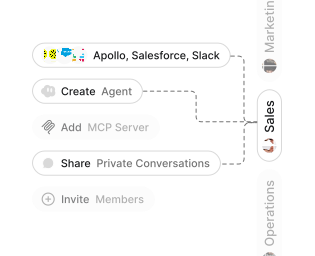
Role-based access control
Manage reusable roles, shared credentials, and secrets with scoped access controls.


Virtual private cloud deployments
Deploy Gumloop in your own cloud.
Anthropic
OpenAI
Gemini
DeepSeek
AI model restrictions
Control which AI models teams can use. Set guardrails and enforce spend policies.
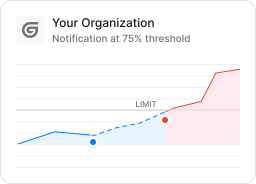
Usage monitoring
Track organization-wide credit usage in real time. Implement budget and quota controls to avoid surprises.
TODAY



WEDNESDAY


Audit logging
Capture detailed audit trails for actions across the organization to understand where data is flowing.
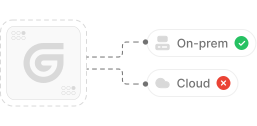

AI proxy support
Bring your own API keys and route requests through your own proxy.
Sign in with Okta
Single Sign-On
Securely streamline identity and access management.


Zero Data Retention
Gumloop never uses customer data to train AI models. For third-party models, we have Zero Data Retention (ZDR) agreements and Data Processing Addendums (DPAs).


SOC 2 Type II Certified
Gumloop is committed to security, and is compliant with SOC 2 Type II and GDPR. Visit trust.gumloop.com to learn more.
Frequently asked questions
Tasks automated to date
Try the Google Sheets Agent