

How to create a data analyst AI agent (with free template)

I have zero doubt that this guide is about to blow your mind.
If you work with data and analytics, you know the pain. You need a quick answer, but first you have to write a SQL query. Or open a dashboard. Or ping someone on your team and wait.
Or maybe you just joined a new company and still have no idea where all the data is, if it even exists, or who to ask without sounding like you don't know what you're doing.
What if you could just ask a data analyst agent a question and get an answer? Like, actually just type "what's our traffic looking like this week?" and get a response in seconds.
That's what a data analyst AI agent does. And I'm going to show you how to create a data analyst AI agent step by step, with a free template you can use right away.
You don’t need extensive knowledge on python or SQL either. I’m going to blow your mind with how easy this is to set up and how powerful it actually is.
Okay, no more rambling from me. Let's get into it.
What you can do with a data analyst AI agent
Most data analysis workflows require you to know SQL, Python, or at least be comfortable digging through dashboards. And if you want visualizations or reports, you're either building them yourself or waiting on someone else on your team to do it.
A data analyst AI agent flips this. You ask questions in natural language and get answers back instantly. No SQL queries. No Python scripts. No waiting.
The agent connects to your data sources (BigQuery, HubSpot, Airtable, Google Sheets, Postgres, Snowflake, CSVs, whatever you're working with) and uses an LLM to interpret your question, pull the right datasets, and return structured answers.
Here are a few use cases:
- "Give me a sense of Aaron's product usage over the last two weeks." The agent queries your data, analyzes it, and gives you a summary.
- "Give me a graph breaking down traffic per template page over the last 48 hours." It generates the visualization for you.
Instead of building a machine learning model, or setting up a RAG (Retrieval-Augmented Generation) pipeline from scratch, you're just asking questions and getting data analytics back. The agent handles the function of translating your request into the right API calls or queries behind the scenes.
If you've ever wished you could skip the data science bottleneck and just talk to your data, this is the framework for doing that.
But the use cases are endless. Because the benefit of an AI agent, over an automated workflow, is that the agent has free range to make decisions on your behalf. So once you set up the data analyst agent (which I’ll show you how to do below), you can ask it multiple different questions and get desired outputs.
You can also integrate this into something like Slack, so all you have to do is tag the agent in a message and ask it to do stuff for you. Then, it goes out and does it! Literally like having an AI coworker in your existing team communication channel.
Okay, now I know you’re probably as eager as I am to build this. So let’s jump right into it.

Ask natural-language questions about your data and get instant, structured answers — summaries, metrics, charts, and visualizations.
4 steps to build your own data analyst AI agent
Here’s how to create a data analyst agent:
- Identify the tasks you want to automate
- Sign up for an AI agent builder
- Create your first AI agent flow
- Add the agent to your team
Okay, let’s go over these in depth.
1. Identify the tasks you want to automate
I know this one is obvious. And before you roll your eyes, everything you do starts from here. You need to know the nature of the tasks you want your agent to do. This is how you will design its personality (not literally, but in its functionality and capabilities), so it can actually do the things you tell it to.
The better you are at explaining a workflow, the better your agent will be. Just like you would train a junior employee on your team on how to do something, you need to do this with AI agents as well.
For example, let's say you want to prep for customer calls faster. Before hopping on a call, you want a quick snapshot of how that customer has been using your product. Normally, you would dig through a dashboard or ping your data team.
With a data analyst agent, you just ask: "Give me a sense of Aaron's usage over the last two weeks." The agent pulls the data and gives you a summary.
So in this case, you'd identify:
- Task: Get user activity summaries on demand
- Data source: BigQuery (or wherever your product usage data lives)
- Output: A written report
If you want to get some ideas flowing, first think about the nature of the agent you’re going to build. Think about questions like:
- What data sources does it need access to?
- What kinds of questions will you be asking it?
- Do you need summaries, charts, or both?
- Should it send reports somewhere (like Slack)?
You don't need every detail figured out. But having a general sense of what you want the agent to do will make the setup process way smoother.
Then, we can program our agent (a lot easier than it sounds) to actually go out and figure out instructions for a given task.
So now, we need to find an AI agent platform that can integrate with all the tools in your data and analytics tech stack. And we also want to make sure that the platform is LLM agnostic so we can swap AI models for different use cases.
2. Sign up for an AI agent builder
The next step is to use an AI agent builder. There are a handful of these on the market right now. But not all of them are equally the same.
Some of them are AI workflow builders, advertising themselves as AI agent builders. Some of them are not LLM agnostic. And some of them require you to give extensive documentation on how to do specific tasks.
What you want to look for:
- No-code or low-code interface: You shouldn't need to be a developer to build an agent.
- LLM agnostic: The ability to swap between models (GPT, Claude, Gemini, etc.) depending on the task.
- Native integrations: Direct connections to your data sources like BigQuery, Google Sheets, HubSpot, Airtable, Postgres, and others.
I've personally been testing hundreds of AI tools over the past 18 months. I even wrote about all of them on my personal blog. And the one I find myself coming back to over and over again is Gumloop.

I don't work at Gumloop, but I am a customer which is why they asked me to write this up.
The great thing about Gumloop is that it can integrate with almost any tech stack (it also has MCP integration features), and it is LLM agnostic. This means it has any AI model built right into the platform. And you don't even need separate API keys. You can add your own keys if you want, but Gumloop has access to the LLMs built right in (without needing an extra subscription).
And now with Gummie, the AI agent that helps you build AI agents (... I know, wild), it's easier than ever to leverage AI in your work without a crazy learning curve.
Okay, all you have to do here is go to Gumloop and sign up. It's totally free to get started with and you'll be able to run an agent with the included free credits.
3. Create your first AI agent flow
Now for the fun part. This is where you actually build the agent.
Once you're inside Gumloop, you'll see the agent builder interface. There are a few key things to understand before we dive in.
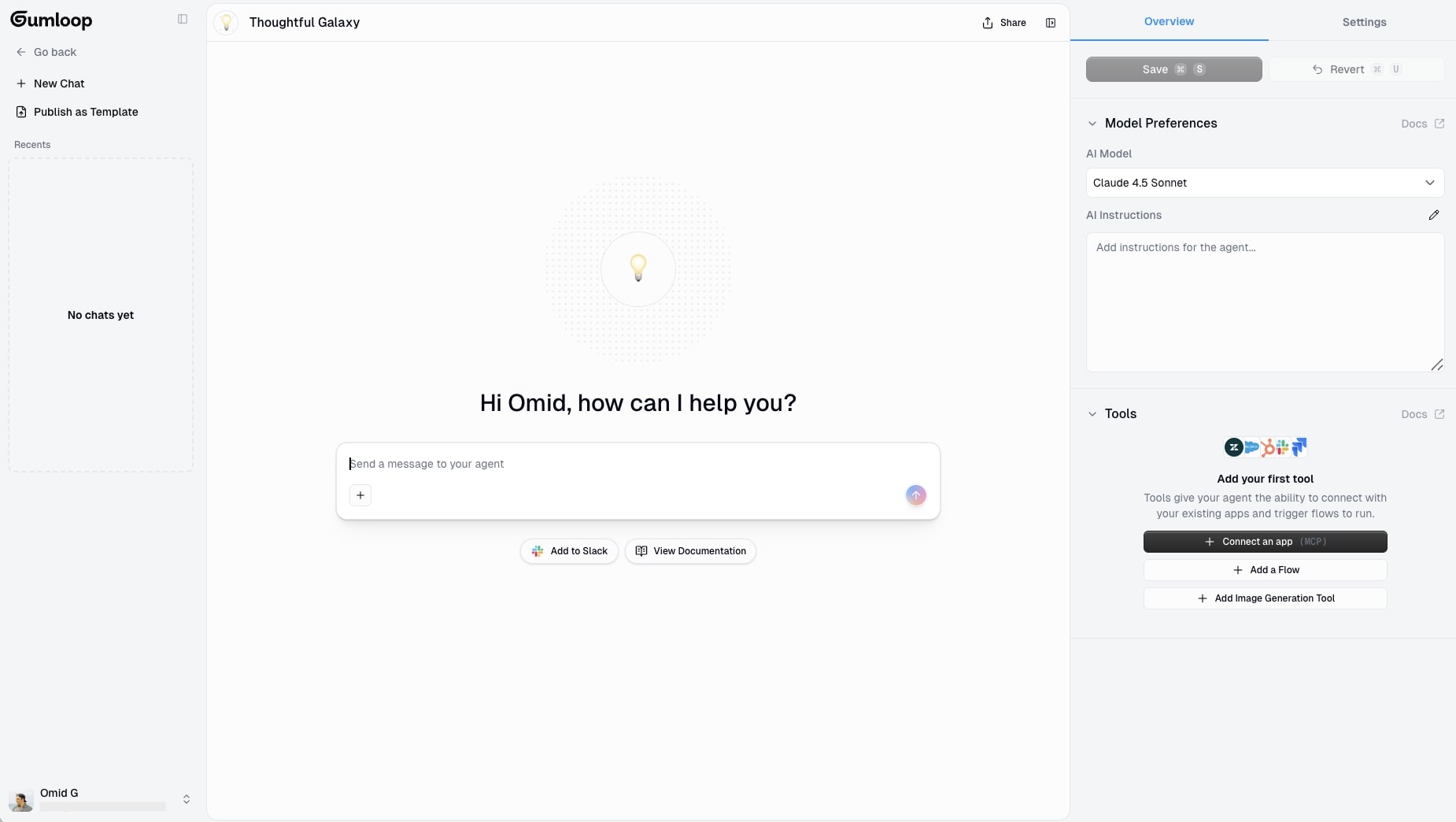
Let’s quickly go over the functionality here.
When you're building an agent, you can connect two types of things: apps and flows.
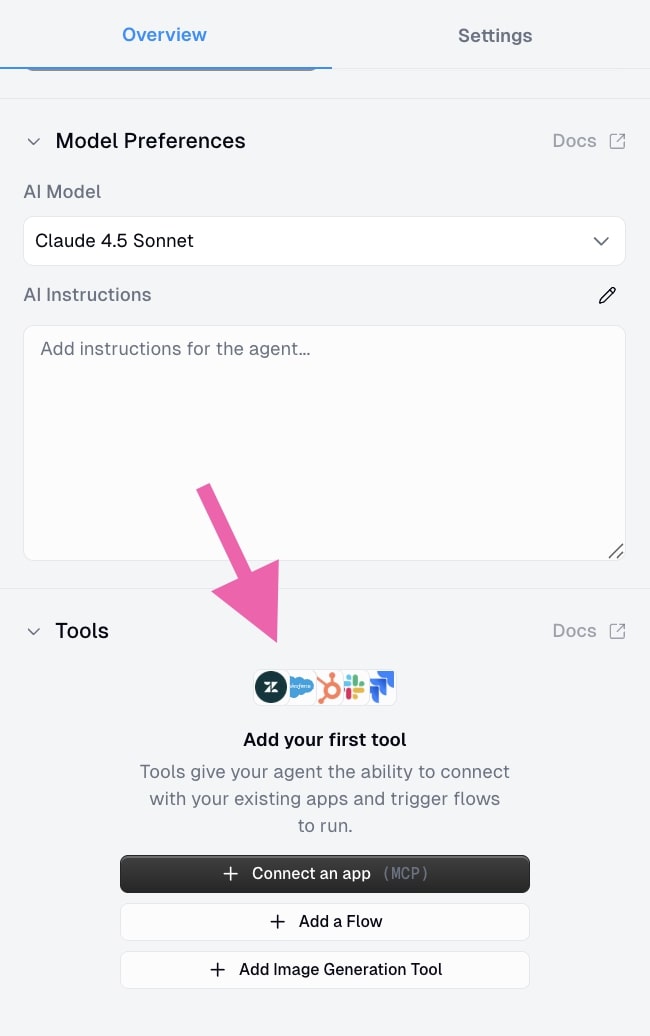
Apps are direct integrations with tools like BigQuery, Google Sheets, HubSpot, Slack, Airtable, etc. When you connect an app, the agent can interact with it directly.
Flows are automated workflows you have already built in Gumloop. Think of them like the automations you would create in Zapier or n8n. These are step-by-step processes with more rigid guidelines. The cool part is that your agent can access these flows and trigger them when needed. So if you have a workflow that generates a chart or sends a formatted Slack message, your agent can use that as a tool.
Image generation lets your agent create visuals right away. If you want charts, diagrams, or other visualizations based on your data, you can add this tool and the agent will generate images as part of its response.
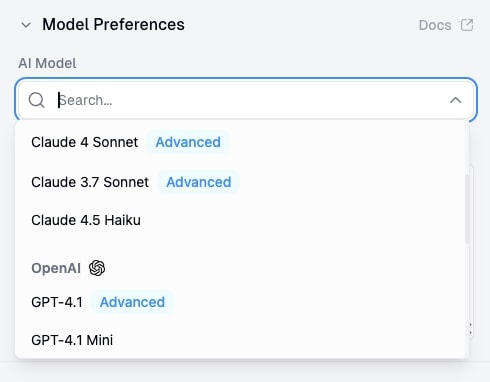
You can also choose which AI model powers your agent (GPT, Claude, Gemini, etc.) and give it custom instructions.
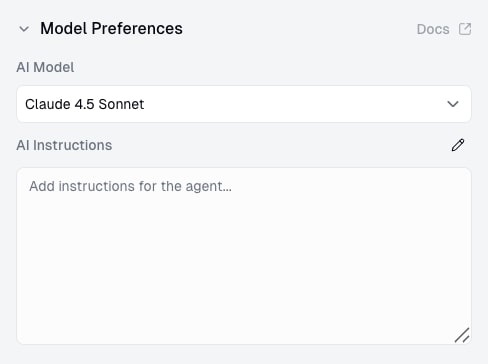
The instructions are essentially the skill of your agent. This is where you tell it what it's good at and how it should behave.
P.S. If you want more clarity on the difference between an AI agent and an automated workflow, check out this article.
Setting up the data analyst agent
Gumloop has a free template for a data analyst agent that gives you a head start. Instead of building from scratch, you can open the template and customize it based on the tasks you identified in Step 1.
Ask natural-language questions about your data and get instant, structured answers — summaries, metrics, charts, and visualizations.
Here's how to set it up:
Connect your data source(s)
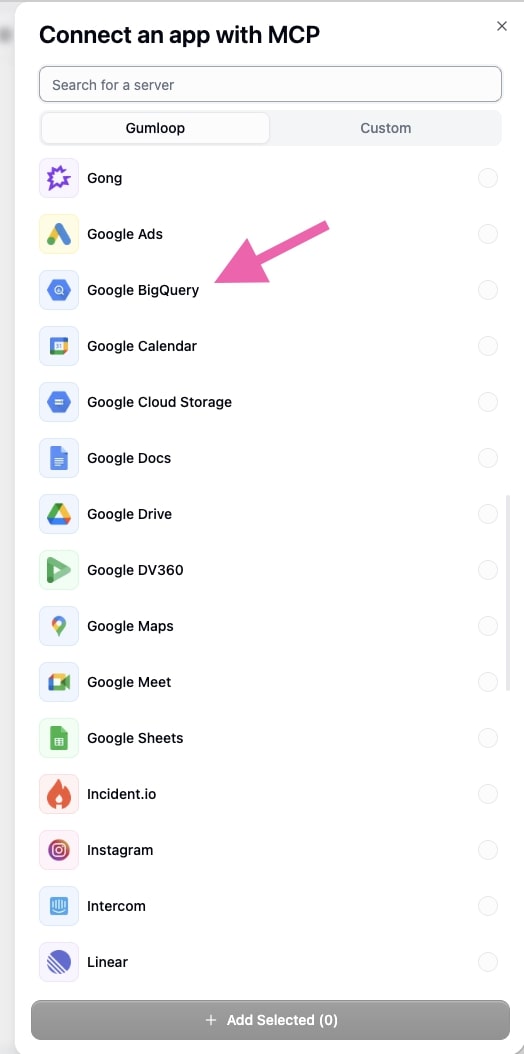
First, connect the data source where your information lives. In the video walkthrough, the data lives in BigQuery, so that gets added as a tool. But the same setup applies to HubSpot, Airtable, Google Sheets, Postgres, Snowflake, or any other structured system.
Let the agent write its own instructions
This is the part most people skip, but it's a huge unlock.
If you just give the agent access to all of your data, it's going to take a long time to figure out where everything lives every single time you ask it a question.
Instead, start by asking the agent: "Explore our BigQuery tables and write instructions for yourself to effectively retrieve information."
The agent will inspect your datasets, generate a list of tables, outline the schema, and write its own instructions for how to query your data.
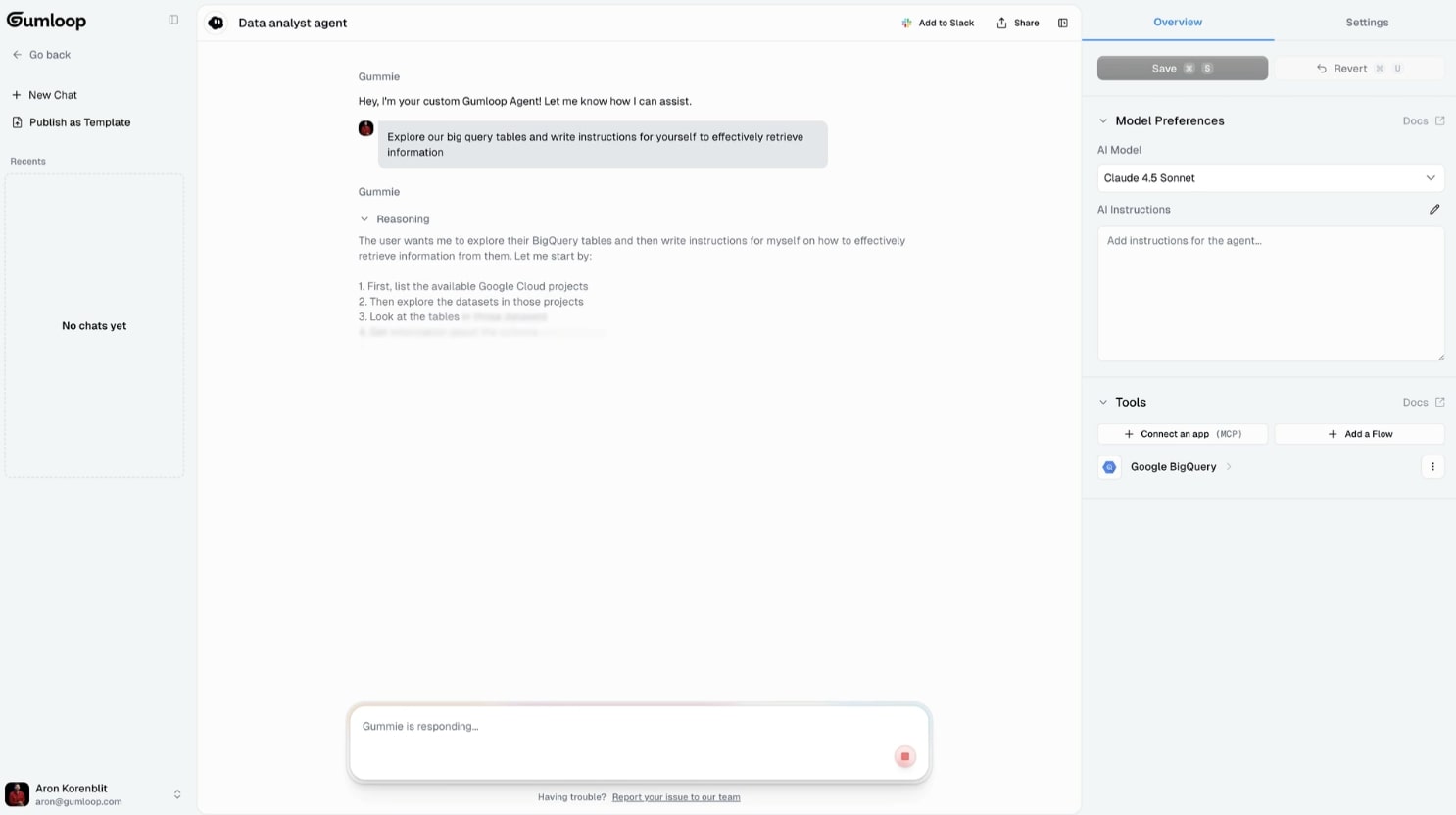
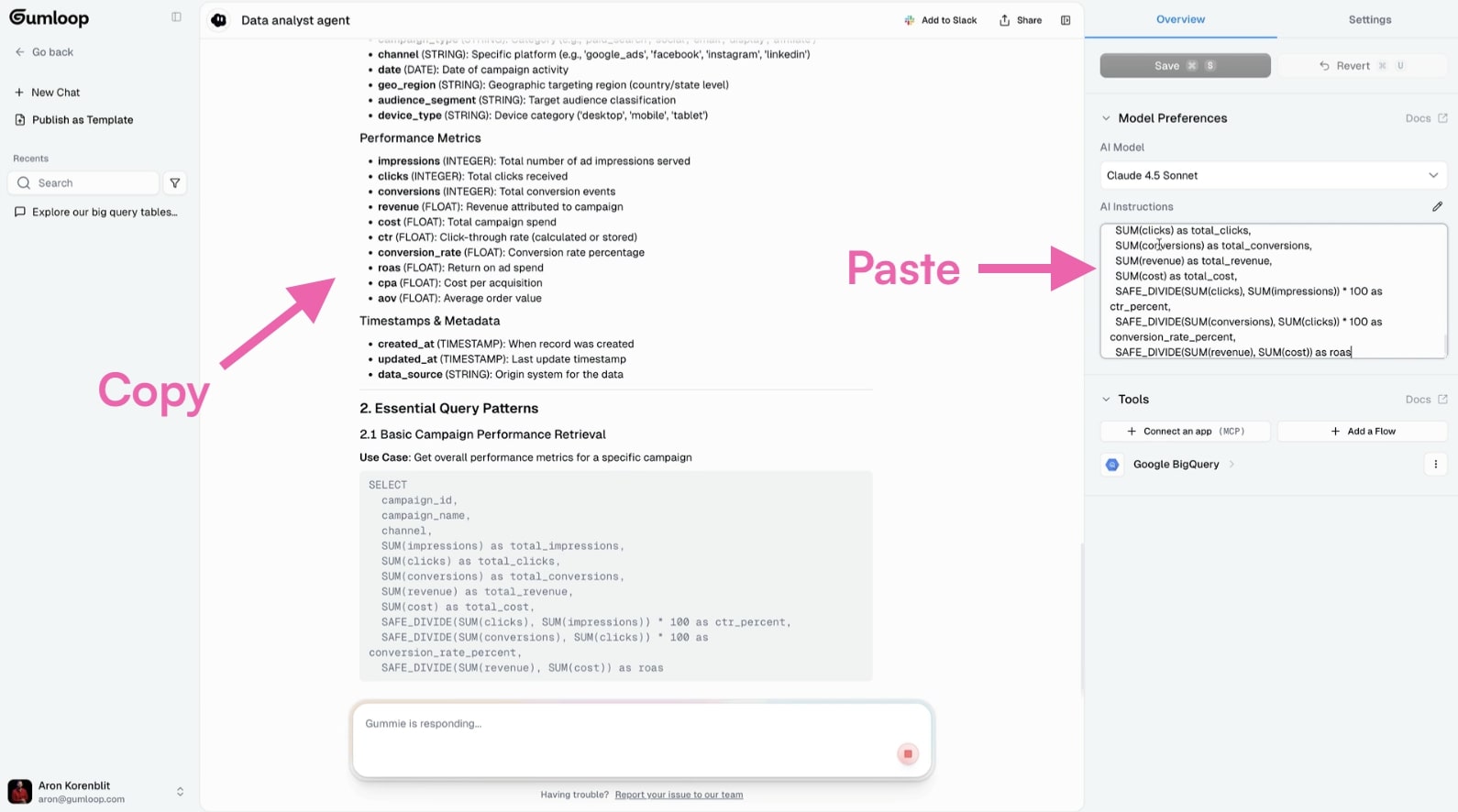
Then you copy that output and paste it into the agent's Instructions section. Now the agent knows where everything lives before you even ask a question. Way faster.
Add additional tools (optional)
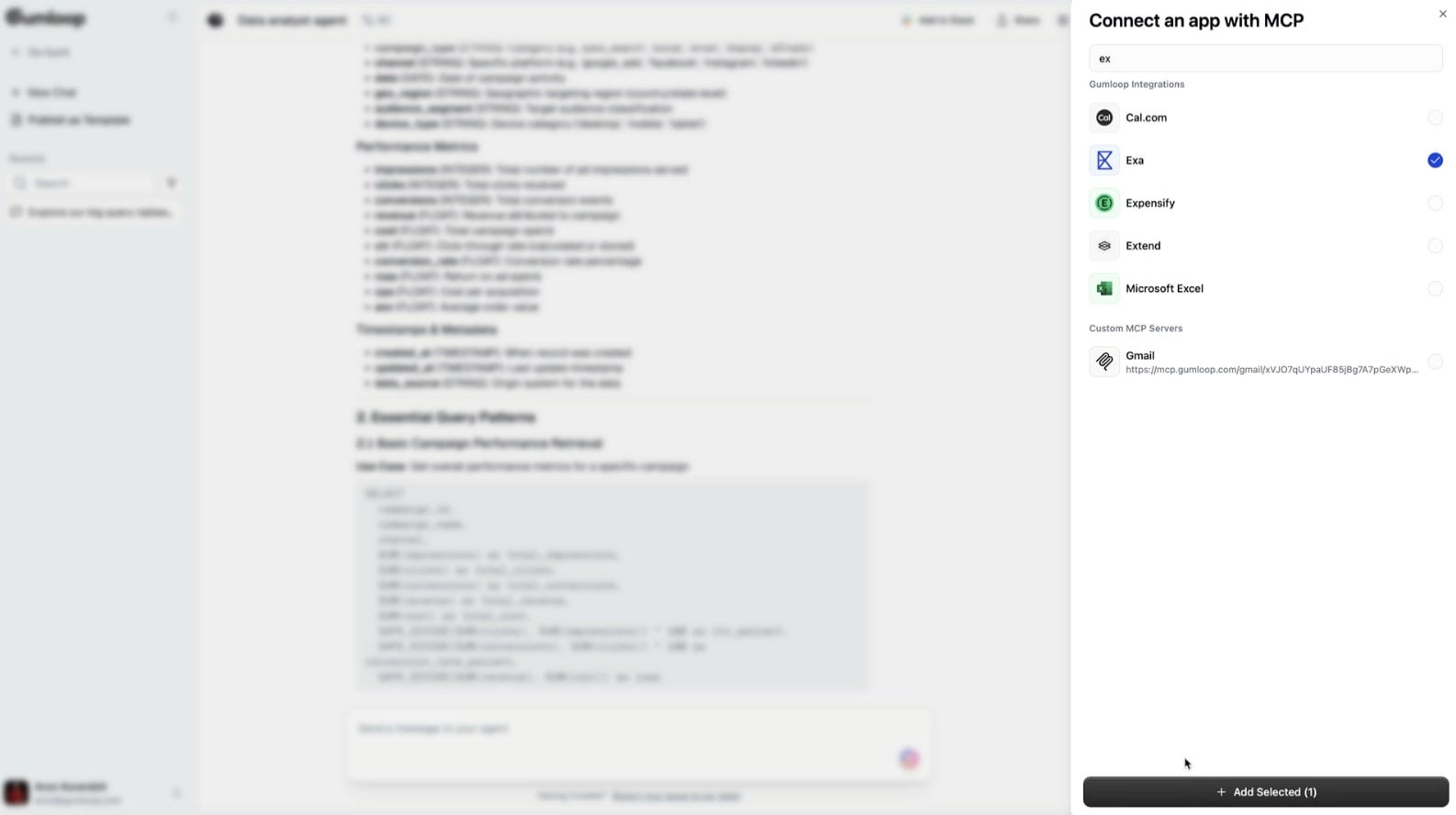
You can extend what your agent can do by adding more tools:
- Exa Search: If you want the agent to pull external sources or competitive context.
- Image generation flow: If you want the agent to output charts, diagrams, or visualizations about the data it's analyzing.
- Slack: If you want formatted reports sent directly into your team's channel.
Once you have everything connected, your agent is ready to go.
Ask natural-language questions about your data and get instant, structured answers — summaries, metrics, charts, and visualizations.
You can watch a full walkthrough of this here:
4. Add the agent to your team
Once your agent is working, you can integrate it into your team's existing communication channels.
For example, you can connect it to Slack. This way, all you have to do is tag the agent in a message, ask it a question, and it goes out and does the work for you. Then it responds right in the channel with the answer.
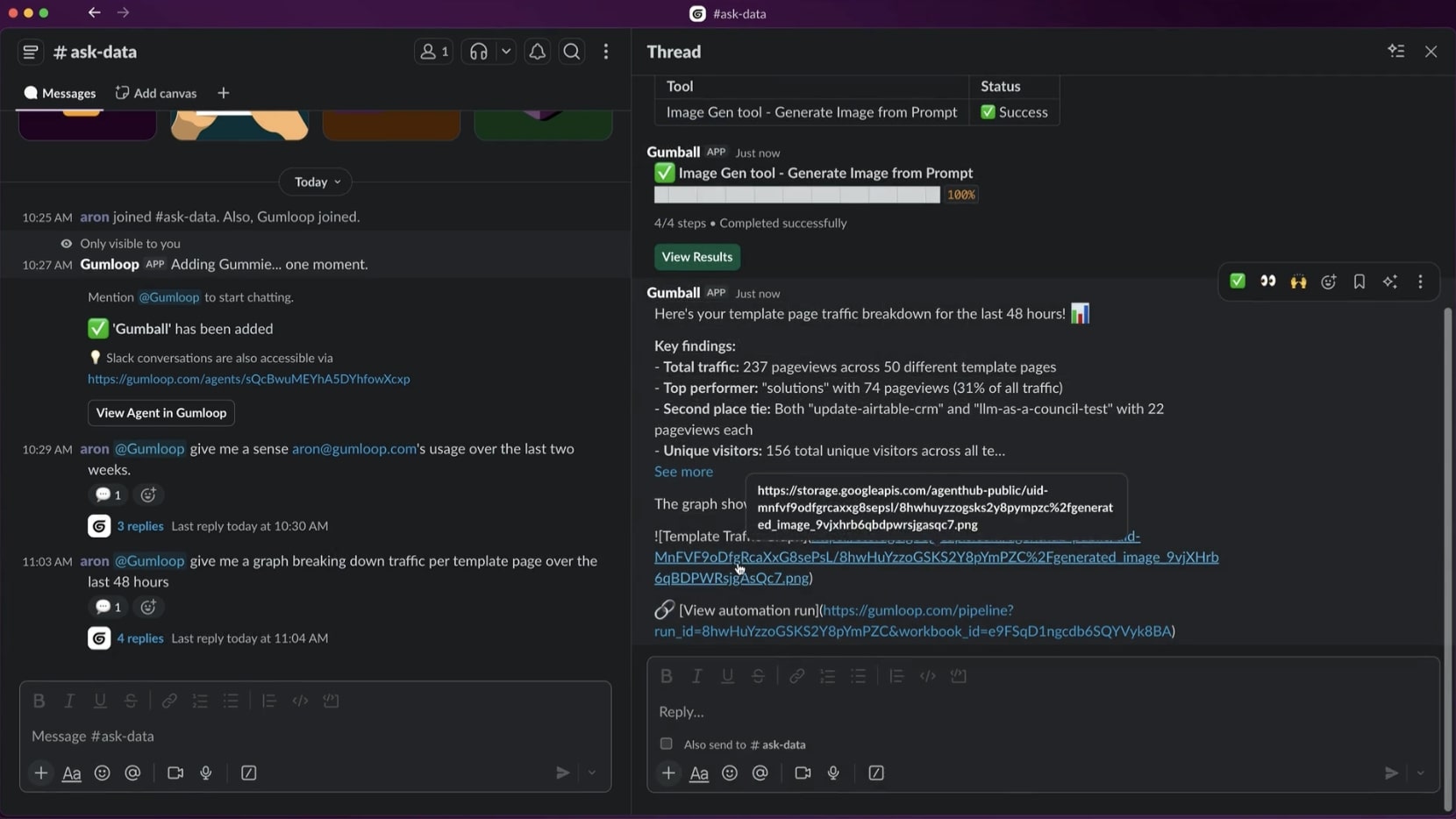
It's literally like having an AI coworker in your team chat. Your teammates can ask it questions too without needing to open Gumloop or learn how to use the platform. This feature alone blew my mind. Especially because you can do this with any AI agent your build in Gumloop.
Start by first asking a simple question, see how it responds, and tweak the instructions if needed. The more you use it, the better you'll understand how to refine it. And you’d be surprised how much the results can change based on you tweaking the instructions and even the AI model.
It may take an afternoon to get it just right (that’s how long it took me) but once you get it, its set and done.
Orchestrate all of your AI agents in one place
The data analyst agent is just one example. Once you get the hang of building agents in Gumloop, you can create them for pretty much any function in your business.
Marketing teams are building SEO agents and competitor content analysis agents. Sales teams are using LinkedIn enrichment agents to research leads before outreach. Operations teams are automating internal reporting and forecasting. Customer service teams are building AI-powered chatbots that pull account data instantly.
Companies like Webflow, Shopify, and Albert are already using Gumloop to automate everything from social media listening, to company-wide AI adoption, to content creation at scale.
And you're not limited to one agent. You can build a multi-agent setup where different agents handle different tasks. One can pull complex data from spreadsheets, another for turning structured data into actionable insights, another acting as a copilot for your sales team.
The whole point of agentic AI is that you describe what you want in plain English, and the agent figures out how to do it.
If you want to see what's possible, check out the Gumloop templates library. There are dozens of pre-built agents you can use as a starting point for whatever you're trying to automate.
Happy automating!

Read related articles
Check out more articles on the Gumloop blog.