

How to scrape LinkedIn profiles (the fastest way)

If you want to learn how to scrape LinkedIn profiles the fastest way possible, you’re in the right place.
When I first started my marketing agency, LinkedIn was a huge client acquisition channel for them.
I would look at websites that showed startups who raised a series A, search for these companies manually on LinkedIn, find the CEO, and then use Hunter.io to get their email and send them a personalized message.
It worked.
But it took a really long time. And now with AI, I found a better way.
So in this article, I’m going to show you how to scrape LinkedIn profiles to gather data quickly. But from there, I’m going to show you how to expand on this so you can scrape multiple profiles at once, or have AI do research, enrich data, or reach out to people for you.
And all of this can be done in 5 minutes max.
Get ready to have your mind blown.
But first, let’s go over some important information. Cause scraping LinkedIn can be a grey area.
Is it possible to scrape LinkedIn profiles?
Yes, it is possible to scrape LinkedIn profiles. To get the best results, you need to use a web scraping tool that can also leverage LLMs.
The old way of scraping LinkedIn was clunky. You had to set up python scripts, deal with rate limits, and hope LinkedIn didn't block your IP. It worked sometimes.
Now, with AI-native tools, you can scrape profile data and actually do something useful with it in the same workflow. For example, you can pull the data, feed it into an LLM, and let it draft outreach emails, enrich your CRM, or build lead lists automatically.
But before you start scraping, there are two questions that come up a lot.
Is it legal to scrape LinkedIn profiles?
The short answer is it depends.
In the US, courts have ruled that scraping public LinkedIn profiles (the stuff you can see without logging in) doesn't violate hacking laws like the CFAA. The hiQ Labs v. LinkedIn case made that pretty clear.
But, LinkedIn's terms of service still forbid scraping. So even if it's not a criminal offense, you could still get your account banned or hit with a cease-and-desist letter if you go overboard.
A few ground rules to keep in mind. Public data that's visible without logging in is generally safer. Don't use fake accounts or bypass CAPTCHAs and IP blocks. And if you're doing anything at scale or for commercial purposes, talk to a lawyer first.
I'm not a lawyer, so this isn't legal advice. And this entire article is for entertainment purposes only. But for most casual use cases, scraping a handful of public profiles with the right tools seems to be okay.
Can ChatGPT scrape LinkedIn profiles?
No, ChatGPT can't scrape LinkedIn profiles on its own. It doesn't have direct access to LinkedIn's data or your logged-in session.
What ChatGPT can do is work with scraped data after you've already collected it. So the workflow looks like this. You use a scraping tool to pull the profile information, then you feed that data into ChatGPT (or any LLM) to do something useful with it. Summarize the profile, draft an outreach email, whatever you need.
That's exactly why AI web scraping tools exist (we’ll talk about it below).. They combine the scraping and the AI part into one workflow, so you're not bouncing between a bunch of different apps.
Use cases for scraping LinkedIn profiles
Before we get into the how, let's talk about the why. There are a ton of reasons you'd want to scrape LinkedIn profiles. Here are the most common ones I see.
Sales and lead generation
- Build targeted lead lists based on job titles, companies, or locations
- Find decision-makers at target accounts
- Enrich your CRM with up-to-date profile data before outreach
- Track job changes to catch people when they're in buying mode
Recruiting and sourcing
- Build talent pools for specific roles
- Find passive candidates with the right skills
- Monitor where competitors are hiring from
Market research
- Estimate company size based on employee count
- Track hiring velocity to understand growth patterns
- See which skills are trending in your industry
Outreach personalization
- Research prospects before calls or meetings
- Personalize cold emails based on someone's background
- Prep for conferences by researching attendees ahead of time
The common thread here is that scraping gives you data. What makes it valuable is what you do with that data after. That's where combining scrapers with LLMs gets interesting.
Now, I’m going to show you how to scrape LinkedIn profiles the easy way, And from there, we’ll create an AI agent that can do some crazy stuff.
How to scrape LinkedIn profiles in easy 4 steps
Here’s how to scrape LinkedIn profiles:
- Pick an AI web scraper
- Create a LinkedIn scraping workflow
- Run and test your scraper
- Turn your scraper into a LinkedIn agent
Okay, let’s go over each of these steps.
1. Pick an AI web scraper
The first step is to choose an AI web scraping tool. There are a handful of them out there. But not all of them are the same. And what I mean by that is that many of the web scraping tools on the market were created before LLMs and AI really took off.
Today, there is a new wave of AI tools that can fetch a web page, analyze the content, then feed it into an LLM to do whatever you want with it.
As mentioned in the use case section, you could scrape a linkedin profile page, and then use that information to have an LLM draft up an outreach email. So there are lots of ways that traditional web scraping and AI models can now work together.
I wrote an article on my top AI web scrapers, but the main one I use these days is Gumloop. I know, I know. You’re reading this on the Gumloop blog. But I don’t work at Gumloop. I’ve been a customer for 11 months now, so they asked me to write up how I actually scrape LinkedIn profiles with the platform.
Gumloop is great because it’s AI-native. And its Gummie agent feature allows you to create any AI workflow or AI agent simply by talking to it. It’s a lot more powerful, and easier to use, than something like Zapier or n8n. Which is why teams at Shopify, Instacart, Webflow, and a ton others use them.
There are also dedicated AI web scraping tools, both for LinkedIn and also any website URL.
The Gumloop free plan is also SUPER generous. You can start scraping LinkedIn profiles in the next 5 minutes without pulling out your credit card. Okay, let’s jump into how to do that.
2. Create a LinkedIn scraping workflow
Once you sign up for a free Gumloop account, it’s time to create your first workflow.
If you’d like, there are ready made templates you can use to scrape LinkedIn:

Extract company data from LinkedIn and grab recent news. Great for sales prospecting, competitive analysis, and market research.
Generate comprehensive AI-powered summaries of LinkedIn profiles. Enter a name and company to get detailed professional insights for networking or recruiting.
Input a LinkedIn profile and scoring criteria to get a summary and 0-100 fit score. Perfect for recruiters, hiring managers, and sales teams.
Automatically scrape job listings from LinkedIn and export to Google Sheets. Track competitor hiring patterns and monitor opportunities at scale.
But, I do recommend reading on because it will make the template make a lot more sense. I’ll also show you how to create your own LinkedIn scraper that is fully custom to any use case you need.
Okay, before you get building in Gumloop, I need to explain the two main features. With Gumloop, you can create:
- Automated workflows
- AI agents
Automated workflows are for when you have strict rules. For example, if we want to scrape a LinkedIn profile and input that information into a Google Sheet, we can create a simple automated workflow.
It’s like an “if this then that” kind of logic. Similar to what you see with traditional automation tools like Make or Zapier.
For most LinkedIn scraping use cases, an automated workflow will suffice.
But then, we have AI agents. This is where you give instructions to an agent on how it should perform tasks. Then, you give it access to specific tools it needs to complete those tasks.
It’s a bit more rogue in that it doesn’t have a set of rules. It will just figure out the best way to do something based on the prompts you give it.
But the cool thing is that automated workflows and AI agents can work together. So if you have a LinkedIn profile scraper workflow, you can actually let an AI agent access that workflow to do things with it.
That is a mindblowing use case, so I’m going to save it for the fourth step in this article. For now, open your first workflow. You’ll see this screen:
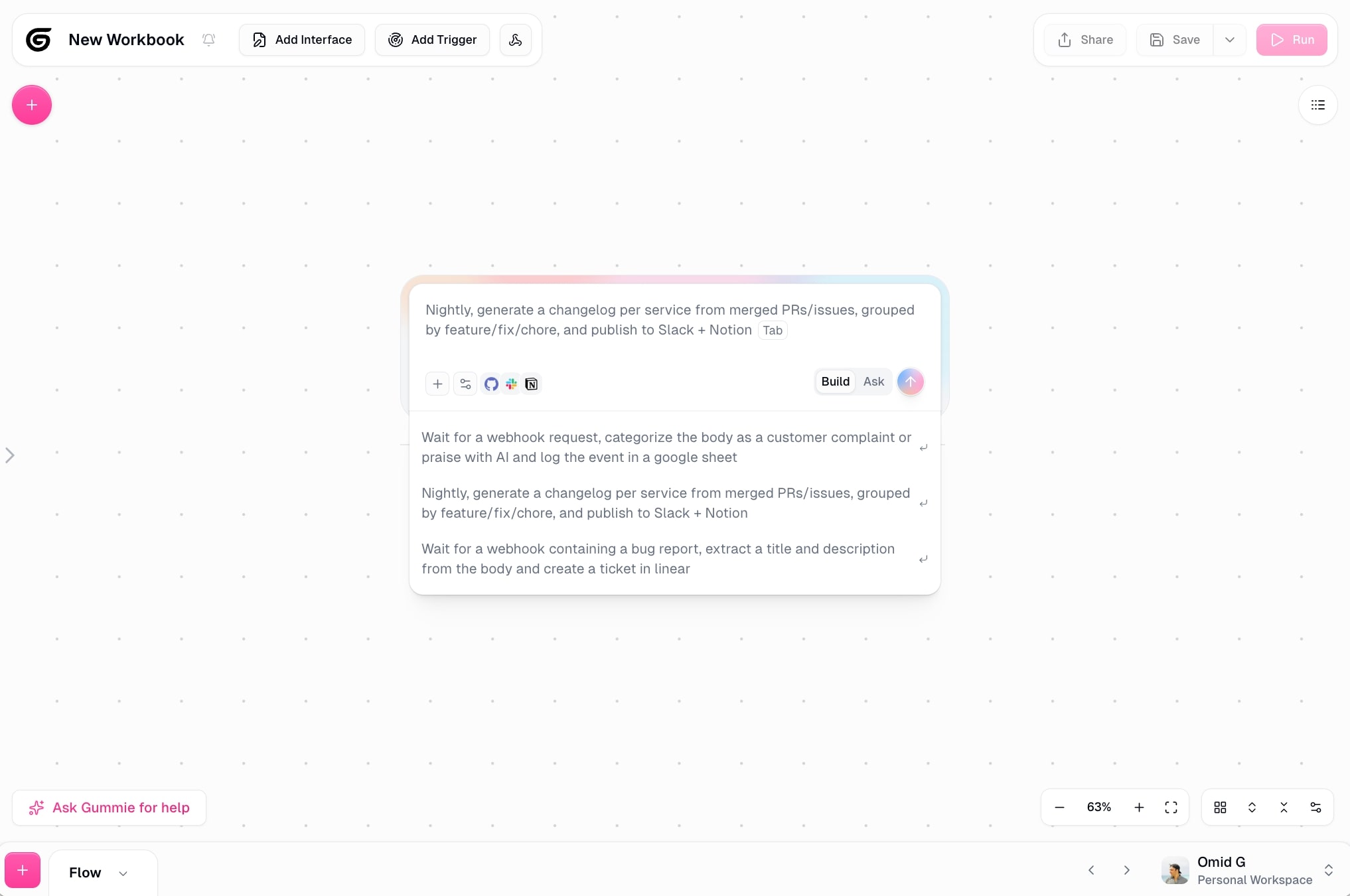
Here, you can start by either asking the Gummie chatbot what you want, or you can click the plus icon in the top left corner to drag on nodes (aka tools) onto the canvas.
If you just talk to the Gummie agent, it will drag on the appropriate nodes onto the canvas for you. So I recommend starting your first LinkedIn profile scraper with this method.
I’m going to prompt Gummie with this:
I want to create a workflow that scrapes LinkedIn profiles. It should pull the full name, job title, current company they work at, and their education background.
Then, Gummie will start to generate a plan on how to actually build this!
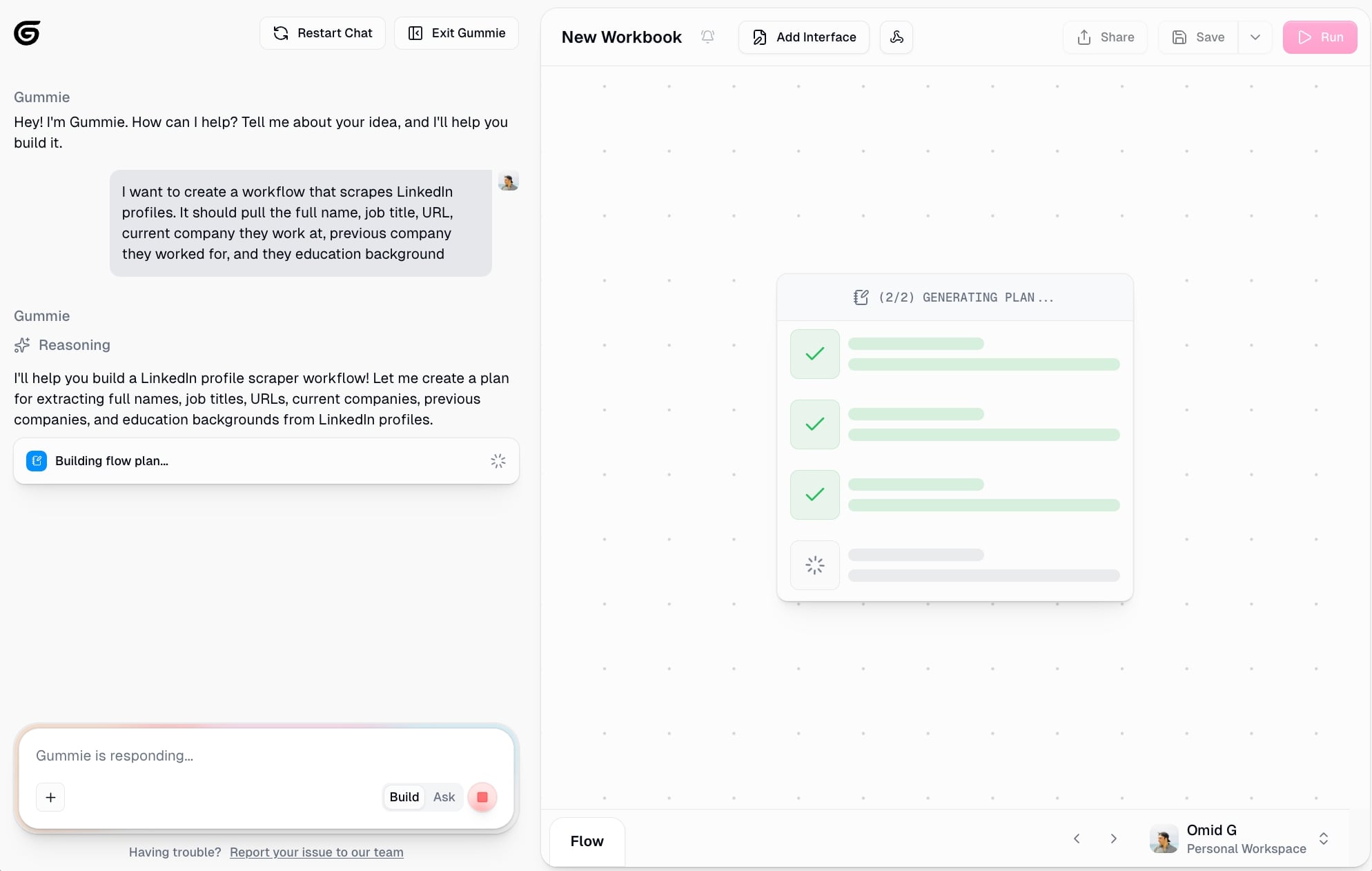
From here, you just want to give it a minute while it builds out the workflow. In this case, you can see it added the LinkedIn scraper node, along with other nodes to extract information, and output the results.
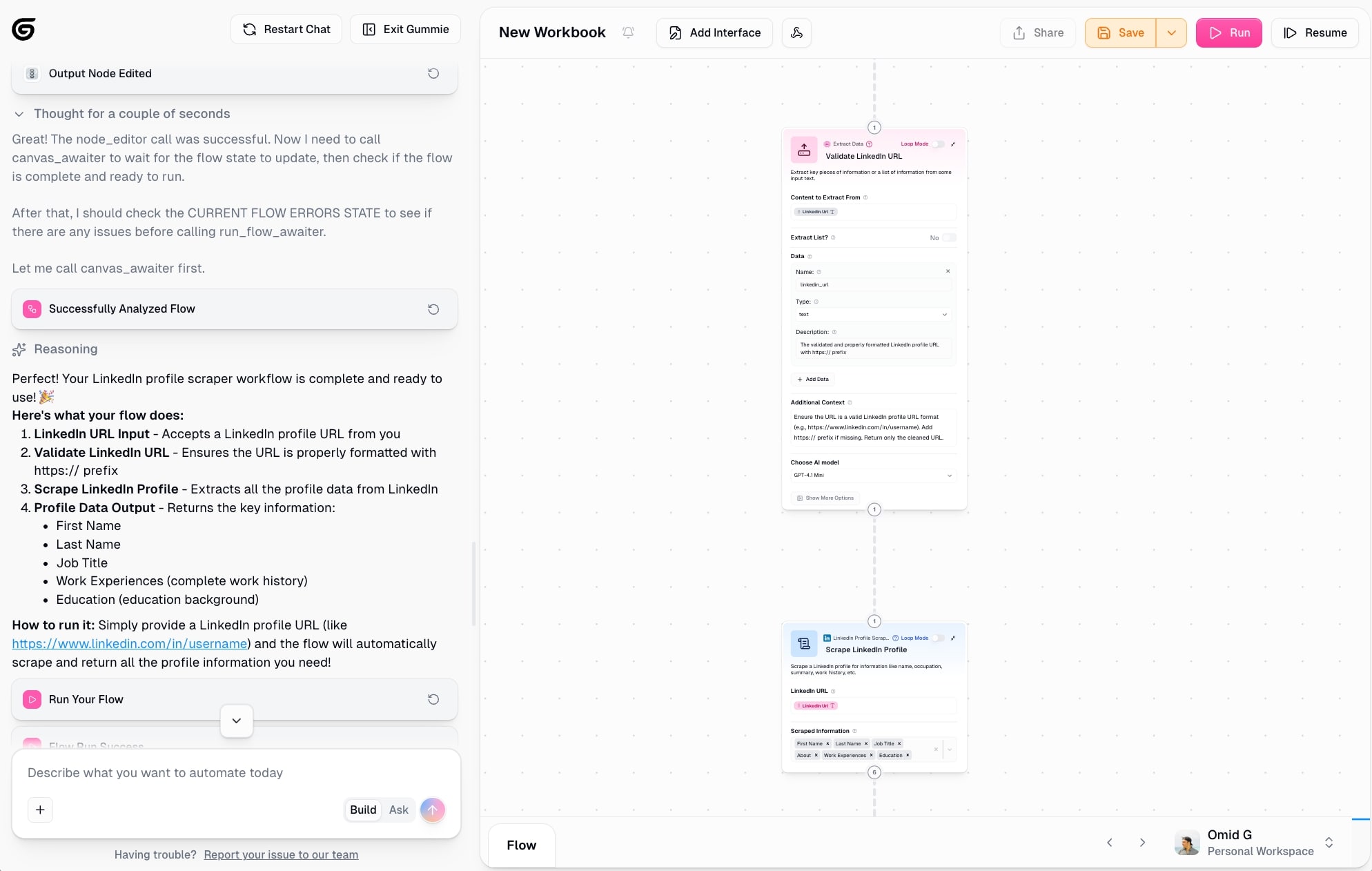
That’s pretty much it TBH. This is probably the easiest (and fastest) way to learn how to scrape LinkedIn profiles.
Now, let’s run it and see how it performs. And then from there, we can make tweaks and extend its functionality.
3. Run and test your scraper
Okay, now I’m going to run the LinkedIn scraper. All it needs is a LinkedIn URL to get started with. I’m going to put in the profile URL of Max, the CEO of Gumloop.
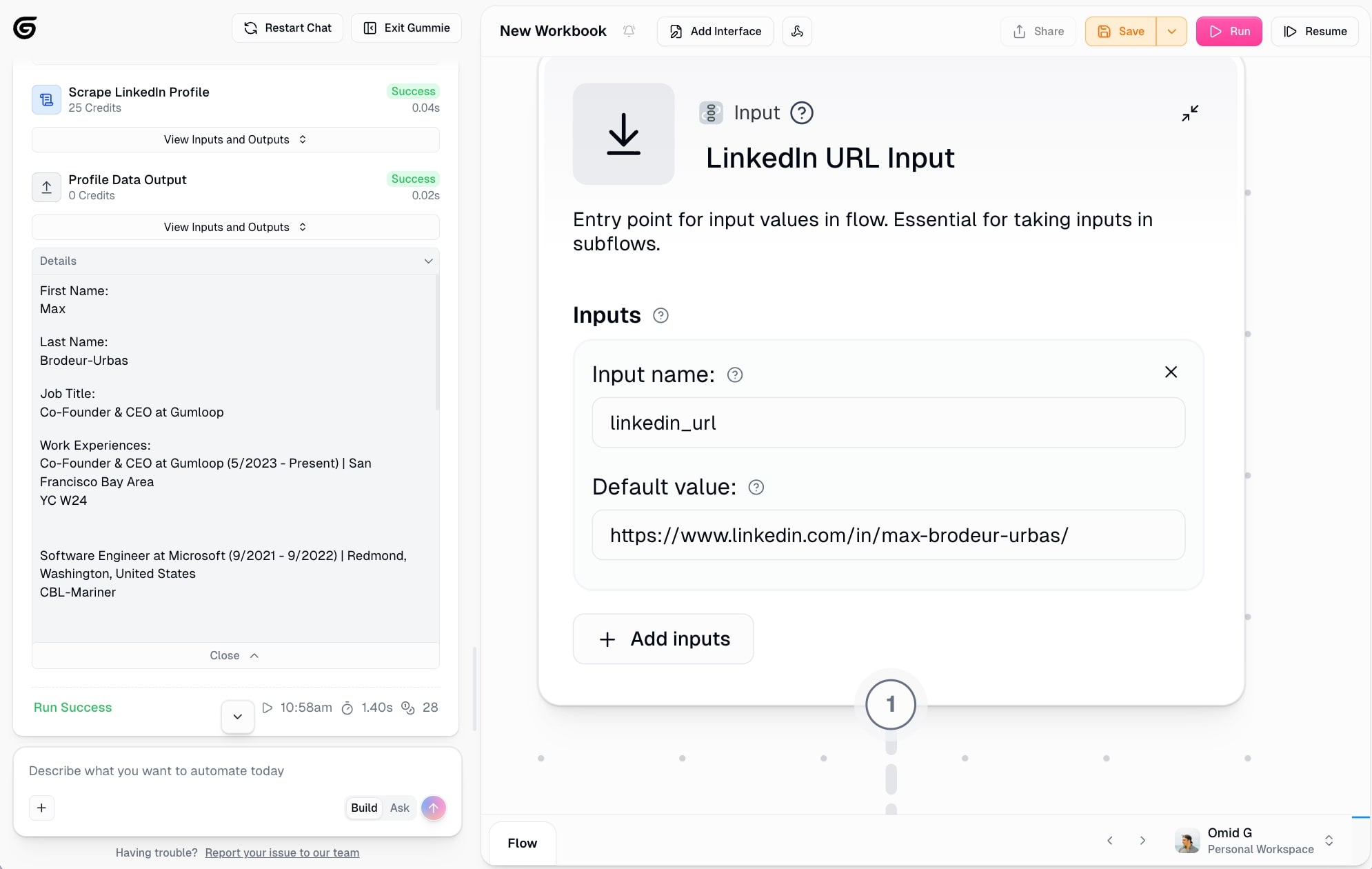
And just like that! We have everything we asked for. First name, last name, job title, work experience, etc.
So now we have a setup where we input a URL, and we scrape the profile information. Click save to have this workflow in your library (important for step four).
From here, we can do a couple different things:
- Continue to talk to Gummie to extend the functionality of this existing workflow. For example, we could ask Gummie to input this data into a Google Sheet, and it will add the Google Sheet node. We could also ask it to read an existing Google Sheet of profile URLs we want to run this scraper through. Just talk to Gummie and ask what you want and it will build it for you.
- We can keep this foundational workflow and create an AI agent that can access it and do whatever we ask it to.
Number 1 is how you used to have to do it, if you wanted a bunch of functionality and edge cases.
But now, with Gumloop’s ability to create AI agents, you can just ask a chatbot to do whatever you want. All you have to do is either connect your existing tools or your existing workflows, and it can execute tasks based on instructions and prompts you give the agent.
Let me show you what this looks like in step four.
4. Turn your scraper into a LinkedIn agent
So now we created a simple LinkedIn profile scraping workflow. You enter a LinkedIn profile URL, click run, and in seconds it outputs all the information of the person.
But chances are, you need more than just a simple one time automation. It doesn’t take that long to look at someone's profile and gather the right data.
But if you have 100 profiles and you want to scrape the data manually, yeah that’s gonna take some time. With an agent, you can do it in seconds.
Go back to the hub and instead of creating a flow, click on ‘Create Agent’.
Now, you’ll see this screen:
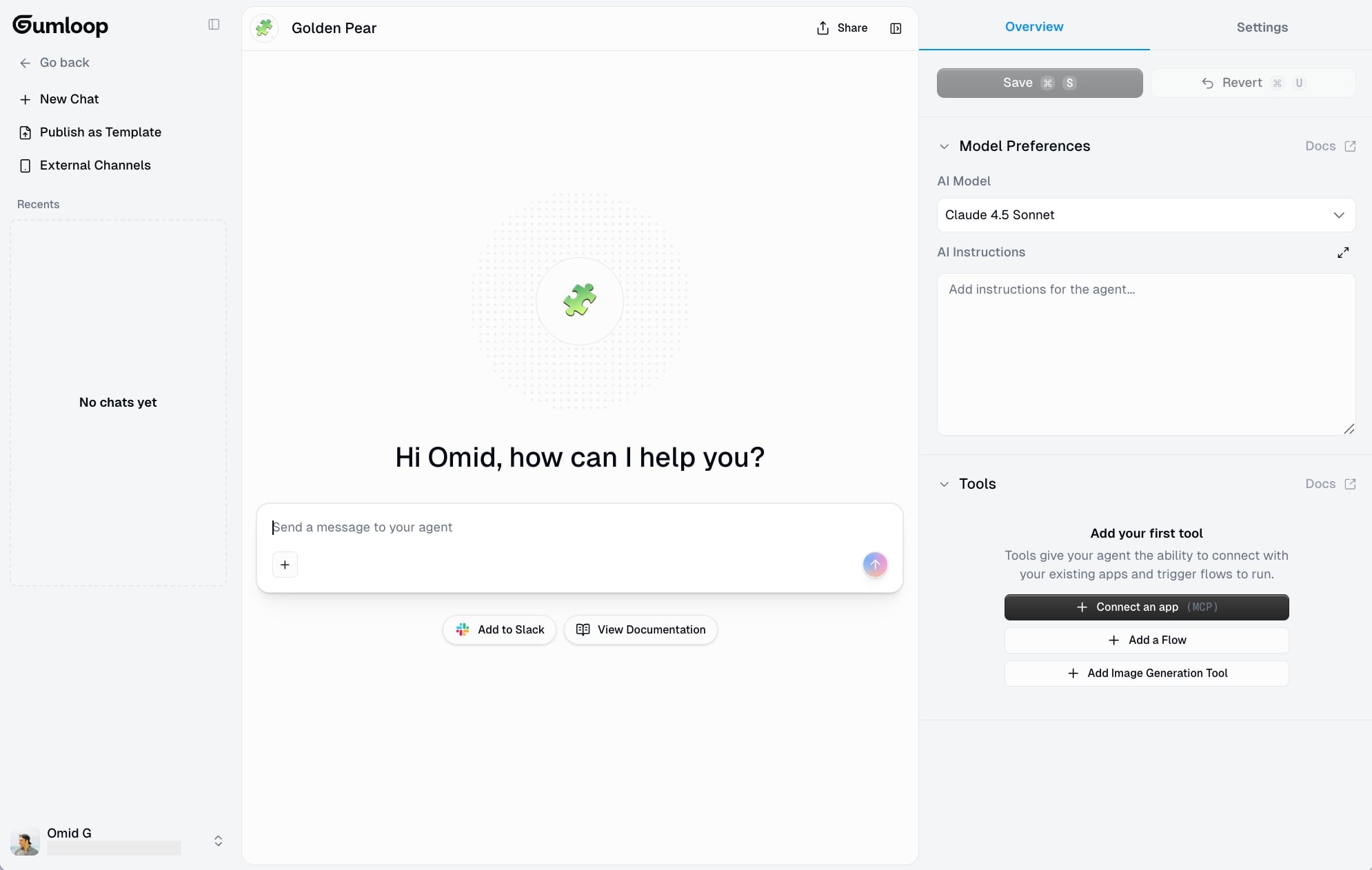
Looks like ChatGPT yeah? Kinda. It’s better.
Here you can prompt and talk with the agent in the main chatbox. But first, you want to give it access to tools and workflows it may need.
So for example, I gave it access to my LinkedIn profile scraper workflow we created in step 3. And then I asked the agent to give me a summary of the person (I pasted their profile URL).
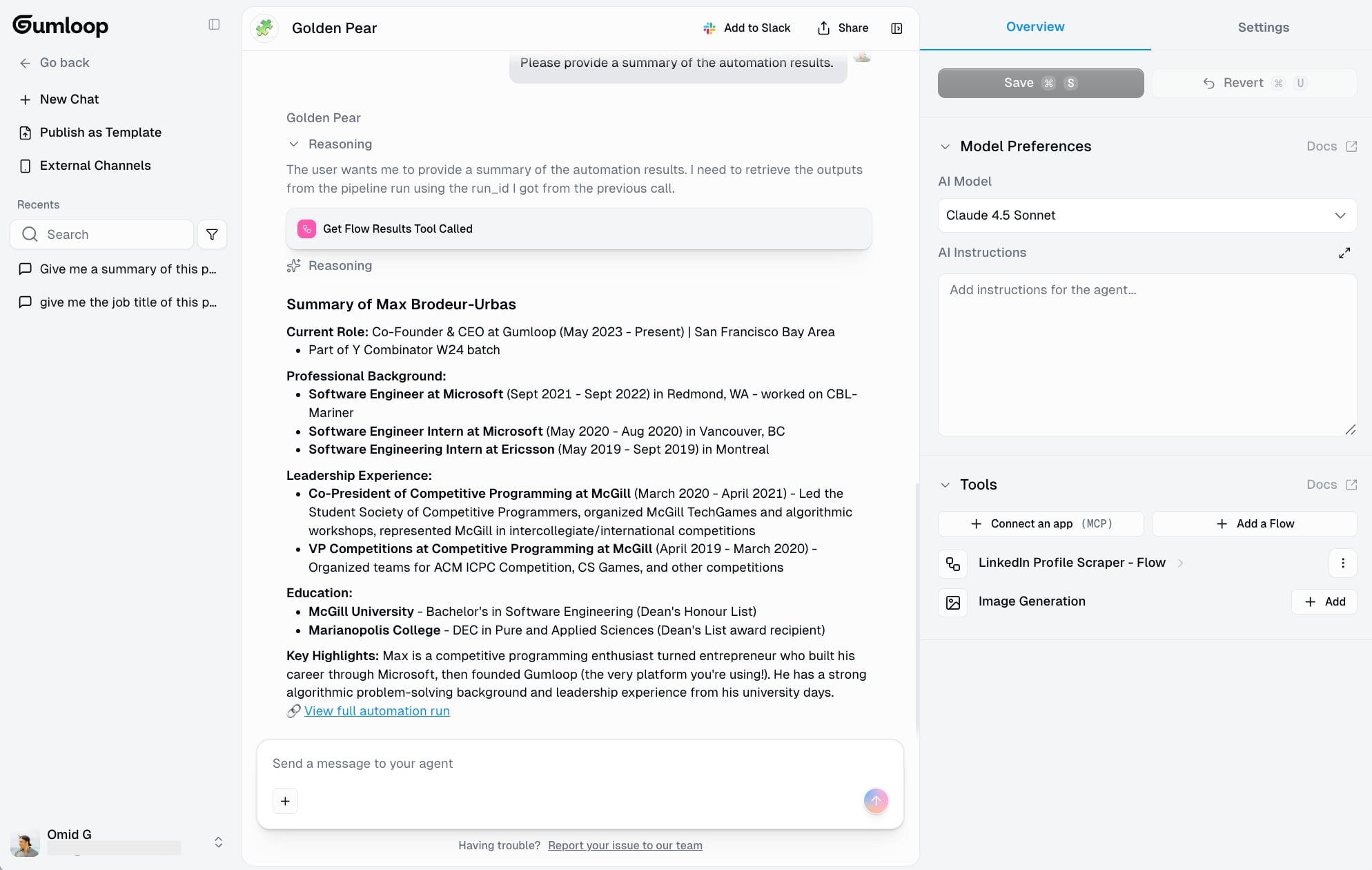
So you can essentially interact with your workflow by also using the agent.
But now let’s take it a step further.
In this case, I want to create an agent that takes a Google Sheet full of profile URLs and then automatically fills in the information in the same sheet.
For this, I need to add Google Sheets as an app the agent has access to.
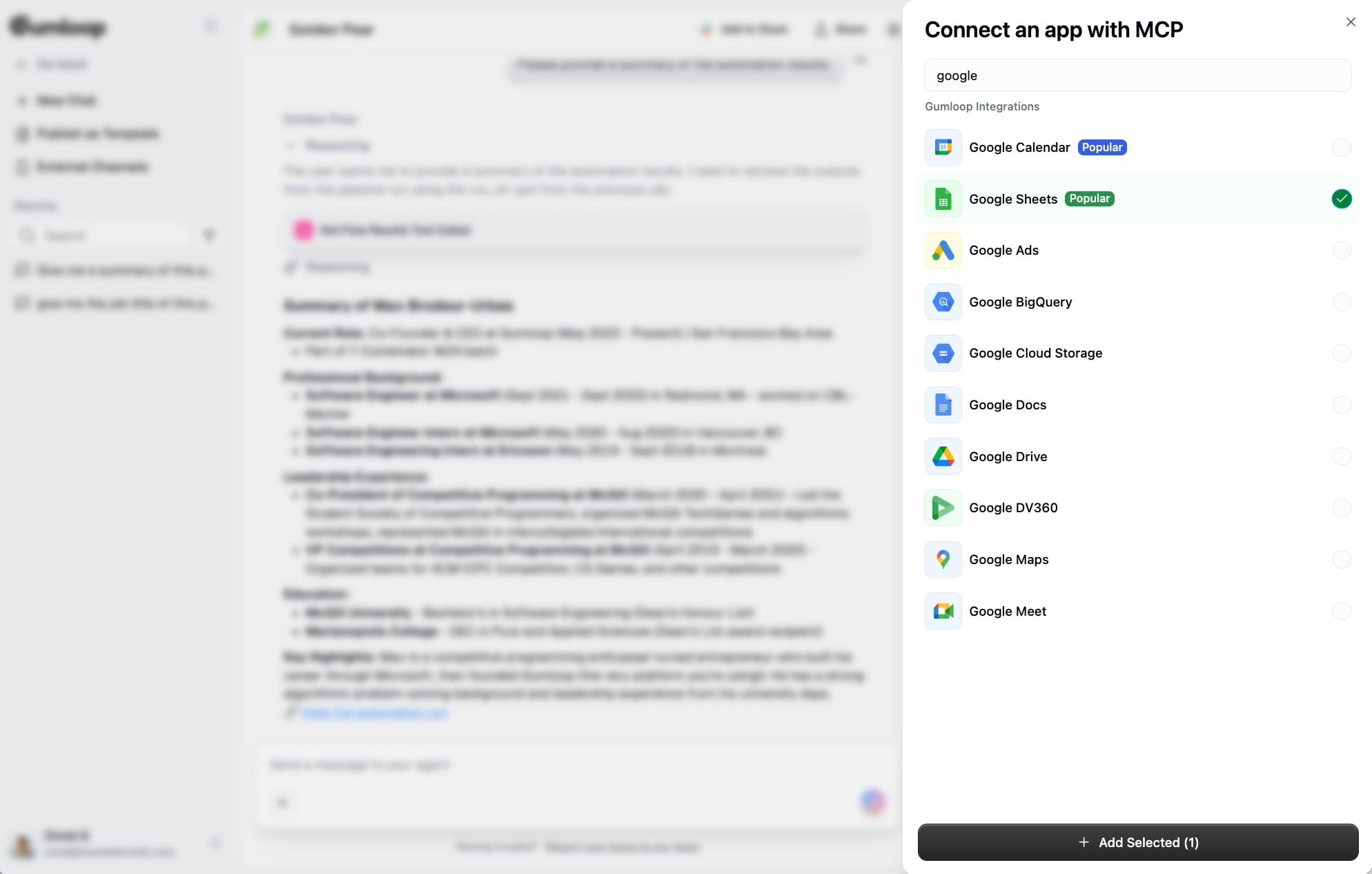
Then, you need to click save for the agent to get access.
Now, I have this sheet. I only added 3 (and all Gumloop team members) to keep people’s privacy. But you can do this with dozens and hundreds of profile URLs.
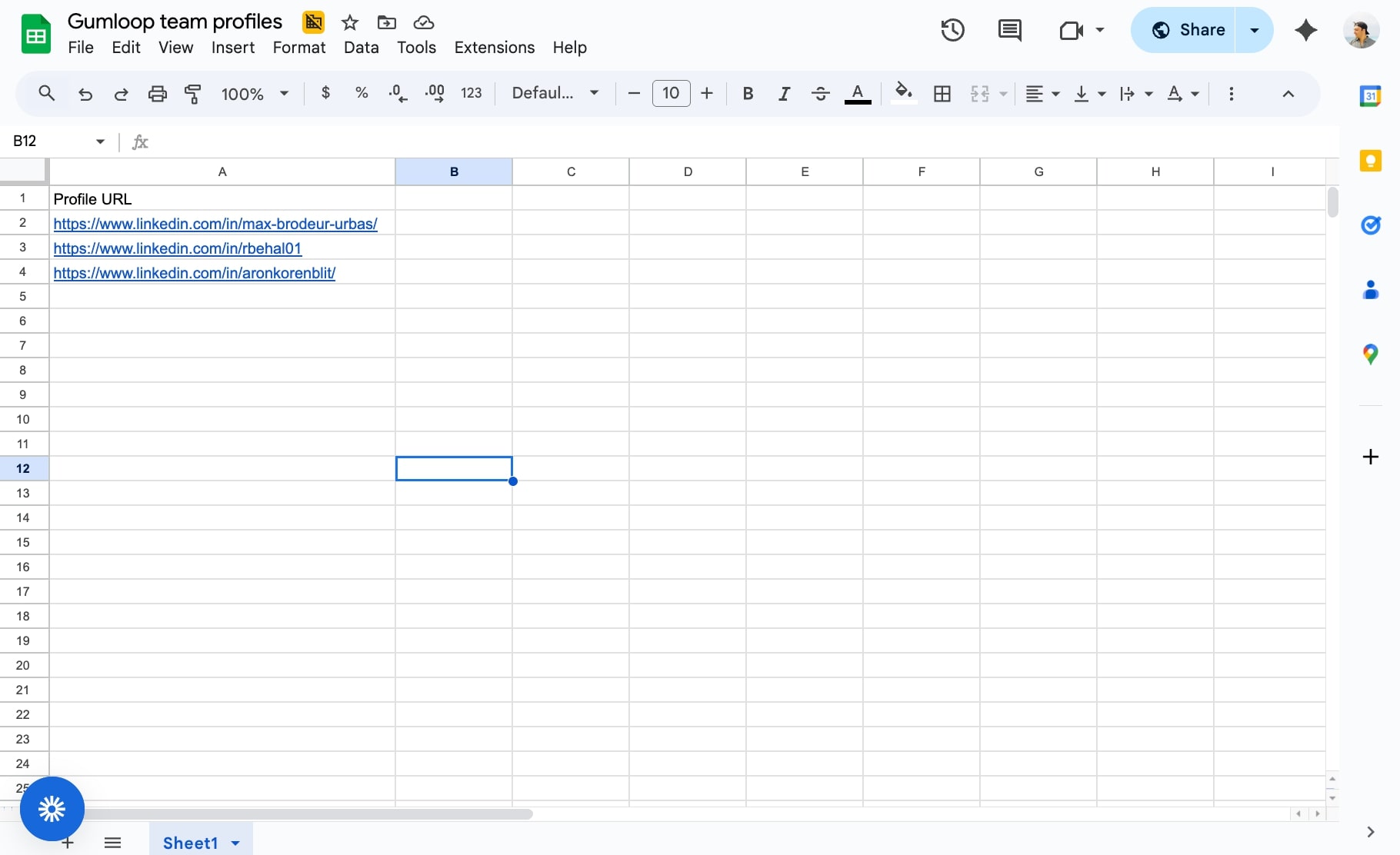
From here, I’m just going to copy the URL of this Google Sheet and give it to the agent. And I’m going to ask the agent exactly what I want:
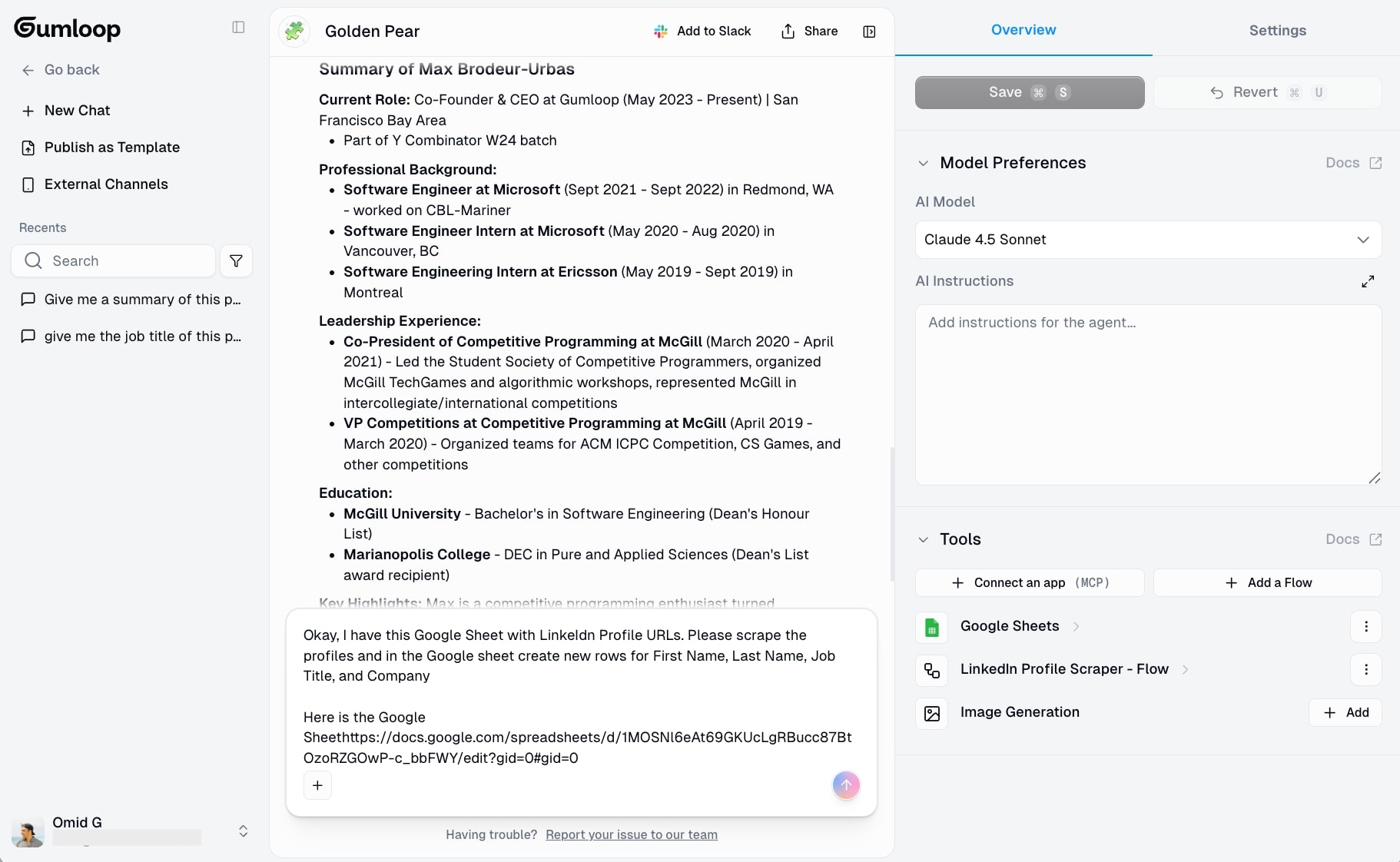
Then, click enter and let the agent do its thing! As you can see, it starts to follow the logic I gave it.
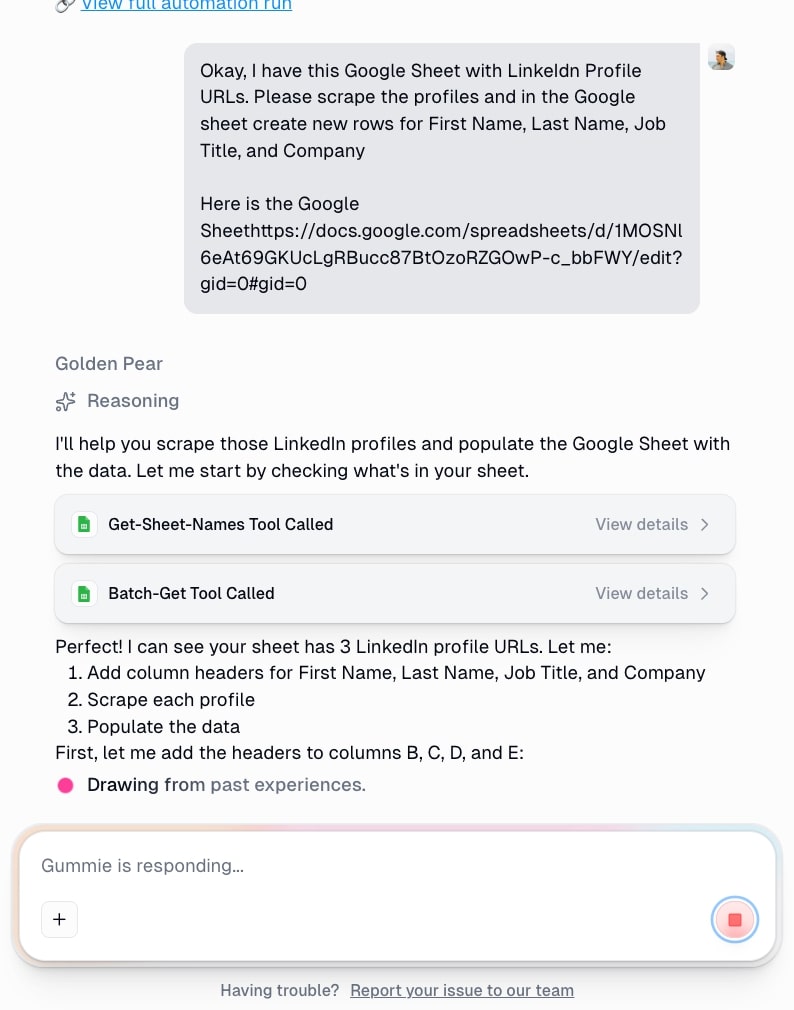
And after a few seconds, the agent tells me that it’s done.

And now the moment of truth, let’s look at the Google Sheet I gave it (it’s the same one from earlier that I showed with just the 3 profile URLs).
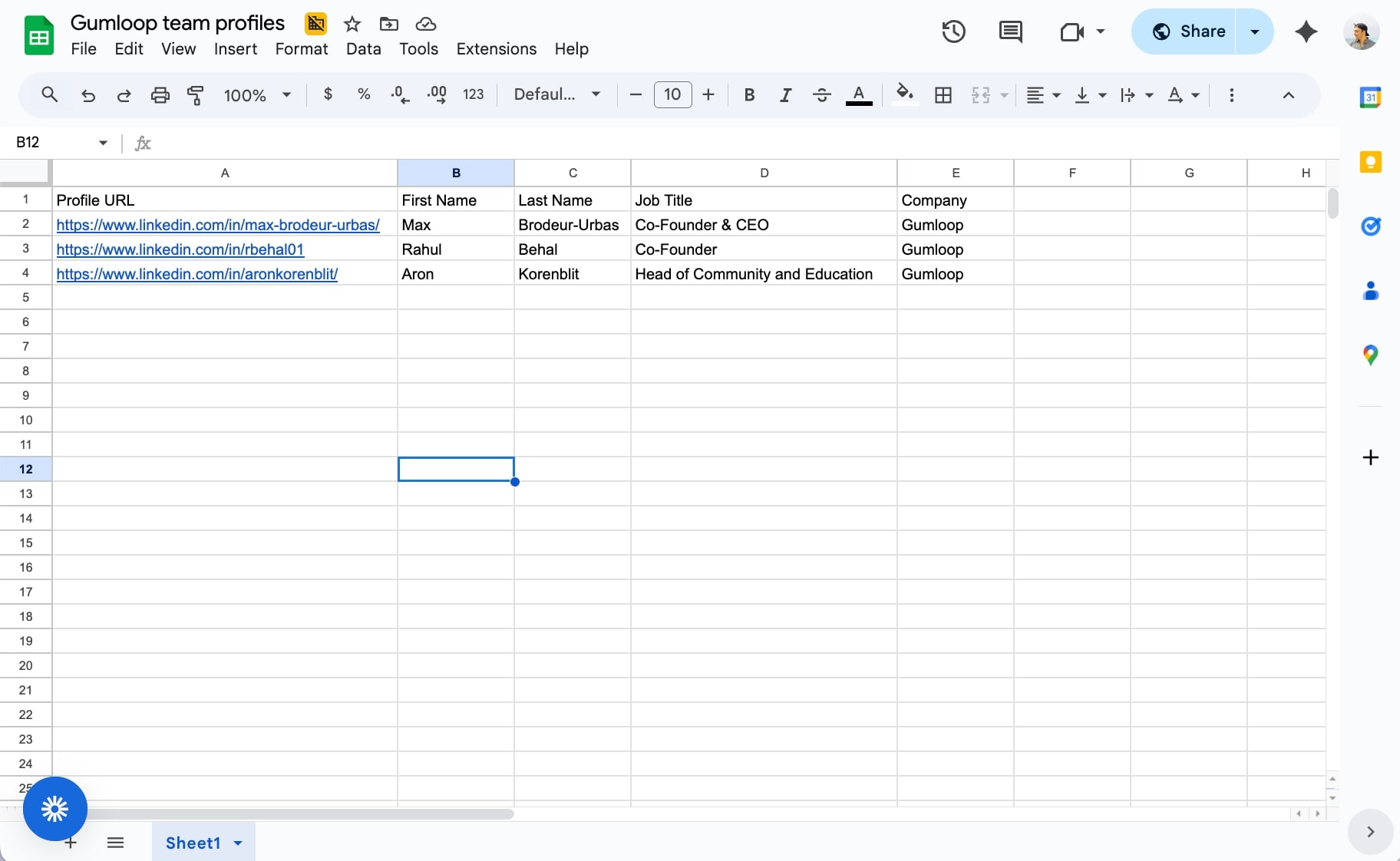
Voilà!
The agent accessed the Google Sheet with URLs only, ran them through our LinkedIn scraper workflow from step 3, and then created 4 new rows in the original Google Sheet based on the prompt we gave it.
Now, you might have noticed that I didn’t give the agent any AI instructions. The instructions are great if you want the agent to have specific characteristics. Because I asked for simple stuff for demonstration purposes, I didn’t need it.
But if I wanted to have the agent be an expert in sales, based on certain criteria I give it, I could add that in the instructions. And you can ask the Gummie chatbot to help you prompt engineer an instruction to copy and paste.
So for example, if I wanted the agent to scrape profiles and see if they’re a good match for my business that’s hiring, I can create instructions that tells the agent what qualifications to look for (i.e. job roles, years of experience, etc).
There you go, a full LinkedIn AI agent that we made in 5 minutes.
And this is just the tip of the iceberg. You can integrate tools like Perplexity to the agent so it can do a full analysis of the person or the company they work at. You can integrate this with an AI model to create summaries of profiles. You can use this to enrich existing data. You can use this to create a lead list.
Endless possibilities.
Automate your GTM strategy
Automating LinkedIn is just one part of it. Chances are, you're also doing other marketing or sales related tasks if you're trying to figure out how to scrape LinkedIn profiles.
Maybe your sales team needs to extract data from LinkedIn job listings to find companies that are hiring (a buying signal). Maybe you need to pull LinkedIn company information and contact information into a CSV for your CRM. Or maybe you want to scrape LinkedIn data at scale and build a dataset of publicly available data for outreach.
Whatever the use case, the workflow is usually the same. You need to gather data, parse it, and then do something with it.
Gumloop makes this stupid easy. You don't need to mess with an API or write custom scripts. You just tell the Gummie agent what you want, connect it to your tools, and let it run.
Beyond LinkedIn, you can use Gumloop to scrape company data from websites, enrich leads with company name and contact info, automate email sequences, and build full GTM workflows that run on autopilot.
If you made it this far, you're probably the type of person who wants to automate everything. I get it. I'm the same way.
So go ahead and try Gumloop for free. Build your first LinkedIn scraper. Then start connecting the dots across your entire go-to-market strategy.
You'll wonder why you didn't do this sooner.

Read related articles
Check out more articles on the Gumloop blog.