

8 best AI assistants I'm using in 2026 (free + paid)

Here’s what 8 AI assistant tools actually do, what they cost, and where they fall short.
In 2026, AI products increasingly have agentic AI capabilities, and can act autonomously. Simply being able to chat with an AI bot is passé, table stakes, old news. Now, the question is: “Can your AI actually do stuff?”
Every week it seems like a new company releases a cute new AI assistant that promises to be your fully automated [secretary/co-worker/chief of staff/employee/co-founder/insert other metaphor here], with a slick demo of all of the tasks they’re able to do for you. Also, for some reason, they especially love to demo their agents planning trips and making restaurant reservations.
Personally, I’m more interested in whether an AI assistant can handle the types of regular, low-level administrative tasks that end up chipping away at my free time and occupying far too much of my mental energy. An AI assistant should be able to handle tasks like clearing the noise out of my email inbox, reminding me of upcoming deadlines, flagging the situations that need my attention, or giving me context for upcoming meetings and appointments. (And then, after that? Go ahead and book the restaurant reservation, I guess.)
With that in mind, I dug into and tested AI assistants of all kinds, from Big Tech behemoths to startups, free and paid, for work and personal use cases. Here’s what I found.
What is an AI assistant?
An AI assistant is software that uses an LLM to do work for you. Yes, they can answer questions (like a chatbot), but they can also take other actions like drafting emails, scheduling emails on your calendar, or prepping you with context before a meeting.
What to look for in an AI assistant
Since AI assistants get better the more you use them, the best AI assistant is the one that you’ll use consistently. Performing a task with an AI assistant has to be less work than just doing it yourself, or what’s the point? Every little bit of friction matters.
For this reason, it’s always worth it to look at the tools you already have available to you. If you already have the latest Google Pixel phone, see if Google Gemini will work for you; if you already pay for Amazon Prime, see if Alexa+ will do what you need. Above all else, you want to avoid the outcome of “I spent money on a subscription with aspirations of being more productive, and then never ended up using it.”
Of course, what each person is looking to get out of an AI personal assistant varies a lot. At minimum, ask yourself following questions:
- How much money are you willing to spend?: It’s pretty simple: if you’re looking for a free tool, then there’s a particular subset of options available to you (mostly from massive tech companies). If you’re willing to pay money, there are more options available. However, more expensive doesn’t necessarily mean a better product overall, or one that will work better for you. Certain products are more expensive because they have more features, but if you don’t need those features, it’s not worth it to pay the extra.
- Do you want an assistant for work, personal life, or some combination of both?: Different assistants are designed for either consumer or enterprise audiences, and we’ve included examples of both in this article. If you want to use a single assistant for both your work and personal life, make sure that your IT team is okay with it!
- What platforms, operating systems, and tools do you already use?: This is perhaps a comically obvious question to ask, but it really does matter. If you primarily want to use your assistant on an iPhone, then the assistant you choose should be compatible with an iPhone. If you want your assistant to integrate with the tools you use for work, like Salesforce, Linear, or Notion, make sure those integrations are supported.
- What are my privacy and security needs?: For personal use cases, proceed at your own level of risk. If you’re using a free option, the provider is likely subsidizing your usage by collecting your data (and/or with eye-watering amounts of venture capital). The truism of “If you’re not paying for the product, you are the product” applies here. For work use cases, you’ll likely have more privacy and security requirements, and will need to pay more accordingly. Paying a subscription doesn’t necessarily guarantee that your data isn’t going to be harvested, though, so always read the fine print.
What is the most widely used AI assistant?
Realistically, this is a difficult question to answer, especially if you have a more specific definition of what “AI assistant” means. Is any AI chatbot app an assistant? Or does the term “assistant” imply that the app takes some kind of action for you?
For example, ChatGPT surpassed a billion users in the summer of 2026. However, according to their own numbers, only 22% of messages outside of a work context are about “doing” (versus “asking” or “expressing”) and 45% of messages in a work context are about “doing.” If someone is just using ChatGPT to get information, is that person using AI as an assistant?
Further complicating the answer to this question is that Big Tech companies with their own AI assistant offerings were able to add them to products people were already using, giving them a major distribution advantage. Of course, this says very little about whether consumers actually chose to use their product specifically because of the quality of their AI assistant. For example, Google claims that the Google Gemini app “surpassed 1 billion monthly users” in August 2026. This stat sounds impressive, until you consider that the Gemini app comes preinstalled on new Android phones.
All that being said: it’s still pretty safe to assume that the most widely used AI assistants out there are ChatGPT (1.06B monthly active users as of August 2026) and Google Gemini (1B+ MAUs as of August 2026). Other heavy hitters include Apple Intelligence (410M daily active users), Microsoft Copilot (33M monthly active users), and Claude (~19M monthly active users).
8 best AI assistants in 2026 (free + paid)
Here are the best AI assistants:
- Google Gemini (Gemini Spark)
- Granola
- Gumloop (Gumball)
- Claude (Claude Cowork)
- ChatGPT (ChatGPT Work)
- Lindy AI
- Amazon Alexa+
- Apple Intelligence
Alright, let's go over each tool in depth.
1. Google Gemini (Gemini Spark)

- Best for: Android users who want a free(-ish) assistant that works in Google apps
- Pricing: Free with a Google account; Google AI Plus $4.99/month; Google AI Pro $19.99/month; Google AI Ultra from $99.99/month
- What I like: Daily Brief, uses Google apps you already have
Whenever you talk about any Google product, there’s always a mess of overlapping names and discontinued tools, so bear with me.
Gemini is Google’s consumer-focused, personal AI assistant product, replacing the legacy Google Assistant product. Gemini is also the name of the family of large language models (LLMs) used by Gemini, the assistant. You can use Gemini on the web (gemini.google.com), Android and iOS mobile apps, Windows and macOS desktop apps, and it comes as a built-in on-device assistant for Pixel 9 phones and later. To make matters more complicated, there’s a separate enterprise Gemini Enterprise app that costs $21/month. For now, I’m just going to focus on the consumer app.
Gemini can of course do all your standard chatbot stuff, but it can also take action in a wide array of first-party Google products: for example, it can summarize Gmail, create Google Calendar events, draft in Google Docs, play YouTube Music, shop, and control Google Home devices. You can also connect various third-party apps like WhatsApp, Ticketmaster, Zillow, and OpenTable, although not all third-party apps work across all Gemini surfaces in the same way (for example, WhatsApp only works through the Gemini mobile app on Android, and not on the web or desktop apps).
Daily Brief is a written/spoken digest that curates information from your Gmail, Google Calendar, and Gemini chats to answer the question, “What should I care about today?” It used to be a feature limited to paid Gemini plans, but as of September 2026, it’s being rolled out to all free plan users in the United States.
There’s also Gemini Spark, which Google advertises as “your personal AI agent.” The difference between Gemini Spark and the vanilla Gemini assistant is that Gemini Spark will take proactive action for you without being prompted, and can accomplish multi-step tasks across different tools. You can set up Schedules so that Spark reacts in response to time- or app-based triggers, or give Spark Skills to teach it how to perform particular tasks. Spark is only available on the personal version of Gemini, and can’t be used with work or school accounts.
Google Gemini pros and cons
Google Gemini is worth checking out if you’re already embedded in the Google ecosystem. Even the free tier gives you a decent amount of features, but if you’re already paying for other Google product subscriptions, the cost of an upgraded Gemini plan can be pretty reasonable (for example, a Pro plan comes bundled with a YouTube Premium Lite plan valued at $8.99/month, a Google Home plan valued at $10/month, etc.).
However, it’s worth noting that the most powerful agentic features of Gemini Spark will require a Pro plan at minimum. Then again, the Gemini Spark features require that you provide an unsettling amount of personal data, so if you’re particularly privacy conscious, you might want to look elsewhere.
Where Google Gemini shines:
- First-party support for the Google ecosystem: Gemini comes pre-connected to Google Workspace tools like Gmail, Google Calendar, Google Maps, YouTube, and Google Search, and is built into many Android phones.
- Solidly usable free tier: The free version of Gemini handles everyday questions, writing, planning, voice conversations, web research, and working with files. The value of paid plans comes from higher limits and access to Spark, but there’s still a lot you can get without paying.
- Navigate the Google ecosystem hands-free: Gemini Live, the conversational voice feature for Gemini assistant, lets you talk naturally about what’s in your Gmail and Calendar, ask follow-up questions without starting over, and get a spoken overview of what matters that day.
What could be improved:
- Agentic features are paywalled, and fragmented: Spark is only available on Pro and Ultra plans, only available for personal accounts, and not available in certain locations (like the UK and the European Economic Area).
- Paying more doesn’t get you more privacy: Spark and personalization features require you to enable Keep Activity, a setting which allows Google to use your data to improve Gemini. They reserve the right to review data with human reviewers, and reviewed chats can be kept by Google for up to three years, even after you delete them. Not even paying for Plus or Pro can opt you out of this.
- Google recommends you don’t use Spark for sensitive tasks: Google themselves currently refer to Spark as “experimental,” and they recommend against using Spark to schedule sensitive tasks or giving Spark your payment information. This doesn’t exactly inspire confidence.
Google Gemini pricing
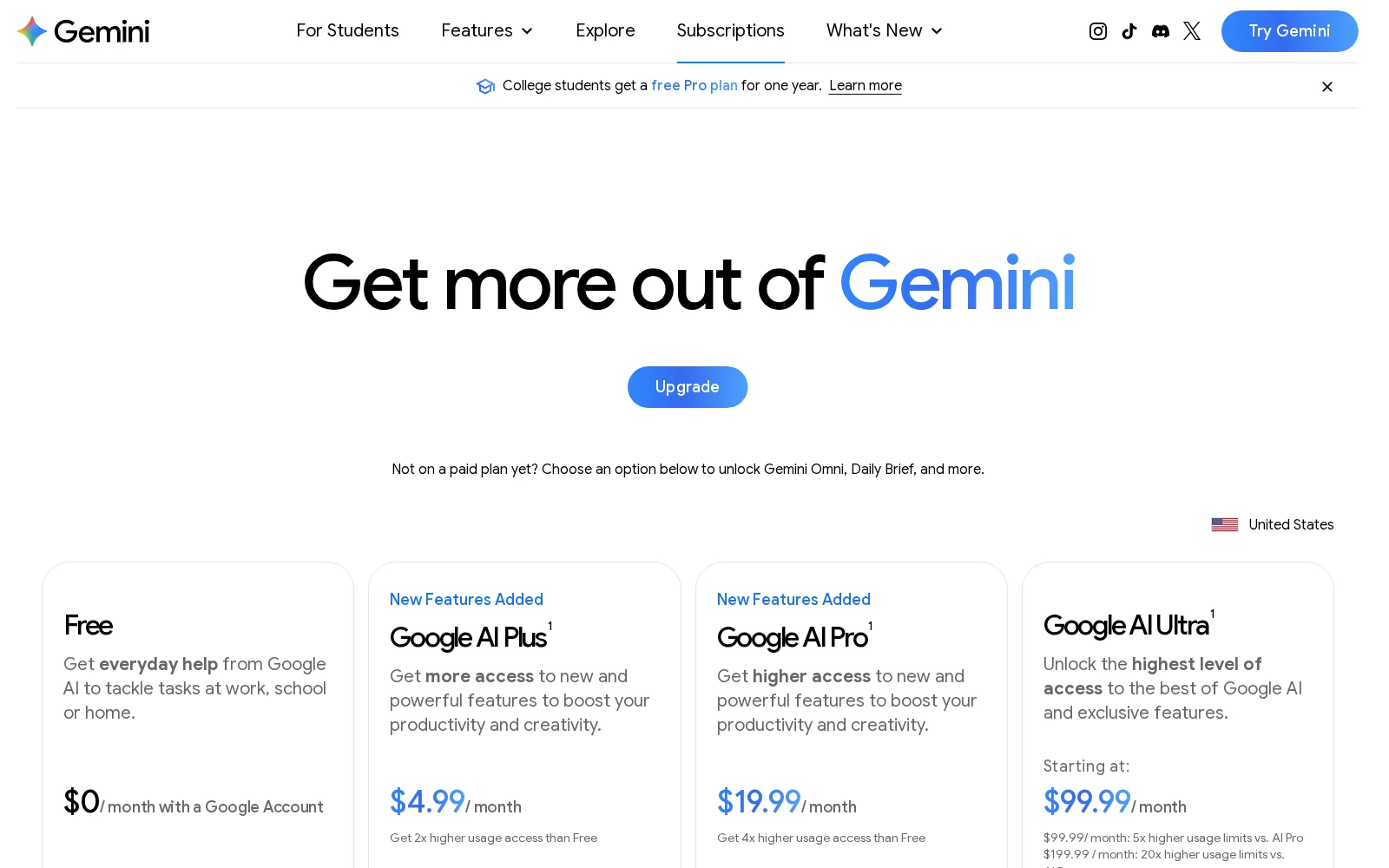
In the U.S., Gemini has four pricing tiers. For now, only the Pro and Ultra tiers have access to Gemini Spark. As you pay more money, you get increased compute-based usage limits, which are defined as multiples of the standard usage limits on the free tier (the limits of the free tier are not explicitly disclosed). Certain paid plans also come bundled with various other Google subscriptions.
- Free: $0/month with a Google Account. Standard usage limits; 15GB of cloud storage.
- Google AI Plus: $4.99/month; 2x higher than the standard usage limits; 400GB of cloud storage.
- Google AI Pro: $19.99/month; 4x higher than the standard usage limits; access to Gemini Spark; 5TB of cloud storage.
- Google AI Ultra: $99.99/month (or $199.99/month); 5x higher than Pro usage limits (or 20x higher than Pro usage limits); access to Gemini Spark; 20TB of cloud storage.
College students are eligible for a free Pro plan for one year. Also note that for many of the AI features, Google requires that the user be over 18 years of age.
2. Granola
- Best for: professionals who do most of their work in meetings and want notes without a bot in the call
- Pricing: Free (last 30 days in-app); Business $14/user/month; Enterprise from $35/user/month
- What I like: no meeting bot, notes stay private until you share them
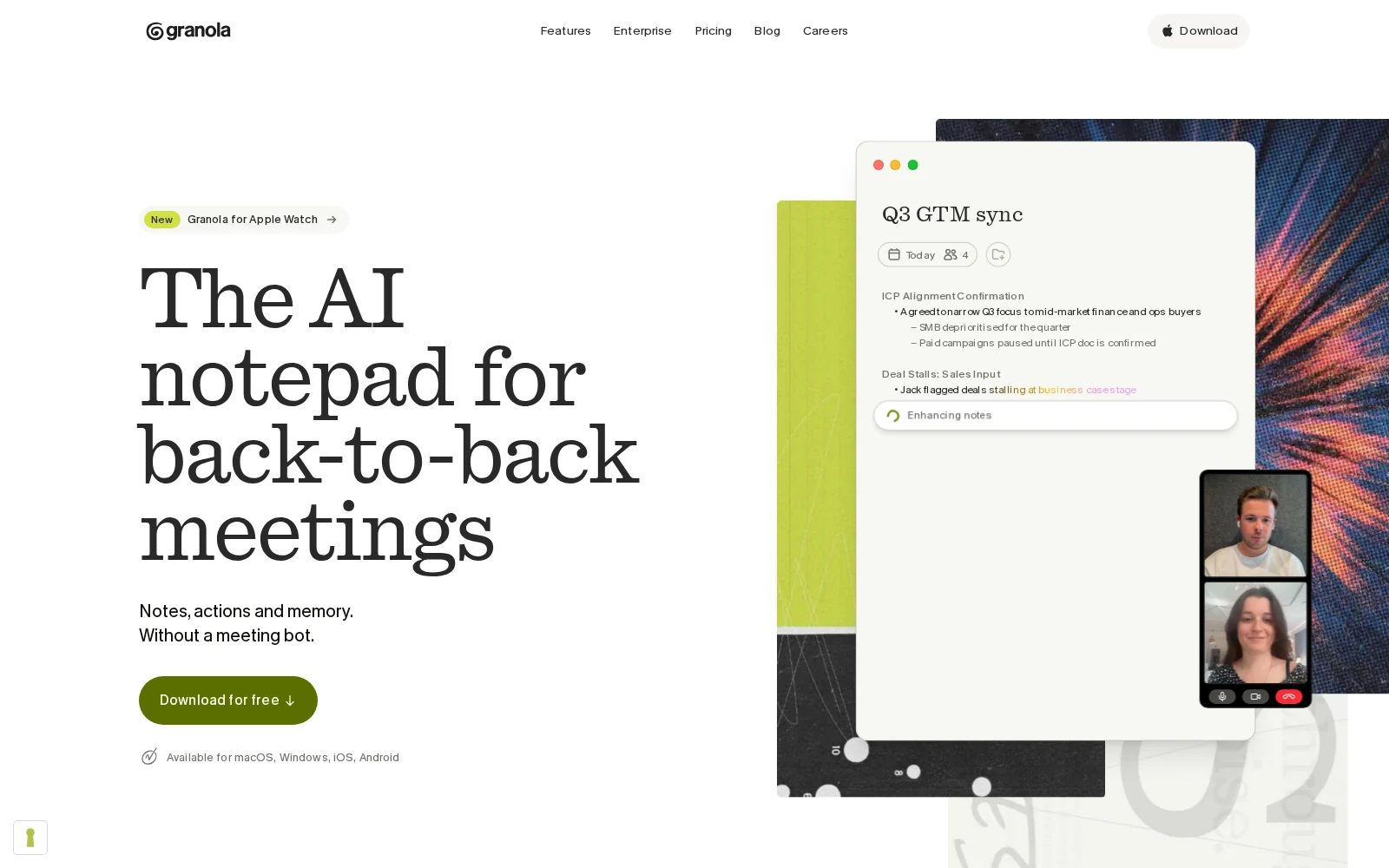
Granola is more purpose-built than some of the general AI assistants on this list. Its main focus is on meetings, and the activities associated with meetings: transcribing and summarizing meetings, enhancing notes, drafting follow-ups, and extracting action items. It works on macOS and Windows desktop apps, as well as iOS, Android, and Apple Watch. On paid plans, Granola also integrates with business tools like Slack, Notion, or Zapier.
Granola looks like a notepad app and works by transcribing your microphone and system audio. It’s synced to your calendar, and provides a pre-meeting brief for external meetings with context on the attendees and what you’ve previously discussed. During your meetings (in person, on iOS phone calls, or on Zoom, Google Meet, and Teams), you can take as many or as few notes as you like, and once the meeting is concluded, Granola uses the context from the meeting to enhance your notes and create follow-ups for all participants.
Unlike other AI meeting note-taker apps, Granola doesn’t put a bot in the meeting, and notes stay private until you share them. Granola can use anonymized notes to improve its own models, but on all plans (even Free!) you have the option to opt out.
Granola pros and cons
If you’re mainly looking for a tool that can help you with the busywork associated with meetings, Granola is a great choice. Even if there’re other non-meeting features you want for your AI assistant, Granola is worth checking out if meetings take up a significant portion of your day.
Of course, the reverse of this is that if you’re not having a lot of meetings, Granola won’t benefit you much at all.
Where Granola shines:
- No bot in the meeting: Since Granola works by transcribing your computer audio, other meeting participants don’t see an extra attendee in your online meeting rooms. It seems minor, but if you’ve ever been in a meeting where there are more AI note-takers than actual attendees (raises hand) you know how unsettling their silent, blank presence can be.
- Persistent memory across meetings: Granola lets you search across past meetings and ask questions like, “What did this customer ask during our previous meetings?” You can also create Recipes, reusable prompt templates that allow Granola to take repeatable actions on your meeting notes (e.g. “Write a recap of what my team accomplished this week,” “Suggest topics to cover in this upcoming meeting,” “Give me coaching advice based on my recent meetings,” etc.).
- Online and IRL: In my own experience, Granola feels seamless to use compared to other AI note-takers, and this is especially true for spontaneous in-person meetings. If someone comes over to my desk wanting to chat or ask for a favor, it takes very little time for me to turn on Granola so that it can take care of the note-taking while I can focus on the conversation.
What could be improved:
- Entirely based around meetings: Granola has its niche (meetings) and it does everything in that niche very well. But if you’re looking for a tool that will send follow-up emails, create calendar events or CRM records, run offline as a cloud agent, or serve as a more general life assistant, Granola isn’t built for that, although you can integrate it with other tools that can do those things.
- Recording can raise privacy concerns: Depending on where you or the other attendees are, there may be certain legal obligations to get consent from all parties being recorded. Without a bot in the meeting, it may not be clear to the attendees that they’re being recorded. Granola’s position on this is that it’s up to you to know the applicable laws and get consent as necessary.
- Free plan limits to 30 days of history only: You can use Granola as much as you’d like, but on the Free plan, you’re only able to access the last 30 days of meeting history. Older notes are stored, not deleted, and if you upgrade to the $14/month Business plan, you can access them.
Granola pricing
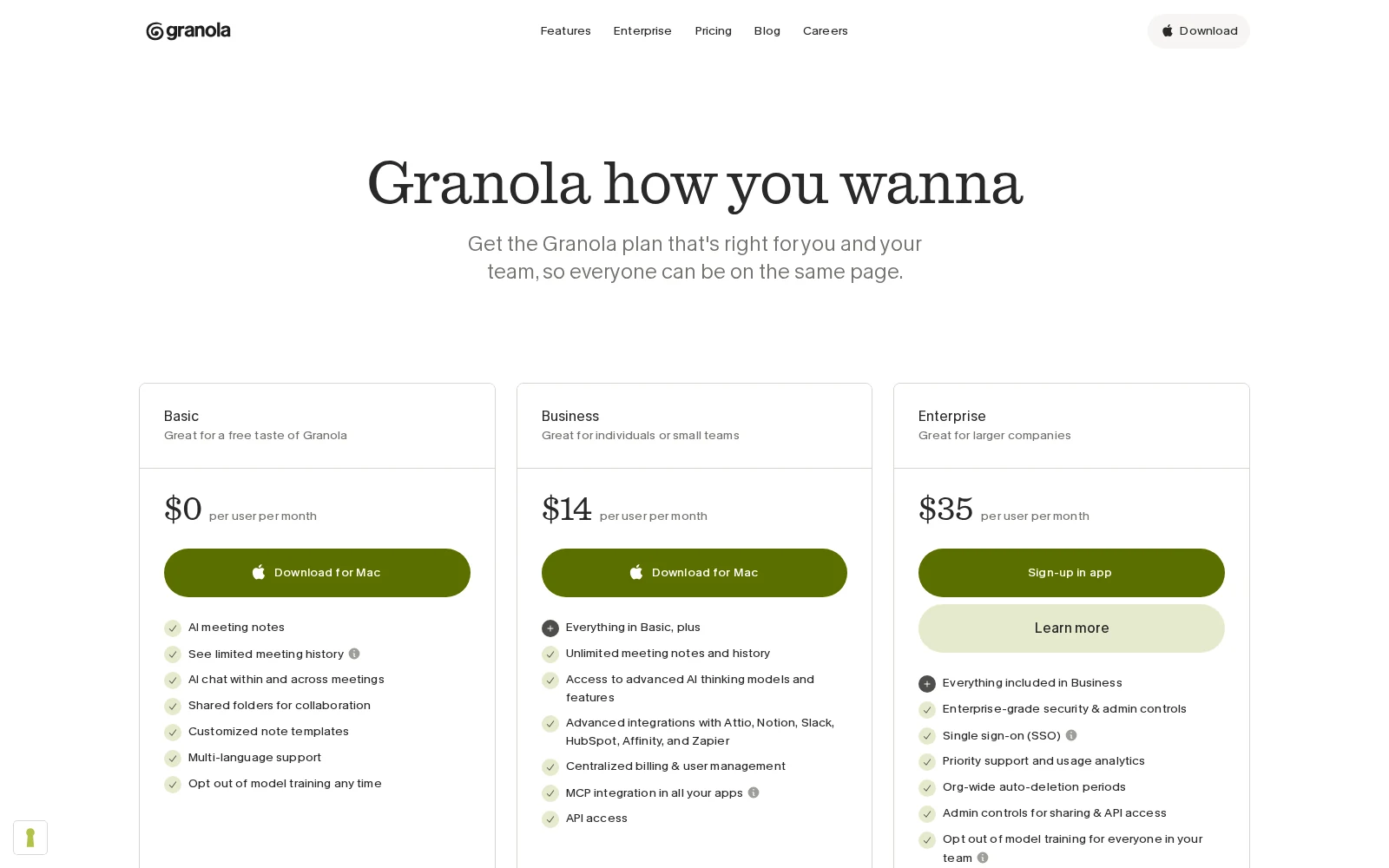
Granola has three pricing tiers:
- Free: $0/user/month. Meeting history limited to last 30 days.
- Business: $14/user/month. Unlimited meeting notes and history; more advanced AI models; integrations with Attio, Notion, Slack, HubSpot, Affinity, and Zapier; access to Granola MCP.
- Enterprise: $35/user/month (sales-assisted). SSO; admin controls; usage analytics.
3. Gumloop (Gumball)
- Best for: professionals working in teams, who want to do work across their entire enterprise tech stack
- Pricing: 14-day free Pro trial, then $37/mo plus pay-as-you-go usage; custom Enterprise plans
- What I like: flexible model routing, integrations with 300+ connectors
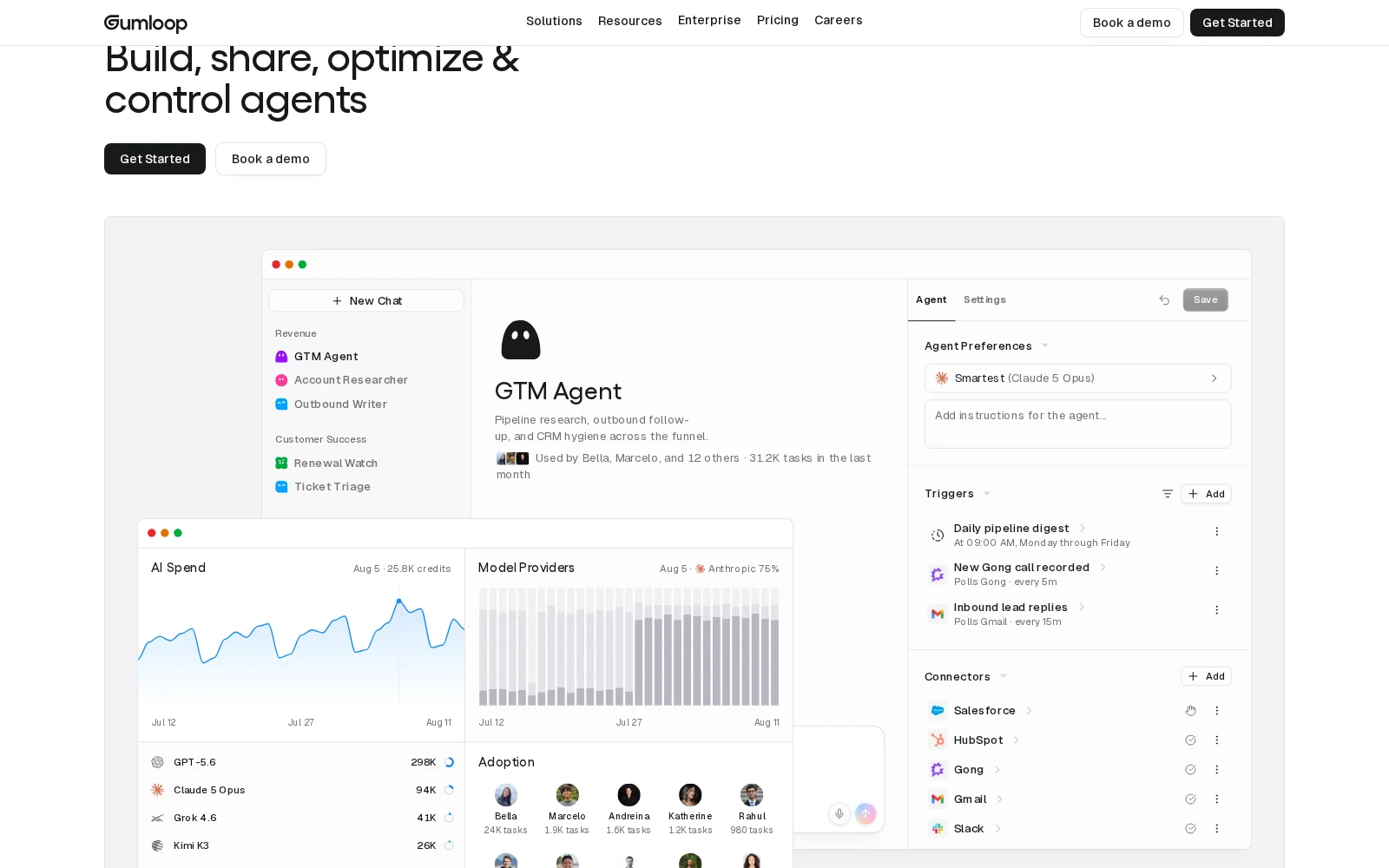
Hey, that’s us! All bias aside, though, Gumloop’s built-in personal agent, Gumball, is powerful and requires very little setup. Gumloop is an entire enterprise AI layer for building, sharing, optimizing, and observing agents. Your entire team can build their own custom agents that run on schedules or triggers, across 300+ connected apps.
Gumball is the first agent anyone who signs up for Gumloop gets, automatically. It comes equipped with a Smart Inbox feature that learns your tone of voice, triages and declutters your inbox, and writes drafts for you. It also gives you thorough context briefs before every calendar meeting, via Slack or email, as well as the Daily Chew, a short daily report pulled from all your connected apps. Gumball proactively surfaces the situations that most need your attention today, and provides specific plans for how it can take action.
You can use the Gumball assistant through the Gumloop app, through Slack, or by emailing Gumball from your work email at gumball@gumloop.ai.
One major feature that sets Gumball apart from other AI assistants out there is how it handles models. Unlike the options from the frontier labs, Gumball is model agnostic. If you use ChatGPT, it’s obviously going to use only OpenAI models. Similarly, Google Gemini is only going to use Gemini models. Gumball, on the other hand, can swap freely between 35+ frontier and open-weight models, without ever being locked to one provider. You can have it automatically select the model that provides the best performance for the lowest cost (or, if you’d like, you can pick your favorite model manually).
In addition, Gumloop can be deployed in a virtual private cloud (VPC), which means that your Gumball can fully live and operate inside your company’s cloud, without any organizational data ever leaving.
Gumloop pros and cons
If you want a model-agnostic, cloud-based AI assistant and your company needs an agent building platform with VPC, SSO, and org-wide AI governance, Gumloop is a good choice.
However, if you want a mobile-first experience for solo, personal use cases, there are probably cheaper options that will get you what you need.
Where Gumloop shines:
- Always active, in your own cloud: If your organization deploys Gumloop in a VPC, then Gumball fully lives in your company’s cloud, so no data ever leaves.
- Automatic model routing that saves you credits: For each task, Gumball transparently picks the model that provides the best performance for the lowest cost. Over time, the savings add up. You enjoy the savings without having to compare and contrast models yourself.
- Delegates tasks to agents across your entire organization: Gumball has access to all the apps, skills, and agents that you have access to, which means Gumball can delegate tasks to other agents across the entire company. For example, if you ask Gumball to check your CRM, Gumball will tag in your company’s custom sales agent.
What could be improved:
- Price is a bit steep for personal-only use cases: Gumball is just one part of the entire Gumloop AI enterprise layer. If you’re only planning on using your assistant for solo, personal use cases, a $37/month subscription might be overkill.
- No native mobile app: If you don’t spend most of your day at a computer, and plan to use your assistant mostly while on the go, you can still use Gumball through email and the Slack mobile app. However, this isn’t strictly a mobile-first experience.
- Smart Inbox only works with Gmail and Outlook for now: Gumloop’s built-in Smart Inbox features only work natively with Gmail and Outlook accounts for now. You can connect other email providers to your agents, but this will require additional setup and won’t work with Smart Inbox out of the box.
Gumloop pricing
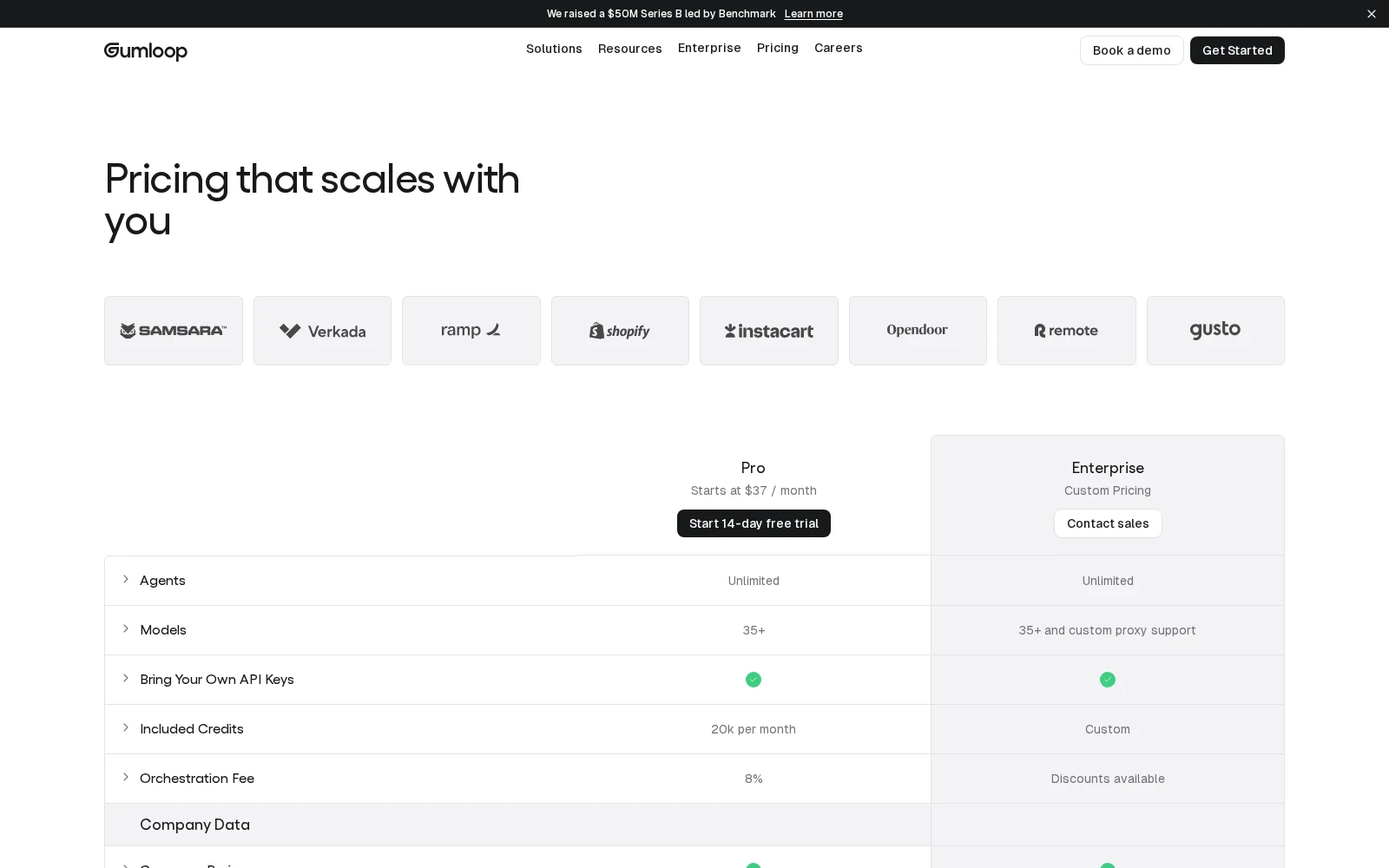
Gumloop currently has a self-serve plan, Pro, and a sales-assisted plan, Enterprise. New accounts get a free 14-day Pro trial.
- Pro: starts at $37/month, 20,000 credits included per month with pay-as-you-go usage pricing after that. Includes unlimited seats/teams/agents, 35+ models, BYOK support, 1 hosted MCP server, and agent-scoped connector policies.
- Enterprise: custom pricing. Adds SSO/SCIM, RBAC, audit logs, org-wide policies, incognito mode/ZDR, custom/proxy models, and optional VPC support.
1 Gumloop credit equals $0.005. The cost of an agent run is the cost of the tokens from the model, plus the cost of any tool calls, plus the cost of compute, with an 8% orchestration fee.
4. Claude (Claude Cowork)
- Best for: People who already pay for Claude and want to create deliverables, not just drafts in chats
- Pricing: Included with paid Claude. Pro $20/month ($17/month billed annually); Max from $100/month. Not available on Free.
- What I like: Works in the cloud and with local files
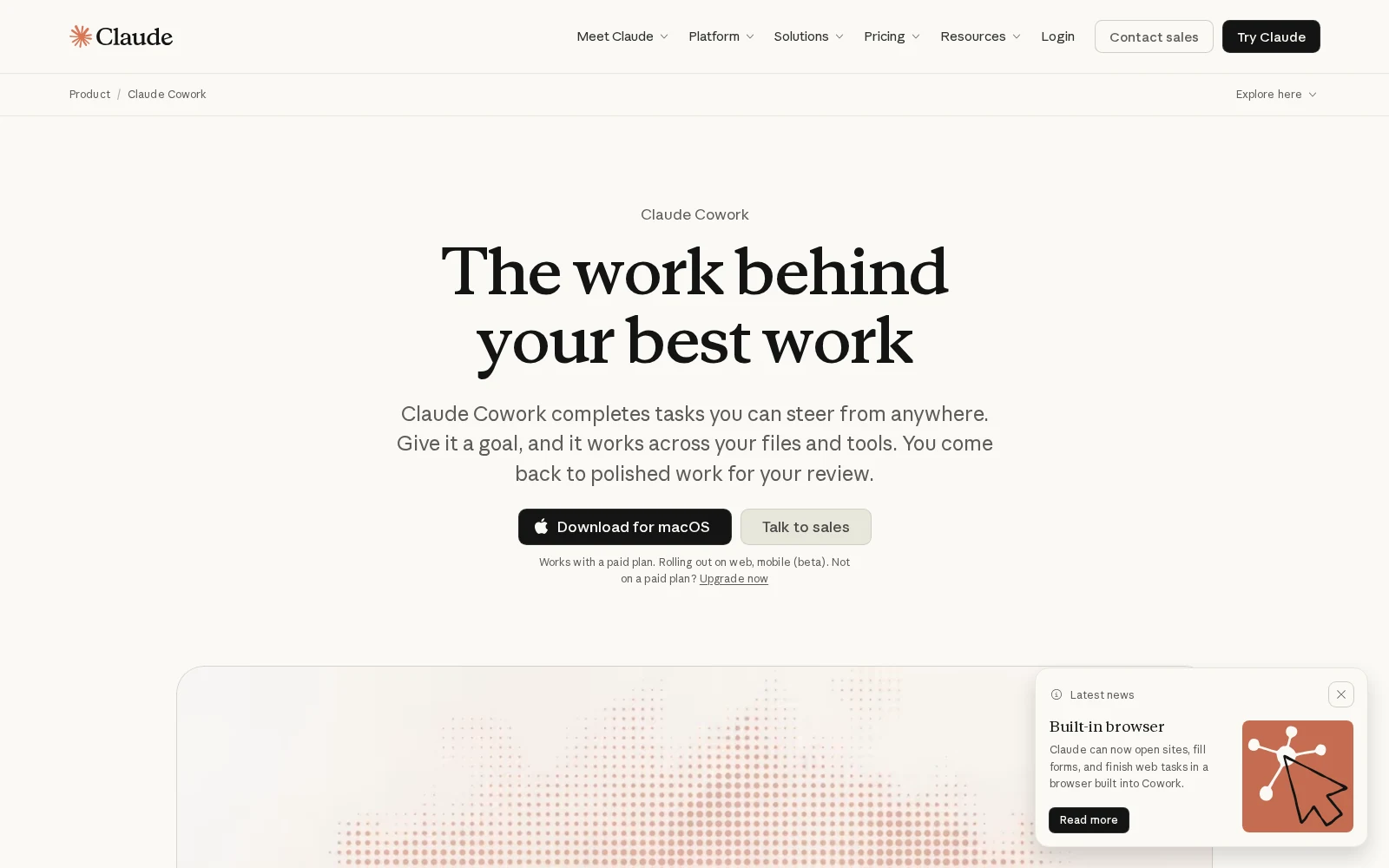
You might already be familiar with Claude, Anthropic’s AI chat assistant. Claude Cowork is an agentic version of Claude: you describe a task you want to complete and it plans, uses your files and connected apps (like Slack, Google Drive, or Microsoft 365), and delivers completed decks, spreadsheets, and documents.
For a while Cowork was only available as a local agent for an individual’s desktop, but as of July 2026, Cowork sessions run in the cloud. That means Claude can continue working after you close your laptop: start a task on your computer, and review it on your phone later. You can also schedule recurring tasks, like a weekly pipeline report or a daily briefing. Anthropic has also added a built-in browser that can open websites, read pages, and fill out forms.
Cowork can read and change folders you connect, and the work runs on Anthropic’s servers. Anthropic tells you to keep sensitive files out of those folders, to watch out for prompt injection, and to not use the browser or computer-use features on anything involving money or private data. Cloud sessions can only access files on your computer through the Claude Desktop app: if you connect a local folder, the Desktop app needs to stay open for Cowork to use it.
Claude Cowork pros and cons
If you already use Claude and regularly work with documents, spreadsheets, or research files, Cowork adds the extra power that can take you from just chats to first drafts.
Note that Cowork is only available on paid Claude plans, though, and its file and browser capabilities require the desktop app to be open. Additionally, when you’re using Claude, you’re locked into using Anthropic’s (relatively expensive) models, which can be an issue if you want to experiment with different models, you’re price-sensitive, or if your organization doesn’t want you to use Anthropic models for whatever reason.
Where Claude Cowork shines:
- Uses your actual files: The Cowork desktop app can access and modify files inside folders you connect on your computer. This is useful if you already have unorganized PDFs, spreadsheets, and drafts saved locally.
- Get finished outputs instead of chat replies: Cowork can create actual spreadsheet, presentation, or formatted document files, which saves you from having to copy and paste from Claude’s chat output into a different app.
- Work that continues in the cloud: Cowork can keep running after you close your laptop, and scheduled tasks can run while your computer is asleep.
What could be improved:
- Paid plans only: Cowork isn’t available on Free, and long or auto-approved tasks can use up Pro’s allowance quickly.
- The most useful functions require the desktop app to be open: Cowork runs in the cloud, but local files and browser access still require the Desktop app to be open.
- Operates on projects or schedules, rather than proactively: Cowork produces outputs when you assign or schedule a task. However, it’s not designed out of the box to understand how you spend your day or proactively recommend work to be done.
Claude Cowork pricing
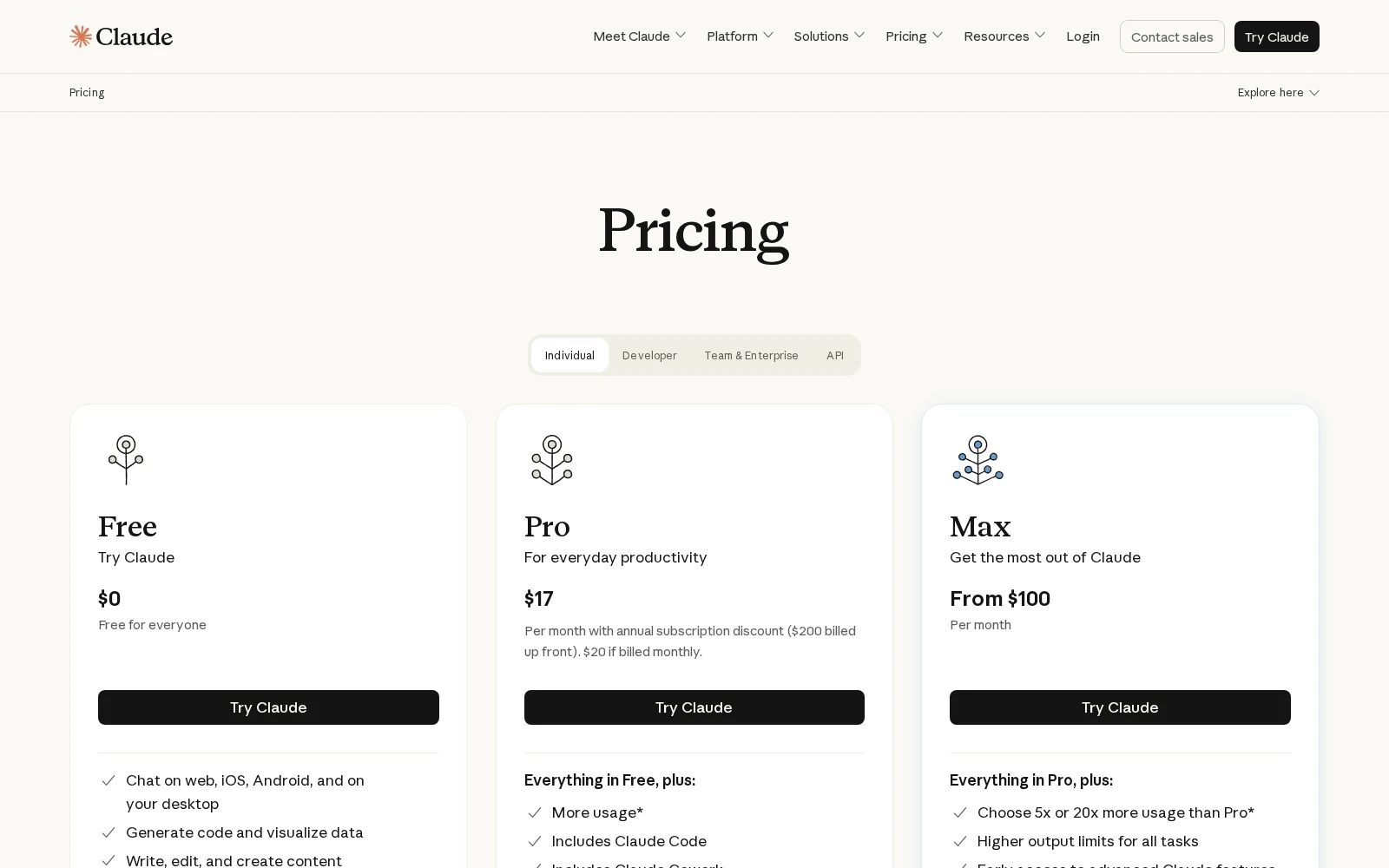
Claude Cowork is included with paid Claude plans:
- Free: $0/month; Cowork not included
- Pro: $20/month, or $17/month billed annually; Cowork included
- Max: From $100/month; includes higher usage limits and Cowork
- Team: Starts at $25/user/month when billed monthly; Cowork included
There is no separate Cowork subscription; usage comes out of your overall Claude plan allowance. Paid tiers buy a larger context window and higher usage.
5. ChatGPT (ChatGPT Work)
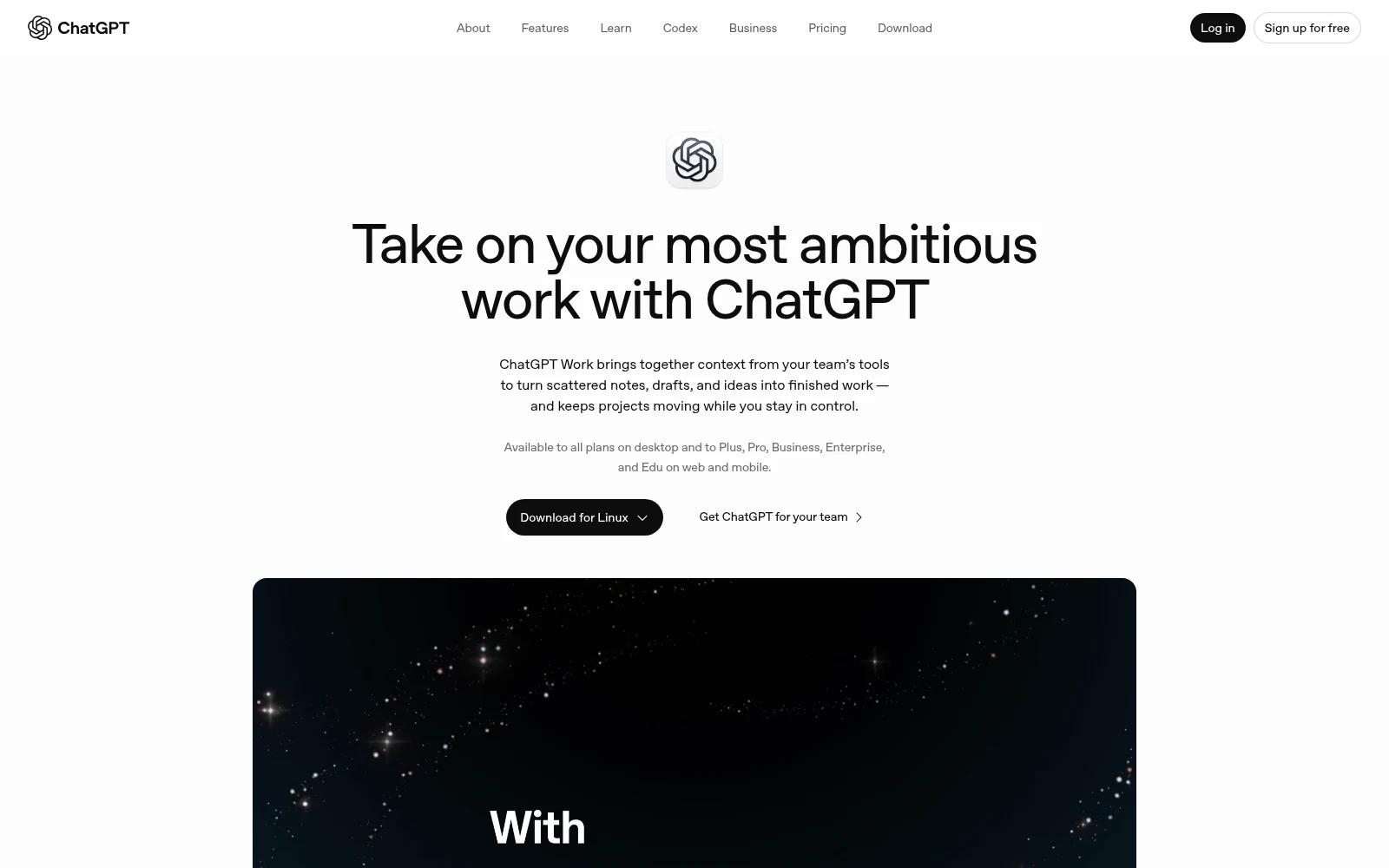
- Best for: People who already live in ChatGPT and want to create deliverables, not just drafts in chats
- Pricing: Plus $20/month for Work on web, mobile, and desktop. Pro from $100/month. Free/Go get limited Work on desktop only. Cloud browser is paid, not Free/Go.
- What I like: Works in the cloud and with local files
Seems like OpenAI and Google both have a similar tendency to create products, then rename, repackage, and discontinue them in the most confusing ways possible. With that context in mind: ChatGPT Work is OpenAI’s current agentic layer on top of the ChatGPT chatbot interface. It replaced ChatGPT Agent, which itself replaced ChatGPT Operator. Give ChatGPT Work a task to accomplish, and it can create multi-step plans and take action across your apps and files to produce outputs like research briefs, spreadsheets, presentations, or reports. (Regular ChatGPT is still there for simple chat and questions.)
Cloud Work chats sync across devices and can keep running after you close your laptop. You can also set scheduled tasks, or (on Plus and up) event-triggered ones, e.g. run when a new email arrives in my Gmail inbox, a Slack channel gets a message, or a GitHub PR updates.
ChatGPT Work also has a remote browser tool that allows the agent to take actions on the web, including in some signed-in sites. OpenAI does warn that certain websites will block their browser agent. ChatGPT Work can also modify and create local files, albeit only on desktop (web and mobile ChatGPT Work cannot see your local desktop files).
Unlike Claude Cowork, which is only available on paid plans, ChatGPT Work is available on the free ChatGPT plan (although OpenAI labels the overall Free Work experience as “limited”). On the ChatGPT desktop app for macOS or Windows, Free users can assign Work tasks, use plugins, access the built-in browser, and work with local files and desktop apps. However, data analysis and the Excel, PowerPoint, and Google Sheets extensions are limited on the Free plan, and cross-device work on web and mobile requires at least a paid Plus plan.
ChatGPT Work pros and cons
If you’re already living in ChatGPT every day and you create artifacts like presentations, briefs, or spreadsheets as part of your day-to-day work, give ChatGPT Work a try: it could meaningfully reduce the amount of time it takes for you to get from prompt to finished output.
However, if you don’t already use ChatGPT, it’s pretty similar to Claude Cowork or Gemini Spark. And, as with any of the tools created by the frontier labs, you’re limited to only the models they themselves provide.
Where ChatGPT Work shines:
- Already uses the ChatGPT interface: You don’t need to learn another assistant. Use Chat for everyday questions, then switch to ChatGPT Work when you want a report, spreadsheet, presentation, or other larger deliverable.
- Get finished files instead of copying and pasting: ChatGPT Work is designed for documents, spreadsheets, presentations, and reports, not just text that you’ll have to copy into another application and format yourself.
- Can respond to your work context: On paid plans, you can connect apps and set up scheduled or event-triggered tasks. Work can turn a new Gmail message, Slack update, or GitHub pull request into a follow-up task.
What could be improved:
- Usage is hard to predict: ChatGPT Work shares your ChatGPT usage allowance with Codex, and the cost of a task depends on its complexity, reasoning settings, and how much it reads and produces. A long report or multi-step workflow can use substantially more of your allowance than a simple request.
- Free Work is desktop-bound: Free users can try Work on the desktop app, but web and mobile access, cloud browsing, scheduled tasks, and event-triggered tasks require at least a paid Plus plan.
- Cloud/local split is confusing: Desktop Work can access local files and apps with permission, while web and mobile Work cannot see your computer. Even when a task runs locally, OpenAI says messages and task context may still be stored in the cloud.
ChatGPT Work pricing
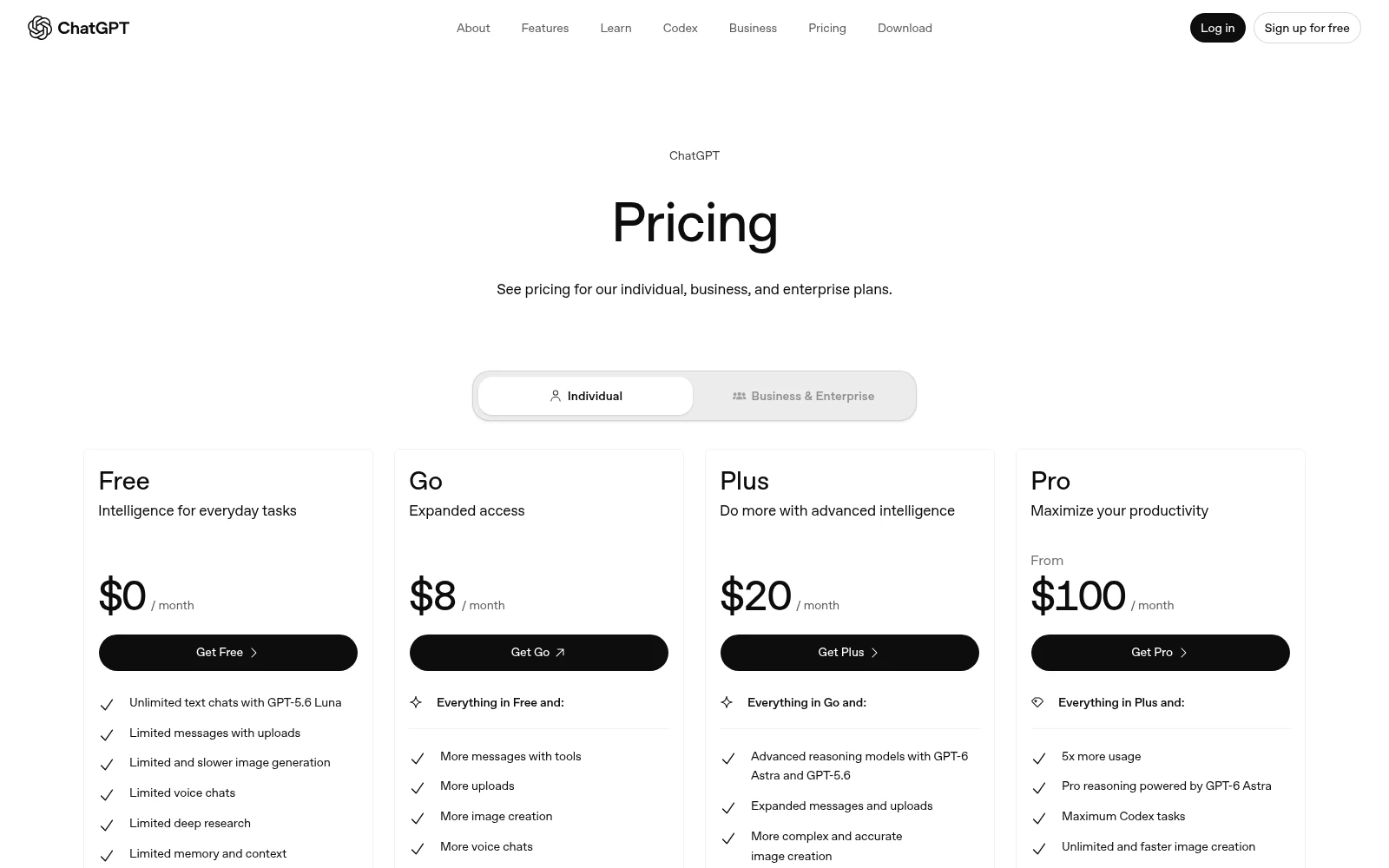
ChatGPT Work uses your ChatGPT plan. There is no separate Work fee, so pricing is determined by the standard ChatGPT plans:
- Free: $0/month. Limited ChatGPT Work on the desktop app.
- Plus: $20/month, billed monthly (no annual). Work on desktop, web, and mobile.
- Pro: From $100/month (5x Plus usage). New sign-ups for the $200 Pro plan are paused as of September 10, 2026; existing $200 subscriptions still renew.
- Business / Enterprise: Work included; seat pricing is separate from personal Plus/Pro.
Cloud browser is not on Free or Go.
6. Lindy AI
- Best for: professionals who want a proactive work assistant that they can text from their phone
- Pricing: Plus $29.99/user/month; Pro $99.99/month; Max $199.99/month. There’s no ongoing free plan, but new users who join through Slack get a seven-day free trial.
- What I like: support for iMessage/SMS
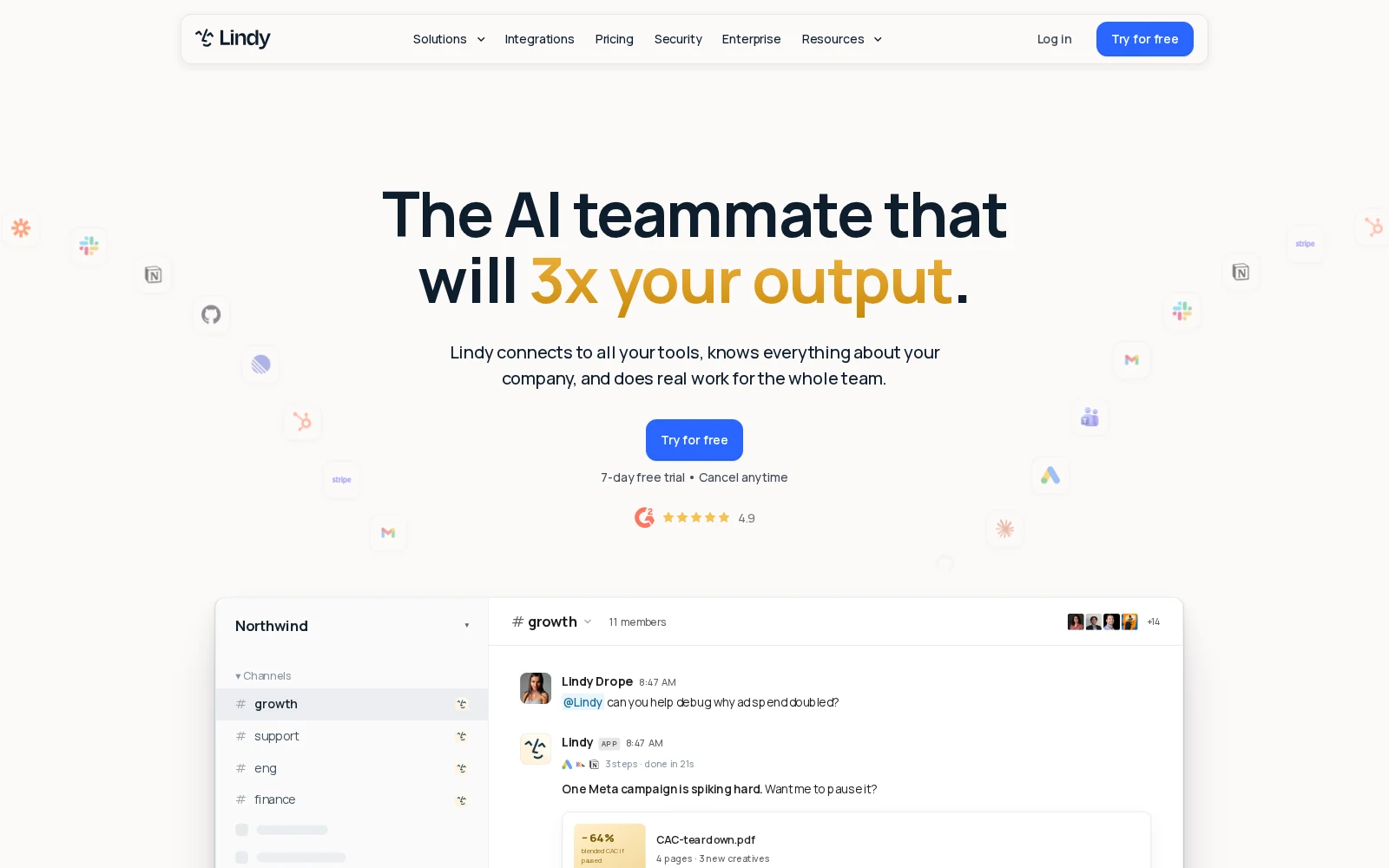
Lindy is (as they describe it) an “AI teammate,” an AI agent that handles the work around your inbox, calendar, meetings, and recurring tasks. There’s both a shared Lindy that you can @mention in your team’s Slack, and a private Lindy that you can DM or reach through iMessage and SMS. Ask it what’s on your calendar, have it find an email, request a briefing before your next meeting, or tell it to schedule time with someone.
Lindy can also handle work on a schedule or in response to triggers: ask it to send you a daily briefing, draft replies in your voice, prepare notes after meetings, or remind you to follow up with someone who hasn’t responded. Lindy says it supports more than 1,000 integrations, including MCP connections, and it can search through Notion, your company’s CRM, or other connected tools to get answers, draft a report, update a record, or prepare a follow-up.
Lindy’s approval model is straightforward: read-only lookups can happen automatically, but before taking actions with potentially external-facing consequences (e.g. sending an email, updating a ticket, posting in another channel, or publishing a document, etc.), Lindy will pause and wait for your approval.
Lindy pros and cons
Lindy is a good fit if you want an assistant that stays close to your daily communication rather than one you visit only when you have a large project to hand off. It’s strongest for common work patterns like email, meetings, scheduling, and recurring reports.
However, Lindy is designed to work out of the box rather than be deeply customized, and more unusual or organization-specific processes may require extra setup.
Where Lindy shines:
- Texting support: Lindy works through iMessage and SMS, so you can ask about your calendar, search your inbox, schedule a meeting, or request a briefing from your phone without opening another app.
- Scheduled and triggered Routines: Daily briefs, meeting notes, email drafts, reminders, and follow-ups can run on a schedule or trigger.
- Personal and team context in one assistant: Your private Lindy can work with your email, calendar, and meetings, while the Lindy in Slack can help the wider team search shared tools and move projects forward.
What could be improved:
- No ongoing free plan: Lindy offers a seven-day trial for new Slack users, but anyone who keeps using it takes a paid seat. Direct signups are billed immediately.
- Won’t make write changes without you: Lindy can prepare replies, update proposals, and make changes in connected tools, but actions with outside consequences require approval.
- Joins your meetings: Lindy’s meeting assistant can record and transcribe calls, which is useful if you want meeting context connected to your inbox and Slack. But unlike Granola, it does put an AI presence in the meeting.
Lindy AI pricing
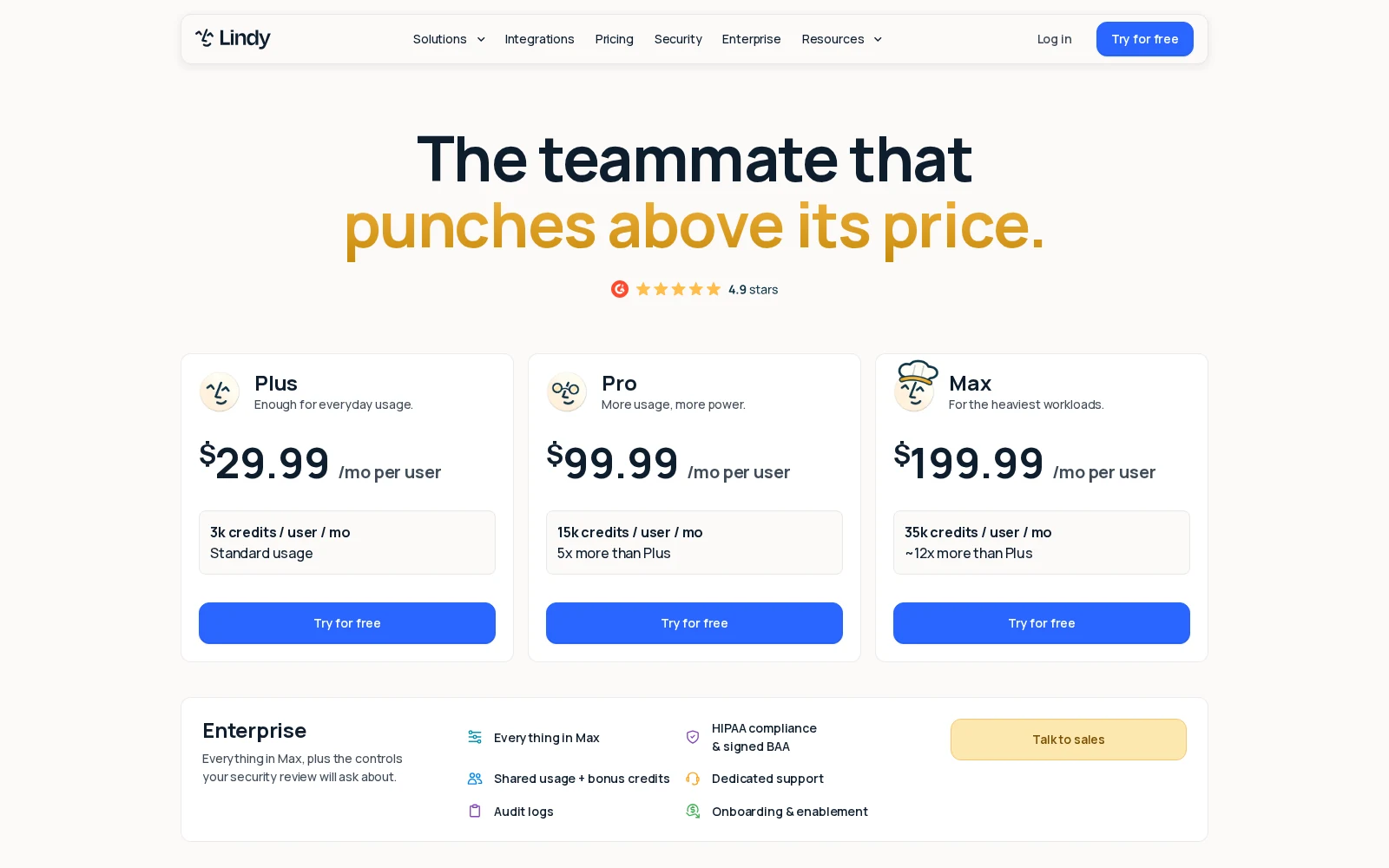
Lindy uses per-user pricing and a shared workspace credit pool:
- Plus: $29.99/user/month; 3,000 credits
- Pro: $99.99/user/month; 15,000 credits
- Max: $199.99/user/month; 35,000 credits
- Enterprise: Custom pricing; adds SSO, SCIM, audit logs, and HIPAA compliance with a signed BAA
Credits refresh each billing cycle and don’t roll over. New teammates who join through Slack get their first week free; direct signups are billed immediately. All plans include model selection, so you aren’t required to pay more to use a particular model.
7. Amazon Alexa+
- Best for: Amazon Prime members who want a hands-free voice assistant
- Pricing: Free with limited chat; full Alexa+ included with Prime ($14.99/month); $19.99/month for a standalone Alexa+ Standard plan without Prime
- What I like: household calendars and reminders, real-world actions
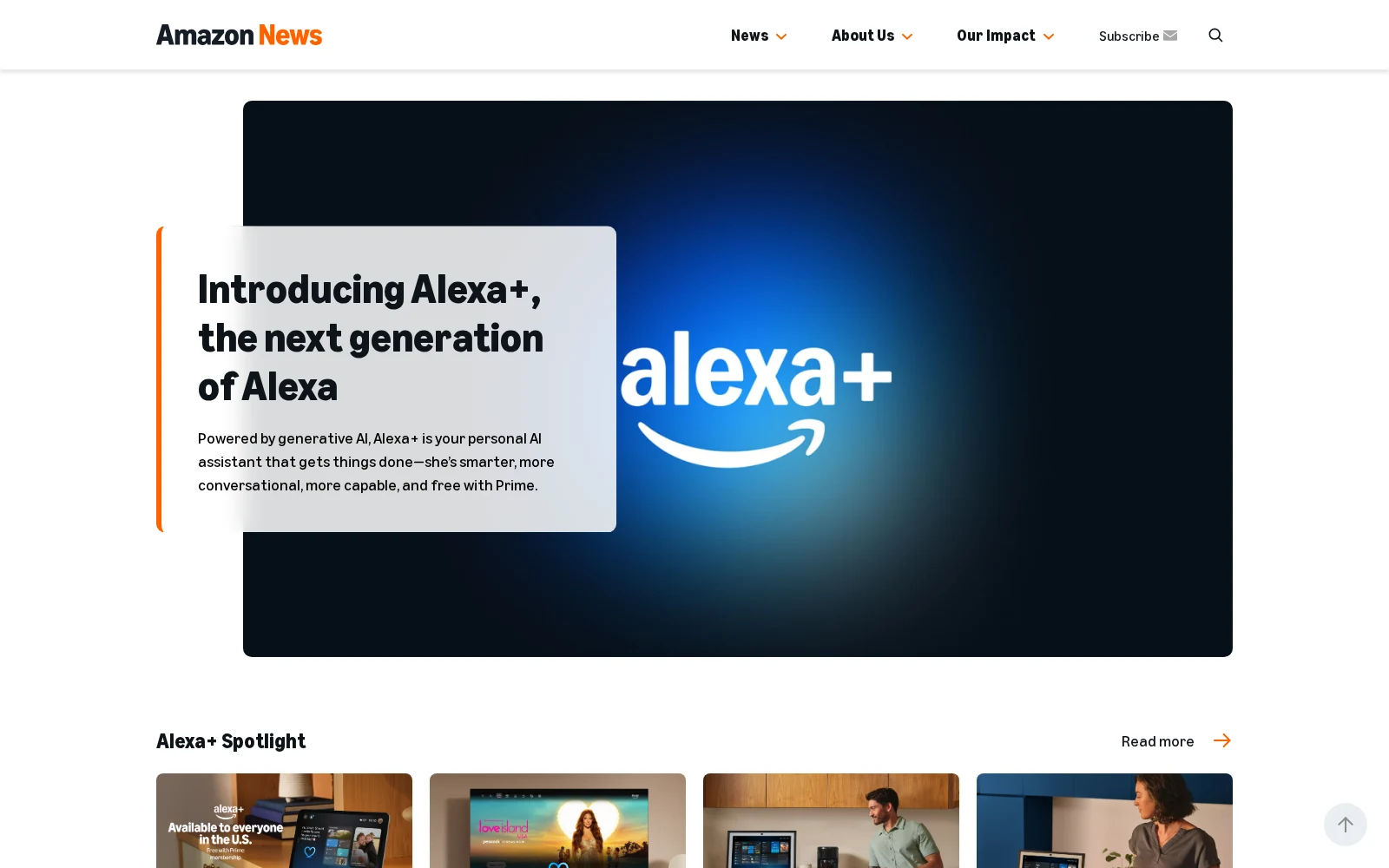
Amazon’s Alexa has already been around for a while (much to the consternation of my human friends named Alexa). Alexa+ is Amazon’s generative AI-powered replacement for the original Alexa, and Amazon advertises that it’s a smarter, more capable conversational AI, better able to take action across “tens of thousands of devices and services.”
Alexa+ works on compatible Amazon Echo and Fire TV devices, a web app (Alexa.com), an Alexa+ mobile app, and certain third-party devices with Alexa Built-in (like Samsung TVs and Bose speakers). One of Alexa+’s main selling points is how conversational context can carry over across all these different surfaces: for example, you can start a conversation with an Echo device and continue it in the browser.
Once you bring in integrations, Alexa+ gets even more capable. You can control various smart home integrations with products like Ring via natural-language voice prompts. The Alexa+ store also has a ton of integrations with services like Uber, Ticketmaster, Expedia, and OpenTable (so yes, in case you were wondering, you can make restaurant reservations).
Amazon Alexa+ pros and cons
If you’re already paying for Prime and you own the compatible hardware, give Alexa+ a shot: it’s a great choice for hands-free assistance with everyday household tasks like shopping, calendar management, and setting reminders.
However, if you would need to purchase Amazon Prime or upgrade old Echo hardware in order to use Alexa+, it might be worth doing some additional research first before committing, especially if you want an assistant that can perform high-stakes or sensitive tasks flawlessly. And of course, if you’re looking for a business tool, this isn’t even the correct product category.
Where Alexa+ shines:
- Smart-home voice control: Alexa+ interprets natural-language requests and determines from context what you mean, without needing specific device names or commands. You can create Routines by saying things like, “Play music and turn on the lights in my bedroom every weekday morning at 7AM,” without ever opening a device.
- Full household administration capabilities: Your whole family can use Alexa+ to add, update and discuss events on a shared calendar, extract details (like appointments or important school dates) from emails and messages, or generate meal plans and add ingredients to an Amazon Fresh or Whole Foods cart.
- Great value for Prime subscribers: Full access for your entire household is included at no additional cost for Prime subscribers (and at $14.99/month, the standard Amazon Prime plan is cheaper than the standalone Alexa+ plan).
What could be improved:
- Independent reports of agentic actions not being reliable: I haven’t personally experienced any issues in my testing, but writers at Wirecutter and Consumer Reports have reported that Alexa+’s agentic actions can sometimes be buggy. (In the former article, the author discusses how Alexa+ needed correction after it tried to book a reservation on the non-existent date of February 29, 2026 — whoops!)
- Substantial privacy tradeoffs: Alexa+ becomes more useful as it learns more about your household, but in order to maximize that usefulness, you need to give Amazon a lot of your personal information, like your calendars, shopping history, voice recordings, documents, and access to your smart home devices. If you’re at all privacy-sensitive, this might make you a little squeamish.
- Some Alexa hardware doesn’t support Alexa+: Amazon has confirmed that several older models of the Echo, Echo Show, Echo Spot, Fire TV, and Fire tablet models will never support Alexa+. If you have one of these older models, it’s up to you whether you think the upgrade is worth it, but it’ll meaningfully change your pricing calculations.
Amazon Alexa+ pricing
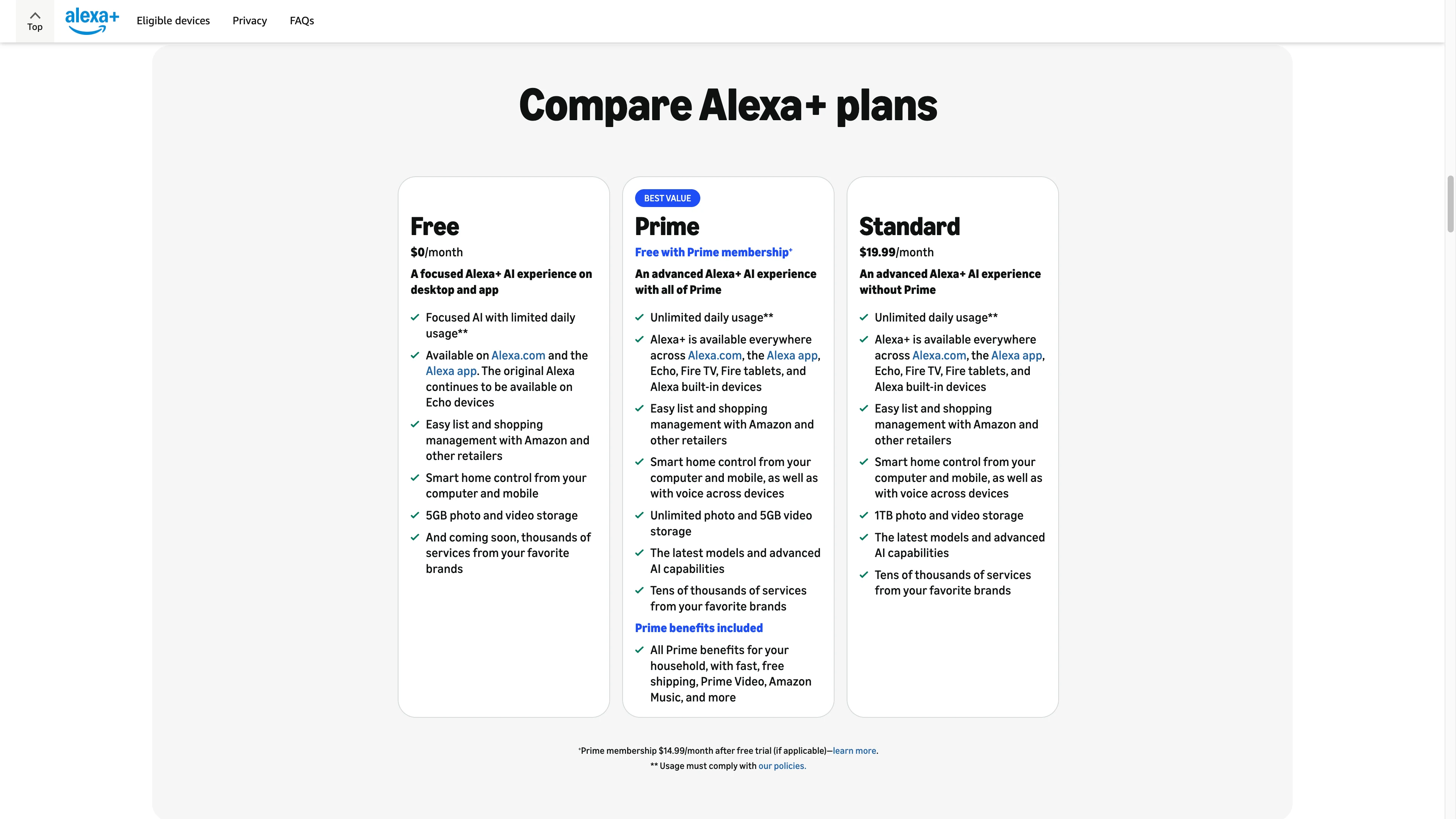
In the U.S., Alexa+ is available on the following plans:
- Free Alexa+ chat: Limited, text-based access at Alexa.com and in the Alexa app. No Prime membership required, and usage is capped.
- Prime: Full, unlimited Alexa+ for the entire household at no additional charge. Prime costs $14.99/month or $139/year.
- Alexa+ Standard: $19.99/month for non-Prime customers.
Somewhat bizarrely, the standard Amazon Prime plan, which includes all the Alexa+ features, is cheaper than the standalone Alexa+ plan. I can’t think of a single reason why you would ever want to buy the Alexa+ Standard plan on its own. (Perhaps you have a principled opposition to Amazon Prime, that for some reason, also doesn’t carry over to using Alexa+.)
8. Apple Intelligence (Siri AI)
- Best for: Apple users with compatible devices who want a privacy-focused assistant built into their operating system
- Pricing: Included at no additional cost with supported Apple hardware
- What I like: on-device privacy, shared context across apps
(Full disclosure: as of the writing of this piece, Siri AI isn’t out yet publicly, so I haven’t personally tested it. But I can tell you about what Apple Intelligence can do right now, and what Apple is advertising Siri AI will be able to do.)
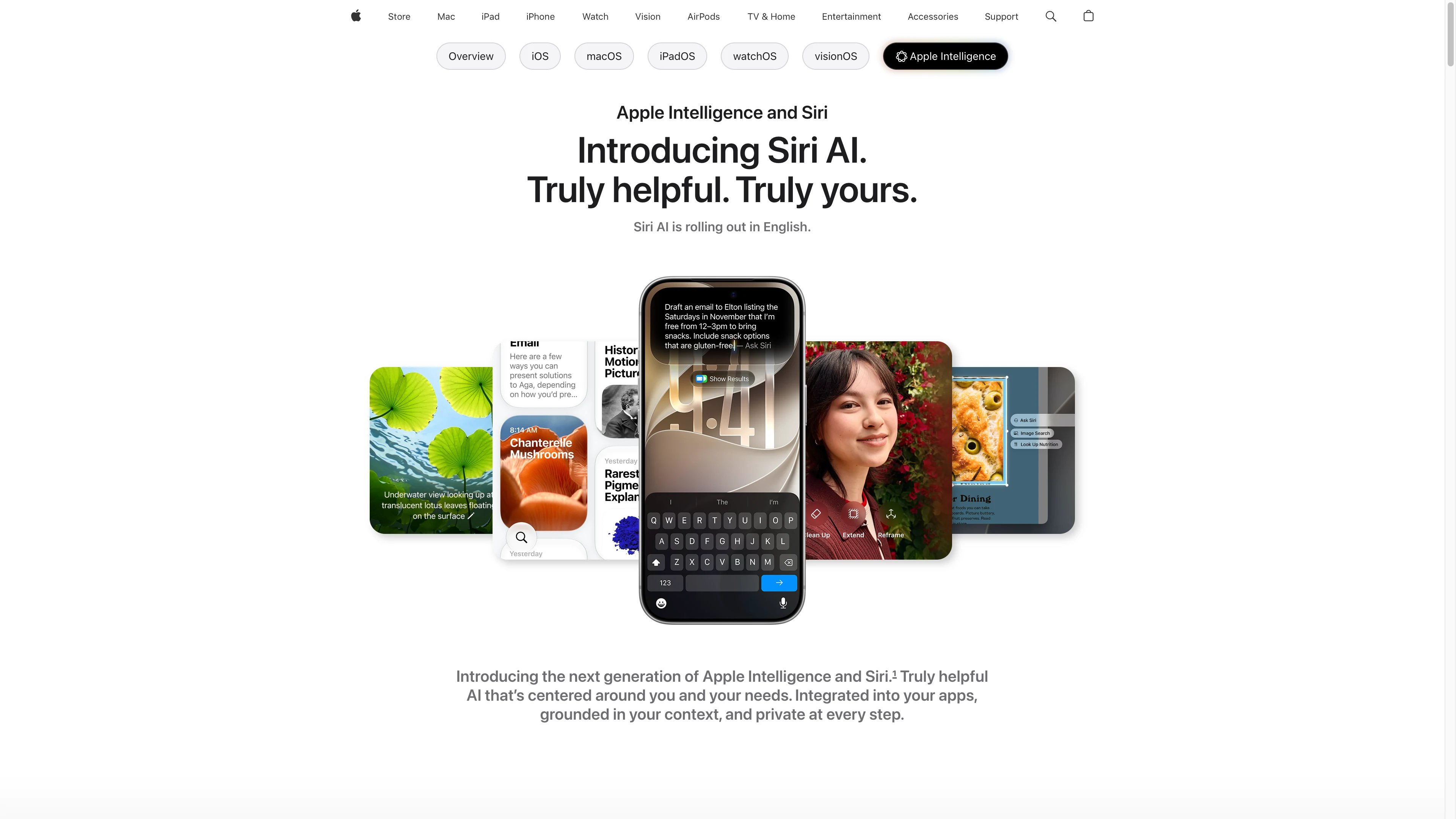
Apple Intelligence is Apple’s generative AI layer spanning the iPhone, iPad, MacOS, Apple Watch, and Apple Vision Pro surfaces. Siri AI, currently in beta, is a rebuilt version of the classic Siri built on top of the Apple Intelligence layer. Starting September 14, 2026, Siri AI will begin its initial rollout in English (with more languages to come later, and EU and China rollouts to come later, pending regulatory approval).
Most of the tools we’ve looked at so far aren’t gated by hardware, but Apple Intelligence is only usable on some (not all) Apple hardware: iPhone 15 Pro and Pro Max; iPhone 16 and later; iPads with M1; Macs with Apple silicon; Apple Watch Series 6 and later; etc. It also requires a supported OS, language and region, and 7GB of free device storage. In addition, some of the advanced Apple Intelligence features (“expressive voices and more advanced dictation”) require even newer devices than the standard baseline, e.g. an iPhone 17 Pro or newer. You can see the full list of requirements here.
So, what can Siri AI do? According to Apple, Siri AI can search your personal context across the Apple ecosystem (Messages, Mail, Calendar, Photos, etc.) and retrieve relevant details from multiple apps. It can also use native Apple apps to perform tasks like drafting an email, editing and sharing photos, or rescheduling a calendar event from a natural-language prompt. You can even use your phone camera to answer questions about real-world objects, surface nutritional information about food, or split a bill through Apple Cash.
Apple Intelligence’s strongest differentiator is perhaps its privacy architecture. Whenever possible, Apple Intelligence processes requests on-device, and Apple claims that it can use information across apps without Apple collecting or storing that personal data. If a request requires a more powerful model, Private Cloud Compute processes only the relevant data without storing it or making it accessible to Apple.
Apple Intelligence pros and cons
If you’re already fully bought into the Apple ecosystem and regularly purchase the newest Apple products, Apple Intelligence (and eventually Siri AI) will give you a deeply integrated assistant that doesn’t require you to hand off sensitive personal data to a different third-party provider, at no additional cost.
The biggest barrier to usage here is if you don’t own the correct hardware. Obviously, if you’re not an Apple user and don’t plan on becoming one, this is a total non-starter. But even if you’re a more casual Apple user with older hardware, it’s not yet clear that Siri AI is reason enough on its own to upgrade, especially while it’s still in beta and limited by region.
Where Apple Intelligence shines:
- Personal context across the entire Apple ecosystem: You don’t have to remember which specific app contains the information you’re looking for. For example, if you ask for context on an upcoming event, Siri AI can look through Mail or Messages for relevant conversations related to the event, and Calendar for the actual event itself.
- Privacy-conscious architecture: Apple Intelligence runs on-device when possible, and uses Private Cloud Compute for more complex requests, without sending content to Apple.
- Built into the OS: Assuming you’ve got the hardware, Siri AI doesn’t require an extra app or an extra subscription, and it operates across all supported Apple devices, including Apple Watch, CarPlay, and even AirPods.
What could be improved:
- Expensive hardware requirements: Standard iPhone 15 models, Intel Macs, and many other older Apple devices don’t support Apple Intelligence. Advanced Siri AI features require even newer hardware. For example, a new iPhone 16 will cost you at least $799, and if you want the more advanced features, a new iPhone Air will cost you at least $1099 (Apple doesn’t sell iPhone 17 Pros directly anymore). If you don’t already have a compatible device, you’ll need to drop a fair amount of money.
- Limited support for third-party actions: Siri can perform actions in third-party apps, but only if the app developer has built in support for certain Apple-specific frameworks like App Intents. If most of your work lives in non-Apple apps, Siri’s ability to act autonomously for you could be limited.
- Requires Apple ecosystem buy-in: Siri AI works great (and with very little setup) if your personal context already lives in the Apple ecosystem. But if it’s not already there, Siri isn’t going to be able to do much for you.
Apple Intelligence pricing
No extra subscription cost; however, it does require that you own a compatible iPhone, iPad, Mac, Apple Watch, or Vision Pro device.
Which AI assistant should you choose?
“AI assistant” covers a lot of different products now. Are you looking for something already on your phone? A meeting notepad? A chatbot that can produce a finished deck? A teammate you can text? Depending on what you want, the answer is going to be very different.
If you’ve already got the hardware: Gemini, Alexa+, or Siri AI
Start with the tools you already have. If you have a Pixel or you live in Gmail, try Gemini. If you already pay for Prime and own compatible Echo hardware, try Alexa+. If you’re on a recent iPhone, iPad, or Mac, Apple Intelligence is already there. First check if one of those three does what you’d want, before looking into other alternatives.
For meetings: Granola
If most of your work happens in meetings and you want note-taking without a bot lurking in your video calls, Granola is an excellent choice. You might even want to use it as a supplement to one of these other tools.
For finished files from a chatbot you already use: Claude Cowork or ChatGPT Work
If you already pay for Claude and you want a spreadsheet, deck, or report instead of a chat reply, use Cowork. If you already live in ChatGPT, use ChatGPT Work. They’re similar products: you describe a goal, they work through the steps, and they hand back a file. Cowork is stronger with local folders on the desktop app. Work is more useful if you want that same mode on web and mobile, or if you want tasks that fire from Gmail, Slack, or GitHub.
For an assistant you can text: Lindy
If you want daily briefs, meeting prep, inbox drafts, and follow-ups without opening another AI tab, Lindy is the closest thing on this list to a work-life assistant you can message from your phone. It also lives in Slack, but it’s opinionated and ready-made: great for common patterns, less so if you need to build a custom system around how your company actually works.
For an assistant, and an entire enterprise agent layer: Gumloop
If you want a model-agnostic assistant that can work across 300+ apps, and your company needs a real agent layer (shared agents, SSO, VPC, governance) rather than one more chatbot, look at Gumloop. Gumball is the personal agent you get on day one: Smart Inbox, Meeting Briefs, Daily Chew. The rest of the platform is for building and sharing the agents that actually do the work. Sure, it’s more than you need if you only wanted a free phone assistant. But if your organization needs to build and share the agents that actually do the work, give Gumloop a shot. Sign up for a free 14-day trial today.

Read related articles
Check out more articles on the Gumloop blog.