

7 best AI email agent tools I've tested in 2026

Here’s what seven AI email agents actually do, what they cost, and where they fall short.
The founder of Slack, Stewart Butterfield, once said in 2015 that “Email is the cockroach of the internet.” And indeed, in the over 50(!) years that email has been around, many other communication tools have come and gone, but email nevertheless remains relevant (whether we like it or not).
Personally, I hate dealing with my email inbox. Information overload, psychological fatigue, spam, clutter, the “always-on” expectation of constant communication: it’s enough to make me want to throw my laptop into the sea, disappear silently into the wilderness, and never look at a screen again. But in the meantime, I’m still here (and so is my Gmail inbox with over 100,000 unread emails).
Maybe you don’t hate email as much as me, but if your day-to-day work lives on a computer, a non-zero chunk of your day is probably also spent reading, sending, and replying to emails. And it’s not surprising that for decades, software developers, who are the exact kinds of people that tend to live in their inboxes, have built many different tools in their attempts to solve the “problems” of email.
AI email agents are the latest frontier in this quest to make email less painful, and are built upon the relatively new technologies of large language models and agentic AI. LLMs have made it possible to perform semantic search rather than keyword-based search, analyze massive quantities of text quickly and at scale, and generate text; agentic AI has made it possible for tools to take action autonomously inside inboxes.
Will any of these AI email agents bring you closer to the dream (or at least, my dream) of being free from email forever? Let’s find out.
What is an AI email agent?
An AI email agent is a type of software that takes autonomous actions in your email inbox to save you time and increase your productivity. It can automatically prioritize, label, and sort emails, summarize emails, or even draft and reply to emails on your behalf.
Some AI email agents are strictly email-only. Other tools support AI email management as one capability within a broader repertoire of productivity-related features, like calendar management, note-taking, or to-do lists. This category includes most products that are marketed using terms like “AI email assistant,” “AI chief of staff,” or “AI executive assistant.”
Additionally, if you don’t mind a bit of upfront setup work, you can also use a general AI agent building platform to create your own AI email agent.
What to look for in an AI email agent
For this article, we’re looking at AI agents that live on top of an existing email provider, like Gmail, Outlook, or Apple Mail. For this article, we’re just going to assume that you already have an account with one of the more common email providers, and you want a tool that makes dealing with your existing inbox easier.
This article also doesn’t focus on shared inbox platforms for support and sales teams (like Front or Missive), which is a different category of product.
Here are some questions to consider as you do your research on all the different AI email agents out there:
- What email providers does this agent support?: If you use Gmail, Outlook, Apple Mail, or some other provider as your primary inbox, your AI agent should support that provider. This might sound obvious, but it’s important to remember! Also check how the tool installs. Some are fully separate AI email clients with their own unique apps and interfaces, others work as a browser extension or plugin, and others connect server-side and never touch your client at all.
- Does this agent integrate with the other tools I use every day?: For most people, their email inbox is the place where they communicate, but their actual work is done in other tools: their word processor, their CRM, their customer support platform, etc. If your AI email agent also connects to the rest of your tech stack, it goes from being an email automation tool to an entire work automation tool.
- Do I need to collaborate with other people?: If your team does a lot of shared internal work through email, several AI email agents offer features designed for team collaboration. On the other hand, if you’re planning on using your AI email agent in a more individual context, or your team handles most of its internal communications on another platform like Slack or Microsoft Teams, collaboration features won’t be as necessary for you.
- Which model(s) does this agent use?: Different tools offer different levels of flexibility with their LLM selection. Some AI email agents allow you to choose which model you want to use from a set list; some AI email agents don’t surface a choice and will make this selection for you on the back end. If you have strong opinions about which models you want to use (for cost, performance, or security reasons) or you want to be able to switch between models at will, make sure to pick a model-agnostic platform.
- What security and data privacy features does this tool have?: Email can contain a lot of extremely sensitive information, and there’s always some amount of risk involved in entrusting your data to AI agents. If you’re planning on using an AI email agent within an organization, you’ll need to make sure that the agent you pick is compliant with your company’s privacy and security requirements. Look for a SOC 2 Type II report and a clear statement on whether your mail is used to train AI models. Some vendors publish certificates openly; others make you sign an NDA to see them.
- How much does this tool cost, and how much am I willing to pay?: More features will typically mean a more expensive product. If you don’t plan on using those extra features, you might be better off with something cheaper; on the other hand, if a more fully-featured AI email agent could replace another tool that you’re already paying for, spending a little extra could save you money in the long run.
What about the AI already built into Gmail and Outlook?
Before paying for anything new, understand what AI email agent features you might already have access to.
Gemini in Gmail is included with Google Workspace Business and Enterprise subscriptions at no extra cost. It includes features for drafting and rewriting, AI summaries of long threads, and AI prioritization of what it determines to be the most important emails.
Similarly, Copilot in Outlook also includes AI features for drafting and rewriting, summaries, and prioritization. Unlike Gemini in Gmail, though, Copilot in Outlook is an extension of Microsoft 365 Copilot, which is itself a separate paid add-on to Microsoft 365. If your organization already pays for Copilot, give it a try before committing to any of the tools on this list.
7 best AI email agent tools in 2026
Here are the best AI email agents I found:
1. Shortwave
- Best for: Gmail users wanting powerful semantic search
- Pricing: Individual plans free or $18/seat/mo; Business plans $30, $45, or $120/seat/mo
- What I like: team comments, built-in AI web browsing
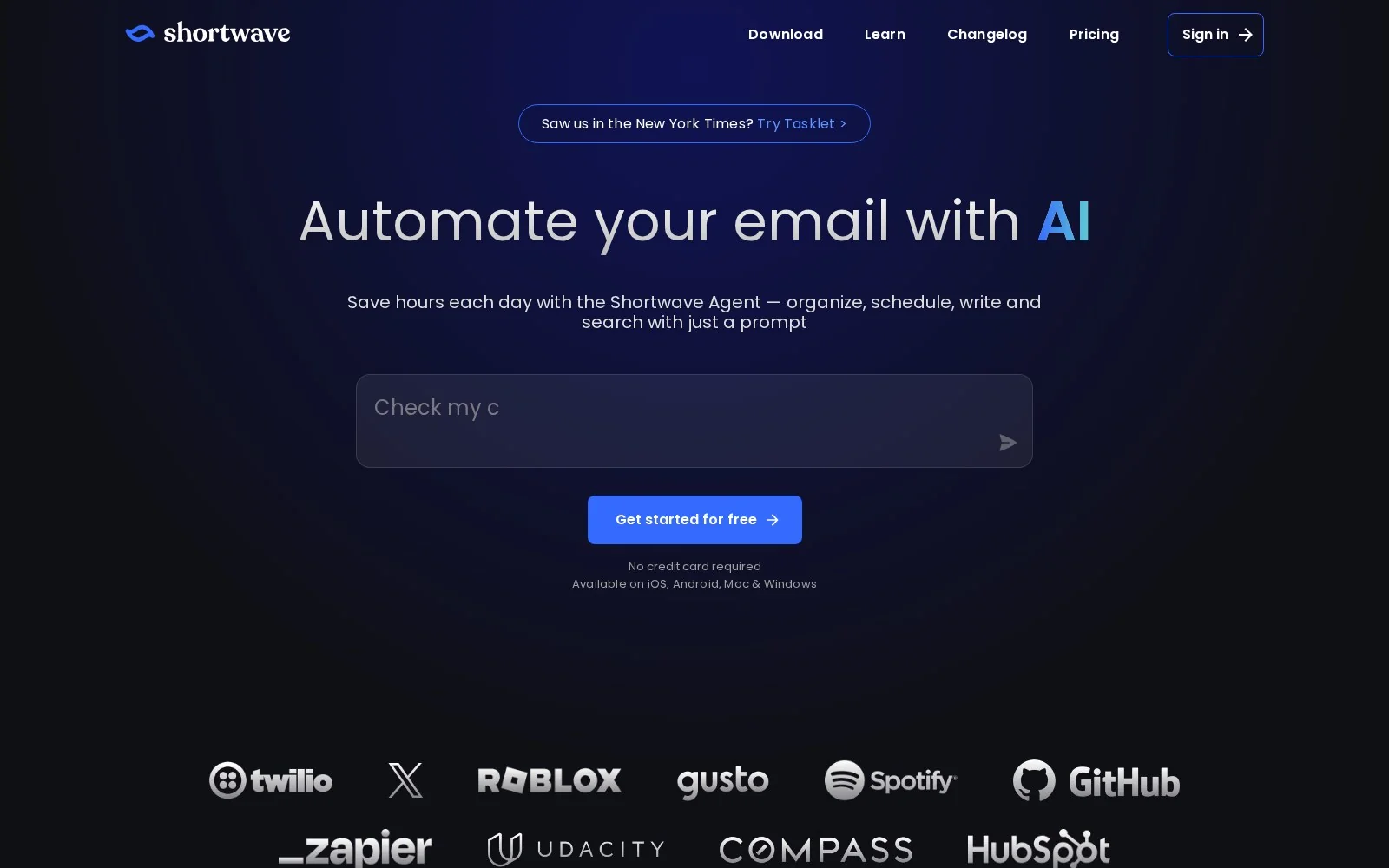
Shortwave is an AI-powered email management tool founded by a group of ex-Googlers. If you ever used Google’s now-defunct Inbox by Gmail email management tool (I did), it’s not hard to see some shared DNA between Shortwave and Inbox by Gmail. Bundling, for example, sorts related emails (promotions, newsletters, automated senders, etc.) into collapsible groups: this was a core feature of Inbox by Gmail, and is now a core feature of Shortwave.
Shortwave is definitely more than just a clone of a decade-old product from the Google Graveyard, though, and it includes a lot of modern AI-powered features. The Shortwave inbox comes built-in with a conversational AI assistant that can organize your inbox, create complex AI filters from natural language prompts to automatically label, sort, or delete incoming mails, and even schedule meetings on Google Calendar for you. The Shortwave AI also learns your writing style from past emails and drafts in your voice.
Speaking of Google: Shortwave is first and foremost a Gmail product. Gmail and Google Workspace are natively supported, but to the extent that other clients work, it must be done by forwarding your email through an intermediary Gmail account. Yahoo and iCloud can get support through auto-forwarding; Outlook and ProtonMail have partial support where they can receive emails in Shortwave but can’t send from your real email address; Microsoft 365 isn’t supported at all.
If you want to work beyond the inbox, Shortwave’s native AI integrations with Business tools like Linear, Slack, and HubSpot require a Business plan. Shortwave does also have a sister product called Tasklet, which connects to 3,000+ apps and can be used to create AI agents that do workflow automation, but that’s a different paid subscription, separate from Shortwave.
Shortwave pros and cons
With Shortwave, you get remarkably powerful email search and a friendly chat interface, at a price below that of Superhuman Mail, the most comparable option on this list. If you’re a die-hard Gmail user and want an AI email agent that does much more than just drafting emails, Shortwave is worth a look.
However, if you’re not already on Gmail (and don’t want to be), there’s not much to say: Shortwave isn’t going to be the right tool for you. And if you do end up loving Shortwave’s semantic search, it might end up being substantially pricier than the entry-point sticker price of $18/month.
Where Shortwave shines:
- Strong semantic search capabilities: Rather than searching your inbox with specific keywords, you can describe what you’re looking for (e.g., “What did we agree upon for the Q4 launch date?”), and Shortwave will read across the relevant threads and tell you.
- Built-in AI web browsing: Starting from the $18/month Pro plan, the Shortwave AI Assistant can browse the web mid-task to research up-to-date information related to an email it’s writing.
- Free plan makes it easy to test out the platform: The free tier is limited, but it's a real, working inbox that you can use indefinitely while deciding whether you want to commit. Paid plans also start with a 14-day trial of the Pro plan.
What could be improved:
- Limited model selection: Shortwave’s AI features are powered by the specific AI models of their choice. As of right now, the AI models are all from Anthropic’s family of Claude models. Depending on the tier you pay for, you get access to more advanced models: Free gets Basic (Claude Haiku 4.5), Pro and Business get Standard (Claude Sonnet 4.6), Premier gets Advanced (Claude Sonnet 4.6 with adaptive thinking), and Max gets Expert (Claude Opus 4.6 with adaptive thinking). If you want to use a non-Anthropic model, Shortwave doesn’t give you any flexibility.
- Only natively integrates with Gmail: Shortwave only connects natively to Gmail and Google Workspace accounts. You can use Shortwave with other providers by creating an intermediary Gmail account and setting up email forwarding, but Outlook and ProtonMail are only partially supported right now and Microsoft 365 isn’t supported at all.
- Search has hard caps on usage: Each AI search can only pull a limited number of threads into context (15 on Free, 50 on Pro and Business, 100 on Premier, 150 on Max). Given that the search is one of Shortwave’s most powerful features, capping the AI’s historical context can feel like a real constraint. You might end up needing a more expensive plan than you initially thought.
Shortwave pricing
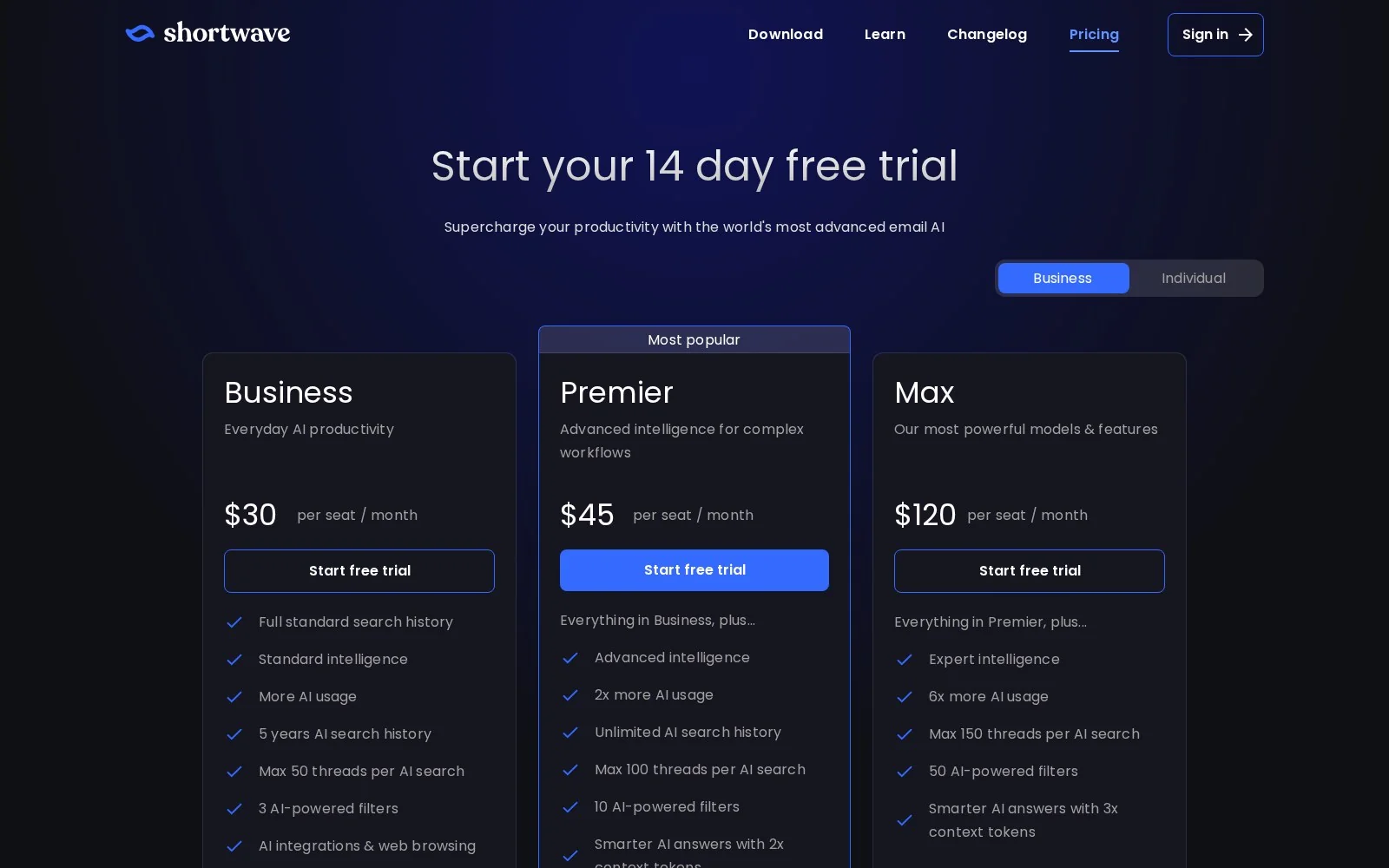
Shortwave offers two different types of plan: Individual and Business. Shortwave only offers monthly billing, so there’s no discounts for committing upfront.
Individual plans offer a more basic feature set at a lower price point, intended for solo users.
- Pro: $18/seat/month
- Free: test out Shortwave before buying with a limited feature set
Business plans offer more powerful features like AI integrations and web browsing, read statuses, link tracking, and more.
- Business: $30/seat/month
- Premier: $45/seat/month
- Max: $120/seat/month
Shortwave ratings and reviews
- G2: 4.4 / 5 rating (from 68 ratings)
- Product Hunt: 4.7 / 5 (from 23 ratings)
2. Superhuman Mail
- Best for: Gmail/Outlook users who want the fastest inbox possible (and are willing to pay for it)
- Pricing: Starter plan $30/member/month; Business plan $40/member/month; contact sales for Enterprise pricing
- What I like: speed and shortcuts, team collaboration features
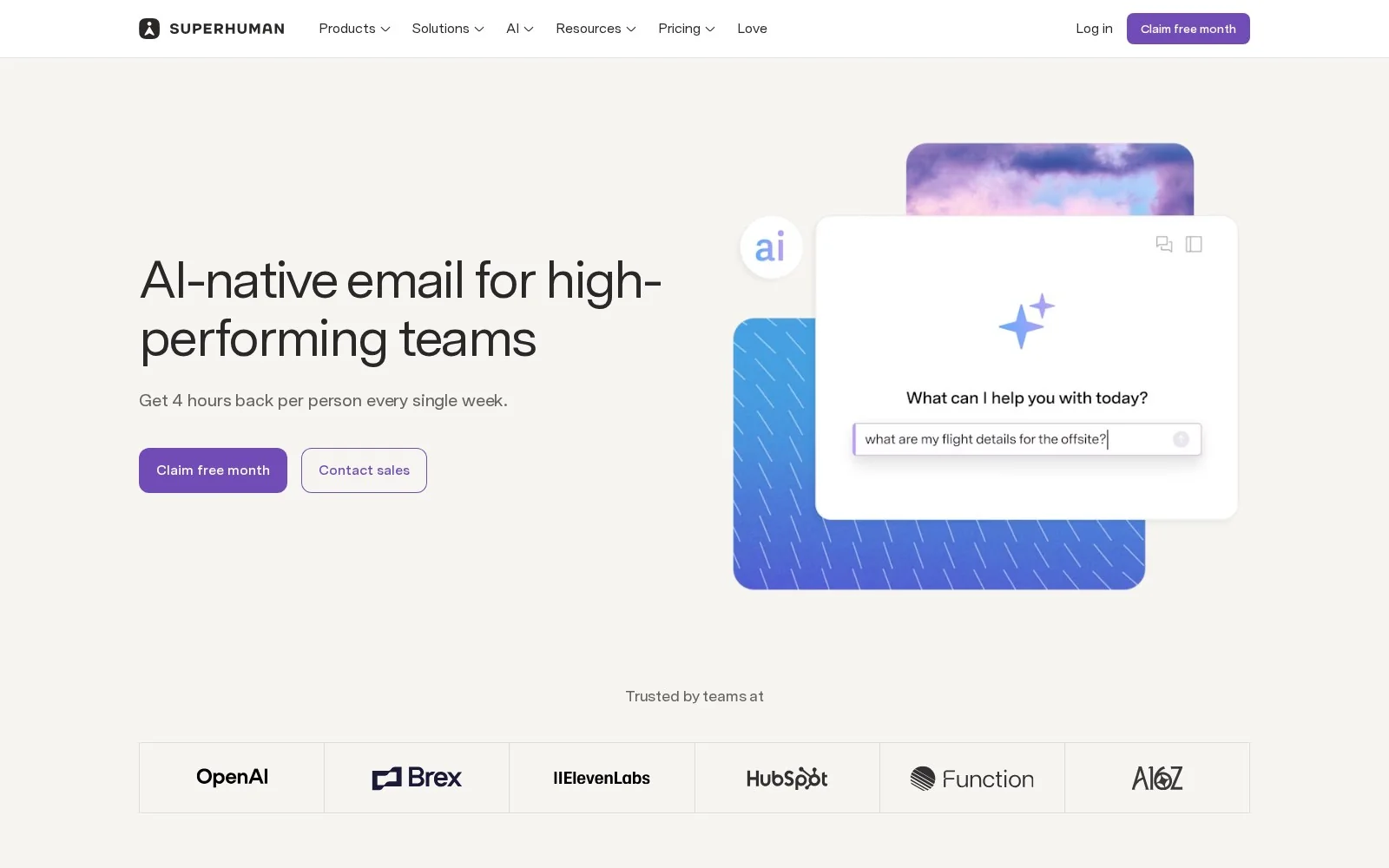
Superhuman has been the most well-known premium email client for about a decade. Their core pitch was (and still is) speed, with extensive keyboard shortcuts and a fast, low-latency interface. Grammarly acquired the Superhuman email client in 2025, then the parent company renamed itself “Superhuman,” and the email client became Superhuman Mail.
Superhuman Mail now incorporates an entire AI layer. Emails are automatically triaged with auto-labeling and auto-archiving features, and automatically summarized. You can create your own Auto Labels and use them to split inbox views into tabs. The Ask AI chat feature can answer natural-language questions across your inbox, calendar, and the web.
There are also some dedicated features for team collaboration, like Team Reply Indicators (know when someone else on your team is responding to an urgent email, so you don’t overlap) or Team Snippets (share common, templated responses with your team members). Of course, the usability of the team features depends on there being enough members of your team who are also willing to pay Superhuman Mail prices.
Superhuman Mail works with both Gmail and Outlook, but doesn’t support other email clients like Apple Mail, IMAP, or Proton. It runs almost everywhere, with native apps for macOS (Apple Silicon and Intel) and Windows, iOS and Android apps, and in a web browser through a Chrome browser extension.
Superhuman Mail pros and cons
If email is core to your job, you’re a fast typer, and not price-sensitive, shelling out the $40/month might really be worth it for you. Time is money, as they say, and Superhuman Mail is indeed fast.
If you are price-sensitive, though, or want more control over which models are handling your mail, other options on this list may be better value for your money.
Where Superhuman Mail shines:
- It really is fast: If you get really good at Superhuman Mail’s keyboard shortcuts and command palette, you’ll never have to use a mouse. Instant Reply and Auto Summarize features make clearing your inbox even faster: check a one-line summary, adjust a prewritten draft, and move on to the next email.
- Superhuman Mail MCP server to make your inbox available to other AI tools: If you have other AI tools in your tech stack, the Superhuman Mail Business plans also include access to the Superhuman Mail MCP server. Connect ChatGPT, Cursor, or Claude to the Superhuman Mail MCP endpoint, and those tools can search your inbox, summarize your emails, write drafts, etc., without you ever opening Superhuman Mail.
- Draft with voice on mobile: With the mobile apps, you can tap, speak into your phone, and Superhuman Mail will interpret your intent and write a finished email draft for you to review and send. This is more sophisticated than a simple voice transcription feature.
What could be improved:
- The more powerful AI features are gated to the more expensive plan: Features like Auto Drafts, voice/tone personalization, the MCP server, and CRM integrations require the $40/month tier. The $30/month Starter tier has a significantly narrower set of AI features.
- Relatively expensive per-seat option for just an email client: Superhuman Mail’s $40/month plan is more than the $30/month Fyxer plan (which includes both email and notetaking features) and more than the $37/month Gumloop plan (which includes email, meeting briefs, and an entire agent-building platform).
- No model flexibility or transparency: Superhuman Mail isn’t explicit about which models it uses, nor does it let you switch freely. You’re just getting whatever Superhuman calls “our most advanced AI.”
Superhuman Mail pricing
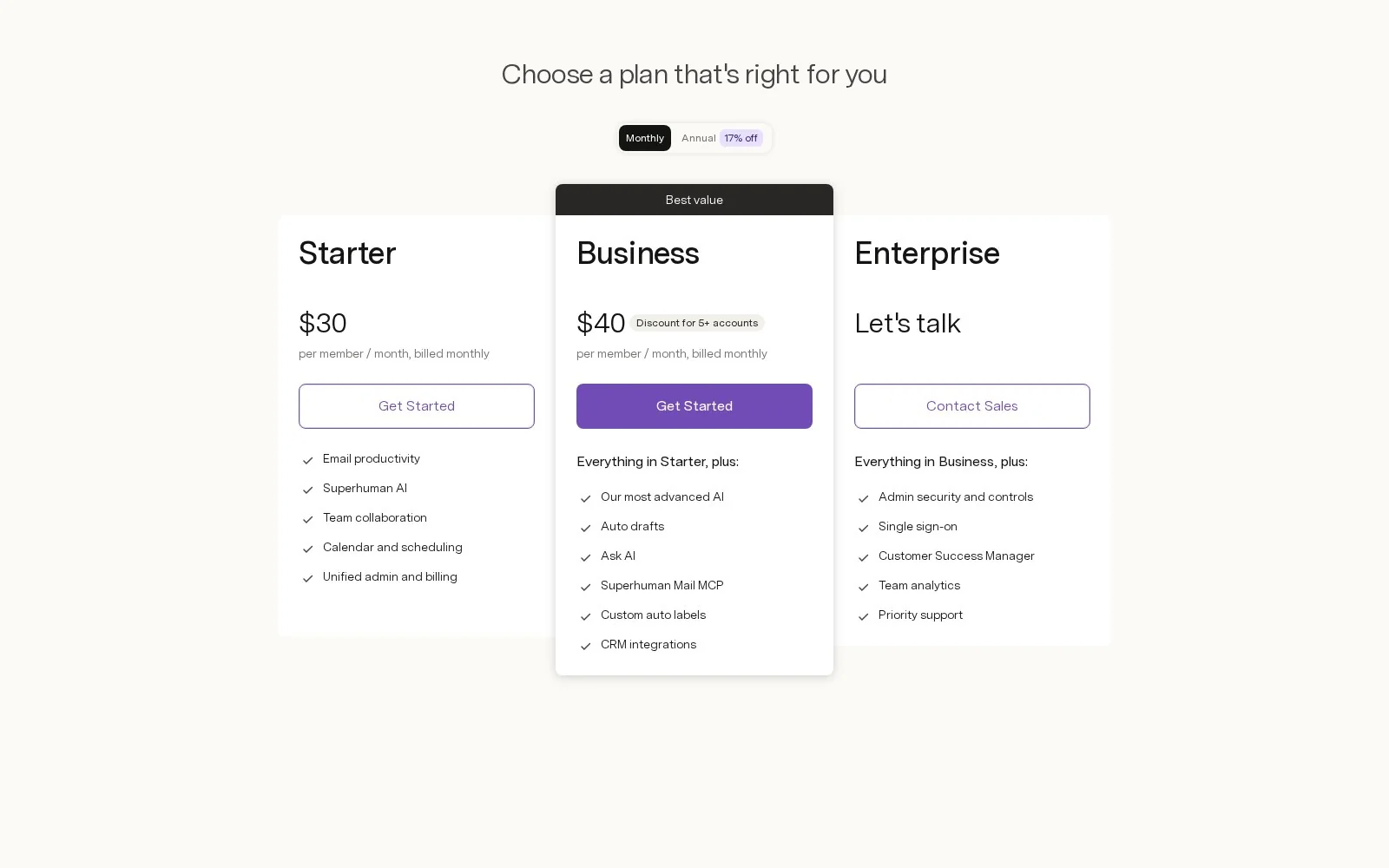
Superhuman offers two self-service tiers:
- Starter: $30/member/month
- Business: $40/member/month
In addition, you can also contact their sales team for Enterprise plans to get admin security features, single sign-on (SSO), and a dedicated Customer Success Manager.
Superhuman Mail ratings and reviews
- G2: 4.7 / 5 rating (from 1302 ratings)
- Product Hunt: 4.8 / 5 (from 89 ratings)
3. Gumloop
- Best for: professionals who want an AI agent to manage email and all their work in other tools
- Pricing: 14-day free Pro trial, then $37/mo plus pay-as-you-go usage; custom Enterprise plans
- What I like: total model flexibility, integration with other tools, and collaborative skills
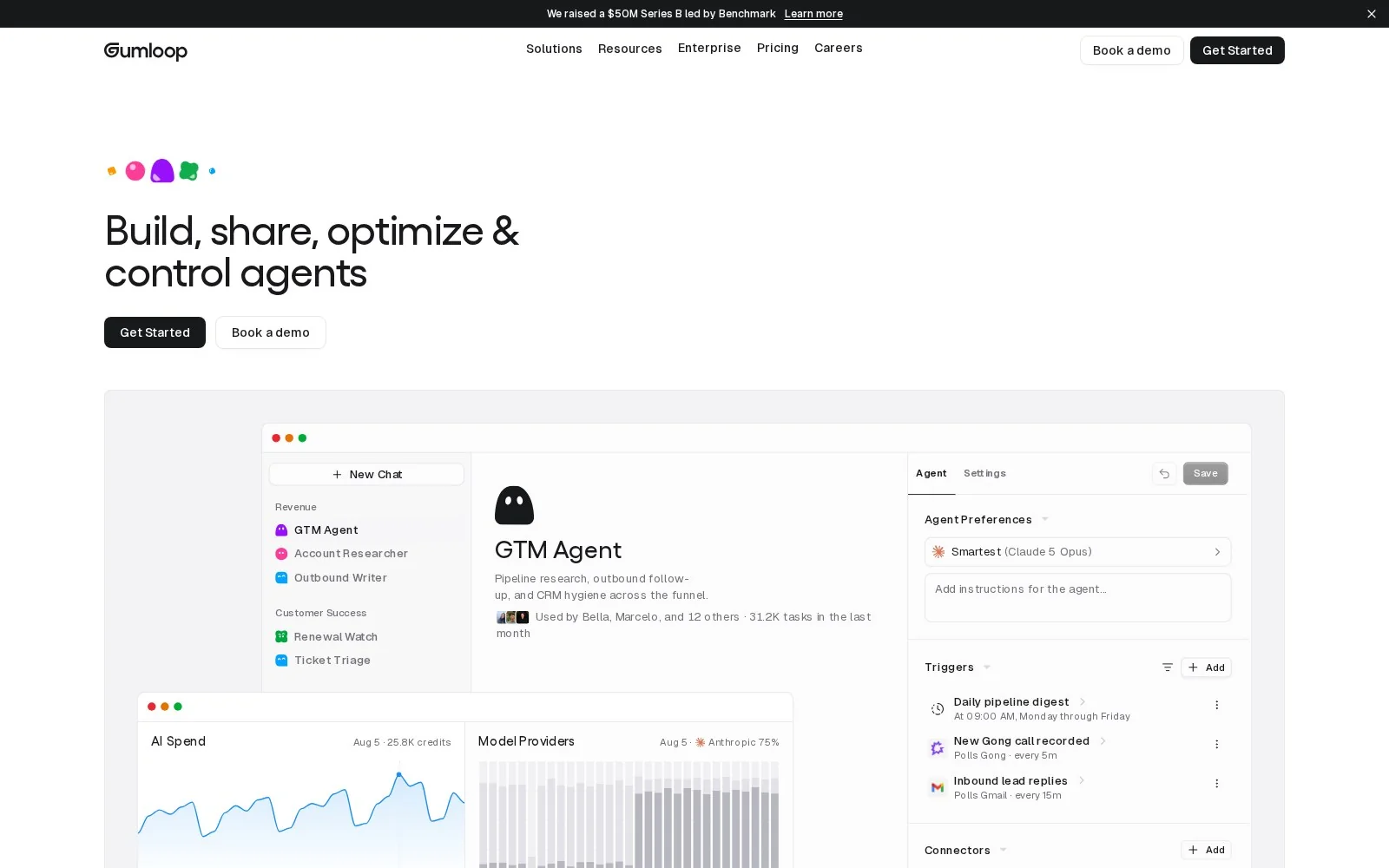
Okay, we’re obviously biased here. Gumloop is more of an enterprise AI layer than a dedicated inbox management tool: you can build AI agents that run on schedules or triggers, across 250+ connected apps, based on your plain-language descriptions of the work you want the agent to do.
However, Gumloop also comes with a personal AI agent called Gumball, and Gumball handles email right out of the box. Gumball’s Smart Inbox labels new mail as it arrives in Gmail or Outlook, triages and declutters your inbox, and drafts replies for you in your tone of voice. It does this through native labels and drafts inside the mail app you already use, so there's no additional client to install on your phone or second inbox to check.
Gumball also integrates other productivity features beyond pure inbox management. Gumball’s Meeting Prep feature automatically checks your calendar and sends you a thorough brief of all the relevant context before a meeting. By pulling from your email, Slack, CRM activity, and past meeting notes, Gumball can tell you who’s attending, what you’ve discussed with them previously, what’s on the agenda, and what topics you might want to raise.
Daily Chew is a short daily report of what’s going on across all your connected apps, automatically delivered to your inbox or as a Slack DM, on your schedule. Every day, Gumball will surface the specific situations that most need your attention (e.g. an upcoming deadline; a customer waiting on a reply; a Slack thread in which you were tagged, etc.). For each item, Gumball also suggests a plan of action with concrete first steps. If Gumball's plan sounds good to you, all you have to do is click to approve, and Gumball will take action.
You can talk to Gumball in the Gumloop web app, by DMing the Gumloop app in Slack, or by emailing gumball@gumloopagents.com like you'd email a coworker. The more you use Gumball, the more it learns about how you work and how it can help you. Smart Inbox currently works only with Gmail and Outlook, and watches a single inbox.
Gumloop pros and cons
If you want an AI agent to handle work in your email inbox and related work across your entire tech stack, Gumloop has the most extensive set of tools and capabilities. Even at $37/month, it does more than some of the more expensive email-only tools on this list. If your organization needs both technical and non-technical people building and sharing agents, with VPC, SSO, and org-wide AI governance, Gumloop will solve multiple problems with a single tool.
If all you really want is a faster, nicer inbox management tool, though, Gumloop might have more features than you really need.
Where Gumloop shines:
- Unparalleled model flexibility: Gumloop allows users to swap freely between 35+ models, whenever you want, without ever being locked to one provider. Select proprietary models from frontier labs like Anthropic, OpenAI, and xAI, or choose lower cost open models like Kimi and GLM. You can even bring your own API keys, and on Enterprise plans you can route through a custom AI proxy. No other tool on this list comes close to offering this level of model control. You can even chat with Gumball using one model, while having Smart Inbox and Daily Chew set to totally different models.
- Your email agent inherits your teammate’s skills: Gumball can use every skill you have access to, including skills your teammates built for your teams. So when someone on your team teaches an agent how your company handles renewals or writes a QBR, your inbox agent can act in the exact same way.
- One subscription instead of several: If your plan was to buy an email tool and a tool for work automation, Gumloop does both in a single bill. For $37/month, Gumloop includes automatic meeting briefs, daily reports, inbox management, unlimited seats, access to over 35 models, and a hosted MCP server. (For comparison, Town charges $59/month before you get automated meeting briefings, and Superhuman Mail charges $40/month for only email features.)
What could be improved:
- Price is higher than some dedicated email agents: Since Gumloop is more than just an AI email agent, the cost of a Gumloop subscription is more expensive than some of the email-only options on this list like SaneBox or MailMaestro. If you’re looking to build custom agents for non-email uses as well, that might not be an issue, but if only looking for an email agent, you might not get the full value out of your subscription cost.
- Smart Inbox only supports Gmail and Outlook: Gumloop’s built-in Smart Inbox features only work natively with Gmail and Outlook accounts for now. You can connect other email providers to your agents, but this will require additional setup and won’t work with Smart Inbox out of the box (pun not intended).
- Gumloop is an entire enterprise AI layer, not a faster inbox: Gumloop works in your inbox rather than replacing it. If you’re interested in a client that transforms the inbox experience with shortcuts and a unique user interface, Gumloop doesn’t offer that in the same way that a Superhuman or a Shortwave does.
Gumloop pricing
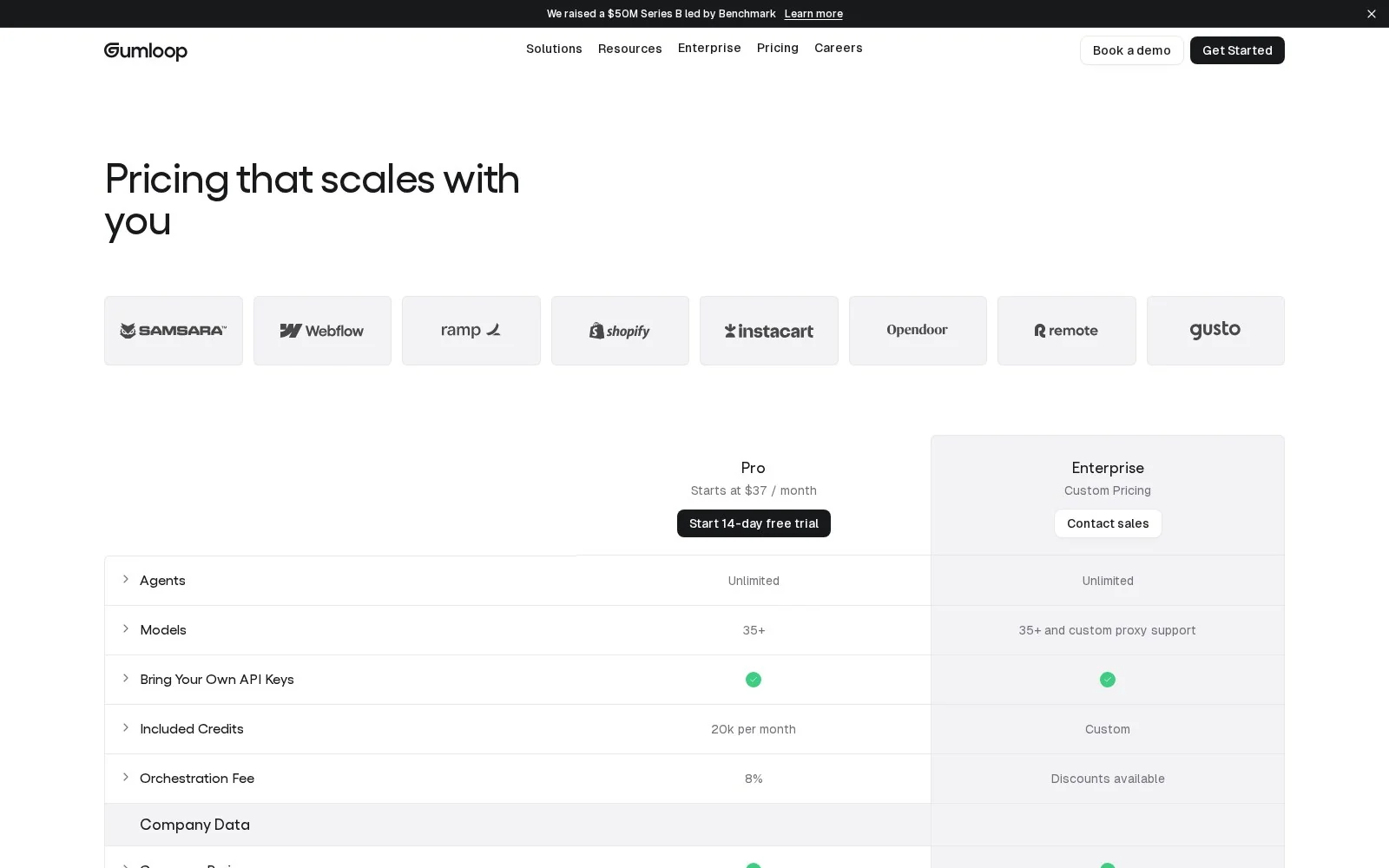
Gumloop currently has a self-serve plan, Pro, and a sales-assisted plan, Enterprise. New accounts get a 14-day Pro trial.
- Pro: starts at $37/month, 20,000 credits included per month with pay-as-you-go usage pricing after that. Includes unlimited seats/teams/agents, 35+ models, BYOK support, 1 hosted MCP server, and agent-scoped connector policies.
- Enterprise: custom pricing. Adds SSO/SCIM, RBAC, audit logs, org-wide policies, incognito mode/ZDR, custom/proxy models, and optional VPC support.
1 Gumloop credit equals $0.005. The cost of an agent run is the cost of the tokens from the model, plus the cost of any tool calls, plus the cost of compute, with an 8% orchestration fee.
Gumloop ratings and reviews
4. Fyxer
- Best for: Gmail/Outlook users who want an AI email agent and meeting notes
- Pricing: Starter plan $30/member/month; Professional plan $50/member/month; contact sales for Enterprise pricing; free 7-day trial available
- What I like: nothing new to install, works on whatever mobile mail app you’re already using
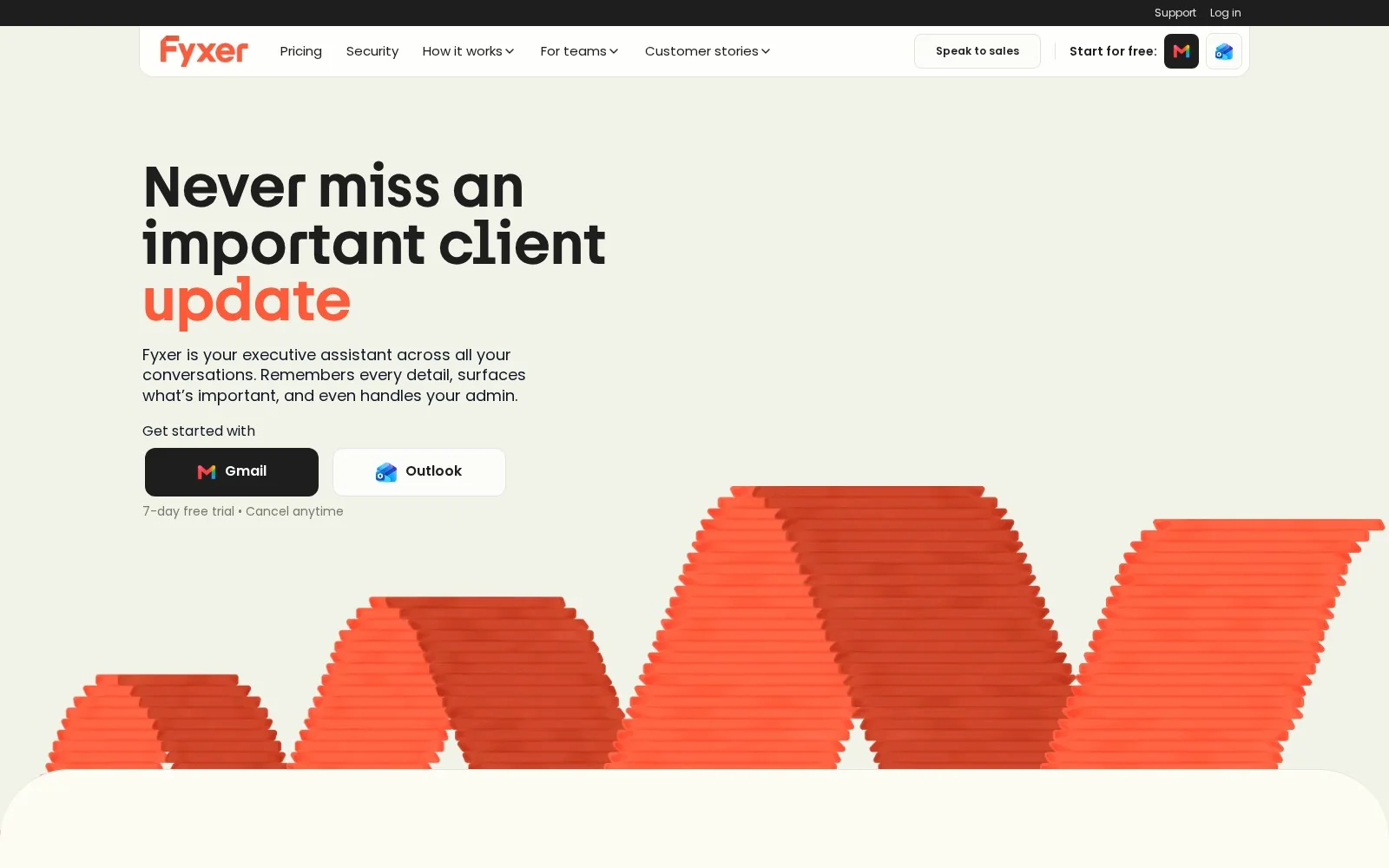
Fyxer is a UK-based company that markets their product as an AI-powered executive assistant. They even claim that their models are specifically trained on “16 million data points from real EA tasks” and “500k hours of EA best practices.” Whether you believe their self-provided marketing numbers or not, the product design does reflect this framing.
For Fyxer’s inbox management features, they have Inbox Organizer, which automatically categorizes and prioritizes your incoming emails and summarizes long threads. It also drafts replies and automated follow-up emails in your tone of voice, and integrates with your calendar to automatically suggest meeting times based on your availability.
Compared to the other options on this list, Fyxer’s most distinguishing feature is that it comes with a built-in AI notetaker for Google Meet, Zoom, Microsoft Teams, and in-person meetings. The Meeting Companion joins your calls, takes notes, and feeds the relevant context into the emails it drafts later.
There isn’t a separate Fyxer client: to use Fyxer, you connect your Gmail or Outlook account on the web, and then Fyxer operates directly inside your inbox. Whatever mail app you’re already using on web, desktop, or mobile to access your Gmail/Outlook inbox, Fyxer will show up and start working.
Fyxer pros and cons
If you’re on Gmail or Outlook and want a single solution for both email and meetings, Fyxer is worth checking out.
However, if you’re on a non-Gmail/Outlook provider like Apple Mail or ProtonMail, or you want broader agentic features that integrate with your entire tech stack, Fyxer isn’t going to be the right solution.
Where Fyxer shines:
- Email management and meeting notes in a single product: There are a lot of products out there that do either inbox management or meeting notes, but Fyxer does both. If you specifically want a tool that does both of these things, a Fyxer subscription is generally going to be cheaper than buying two separate subscriptions to different products. And since it’s all one product, your drafted emails will automatically reflect what was said on your calls.
- Easy setup that works wherever you already read your email: Fyxer writes into your real inbox as native drafts and labels, so it works on your phone, your desktop client, and webmail without needing a separate app. No new client to learn, apps to download, or forwarding to set up.
- Scheduling features are built in: Fyxer drafts with smart scheduling links and availability suggestions, and it generates pre-meeting briefs.
What could be improved:
- Gmail- and Outlook-only: If you’re not in Google Workspace or Microsoft 365, Fyxer isn’t an option at all.
- No model choice or transparency: Fyxer doesn’t publicly state which models it uses to power its AI features. So you won’t know which models you’re using (and forget being able to choose which models you want to use when and for which tasks).
- HubSpot is the only CRM integration: Strangely, Fyxer only supports HubSpot as a native CRM integration. No Salesforce, Pipedrive, or Attio. You could use the Fyxer MCP to set up an integration yourself using an AI platform like ChatGPT, Codex, or Claude as a medium. But at that point, you might as well look into a dedicated AI agent-building platform instead.
Fyxer pricing
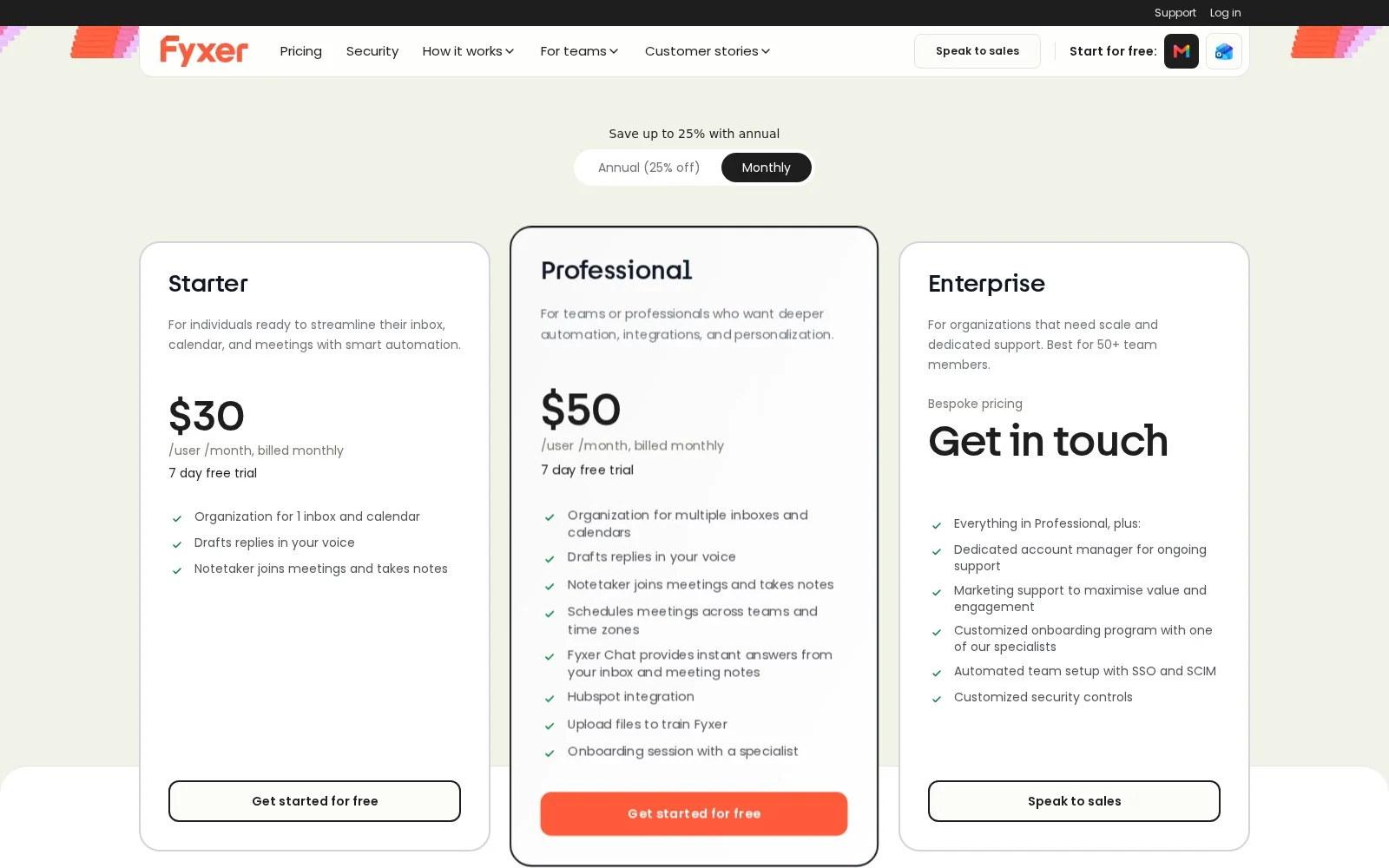
Fyxer offers two self-service tiers:
- Starter: $30/member/month
- Professional: $50/member/month
You can also reach out to their sales team for Enterprise plans to get features like SSO/SCIM and customized onboarding.
Fyxer ratings and reviews
- G2: 4.1 / 5 rating (from 20 ratings)
5. Town
- Best for: a modern agentic assistant with 50+ tool integrations
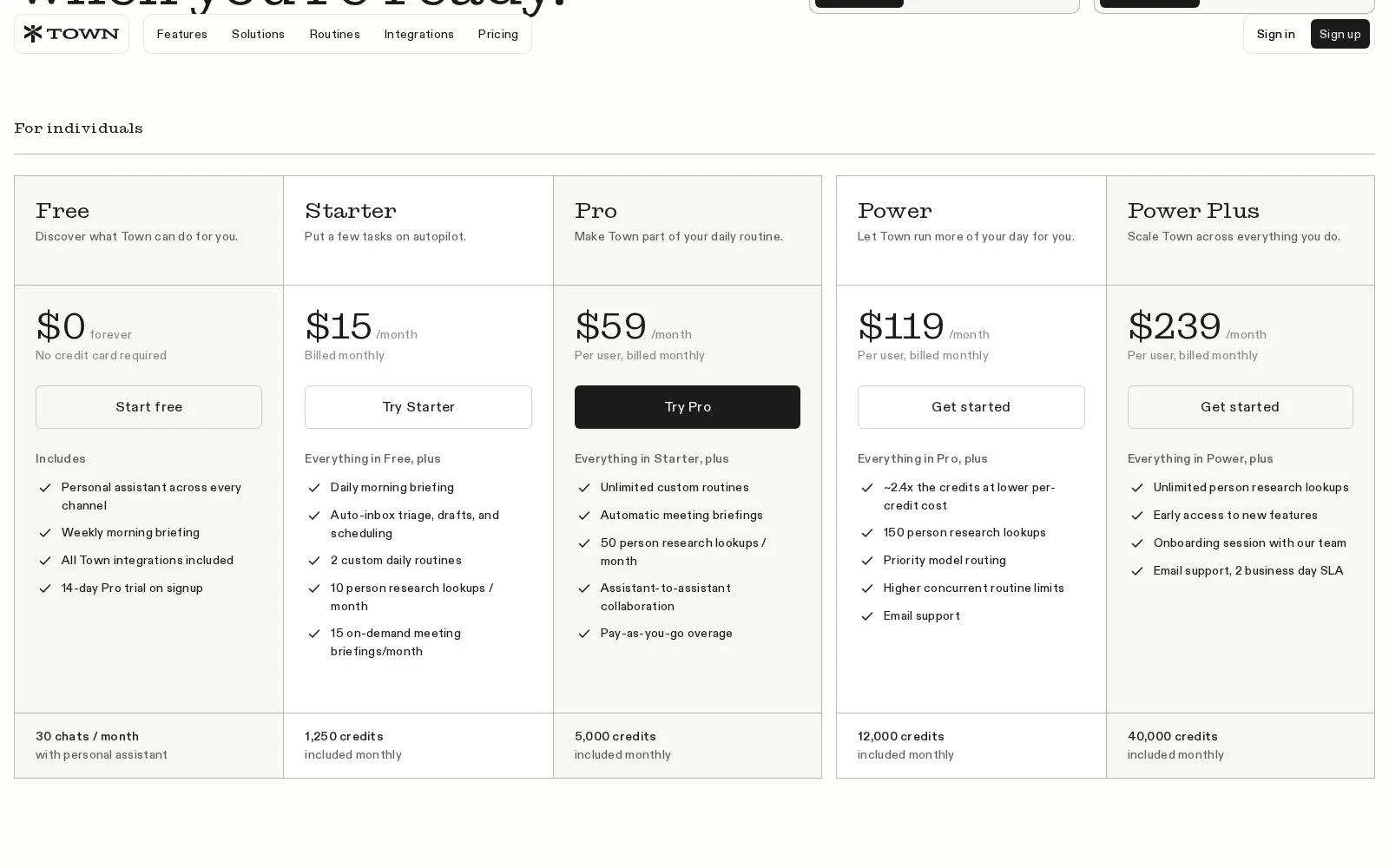
- Pricing: Individual plans for free, $15/user/month, $59/user/month, $119/user/month, or $239/user/month; Team plans for $71/user/month, $179/user/month; pay-as-you-go for additional credits beyond a plan’s monthly allotment. Free 14-day trial of Pro available.
- What I like: Routines, built-in texting, WhatsApp, and Telegram capabilities
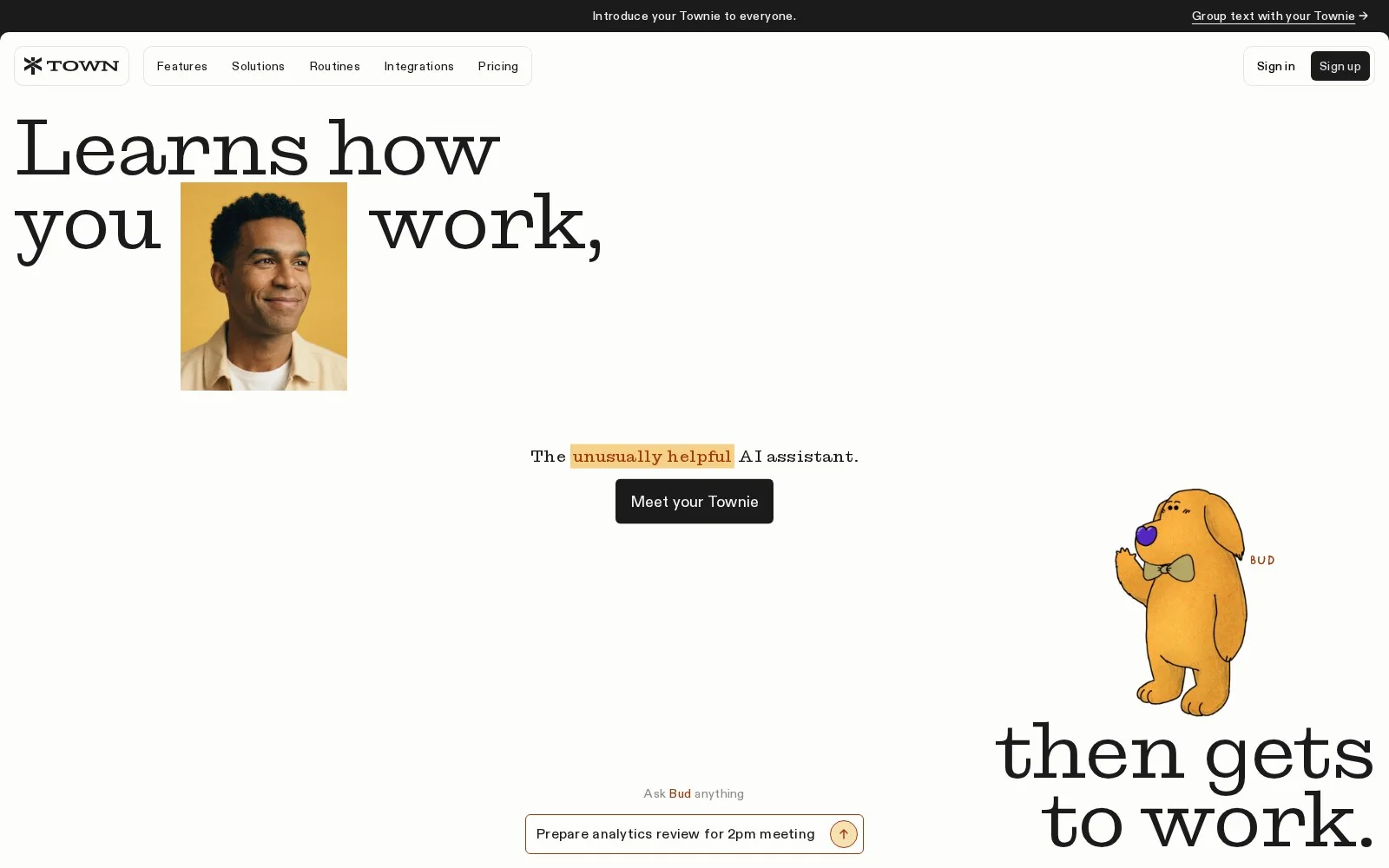
Town is the newest tool on this list, having launched in June 2026. The idea is that you get your personalized and named AI assistant (called a “Townie”). To extend the assistant metaphor even further, Town assumes that you’ll message your Townie the way you would a coworker. You can reach your Townie in the Town Desktop or iOS app, but you can also send it an email (at its own dedicated @town.com email address), message it on Slack, WhatsApp, or Telegram, or even send it a text message. This is pretty different from most of the other tools on this list, which assume you’re working inside an inbox.
Town aims to make the learning curve for getting started as gentle as possible. When you first sign up, your Townie reads your email, calendar, and documents to build a “wiki” on you: how you work, your most important clients, and what you sound like in communications.
Townies also have Routines, triggered or scheduled workflows that automate repetitive tasks. You can start from Town’s library of pre-made Routines, like “Morning Briefing,” “Schedule Optimizer,” or “Auto-Inbox,” or describe your own Routine in plain language (“Every Wednesday, give me suggestions for people I should catch up with who I haven’t spoken to in a while.”)
Town supports Gmail and Google Workspace, or Outlook Mail and Calendar, and offers over 50 integrations with various CRM, project management, and analytics tools. Different pricing plans give you different credit allocations per tier. At Pro and above, pay-as-you-go overage pricing kicks in when you exceed your monthly cap.
Town pros and cons
If you want an assistant that does more than just inbox management, Town really puts the “agent” in AI email agent. Pre-meeting briefings, overnight task triage, recurring weekly workflows: Your Townie acts autonomously to help you with all of it.
However, the most powerful agentic features only start being available at the $59/month Pro tier, which is much pricier than even Superhuman’s most expensive self-serve plan ($40/month). If you are primarily interested in inbox management, you might be able to get a better deal elsewhere.
Where Town shines:
- Meets you where you prefer to work: To use Town, you don’t need to learn a new client (like with Shortwave or Superhuman) or install an extension to an existing inbox (like SaneBox or MailMaestro). You can just chat with your Townie through any of your preferred channels between email, Slack, WhatsApp, Telegram, and SMS.
- Routines bring Town beyond just inbox management: The library of prebuilt Routines makes Townies useful out of the box, and creating a new Routine is as simple as describing what you want to do. Routines allow you to do a wider array of possible tasks across different tools in your stack.
- Friendly, unique branding: A lot of AI tools lean into a sleek, minimal dark mode aesthetic. Frankly, I’m over it. (If I have to see one more dark blue/purple gradient…). Town’s charming storybook-inspired, hand-drawn aesthetic makes it stand out from the competition, and feel fun and exciting to use.
What could be improved:
- It’s too new to have an extensive track record: If you like being the first person you know to try out new tools, this might be a bonus for you. But if you want to read reviews about how users are feeling about Town six months into adoption, it’s physically impossible to know this information right now (and that’ll remain the case for quite some time).
- Sneakily one of the most expensive tools on this list: The $15/month Starter plan caps you at two custom routines, 10 person-research lookups, and 15 on-demand meeting briefings per month. It also doesn't support overage pricing, so once you run out, you’re done until the next month. Unlimited routines, automatic meeting briefings, and assistant-to-assistant collaboration all require the $59/month Pro plan. That $59/month could go up even further depending on your usage. This is on top of whatever you’re paying monthly for the other tools you’re integrating with Town. For example, if you want a solution for inbox management and meeting notes, you could pay for Town ($59/month) and Granola ($14/month). Or you could pay for Fyxer, which does both, starting at $30/month.
- No model flexibility or transparency: Town does not publicly disclose which models they use. (In an Inc article, they stated that they use “a blend of frontier and open-source AI models,” but declined to provide more specific details.) If you want to use particular models for price or performance reasons (or even just know which models you’re using), you’re out of luck.
Town pricing
Town offers both Individual and Team plans, both with multiple tiers.
Town offers five tiers of Individual plans, with increasing monthly credit allocations and access to more powerful automation features as the plans increase in price.
- Free: $0/month. Get a 14-day trial of Pro on signup.
- Starter: $15/month
- Pro: $59/month
- Power: $119/month
- Power Plus: $239/month
Team plans offer more shared, workspace-based features for collaborative use cases within organizations (like shared Routines), as well as a shared credit pool, org-wide analytics, and admin controls.
- Team: $71/seat/month
- Team Plus: $179/seat/month
You can also reach out to Town’s sales team for Enterprise plans with custom volume rates for large teams.
Town ratings and reviews
Town is relatively young (having only launched in June 2026) so it doesn’t have aggregated ratings yet on sites like G2, Product Hunt, or Capterra.
6. SaneBox
- Best for: filtering the noise out of any inbox, from any email provider
- Pricing: Snack $9.49/month; Lunch $15.99/month; Dinner $42.99/month; contact sales for Business plans. Free 7-day trial.
- What I like: simple and works everywhere
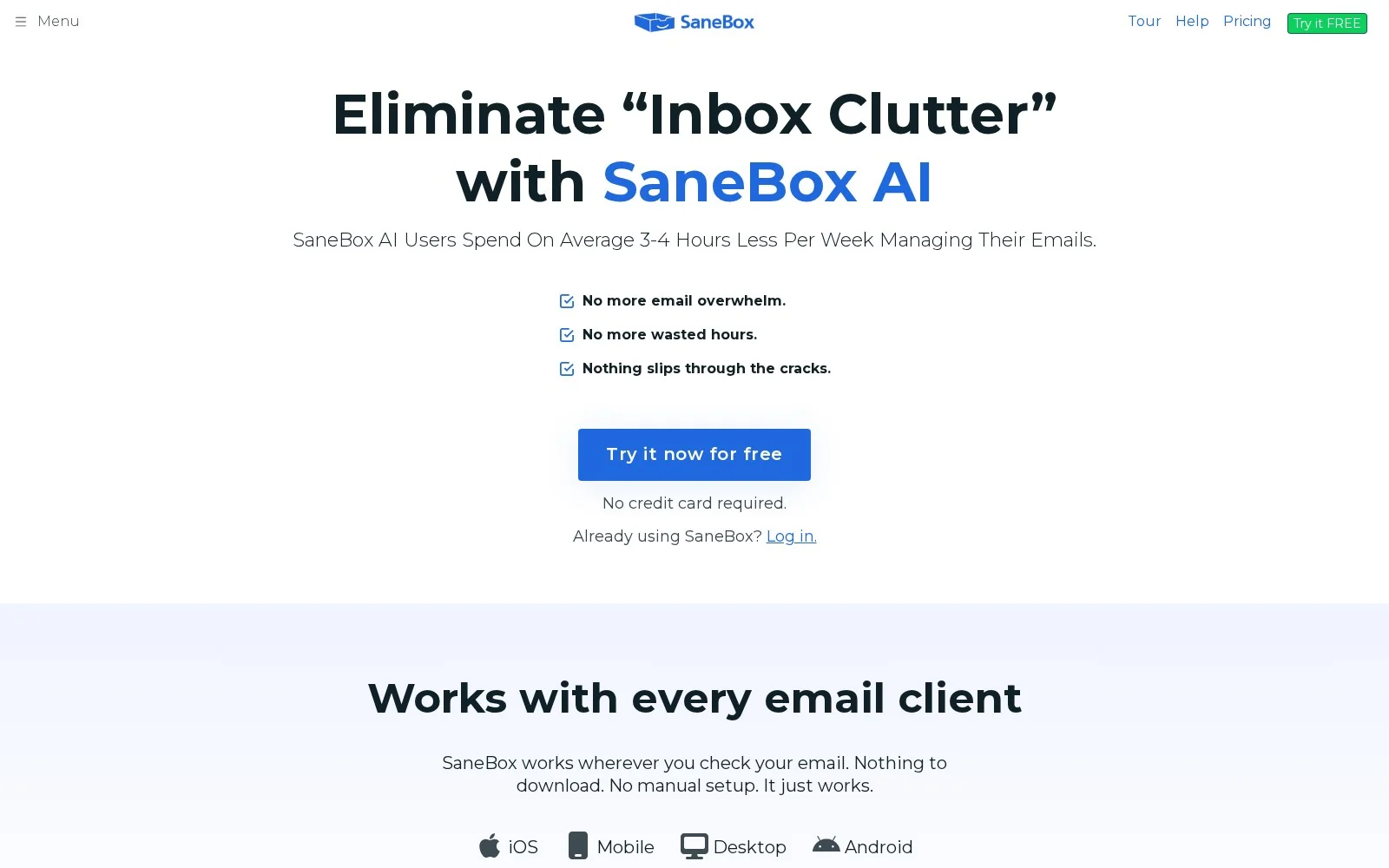
SaneBox has been around since 2010 and is by far the oldest tool on this list. It wasn’t built as an AI-first email agent, because, well, that concept didn’t exist at the time. Instead, it was designed to do one thing very well: triage your emails into “important” and “not important,” and get out of your way.
SaneBox analyzes your incoming mail, and routes unimportant emails into a “SaneLater” folder, leaving you with a more streamlined inbox of only the emails that actually need to be read. To train SaneBox on what is or isn’t important to you, you move emails back and forth between your main inbox and the SaneLater folder.
As part of your SaneBox plan, you can purchase a certain number of features (called “Power Tools”) based on your tier. Features include SaneBlackHole (a more aggressive form of unsubscribing that means you’ll never hear from a sender again), SaneNoReplies (get alerted when someone hasn’t responded to your emails), SaneScreener (screen unfamiliar senders), Custom Snooze (defer emails for later), and more. You don’t have to commit to the specific features you want in advance: you can toggle features on and off whenever you want as long as you don’t exceed your plan limit.
Compared to the other options on this list, SaneBox has one major advantage: it works with every email client and every provider, because it adds a folder to your existing email setup. It works with providers like Gmail and Outlook, but also with Apple Mail, Fastmail, Yahoo, Proton, and generic IMAP. No new interface to learn or apps to download; you can use it on desktop or mobile, PC or Mac. (Though there is a native iOS app if you want it.)
SaneBox pros and cons
If you’re fine with your current email setup and your main priority is filtering out spam, SaneBox is much cheaper than the AI-first clients on this list, and doesn’t require that you migrate anything or change your workflow.
However, if you want a more proactive AI agent that drafts replies in your tone of voice, takes meeting notes, or acts on your behalf, SaneBox won’t do any of that for you. It’s more of a single-purpose tool than an AI assistant.
Where SaneBox shines:
- Works with every email client and provider: SaneBox is truly provider-agnostic in a way that the other tools on this list aren’t. If you use an email provider like Proton, iCloud, or your own self-hosted domain, SaneBox will just work, with no setup.
- Privacy-conscious architecture: SaneBox only reads email metadata (sender, subject line, and date) and does not store email body text or attachments. For an AI-powered email tool, SaneBox’s exposure surface is quite small.
- Relatively cheap compared to other options: If you opt to pay biyearly, you can get on the entry plan at $4.54/month, and even if you choose to pay for the most expensive plan monthly, it’s only $42.99/month. If SaneBox meets your needs, it’s absolutely cheaper than options like Superhuman Mail.
What could be improved:
- No collaboration features: SaneBox Business, their enterprise-oriented offering, includes additional security features and company-wide admin controls. However, it doesn’t include any native features oriented around team collaboration, like Superhuman Mail’s Shared Conversations or Gumloop’s Team Skills.
- AI features limited to classification: If you want generative AI-based features like automatically generated draft replies, high-level summaries, or semantic search, SaneBox doesn’t have them.
- SaneBox’s features might not be better than your provider’s native features: If you use a client like Gmail or Outlook, a lot of the additional features offered by SaneBox might not seem that revolutionary. For example, Gmail and Outlook already have tools like snoozing and follow-up reminders built in.
SaneBox pricing
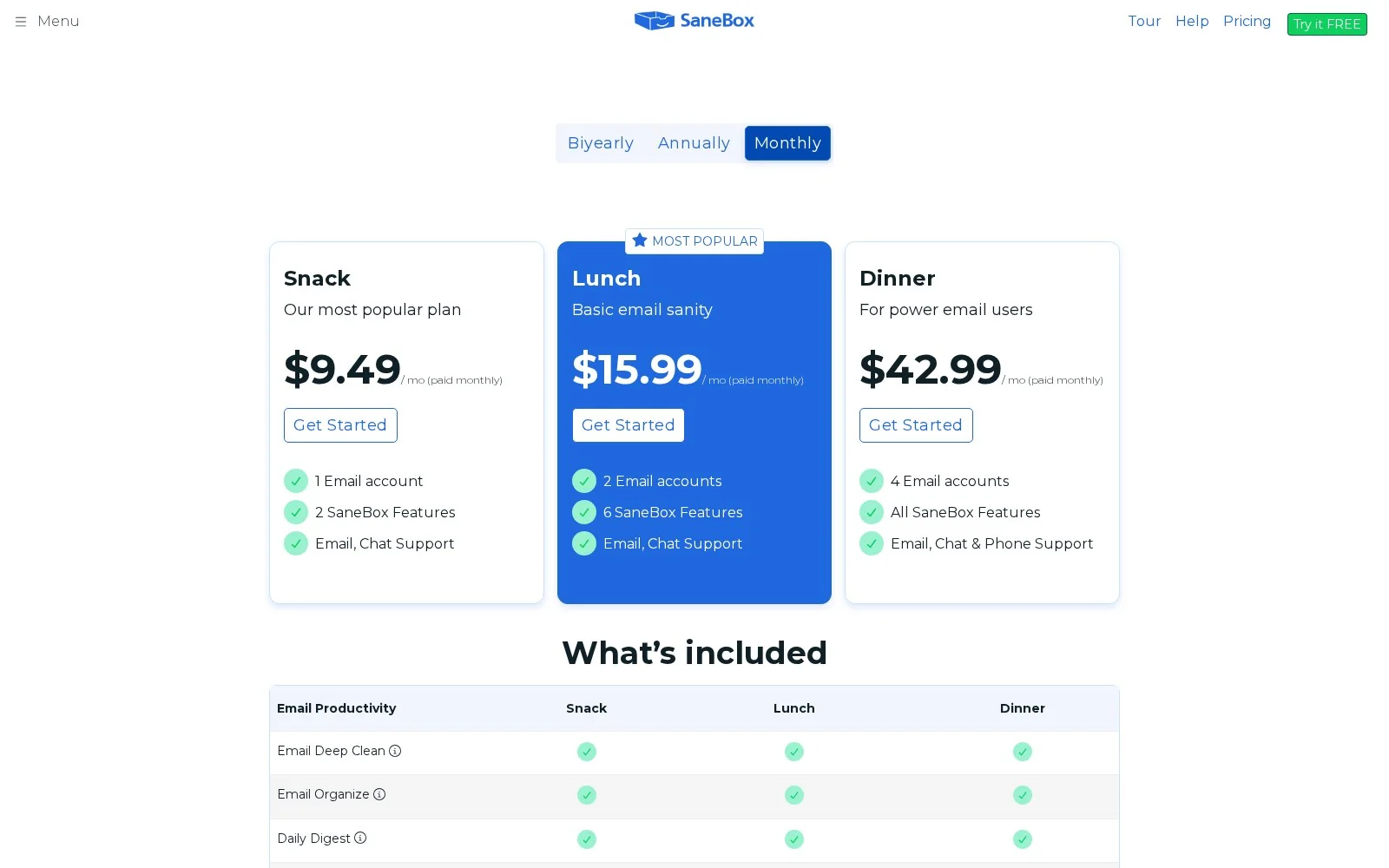
SaneBox has three self-serve tiers. (For the sake of making the pricing comparable to the other options on the list, I’ll list the prices as paid on a monthly plan, but know that you can get a significantly cheaper monthly price if you pay annually or biyearly.)
- Snack: $9.49/month; comes with 2 Power Tool features
- Lunch: $15.99/month; comes with 6 Power Tool features
- Dinner: $42.99/month; comes with all features
First-time users get a free 7-day trial. There’s also a separate SaneBox for Business offering for teams; contact sales if you’re interested.
SaneBox ratings and reviews
- G2: 4.8 / 5 rating (from 242 ratings)
- iOS App Store: 4.6 / 5 rating (from 646 ratings)
- Capterra: 4.8 / 5 (from 71 ratings)
7. MailMaestro
- Best for: Microsoft 365 users wanting an Outlook-first tool
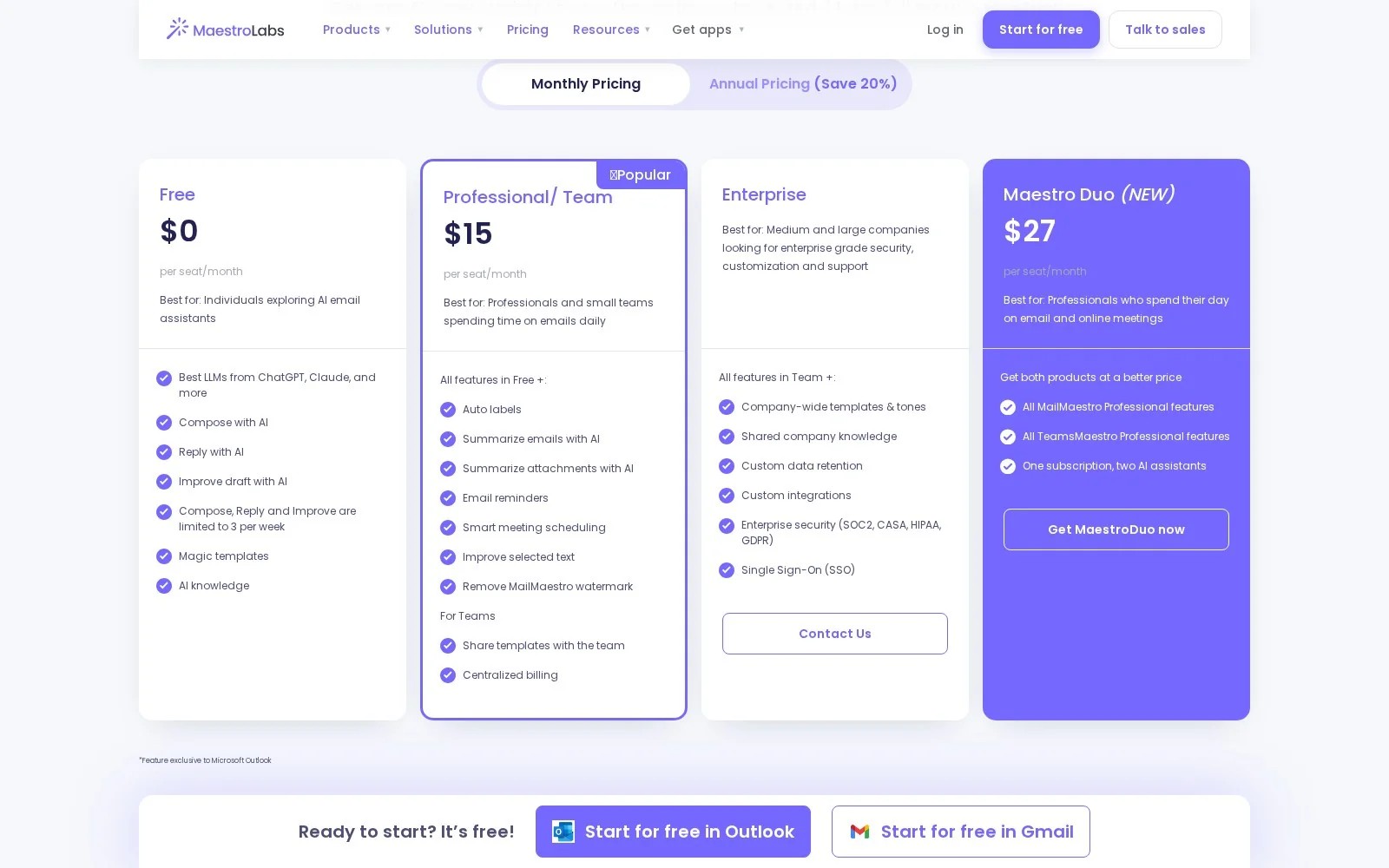
- Pricing: Free plan; Professional/Team $15/seat/month; Maestro Duo bundle $27/seat/month; contact sales for Enterprise plan
- What I like: ease of use and reasonably priced team features
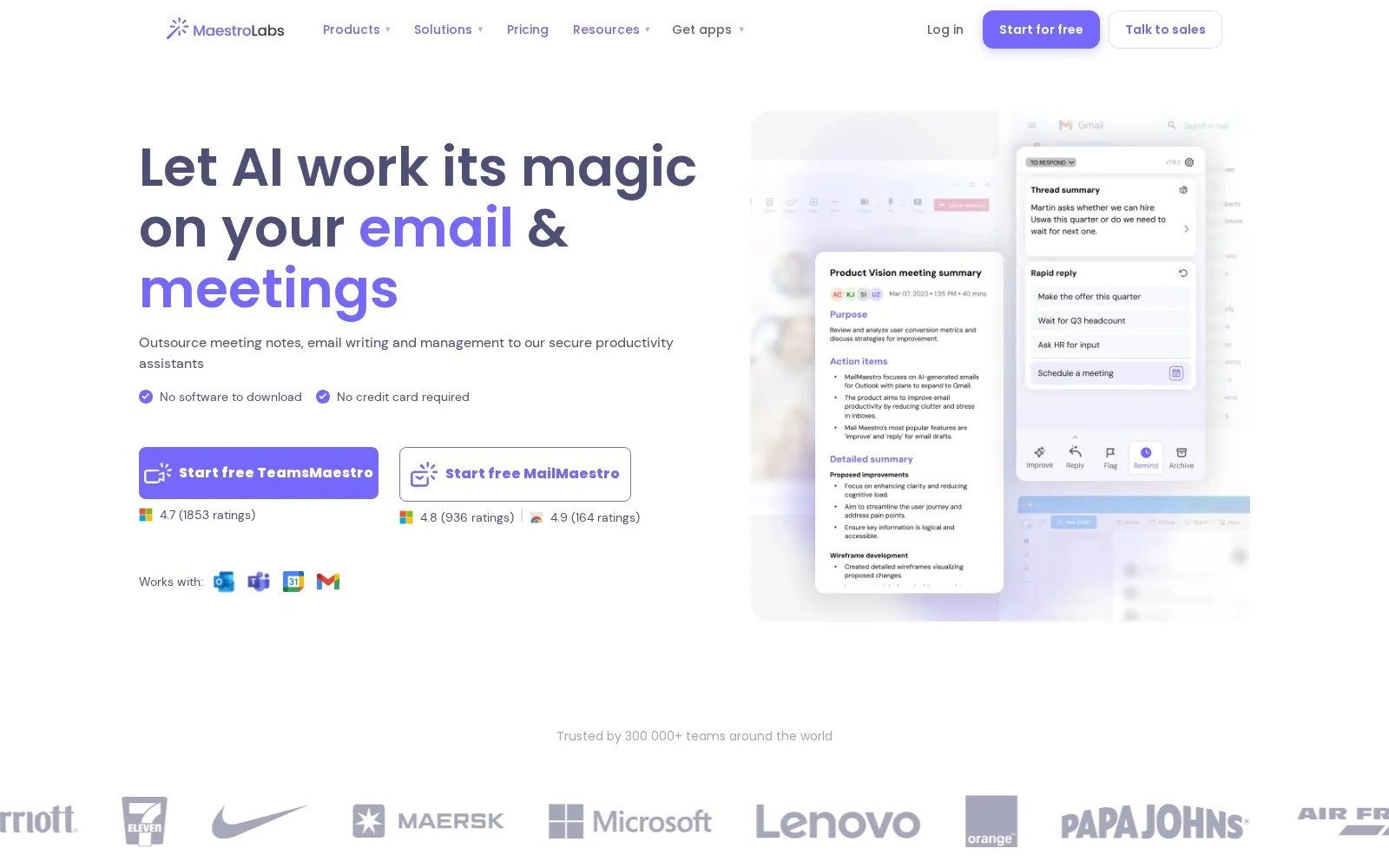
Maestro Labs, MailMaestro’s parent company, specializes in AI-powered add-ons for Microsoft 365. They make MailMaestro (for Outlook Mail or Gmail), CalMaestro (for Outlook Calendar), TeamsMaestro (note-taking for Microsoft Teams), and WordMaestro (for Microsoft Word). Rather than being a standalone client, MailMaestro is a plugin that lives inside of your inbox, and you don’t have to learn a new UI in order to get started.
MailMaestro’s headline feature is its auto-drafting. On all plans (even the free tier!) you can use AI to compose emails from scratch, generate replies, or improve existing drafts. You can also set an “AI personality” to ensure that MailMaestro sounds like you and understands your context. With paid plans, you get additional AI-powered features like auto-labeling, email and attachment summaries, meeting scheduling, and shared email templates for your whole team.
As noted earlier, even though MailMaestro is a Microsoft 365-first product, it does actually support Gmail in addition to Outlook. Outlook support is distributed through the Microsoft Marketplace for Outlook, and Gmail support exists as a Chrome extension from the Chrome Web Store.
MailMaestro pros and cons
If you or your team lives in Outlook and you’re mainly interested in drafting and summarizing emails, MailMaestro is worth checking out as a relatively cheap, straightforward, and low-commitment option. No harm in checking out their free trial.
On the other hand, if you’re interested in an agent that can act autonomously in your inbox while you’re away, MailMaestro doesn’t offer as many agentic features as some of the other options on this list.
Where MailMaestro shines:
- No new client or UI to learn: You don’t need to migrate anything, or set up a new app. MailMaestro installs directly into the inbox that you’re already using. This can make it an easier sell for teams who aren’t interested in learning how to use an entirely new tool.
- A long-lasting free tier for exploration: The 14-day, no credit card-required free trial includes access to all the paid tier features. Once the trial expires, you drop to a free-forever plan with 3 AI requests per week. Sure, that’s not a lot, but it also means you can keep MailMaestro installed indefinitely at zero cost and use it occasionally. (Most of these other tools give you nothing once the trial expires.)
- A cheaper option for Outlook-using teams: The $15/seat/month price applies for both individuals and teams. Team plans include helpful admin features like centralized billing and shared templates, without an additional fee. Other options on this list, like Town, charge extra for team-based features.
What could be improved:
- Gmail is usable, but a second-class experience: While MailMaestro does currently have feature parity between Outlook and Gmail, that hasn’t always been the case. Their AI Priority Inbox and Email Reminders features were Outlook-only for quite some time. It’s possible that, should MailMaestro ship more new features, those might be Outlook-only at first.
- Lack of model transparency: Their Microsoft Marketplace page states that MailMaestro uses “the most advanced language models available from OpenAI, Anthropic Claude, Google Gemini, and many more,” and their pricing page says something similarly vague. It’s not clear which specific models they use, for what purposes, and whether or not you can switch between them at will.
- More of an assistant than an agent: MailMaestro mainly shows up when you ask it to help with drafting emails. It doesn’t triage your inbox, provide daily digests, or execute multi-step routines across other tools in the same way that Town or Gumloop might.
MailMaestro pricing
MailMaestro has one paid self-service tier. Every new user gets a 14-day, no credit card-required free trial that includes access to all the paid tier features. When the trial expires, the user drops down to the free plan.
- Free: $0/month. Limited to 3 AI requests per week.
- Professional/Team: $15/month.
- MaestroDuo: $27/month. Bundles MailMaestro with TeamsMaestro (Microsoft Teams-based AI note-taking software).
- Enterprise: Custom pricing (contact sales).
You can also get a 20% discount on the Professional/Team and MaestroDuo plans if you pay annually.
MailMaestro ratings and reviews
Which AI email agent should you choose?
To be honest, “AI email agent” is a pretty vague term to describe a bunch of different product types. Are you looking for a dedicated email client with AI features? A plugin that lives in your existing inbox? An AI agent that supports email? Depending on what you want, the answer to “Which AI email agent should I choose?” will be very different.
First and foremost: which email provider do you use? If you use Gmail or Outlook, you have a lot of options (albeit Shortwave is very Gmail-centric, and MailMaestro is very Outlook-centric). But if you’re on Apple Mail, Proton, or your own domain, check out SaneBox.
For a streamlined, dedicated inbox client: Shortwave or Superhuman
Both Shortwave and Superhuman are fully featured AI email agents that require you to learn a new client. If you live in Gmail and want powerful semantic search, try out the Shortwave $18/month Pro tier. If money is no object, you use Outlook, and you have a need for speed, go with Superhuman. (But know that the most powerful AI features are on the $40/month tier.)
For keeping the inbox you already have: MailMaestro or Fyxer
Both add AI features to your current inbox without asking you to learn a new interface. MailMaestro is a cheaper, simpler option at $15/month, especially if your team works in the Microsoft ecosystem. Fyxer pairs inbox management with a meeting notetaker, for a higher price starting at $30/month.
For an assistant that works outside your inbox, too: Town or Gumloop
If you want a friendly, proactive AI assistant that can manage your inbox, and that you can message with Telegram, SMS, or WhatsApp, look into Town. Just note that more extensive AI features are gated behind the $59/month Pro tier.
If you want one agent that triages your email, briefs you before your meetings, and then goes and does the actual work across the other 250+ apps your job lives in, look into Gumloop. In addition, if you’re a price-conscious open-weight model connoisseur, want to spin the block on the latest frontier model as soon as it’s out, or are just worried about a particular provider reading your emails, Gumloop is the only tool on this list that gives you the full freedom to choose your own models, whenever you want.

Read related articles
Check out more articles on the Gumloop blog.